Windows 11 Can’t Access Shared Folder: Fixes That Work
If Windows 11 can’t access a shared folder, check it in this order: confirm the share is reachable, then verify credentials, then check SMB-related settings. Looking at the wrong layer wastes time and can leave a working share unavailable for every user. This guide separates discovery, login, and SMB policy faults, then points to the right fix.
Check discovery, sharing, and firewall settings
If the share does not appear at all, or the PC cannot browse the host name, fix discovery before changing credentials. Network Discovery, File and Printer Sharing, and Windows Defender Firewall rules must all line up for browsing to work. If the path still fails, compare name resolution with the IP address to isolate whether the issue is discovery, DNS, or SMB policy.
Exact fix
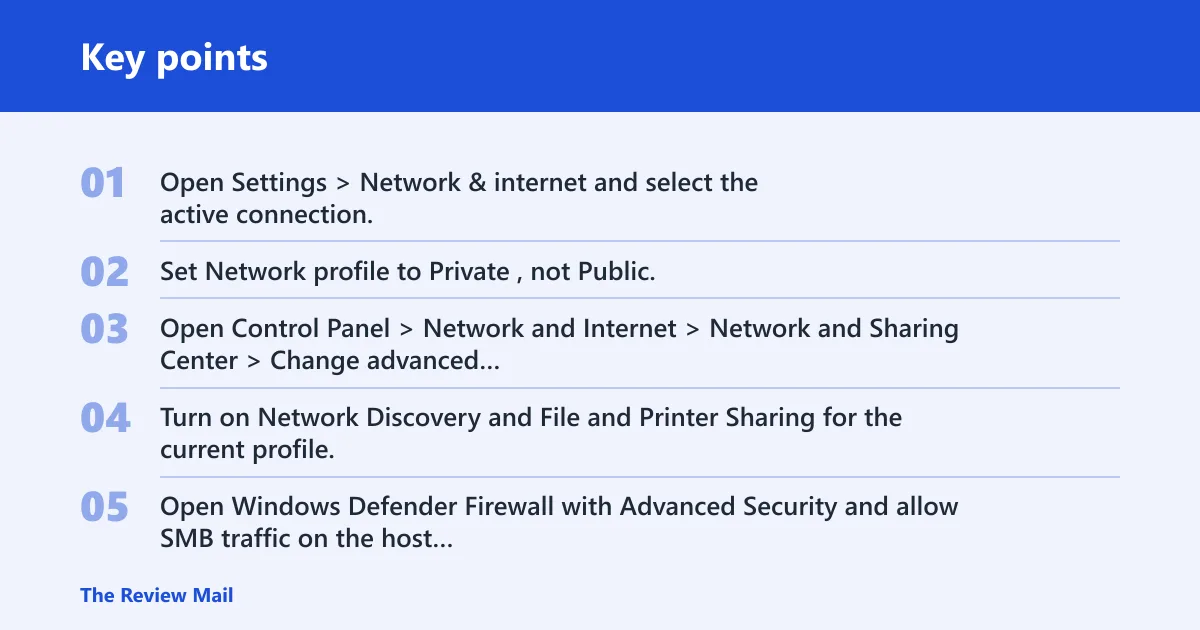
- Open Settings > Network & internet and select the active connection.
- Set Network profile to Private, not Public.
- Open Control Panel > Network and Internet > Network and Sharing Center > Change advanced sharing settings.
- Turn on Network Discovery and File and Printer Sharing for the current profile.
- Open Windows Defender Firewall with Advanced Security and allow SMB traffic on the host PC. Keep TCP 445 open; add UDP 137, UDP 138, and TCP 139 only if the device is an older share that still needs them.
- Test the host by IP address if the name fails, then compare the result with the hostname version.
- If the share opens by IP address but not by name, fix DNS or hostname resolution before changing permissions.
- For step-by-step help, see fixing Network Discovery on Windows and Windows Defender Firewall file sharing rules.
Microsoft documents that Network Discovery and File and Printer Sharing must be enabled, and that firewall rules must allow the relevant traffic for browsing and SMB access to work. If the network is set to Public or the hostname cannot resolve, the share may be present but still impossible to reach.
Why does Windows 11 keep prompting for credentials?
If Windows prompts for a login, then rejects it, or asks again after you enter a different username, clear the old session first. Windows can reuse saved credentials from Credential Manager, and a stale connection can force repeated prompts even when the password is correct. Use one username per server and reconnect cleanly.
Exact fix: open Control Panel Credential Manager
- Open Control Panel > Credential Manager > Windows Credentials.
- Remove saved entries for the target server, NAS name, or IP address.
- Open Command Prompt and run net use to list current connections.
- Run net use * /delete to close stale sessions to that server.
- Reconnect with one account only: net use Z: \\server\share /user:SERVERNAME\username or net use \\server\share /user:SERVERNAME\username.
- If you need a cleaner reconnect workflow, see mapping network drives with net use and Credential Manager cleanup.
Windows can store saved credentials and reuse them for network connections, which can cause repeated prompts if the stored entry no longer matches the account you want to use. If the prompt keeps returning, remove the stored entry and reuse one account per server instead of mixing sessions.
Why do I get error 1219 when connecting to a shared folder?
Error 1219 means Windows already has another connection to the same server under a different username. That conflict can happen after a mapped drive or a direct UNC path. The fix is to clear the existing connection, remove matching saved credentials, then reconnect with only one identity.
Exact fix: open Command Prompt
- Open Command Prompt.
- Run net use to list active connections.
- Run net use * /delete to clear open sessions to the server.
- Remove matching entries in Control Panel > Credential Manager > Windows Credentials.
- Reconnect with one account only using net use \\server\share /user:SERVERNAME\username.
Windows blocks multiple connections to the same server when they use different credentials, which is the classic cause of error 1219. Use only one session identity per server.
Why did a shared folder stop working after a Windows 11 update?
If the share worked before an upgrade and now fails suddenly, compare the client with the server and check whether the target still accepts the same SMB settings. A newer Windows build can expose older server-side compatibility problems, so test the share from another PC if you can, and compare how each device connects.
Exact fix: confirm the target server
- Confirm the target server or NAS still supports the SMB behavior required by the share.
- If the share is a guest share, check the NAS or server settings for guest access and anonymous SMB support.
- Use a named username and password instead of relying on guest fallback.
- If the server is older and only offers weak compatibility, test from a Windows 10 PC to confirm whether the issue is the server policy rather than the share path.
- If the share only works from an older PC, compare the client policy on that machine with the Windows 11 settings.
If the failure started after an update, treat server compatibility, guest access, and client policy as the first things to compare.
Why do public or guest shares fail on Windows 11?
Guest shares are a special case because Windows may refuse them even when the folder is otherwise reachable. The practical fix is to use a named account or change the server to support authenticated access.
Exact fix: check the NAS or server
- Check the NAS or server settings for guest access and anonymous SMB support.
- Use a named username and password instead of relying on guest fallback.
- If the share only works from an older PC, compare the client policy on that machine with the Windows 11 settings.
- If the share is public but still requires a login on Windows 11, verify the server is not depending on guest access.
A common mistake is treating every guest-share failure as a password problem. If the server expects guest access but the client requires authentication, the connection will fail before credentials ever become useful.
Why won’t a Windows 10 or Windows 7 share open from Windows 11?
Older Windows shares can fail because they rely on legacy SMB behavior, older authentication settings, or host naming that newer clients handle differently. If the machine is on Windows 10 or Windows 7, test the same path with a modern UNC path first, then check whether the host still supports the SMB features Windows 11 expects.
Exact fix: open the share
- Open the share with the exact UNC path, such as \\server\share.
- Test the host by IP address if the name fails, then compare the result with the hostname version.
- Confirm the server supports modern SMB and that the account has permission on both the share and the folder.
- If the host is old, validate whether a Windows 10 or Windows 7 system can still reach it with the same credentials.
- If the share depends on old discovery behavior, verify the firewall allows the required SMB and discovery ports.
Interop issues often show up as “it works on one PC but not another.” That pattern usually means the legacy server, the name resolution path, or the SMB policy is different—not that the folder itself is broken.
Why can I see a shared folder but not open the files inside it?
If File Explorer can show the folder while an app cannot open the same files, the account being used is often different. The app may be running under another user context, or it may be reaching the share through a different UNC path than Explorer. Check both the share permission and the NTFS permission on the folder, because either one can deny the open request.
Exact fix: open the share
- Open the share in File Explorer using the exact UNC path, such as \\server\share.
- Open the app and confirm whether it uses the same Windows account that unlocked the folder in Explorer.
- On the host PC, open the folder’s Properties > Security tab and confirm the user or group has the required NTFS rights.
- Open the share properties and confirm the share permission matches the intended access level.
- If the app still fails, connect with net use first, then launch the app again so it inherits the same session.
When the folder is visible but file open is denied, the issue is often NTFS versus share permissions rather than discovery or login. Windows can show the share path while still blocking the file operation at the security layer.
Which SMB settings block access in Windows 11?
The main SMB blockers are signing, guest access, and firewall rules. If any of those settings conflict with the server, the share can appear reachable but still refuse access.
Exact fix: check whether the server
- Check whether the server or NAS supports SMB signing.
- Stop relying on guest SMB access; use authenticated credentials instead.
- Verify Windows Defender Firewall allows SMB traffic.
- Confirm Network Discovery and File and Printer Sharing are enabled for the active profile.
- Use the hostname and IP address to compare DNS behavior with direct SMB reachability.
For the most accurate fix path, compare the client settings with the server’s SMB support and the share’s access method. If the server is modern but the share still fails, focus on firewall rules, credentials, and name resolution instead of the folder contents.
Shared folder troubleshooting matrix
This matrix separates the symptom from the likely cause and the exact fix. Use it as a fast check before changing more settings than necessary.
| Symptom | Likely cause | Exact fix |
|---|---|---|
| Share does not appear in Network | Discovery or firewall block | Set the profile to Private, turn on Network Discovery and File and Printer Sharing, and allow SMB traffic in Windows Defender Firewall. |
| Host name fails, but IP address works | DNS or hostname resolution issue | Fix the name resolution path, then retry the UNC path with the hostname. |
| Folder is visible, but it will not open | SMB or permissions mismatch | Check whether the server supports the SMB behavior in use; then verify share and NTFS permissions on the host. |
| Prompted for credentials every time | Saved credential conflict | Remove the saved entry in Credential Manager and reconnect with one username only. |
| Error 1219 appears after a second login | Multiple connections to the same server | Run net use * /delete, then reconnect with /user: and a single account. |
| Works from Explorer, but an app cannot open the file | App is using a different account or path | Open the same UNC path in Explorer, then check the app account and folder permissions. |
| Sudden failure after Windows 11 upgrade | Server compatibility or policy changed | Confirm the target server or NAS still supports the connection method; update or change the server settings if it does not. |
| Public or guest share fails on Windows 11 | Guest SMB access not supported | Use a named username and password, or change the NAS to allow authenticated SMB access. |
| Windows 10 or Windows 7 share stops opening | Legacy SMB compatibility problem | Test the UNC path by hostname and IP address, then confirm the older host still supports the SMB behavior the client expects. |
| Explorer can browse the folder, but file open is denied | NTFS permission blocks the file operation | Check the folder’s NTFS permissions and compare them with the share permissions on the host. |
| Share opens by address but not by name after a reboot | DNS cache or stale name resolution | Refresh name resolution, then reconnect using the hostname path. |
| Access fails only for one user account | User-specific permissions or cached credentials | Remove saved credentials, clear stale sessions, and verify that the user has both share and NTFS access. |
Still not working?
If the first three layers fail, test the share from another Windows PC. That tells you whether the problem follows the client or the server. Next, restart the server, NAS, or file-sharing service, then retry after clearing stale sessions again with net use. If the issue persists, compare SMB support, guest access, and firewall settings on both ends.
If that did not work
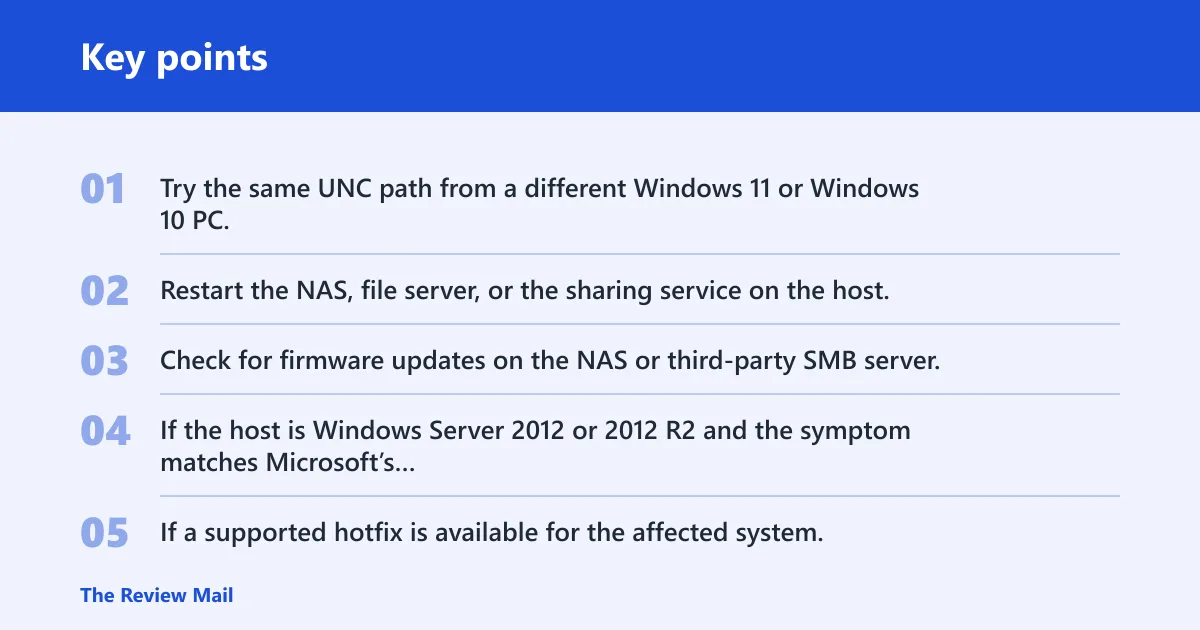
- Try the same UNC path from a different Windows 11 or Windows 10 PC.
- Restart the NAS, file server, or the sharing service on the host.
- Check for firmware updates on the NAS or third-party SMB server.
- If the host is Windows Server 2012 or 2012 R2 and the symptom matches Microsoft’s documented shared-file access issue, install the appropriate Microsoft update for that server rather than on Windows 11.
- If a supported hotfix is available for the affected system, install it only on systems that are experiencing the problem described in the article and restart the computer after you apply it.
Use one username per server, and keep the share on an NTFS volume with the correct share and NTFS permissions. That avoids most recurring login conflicts and permission mismatches.
What SMB settings block shared folder access in Windows 11?
Check SMB signing, guest access, and firewall settings first. Windows Defender Firewall must allow SMB traffic on TCP 445, and Network Discovery and File and Printer Sharing must be enabled for the active profile. If discovery is also failing, verify those sharing settings before changing anything else.
Frequently asked questions
How do I fix Windows 11 asking for credentials to access a shared folder?
Windows 11 can store old entries in Credential Manager, so it may reuse a saved login before prompting again. Remove the matching server entry in Control Panel > Credential Manager > Windows Credentials, then reconnect with one username using net use \\server\share /user:SERVERNAME\username.
How do I access a shared folder on Windows 11 without password?
That only works if the host is configured for guest SMB access and the client accepts it. If the share is meant to be public, use a named account and password instead of relying on guest fallback.
Why does Windows 11 say multiple connections to a server are not allowed?
That points to error 1219. Disconnect the existing session with net use * /delete, remove any saved entry in Credential Manager, then reconnect to the same server with only one username.
How do I fix Windows 11 can’t connect to shared folder after update?
First, test the same path from another PC and compare the result. If the share works there, review the Windows 11 network profile, firewall rules, and saved credentials. If the host is an older server, confirm it still supports the SMB settings your client is using.
Why can I see the shared folder but not open files in Windows 11?
That usually means the folder is visible, but access breaks at the permissions or SMB layer. Confirm the share and NTFS permissions on the host, then test the same UNC path with net use. If the server is old, also check whether the host’s SMB support matches the client’s connection method.