Device Management Could Not Be Enabled Fix
If “Device management could not be enabled” appears during Microsoft 365 sign-in on Windows 11, first check whether the user is only signing into an app or trying to enroll the PC in Intune: app sign-in errors usually need account or policy fixes, while real enrollment failures need device registration fixes. If you miss that split, Outlook, Teams, and OneDrive can fail on a personal device, or corporate devices can stay unenrolled and unmanaged. This guide shows the quickest way to tell which path you are on and which fix to use next.
What the error means
The message shows up during Microsoft 365 sign-in on Windows, usually when a user selects Allow my organization to manage my device. Windows Web Account Manager, or WAM, handles that sign-in flow and can trigger Microsoft Entra device registration and Microsoft Intune MDM enrollment. Sign-in can succeed while device management fails.
That is why the first step is simple: if the device does not need management, choose No, this app only or Sign in to the app only. If the device does need enrollment, move to tenant and policy checks instead of retrying the app sign-in.
Likely causes, ranked
Start with the path that matches the device. Personal Windows devices often fail because the app asked for enrollment that is not needed. Managed devices fail when Intune enrollment scope, platform restrictions, or licensing block the workflow. Conditional Access can also change the result by allowing app sign-in while still rejecting device registration.
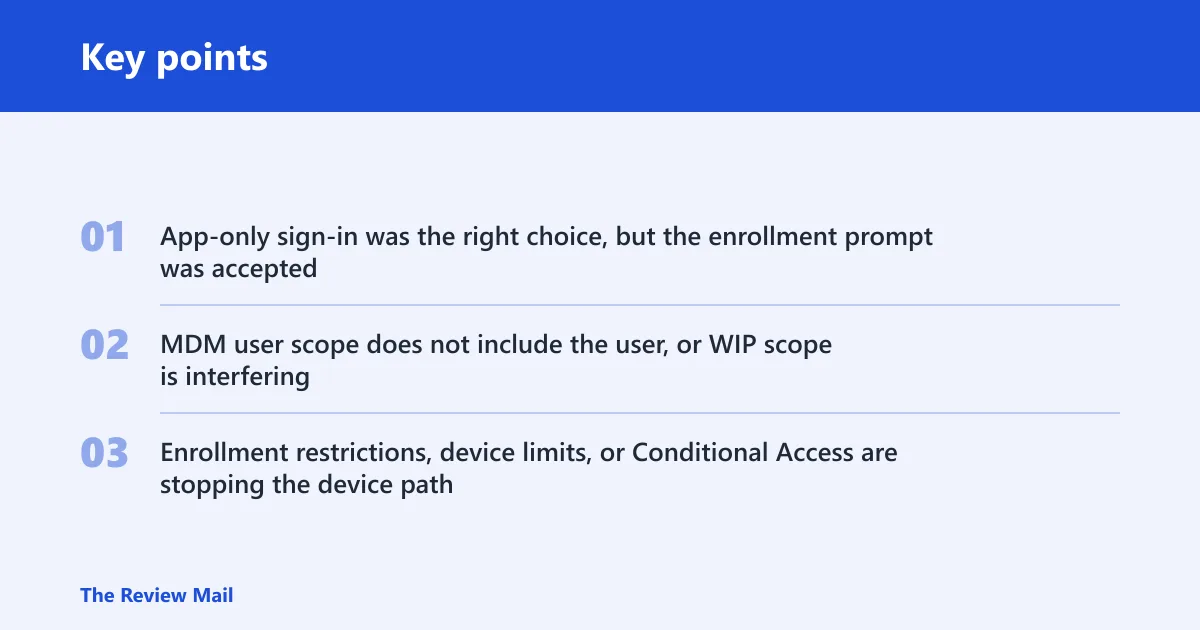
- App-only sign-in was the right choice, but the enrollment prompt was accepted.
- MDM user scope does not include the user, or WIP scope is interfering.
- Enrollment restrictions, device limits, or Conditional Access are stopping the device path.
How do I fix device management could not be enabled?
Use the shortest path that matches the device. For a personal PC that only needs Outlook or Teams, switch to app-only sign-in. For a work-managed PC, verify Intune enrollment scope, licensing, and restrictions. For Conditional Access failures, separate app access from device compliance before changing enrollment settings.
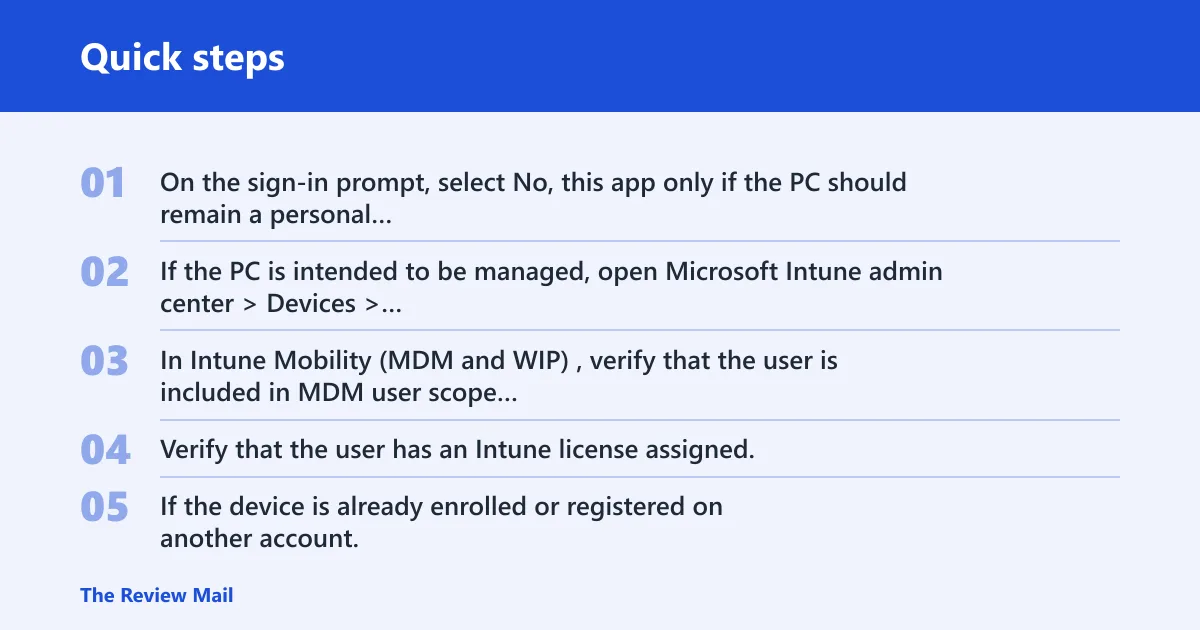
- On the sign-in prompt, select No, this app only if the PC should remain a personal device and the user only needs the app.
- If the PC is intended to be managed, open Microsoft Intune admin center > Devices > Windows > Windows enrollment and confirm that automatic enrollment is enabled for the tenant.
- In Intune Mobility (MDM and WIP), verify that the user is included in MDM user scope and that WIP user scope is set appropriately for the tenant’s Windows Information Protection plan.
- Verify that the user has an Intune license assigned.
- If the device is already enrolled or registered on another account, review enrollment restrictions and the user’s device limit before trying again.
Say a 2-in-1 personal laptop starts a work account prompt inside Outlook, and the user only wants mail and calendar in that one app. Selecting No, this app only avoids device enrollment and keeps the machine out of tenant management.
Why does Windows say my account was not set up because device management could not be enabled?
That wording means Windows got through sign-in, but the management step failed. The account can still authenticate, and Microsoft Entra device registration may even complete, yet Intune MDM enrollment does not finish. That split is the key clue: the sign-in path is not the same as full device management.
On Windows 11, WAM is the bridge between the app prompt and the work or school account workflow. If the app needs only mail, files, or chat, the management prompt is unnecessary. If the device must be joined or enrolled, the failure usually sits in tenant settings, scope, or a policy gate.
Device enrollment triage matrix
Use this table to separate end-user fixes from admin fixes and Conditional Access checks. The goal is to stop changing the wrong setting.
| Symptom | Likely cause | Exact action |
|---|---|---|
| User sees the prompt in Outlook, Teams, or OneDrive on a personal PC | App-only sign-in was enough | Choose No, this app only and sign in again |
User gets -2145833241 or 0x80192EE7 during sign-in | WAM tried device registration or MDM enrollment and failed | Confirm whether the user should enroll the device or stay app-only |
| Admin sees the device in Entra but not in Intune | Entra registration succeeded, Intune enrollment did not | Review MDM user scope, WIP scope, and automatic enrollment |
| Conditional Access blocks access after sign-in | Policy requires a compliant or enrolled device | Allow app-only access or require enrollment, then test again |
| Enrollment fails on a personal Windows device | Enrollment restrictions, device platform rules, or device limit | Check Windows personal device enrollment settings and user limits |
Suppose a user signs in to Teams on a home desktop and gets the prompt twice. If the account only needs the app, the correct fix is not a tenant enrollment change; it is app-only sign-in.
Fix MDM enrollment settings
If the device really should enroll, check the Intune enrollment path in order. The most common tenant-side breakpoints are the user scope, WIP scope, and automatic enrollment settings. A clean sign-in can still fail if those pieces do not line up.
- Open Intune admin center > Devices > Enrollment > Automatic Enrollment.
- Confirm the MDM user scope includes the user; it may be set to All or a specific group.
- If Windows Information Protection is not being used for this tenant, set WIP user scope to None.
- Check the user’s license assignment in Microsoft 365 admin center > Users > Active users or the license area used by your tenant.
- If the tenant uses custom enrollment URLs, restore the default MDM URLs from the Microsoft Entra or Intune tenant settings page before trying again.
The mapping matters too: decimal -2145833241 converts to 0x80192EE7. That code often appears during app-initiated registration, which is why the fix may be to stop enrolling the device at all when the app only needs sign-in.
Could Conditional Access be blocking enrollment?
Conditional Access can allow the user to sign in while still denying the device path, or it can require an enrolled or compliant device before the app opens. That is why app-only fixes and enrollment fixes are different. A policy that expects a managed device will not be solved by changing a local Windows setting.
- In Microsoft Entra admin center > Protection > Conditional Access, identify policies that apply to the app and the user.
- Check whether the policy requires a compliant device or approved client app.
- Test whether the user can access the app with app-only sign-in before enrollment starts.
- If the policy requires enrollment, fix the Intune path instead of weakening the policy.
What should you check in Intune?
Start with the settings that block personal Windows enrollment most often: device platform restrictions, the device limit, and the account-add enrollment toggle. These are separate checks, and any one of them can stop the workflow.
- Go to Intune admin center > Devices > Enrollment restrictions and review Device platform restrictions for personal Windows devices.
- Check whether the user has reached the device enrollment limit. The maximum mentioned here is 15 devices.
- Review the tenant’s work or school account enrollment settings on the Windows device and make sure the policy or configuration that controls MDM enrollment during account addition matches the intended result.
- For BYOD scenarios, compare the policy with the intended result before changing it.
Choose the organization-managed path only when the device should be managed by policy, compliance, or app protection rules. If the user only needs mail in one Microsoft 365 app, the prompt to manage the device is usually the wrong branch.
Still not working?
If the same error keeps returning after the scope and restriction checks, move to a full rollout review. Confirm the user’s license, the Intune automatic enrollment path, and any device joins already present in Entra. If the device is already registered in the tenant, removing stale work or school connections may be needed before trying enrollment again.
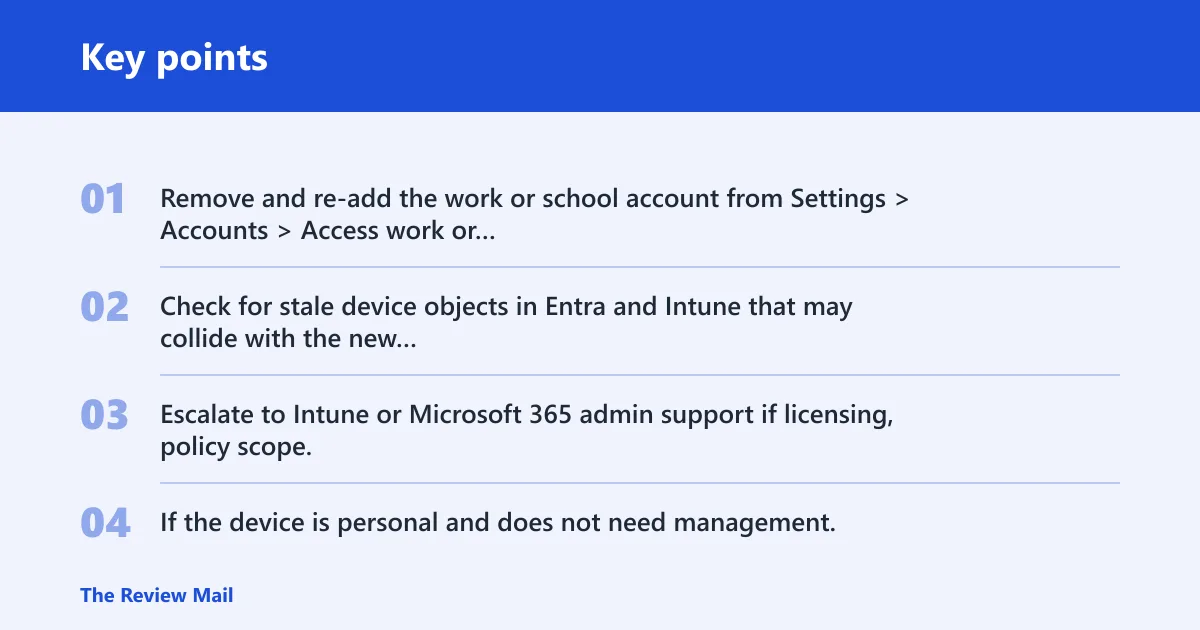
- Remove and re-add the work or school account from Settings > Accounts > Access work or school only if the device is supposed to enroll.
- Check for stale device objects in Entra and Intune that may collide with the new registration.
- Escalate to Intune or Microsoft 365 admin support if licensing, policy scope, and enrollment settings are already correct.
- If the device is personal and does not need management, do not force MDM enrollment as a rollback.
For prevention, keep the tenant’s MDM user scope aligned with the users who truly need enrollment, and leave WIP scope at None when WIP is not in use. That avoids prompting users to manage devices that should stay app-only.
Frequently asked questions
How do I enable device management on Windows 11?
Use Settings > Accounts > Access work or school to add the organization account, then let the Intune enrollment flow run if the device is meant to be managed. If the prompt appears inside an app and management is not needed, stop at app-only sign-in instead.
What does error 0x80192ee7 mean?
It is the hex form of decimal -2145833241. In this workflow, it points to a sign-in that succeeded but failed when Windows tried to register or enroll the device. That is why app-only sign-in can work when MDM enrollment does not.
Should I choose allow my organization to manage my device?
Choose that only when the device should be enrolled in company management. If the goal is only to use Outlook, Teams, or OneDrive on a personal PC, choose No, this app only. The wrong choice can push the device into MDM enrollment and trigger the failure again.
What Intune settings can block automatic enrollment?
Check MDM user scope, WIP user scope, device platform restrictions, and the enrollment device limit. Also verify the work or school account enrollment setting on the Windows device. Those settings control whether the Windows sign-in flow can move from registration to management.
What if Conditional Access still stops sign-in?
Review the policy that applies to the app and user, then decide whether it should allow app-only access or require an enrolled device. If the policy requires a compliant device, fix the enrollment path in Intune rather than changing the local Windows account prompt.