Bsod Ntoskrnl Exe Windows 11
On Windows 11, bsod ntoskrnl.exe usually points to a crash in the kernel path, not a guilty file by itself; use the stop code, dump stack, and boot timing to separate bad drivers, memory faults, storage errors, and hardware failure. Misreading it sends you after the wrong component and leaves repeat crashes untouched. This guide shows how to read the crash context and narrow the real cause.
Using ntoskrnl.exe dumps to isolate the root cause
When ntoskrnl.exe appears in a Windows 11 bug check, it is usually the module Windows was executing when the system failed. A stop code, bug check, kernel error, or blue screen error can show with a module name, and the screen may restart before you can read it.
Use the module name, the stop code, and the time of the crash together. A minidump file can point to a driver or storage component even when the visible screen only names ntoskrnl.exe. If the crash disappears too fast, the dump is often the better clue.
Likely causes, ranked
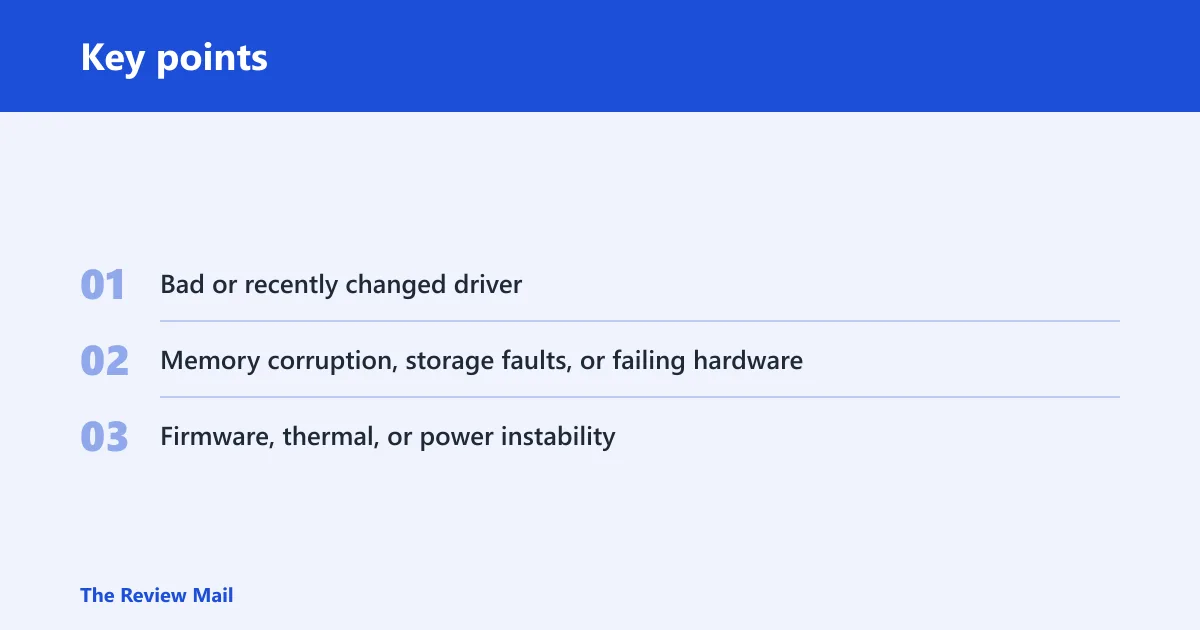
Most often, the real cause is a bad or recently changed driver. Other possibilities include memory corruption, storage trouble, or failing hardware.
- Bad or recently changed driver. A third-party driver often sits behind the crash path, especially if the failure started right after an install or update.
- Memory corruption, storage faults, or failing hardware. These can surface as a kernel crash even when ntoskrnl.exe is the name shown on screen.
- Firmware, thermal, or power instability. This may contribute to instability, especially when the system crashes under load.
Ntoskrnl triage table
| Crash timing | Likely cause | What to check next | Safest first action |
|---|---|---|---|
| Idle crash | Driver, power state, or background service | Recent driver installs, Device Manager warnings, minidump stack | Roll back the newest driver |
| Boot-time crash | Startup driver, storage driver, or damaged system file | Safe Mode access, recent device changes, dump timing | Boot into Safe Mode and remove the last change |
| After a driver update | Bad third-party driver code | Driver tab in Device Manager, rollback option, vendor package | Roll back or uninstall that driver |
| Under gaming or heavy load | Thermal, GPU, power, or memory instability | Temp-related symptoms, GPU driver, memory test, PSU or charger | Return settings to default and test memory |
| After a clean install | Firmware, storage, RAM, or a fresh driver conflict | Chipset, storage, GPU, BIOS or UEFI updates, Windows Update | Install updates before adding extras |
📊 Install the latest Windows 11 updates. Keep the system fully updated before deeper troubleshooting. Source: Microsoft.
What to do after a recent driver change
If the crashes began after a driver install or update, treat that driver as the first suspect. Check Device Manager for devices marked with an exclamation point, and a driver rollback or uninstall is usually safer than random repair steps when the timing is this clear.
- Open Device Manager.
- Find the device whose driver changed most recently, or the one with a warning icon.
- Right-click it, open Properties, then the Driver tab.
- Select Roll Back Driver if that button is available. If not, choose Uninstall device, then restart.
- Check whether the stop code returns before installing anything else.
Say your laptop starts crashing after a Wi-Fi driver update and the minidump mentions a network module. Rolling that driver back is more useful than reinstalling Windows, because the timing points to one recent change rather than the whole system.
Prevention: after the system stabilizes, avoid reinstalling the same driver package until you can confirm a newer vendor release or a Microsoft update that changes the stack.
How do I tell if the crash is from hardware or software?
Use timing, repeatability, and the dump stack. Software and driver faults often start after a change and may follow one activity, such as waking from sleep or launching a game. Hardware problems usually recur across different apps and can show up under load, at idle, or even during setup.
Check memory corruption and RAM
Memory faults can look like a random kernel crash. Run Windows Memory Diagnostic from the desktop or recovery tools, and if Windows will not stay up, enter Safe Mode first. If removable memory is present, reseat it only when power is off and access is safe.
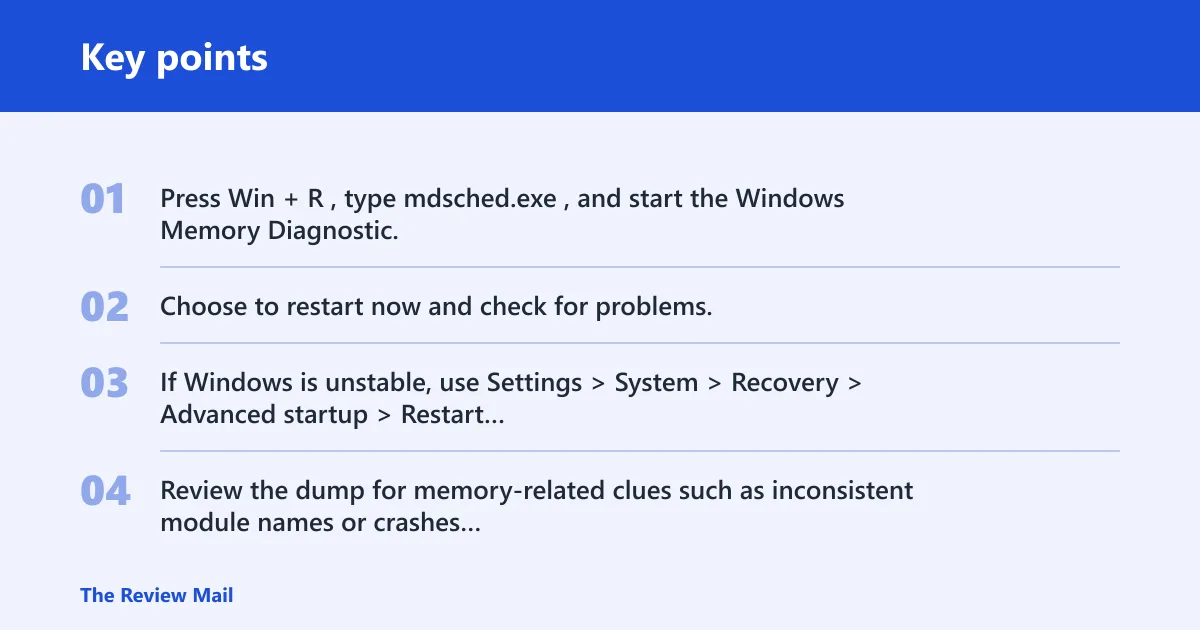
- Press Win + R, type mdsched.exe, and start the Windows Memory Diagnostic.
- Choose to restart now and check for problems.
- If Windows is unstable, use Settings > System > Recovery > Advanced startup > Restart now > Troubleshoot > Advanced options > Startup Settings, then enter Safe Mode.
- Review the dump for memory-related clues such as inconsistent module names or crashes that move between different drivers.
Suppose a desktop crashes only while gaming, and the dump alternates between a graphics driver and ntoskrnl.exe. That pattern leans more toward memory or power instability than a single bad app.
Use dump clues instead of guessing
The minidump file path is C:\Windows\Minidump. Open it after a crash and look for the timestamp that matches the last failure. A consistent third-party driver name is a software clue; a rotating set of modules, especially with memory faults, leans toward hardware or unstable settings.
How to rule out storage and low disk space
Low free space and storage faults can both feed a kernel crash. If the drive is nearly full, fix that before chasing deeper diagnostics. (Microsoft Support)
Check free space first
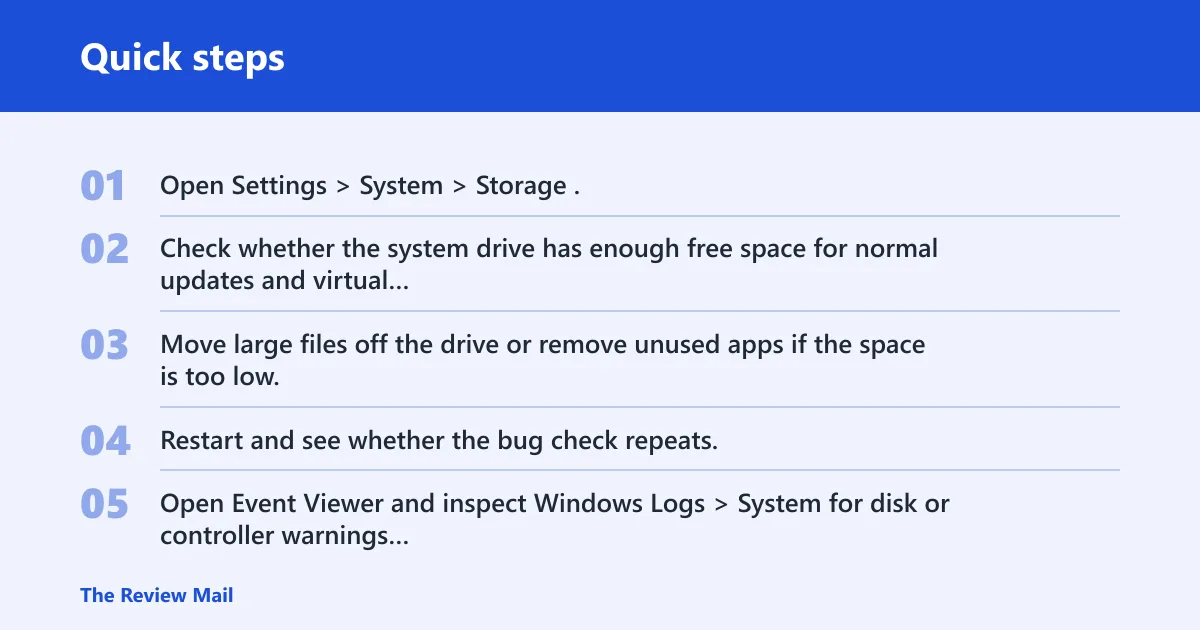
- Open Settings > System > Storage.
- Check whether the system drive has enough free space for normal updates and virtual memory use.
- Move large files off the drive or remove unused apps if the space is too low.
- Restart and see whether the bug check repeats.
Look for storage-driver clues
Storage problems often show up as boot slowness, delayed sign-in, or a crash during file activity. The dump may point to a storage stack driver, and repeated crashes after a clean install can still trace back to the drive, controller, or firmware.
- Open Event Viewer and inspect Windows Logs > System for disk or controller warnings around the crash time.
- Open an elevated Command Prompt or Terminal.
- Run
chkdskC: /r only when needed. It can take a long time and requires a restart on the system drive. - Restart and let the disk check complete before judging the result.
When a storage check is paired with a minidump that names a disk or controller component, the kernel name on screen is secondary. The storage path is the better target.
When Safe Mode or System Restore makes sense
Safe Mode is the right fallback when normal Windows will not stay stable long enough for regular troubleshooting. System Restore fits when there is a restore point and the crashes started after a change. Use Safe Mode first if the system cannot hold the desktop.
Boot to Safe mode
- Go to Settings > System > Recovery > Advanced startup > Restart now > Troubleshoot > Advanced options > Startup Settings.
- Choose the Safe Mode option that fits your need; with networking, use the mode that includes networking.
- In Safe Mode, remove or roll back the driver that changed last.
- Restart normally and confirm whether the crash repeats.
Use System Restore when a restore point exists
- Open Control Panel > Recovery > Open System Restore.
- Pick a restore point from before the first crash.
- Finish the rollback and restart.
- Recheck the crash timing before making any other changes.
If that did not work, the next step is a repair install or, if the machine remains unstable after updates and restore, a clean reinstall. After that, deeper hardware checks are the next step.
What logs should I check for an ntoskrnl.exe crash?
Start with the stop code, the module name on the blue screen or black screen, and the minidump in C:\Windows\Minidump. Those three items usually tell you whether the problem is driver-related, storage-related, or broader hardware corruption. The screen text alone is not enough.
Collect these items before resetting the PC:
- The exact stop code and hexadecimal number from the bug check.
- The crash time and whether it happened at idle, boot, or load.
- The newest file in
C:\Windows\Minidump. - Any Device Manager warning icons.
- Recent hardware or driver changes.
A common first-timer mistake is to reset Windows before saving the dump. That removes the best evidence and makes a driver problem look like a mystery.
Frequently asked questions
Why does ntoskrnl.exe cause a blue screen on Windows 11?
It usually does not cause the crash by itself. The kernel name appears because Windows failed while running kernel-mode code, and the real trigger is often a driver, storage fault, memory corruption, or failing hardware. The stop code and minidump give the better lead.
Is ntoskrnl.exe the real problem or just the file named in the crash?
Most of the time, it is the file named in the crash, not the verdict. Check whether the same third-party driver appears in the dump, whether the failure started after a change, and whether the crash happens only at boot, idle, or under load.
What should I do first when Windows 11 keeps BSODing with ntoskrnl.exe?
Start with the newest driver change, then check Device Manager for warning icons. If Windows is unstable, enter Safe Mode and roll back or uninstall the suspect driver. If the system is stable enough, also confirm that the system drive has enough free space for normal operation.
Can a driver update fix an ntoskrnl.exe BSOD?
Yes, if the dump points to a named driver that is known to be old or broken. Update from the device or PC maker’s package, then restart and test again. If the crash began right after an update, rollback is the better first move.
When does an ntoskrnl.exe BSOD mean I should restore or reinstall Windows?
Use System Restore when the crashes started after a change and a restore point exists. Move to a repair install or reinstall only after driver rollback, Safe Mode checks, disk-space cleanup, and dump review have failed. If the same crash returns after those steps, deeper hardware checks are next.