No Driver Files Have Been Loaded
“No driver files have been loaded” usually means Windows never reached a usable driver package, or it rejected the package during download, extraction, staging, signature checks, or hardware matching. If you pick the wrong failure point, you can keep reinstalling the same broken file and waste time on fixes that cannot work. This guide shows how to pinpoint the break before you try another repair, using Device Manager, hardware IDs, and driver-store checks. See also Device Manager error codes explained, how to roll back a Windows Update driver, NVIDIA driver install failures, unsigned driver warnings, and finding hardware IDs in Windows.
What the error means
The message is not one single fault. It usually means Windows did not accept the package at one of several checkpoints: the download may be incomplete, the archive may not have unpacked, the INF file may be missing, the hardware ID may not match, or signature enforcement may have blocked the driver. Microsoft’s Device Manager and driver-installation guidance make these checkpoints explicit, and Windows Update may also supply or replace drivers during normal servicing.
Why the same message can appear for different package types
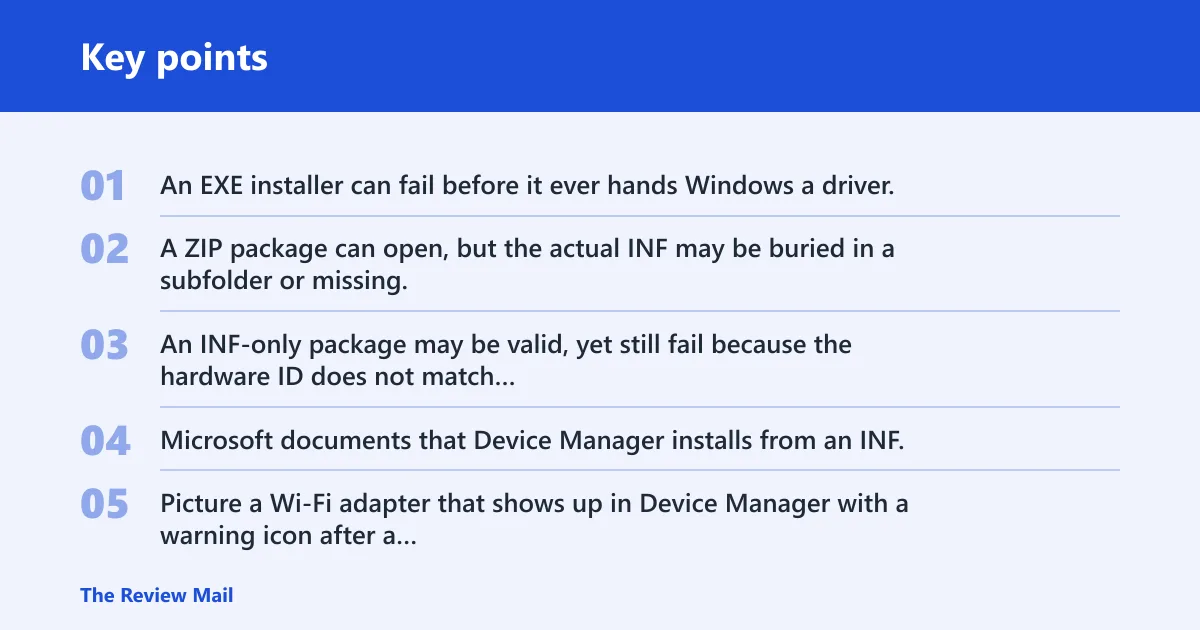
An EXE installer can fail before it ever hands Windows a driver. A ZIP package can open, but the actual INF may be buried in a subfolder or missing. An INF-only package may be valid, yet still fail because the hardware ID does not match or the driver is blocked by signature rules. Microsoft documents that Device Manager installs from an INF, while pnputil stages and installs packages from the driver store when the package is actually usable (Microsoft Learn: Device Manager, pnputil syntax).
Picture a Wi-Fi adapter that shows up in Device Manager with a warning icon after a clean Windows install. If the downloaded package is for a different chipset revision, the files can be present and still useless. The issue is device binding, not file presence.
How to identify the failure stage
Start by deciding where the break happens. If the installer complains before opening, suspect a bad download or a blocked EXE. If the files never appear in a folder, extraction failed. If the folder looks correct but Device Manager will not accept the driver, check the INF, hardware ID, and signature status. Microsoft’s pnputil documentation and driver-signing guidance help separate staging from binding and signature failures from device-match failures.
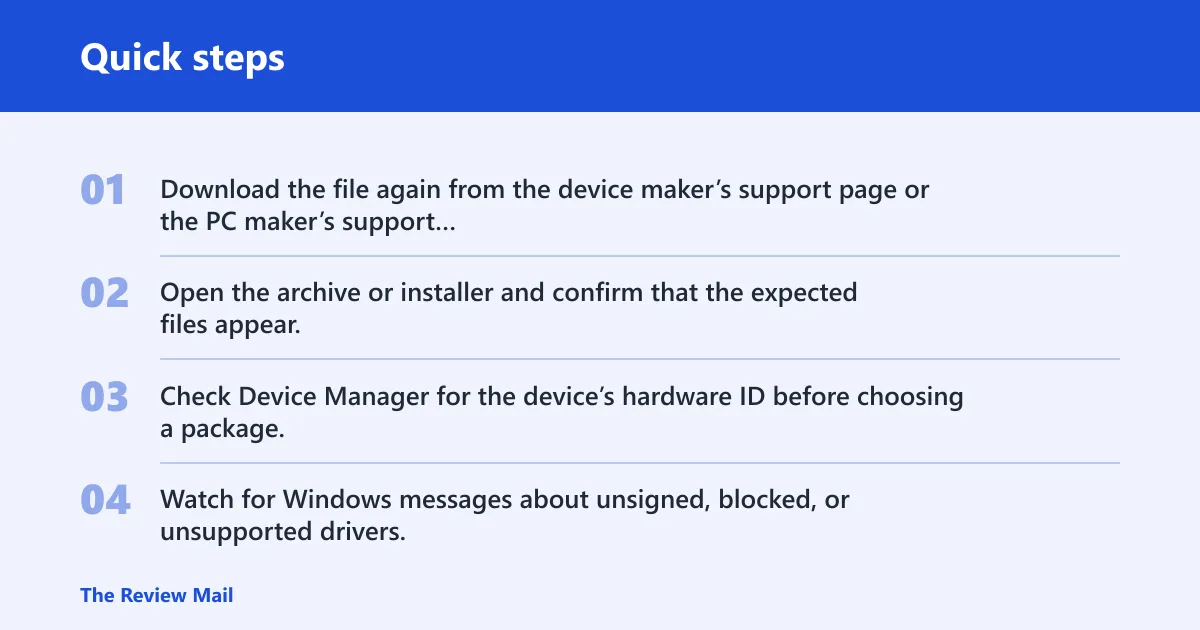
- Download the file again from the device maker’s support page or the PC maker’s support page if the file size looks wrong or the download was interrupted.
- Open the archive or installer and confirm that the expected files appear, especially an INF file.
- Check Device Manager for the device’s hardware ID before choosing a package.
- Watch for Windows messages about unsigned, blocked, or unsupported drivers.
Driver failure decision table
| Symptom | Likely failure stage | Verification step | Recommended fix |
|---|---|---|---|
| EXE starts, then closes or never reaches setup | Download corruption or blocked installer | Check whether the file size matches the vendor listing and whether Windows shows a smart screen or security prompt | Re-download the EXE from the vendor or OEM download page, save it to a local folder, and start it from a normal path such as Downloads |
| ZIP opens, but no driver appears to install | Extraction problem or missing INF | Open the extracted folder and confirm that an INF file is present in the expected folder tree | Extract again to a new folder with a short path, then point Windows to the extracted files |
| INF-only package is present, but Device Manager says no suitable driver was found | Hardware ID mismatch or wrong architecture | Compare the device’s hardware ID with the INF entries and confirm 32-bit versus 64-bit support | Download the exact package for that device model and Windows version |
| Driver appears to install, but the device still fails | Device binding or version conflict | Check the device status code in Device Manager and confirm whether an older driver is still active | Use Device Manager to roll back, uninstall, or replace the existing driver, then reinstall the matching package |
| Windows blocks the package or warns about unsigned files | Signature enforcement | Look for an unsigned or altered package, especially on 64-bit Windows | Use a WHQL-signed driver from Windows Update or the vendor’s signed package |
| Printer, GPU, or Wi-Fi driver installs partly, then breaks | Mixed package or wrong vendor bundle | Confirm the exact model and submodel, then check the INF for a matching hardware ID | Use the model-specific package, not a family-wide bundle |
| Unsigned package loads files but Windows refuses to complete the install | Driver signature enforcement or altered catalog | Check whether the package includes a valid catalog and whether Windows reports a signature problem | Use a signed package from the OEM, NVIDIA, or Windows Update instead of the altered archive |
How do I install driver files manually in Windows?
Manual installation works best when you already have extracted driver files in a known folder and an INF file that matches the device. Open Device Manager, choose the driver folder, and point it to the extracted files. Use pnputil if the GUI path fails. Do not point Windows at the ZIP or EXE itself unless the installer explicitly supports it. Microsoft’s documentation describes Device Manager as the GUI path and pnputil as the command-line tool for staging and installing driver packages.
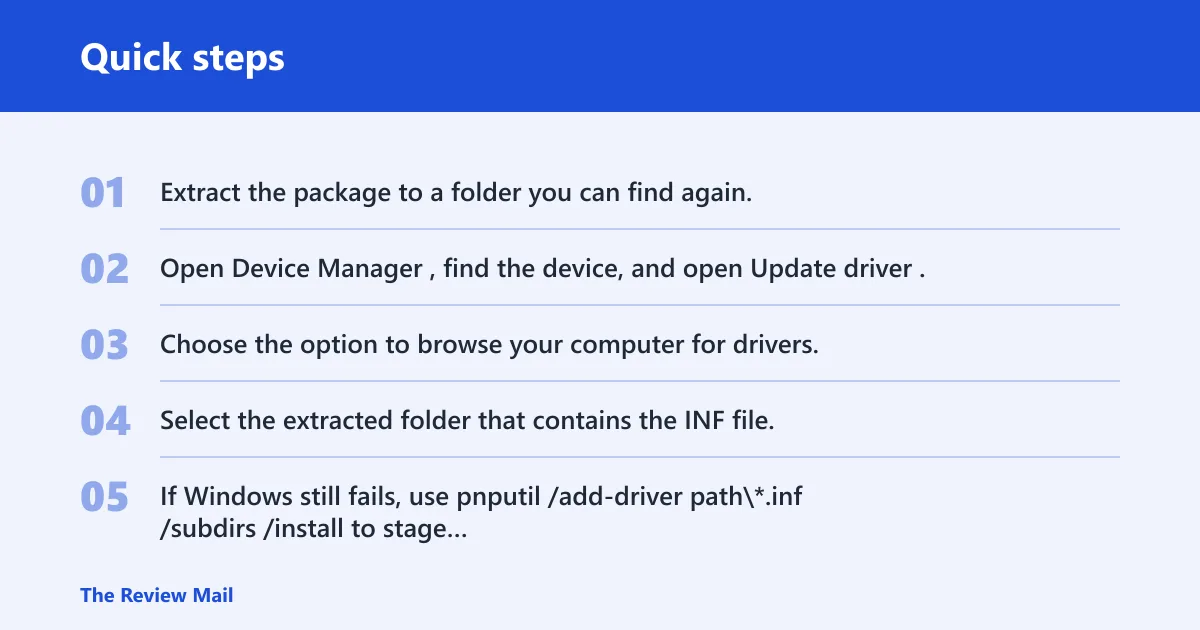
Device Manager is the common manual path for printers, Wi-Fi adapters, and GPUs when the vendor setup program fails. It reads the INF, compares the hardware ID, and tries to bind the matching driver to the device.
Manual install steps
- Extract the package to a folder you can find again, such as Downloads\GPU-Driver or Drivers\Printer.
- Open Device Manager, find the device, and open Update driver.
- Choose the option to browse your computer for drivers.
- Select the extracted folder that contains the INF file.
- If Windows still fails, use pnputil /add-driver path\*.inf /subdirs /install to stage the package and try to install it from the driver store.
Microsoft’s pnputil syntax supports adding drivers from a folder tree, including subfolders. For example: pnputil /add-driver C:\Drivers\GPU\*.inf /subdirs /install. If staging succeeds but binding fails, the package is in the driver store but the hardware ID does not match the INF, the device is already using a different compatible package, or Windows cannot complete installation for that device class.
When pnputil helps
pnputil is useful when the GUI path refuses the driver but the package itself looks correct. It stages driver files in the driver store and can install them without the vendor setup wrapper. That makes it a practical fallback for INF-only packages and for recovery after a failed GUI attempt. Microsoft documents /add-driver, /subdirs, and /install for exactly this kind of package processing.
For a nested package, use a path that reaches every INF in the tree, such as pnputil /add-driver C:\Drivers\Network\*.inf /subdirs /install. If the command reports success but the device still shows a warning icon, verify the hardware ID in Device Manager before assuming the driver itself is broken.
Why is the package not extracting?
Extraction problems usually mean the archive is incomplete, the EXE wrapper never unpacked the files, or the destination path is awkward. If the extracted folder is empty or missing the INF, Windows has nothing to load. The fix is to recover a clean set of files before trying installation again. NVIDIA and OEM support pages commonly describe failed or incomplete extraction as a sign of a bad download, the wrong package, or the need to use the correct vendor bundle.
Why EXE bundles fail to unpack cleanly
Many vendor EXE files are self-extracting archives. If the download is truncated, the file can start but fail before it creates the driver folder. Security software can also interrupt the unpacking stage. In both cases, the fix is not a different install method; it is a complete, intact package. NVIDIA and OEM installer support pages commonly direct users to re-download, run from a local folder, or use the correct model-specific package when the installer never fully expands.
What to do when ZIP archives are corrupt or incomplete
Download the ZIP again and open it again. If the archive viewer reports errors, the package was not saved correctly. Use a new folder on the local drive, not a deep path with long names, so Windows can read the extracted files without path problems.
Where to place extracted files so Windows can find them
Keep the files in a simple local folder with the INF visible in the tree. Good examples are C:\Drivers\NVIDIA or C:\Drivers\Intel-WiFi. Avoid leaving the files in a temp folder that disappears after reboot, and avoid trying to install from inside the compressed archive.
How do you check the hardware ID?
The hardware ID is the clearest way to match a device to the right driver. In Device Manager, it tells you the exact vendor and model string that the INF must reference. If the ID does not match, the package can be valid and still fail to load. Microsoft’s Device Manager documentation shows where to find Hardware Ids in the Details tab.
Find the device in Device Manager
- Open Device Manager.
- Expand the relevant category, such as Display adapters, Printers, or Network adapters.
- Right-click the problem device and open Properties.
- Go to the Details tab.
- Select Hardware Ids from the property list and copy the top entry.
Match the ID to the package
Compare the copied ID to the INF file or the vendor’s driver page. A GPU package for one NVIDIA board can fail on another board from the same family if the hardware ID is different. The same applies to printers and Wi-Fi adapters, where submodels often share a brand name but not a driver match. If the INF does not list the ID, the package may stage but not bind.
What if the driver is unsigned?
Driver signature enforcement can block some unsigned or altered packages, especially on many 64-bit Windows systems. If Windows rejects the driver at this stage, the package may install files but still never bind to the device. A signed WHQL package is the safer path when available. Microsoft documents that Windows enforces signature requirements for kernel-mode drivers and that Windows Update generally distributes signed drivers through normal servicing channels.
How signature enforcement blocks some packages
Windows checks whether the package has a valid catalog and whether the files match that signature. If the package was modified, repacked, or signed incorrectly, Windows can refuse to load it. That can look like a generic install failure even when the archive opened correctly. On systems with signature enforcement, an unsigned package may stage but still fail before it becomes the active device driver.
When Windows Update may provide a signed replacement
Windows Update can deliver WHQL-signed drivers for many common devices. It can also replace a missing or failed driver after a clean install. It may, however, reinstall a driver you were trying to remove, so check Device Manager after the update cycle finishes. Microsoft notes that Windows Update can supply driver updates as part of normal device servicing.
A common first-timer mistake is installing a GPU package from a forum mirror because the vendor site is slow. The archive opens, but the catalog file does not match the contents anymore. Windows then blocks the package, and the installer reports that no driver files have been loaded. NVIDIA support commonly treats these cases as bad downloads, incorrect packages, or installation failures that require a clean vendor package instead of a repacked mirror.
Frequently asked questions
Why does Windows say no driver files have been loaded?
Windows may say this when it cannot accept the package as a usable driver. The failure may happen during download, extraction, staging, signature validation, or hardware matching. The fastest fix is to identify which stage failed, then use the matching repair path instead of retrying the same package.
Why is my NVIDIA driver failing to install?
For NVIDIA GPUs, the usual causes are the wrong model package, a corrupted download, or a signature problem. Check the hardware ID in Device Manager first, then confirm that the driver is meant for your exact GPU and Windows version. If the vendor installer fails, try the extracted INF folder instead. NVIDIA’s support guidance commonly points to the exact GPU model, a clean download, and the correct package branch for that system.
Why are my files not extracting when I install a driver?
The download may be incomplete, the EXE wrapper may have failed, or the ZIP archive may be corrupt. Save the package again, extract it to a short local path, and confirm that the INF file appears in the extracted folder. If the archive still fails, get a fresh copy from the vendor.
What does no driver files have been loaded mean on Windows 11?
On Windows 11, the message usually means the same thing it does on earlier versions: Windows did not accept the driver package for the device. Common causes include a bad download, a missing INF, a hardware ID mismatch, or signature enforcement blocking the package. Microsoft’s device and driver documentation applies the same basic checks on Windows 11.
How do I fix a driver package that installs but the device still fails?
Open Device Manager and check the device status code, then update, roll back, disable, or uninstall the driver as needed. If the wrong version is active, remove it and install the matching package again. Also check whether Windows Update replaced the driver after installation. If the package staged but never bound, revisit the hardware ID and INF match first.
Should I use Device Manager or the vendor installer for driver setup?
Use the vendor installer when it is working and clearly matches the device. Use Device Manager when the installer fails, the package needs manual browsing, or the driver is INF-only. If both fail, pnputil is the next recovery step because it can stage the driver without the setup wrapper. Microsoft documents both the GUI and command-line paths for driver installation.
What should I check if the driver package is corrupt or unsigned?
First check whether the file downloaded fully and whether the archive opens without errors. Then confirm that the package is signed and still matches the device hardware ID. If it is unsigned or altered, use a WHQL-signed package from the vendor or Windows Update instead of forcing the install. NVIDIA and OEM support pages generally advise using the correct signed package rather than modified mirrors.