Windows 7 Stuck at Welcome Screen
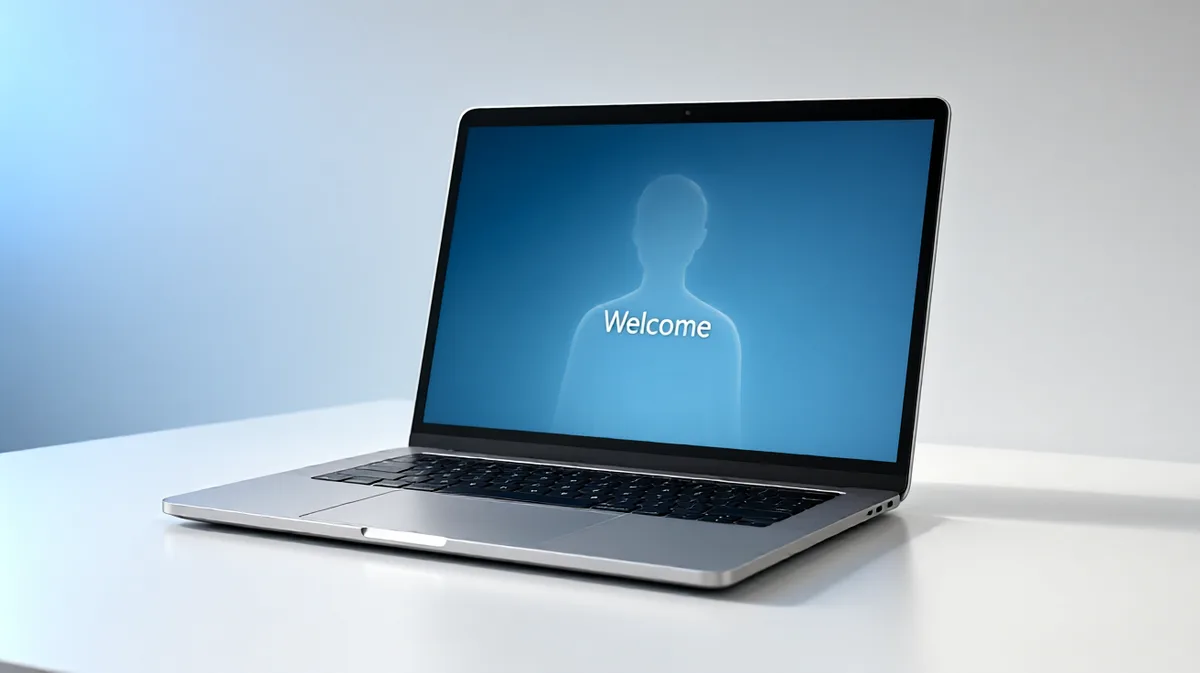
The Windows 7 welcome screen appears before the desktop loads. A freeze there usually points to a USB conflict, a logon or load failure, or damaged boot files. The fastest first move is to disconnect external drives, USB peripherals, and dongles, then restart and check again. If that fails, use the decision tree below instead of jumping straight to repair commands.
Welcome screen decision table
| Exact symptom timing | Most likely cause | Best first fix |
|---|---|---|
| Freeze happens before the spinning dots or immediately after the welcome screen appears | USB device, external drive, or dongle conflict | Disconnect all nonessential peripherals and boot again |
| Freeze starts after the password is entered or after the cursor spins for a while | Profile loading issue, service conflict, or pending update | Try Safe Mode with F8, then check startup items and updates |
| Safe Mode loads, but normal startup still hangs at the welcome screen | Driver or service conflict, often tied to a recent change | Run a Clean Boot and look for the offending service or driver |
| Startup Repair cannot complete a normal boot | Corrupted system files, disk errors, or boot file damage | Run Startup Repair, then chkdsk c: /f /r and sfc /scannow |
| PC shows the welcome screen after a Windows update or while updates are pending | Windows Update service issue, often tied to SoftwareDistribution | Restart wuauserv and reset SoftwareDistribution |
| Welcome screen appears after a recent boot record change, failed repair, or new disk | MBR, boot sector, or BCD damage | Use Bootrec: /fixmbr, /fixboot, /scanos, and /rebuildbcd |
📊 Microsoft documents a 30-second welcome-screen delay tied to logon scripts. Source: Microsoft.
Fixes ranked by risk
| Fix | Risk level | Tools needed | Preserves data? |
|---|---|---|---|
| Unplug USB devices and external drives | Very low | None | Yes |
| Safe Mode with F8 | Low | Keyboard | Yes |
| Startup Repair | Low to medium | Windows recovery options | Usually yes |
| System Restore | Medium | Restore point | Yes for personal files |
chkdsk c: /f /r | Medium | Command Prompt | Usually yes |
sfc /scannow | Medium | Command Prompt | Yes |
| Bootrec repairs | Medium to high | Recovery Command Prompt | Usually yes |
| Reinstall Windows | High | Install media or recovery media | Not always |
Should you unplug USB devices first?
Yes. External drives, USB dongles, card readers, and some printers can stop sign-in at the welcome screen before Windows finishes loading the desktop. This is the lowest-risk first test, and it is the one most likely to separate a device conflict from a deeper Windows fault.
What to disconnect
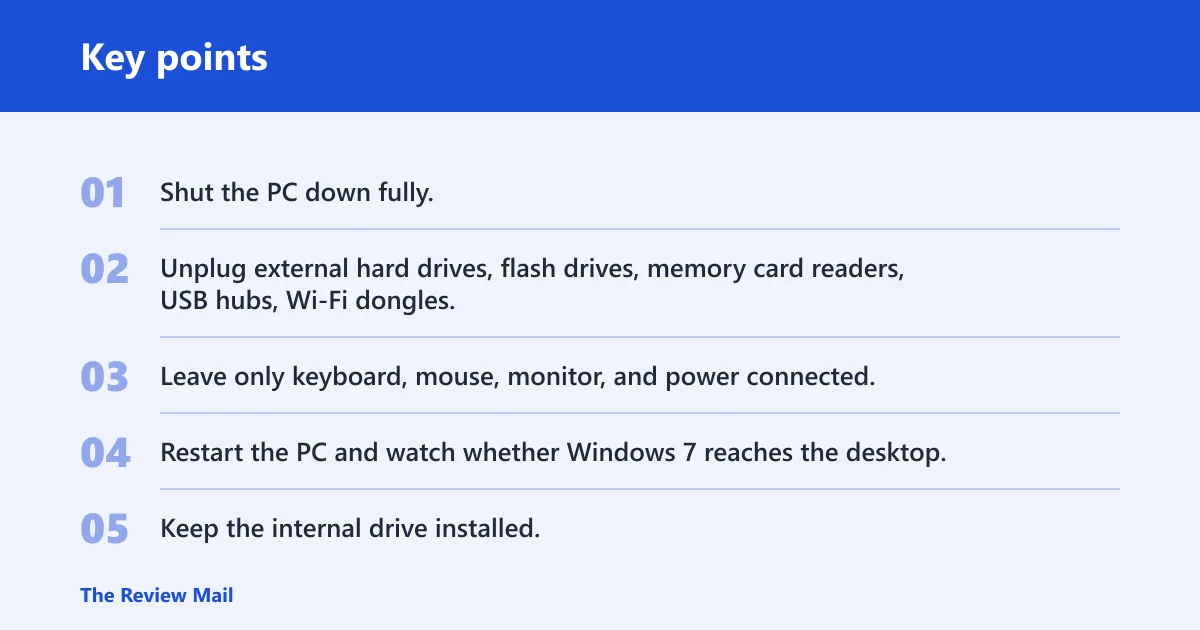
- Shut the PC down fully.
- Unplug external hard drives, flash drives, memory card readers, USB hubs, Wi‑Fi dongles, Bluetooth adapters, and docking stations.
- Leave only keyboard, mouse, monitor, and power connected.
- Restart the PC and watch whether Windows 7 reaches the desktop.
What to leave connected
- Keep the internal drive installed.
- Keep one wired keyboard and one wired mouse if possible.
- On a laptop, keep the AC adapter connected if the battery is weak.
- Do not reconnect devices until the system starts normally at least once.
How to test the result
- If the PC starts normally, reconnect one device at a time.
- After each reconnection, reboot and check for the same freeze point.
- If the welcome screen hangs only when one device is attached, remove that device from the next boot.
- If nothing changes, move to Safe Mode.
Say your 32 GB USB flash drive sits in the front port and Windows 7 hangs before the password box appears. Remove the flash drive first and try again before opening repair tools. That single change can save time and keeps the issue tied to one clear cause.
Can Safe Mode fix a welcome screen freeze?
Yes, Safe Mode can expose a driver, service, or profile problem when normal startup hangs at the welcome screen. On Windows 7, press F8 before Windows starts, open Advanced Boot Options, and choose Safe Mode. If that works, the base operating system is loading, which narrows the fault.
How to enter Safe Mode with F8
- Restart the computer.
- Press F8 before Windows starts loading.
- Choose Safe Mode from Advanced Boot Options.
- Log in and see whether the desktop appears.
What a successful Safe Mode boot means
- A successful Safe Mode start means the core files are probably not the only issue.
- Look next at startup programs, recent drivers, and services.
- If Safe Mode works but normal mode does not, a Clean Boot is the next diagnostic step.
- If Safe Mode also hangs, move to Startup Repair and disk checks.
What to try next if Safe Mode loads
- Run msconfig and open the Services tab.
- Hide Microsoft services, then disable the remaining startup services for a Clean Boot test.
- Restart normally and check whether the welcome screen passes.
- If the freeze remains, check for update issues and then run repair commands.
What commands can repair Windows 7 boot files?
Start with Startup Repair from recovery options, then move to disk and file checks, then to boot record repair. That order keeps the safer checks first and avoids using boot commands before Windows has had a chance to fix itself. If a command fails, the failure point itself is useful.
Use Startup Repair from recovery options
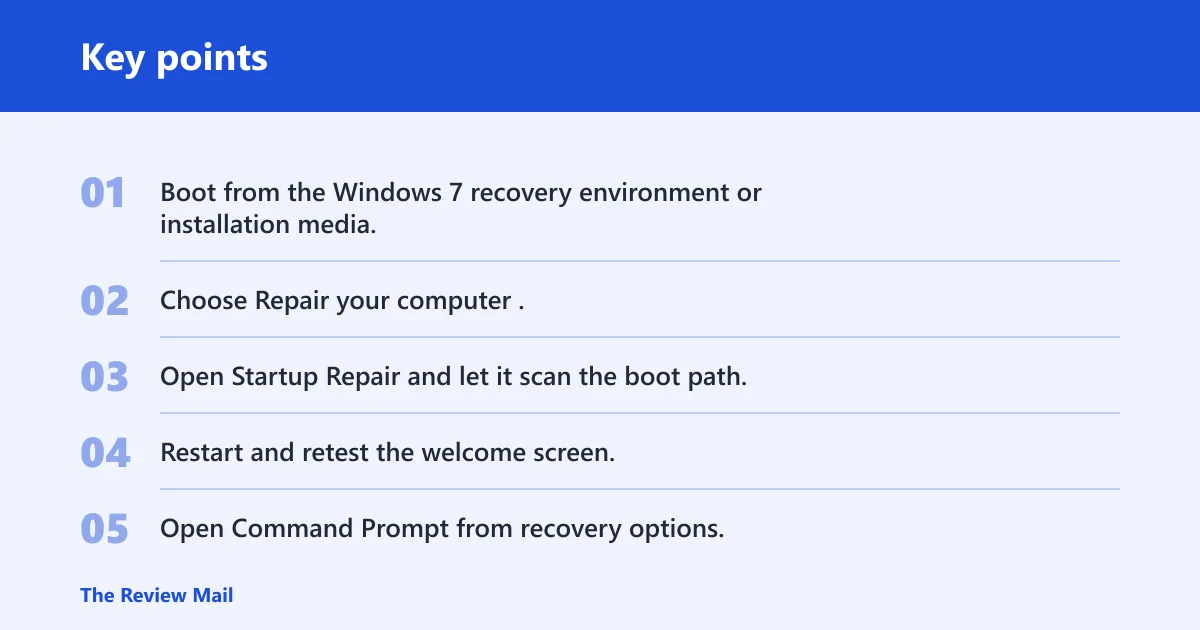
- Boot from the Windows 7 recovery environment or installation media.
- Choose Repair your computer.
- Open Startup Repair and let it scan the boot path.
- Restart and retest the welcome screen.
Run check disk
- Open Command Prompt from recovery options.
- Run
chkdskc: /f /r. - Let it scan for file-system errors and bad sectors.
- Restart after the scan completes.
Run system file checker
- Open Command Prompt in recovery mode or Safe Mode.
- Run
sfc /scannow. - Wait for it to check protected system files.
- If it reports errors it cannot fix, proceed to Bootrec.
Use Bootrec for MBR, boot sector, and BCD repairs
- Open Command Prompt from recovery options.
- Run bootrec /fixmbr.
- Run bootrec /fixboot.
- Run bootrec /scanos, then bootrec /rebuildbcd.
Suppose the PC reaches the welcome screen after a failed disk clone. In that case, bootrec /scanos may find Windows but bootrec /rebuildbcd may still fail if the partition table or system files are damaged. That is the point where disk checks and file repair matter most.
What if Windows 7 freezes after startup?
If the freeze starts after password entry or after the cursor spins, look at services, profile loading, and update state before you assume a dead disk. Windows Update service problems and broken startup items can sometimes stop the logon process without affecting the rest of the installation. A Clean Boot and a service reset are the next practical checks.
Restart the Windows Update service and reset SoftwareDistribution
- Open Command Prompt as an administrator.
- Run
net stop wuauserv. - Rename SoftwareDistribution to SD.old.
- Run
net start wuauserv, then restart and test again.
Use a Clean Boot with msconfig
- Press Windows key + R, type msconfig, and press Enter.
- On the Services tab, hide Microsoft services.
- Disable the remaining services, then open the Startup tab and reduce nonessential startup items.
- Restart and see whether the welcome screen clears.
Use System Restore if the issue started recently
- Open recovery options or Safe Mode with Command Prompt.
- Start System Restore.
- Pick a restore point from before the freeze began.
- Confirm the rollback and let Windows restart.
Picture a desktop that froze right after a driver update and now stops at the welcome screen each boot. A restore point from the day before is a cleaner first choice than reinstalling Windows, because it can keep personal files while reverting the system state.
Why is my computer stuck on the welcome screen?
Most often, the cause is a device, driver, service, update, or boot issue that blocks the sign-in path before the desktop appears. Less commonly, the file system or a damaged boot record is the real problem. The symptom matters, because the best first fix changes depending on whether the freeze happens before or after password entry.
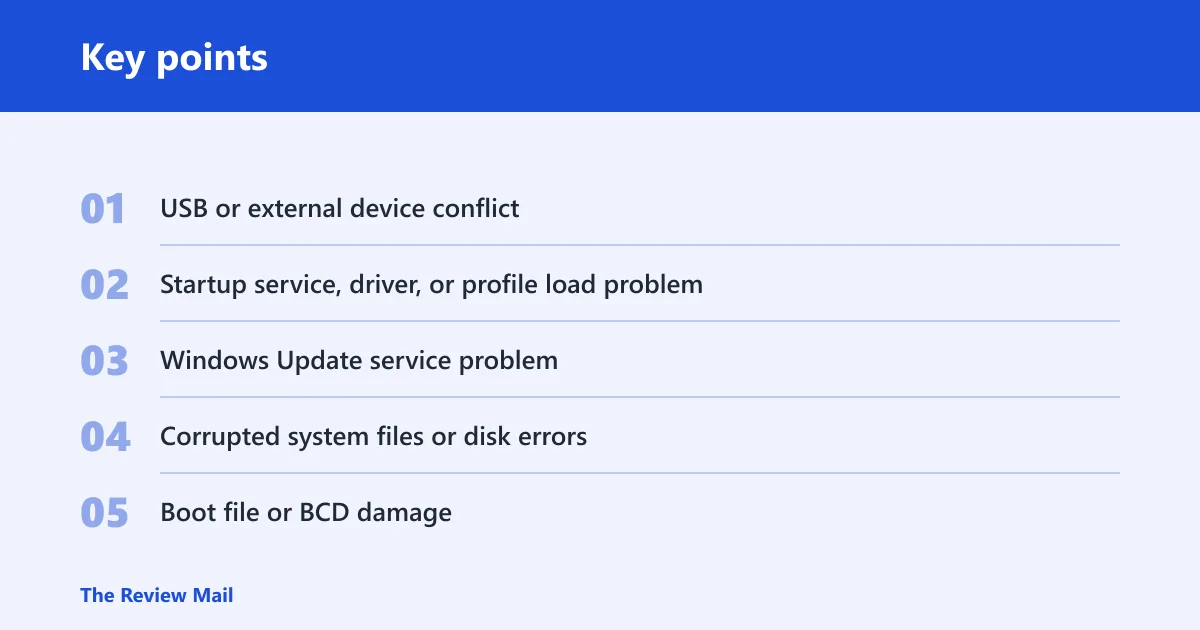
Likely causes ranked from most to least common
- USB or external device conflict. Remove all nonessential peripherals first.
- Startup service, driver, or profile load problem. Test Safe Mode and then Clean Boot.
- Windows Update service problem. Restart wuauserv and reset SoftwareDistribution.
- Corrupted system files or disk errors. Run
chkdskc: /f /r andsfc /scannow. - Boot file or BCD damage. Use Bootrec after Startup Repair fails.
Microsoft also documents a 30-second welcome-screen delay tied to logon scripts, and it gives DelayedDesktopSwitchTimeout a value of 5 in that scenario. That matters for domain-style logon delays, but a Windows 7 home PC that freezes hard still deserves the USB, Safe Mode, and repair path first, per Microsoft support.
When do you need to reinstall Windows if it is stuck on welcome screen?
Reinstall Windows only after USB isolation, Safe Mode, Startup Repair, System Restore, disk checks, file checks, Bootrec, and the update-service reset all fail. Reinstalling can fix a damaged installation, but it is generally the most invasive step and may require backing up data first. Use it when repair no longer reaches the desktop.
If that didn’t work, try this next
- Retry Safe Mode and confirm whether it still loads.
- Run Startup Repair again from recovery options.
- Run
chkdskc: /f /r, thensfc /scannow. - Use Bootrec /fixmbr, /fixboot, /scanos, and /rebuildbcd.
- If a restore point exists, use System Restore.
- If every repair path fails, reinstall Windows and back up data first if possible.
Frequently asked questions
What do I do if my computer is stuck on the welcome screen?
Disconnect external drives and USB devices first, then restart. If that does not help, press F8 before Windows starts and try Safe Mode. If Safe Mode loads, use msconfig for a Clean Boot. If it does not, move to Startup Repair and then chkdsk c: /f /r.
Can safe mode fix a welcome screen freeze: yes, if the problem comes?
Yes, if the problem comes from a startup service, driver, or profile load. On Windows 7, press F8 before Windows starts and choose Safe Mode. If Safe Mode works, the next step is a Clean Boot in msconfig or a recent System Restore point.
Should I disconnect usb devices if windows 7 hangs at welcome screen?
Yes. Disconnect external drives, USB hubs, dongles, card readers, and similar devices before doing anything else. Leave only keyboard, mouse, and monitor connected. If Windows starts normally after that, reconnect devices one at a time until the problem returns.
What commands can repair windows 7 boot files: the standard repair set
The standard repair set is Bootrec. Run bootrec /fixmbr, bootrec /fixboot, bootrec /scanos, and bootrec /rebuildbcd from Command Prompt in recovery options. If the disk itself has errors, run chkdsk c: /f /r first, because boot repair can fail on a damaged file system.