Code 21 in Windows: What It Means and How to Fix It
Windows Device Manager Code 21 usually means Windows is temporarily removing a device and will try to bring it back. If you troubleshoot the wrong layer, you can waste time and miss the real cause of a failing driver or failing hardware. Microsoft documents this as a Device Manager problem code, and the safest first check is the device status line in Device Manager.
This guide is part of our Windows driver errors: full list and fixes series.
Quick disambiguation: Code 21 in Windows Device Manager is unrelated to hospital code 21, police 211, or search-result uses of the words “code” and “standard.” If you are troubleshooting a Windows device, stay focused on Device Manager, the driver state, and the hardware connection.
Check the device status line in device manager properties
Code 21 is a Device Manager status that indicates Windows is in the process of removing the device. Microsoft’s device problem-code documentation lists it as a removal state, not a generic “failure” message. Start with a restart, then check the device again in Device Manager before you assume the hardware is bad.
Check the status line first
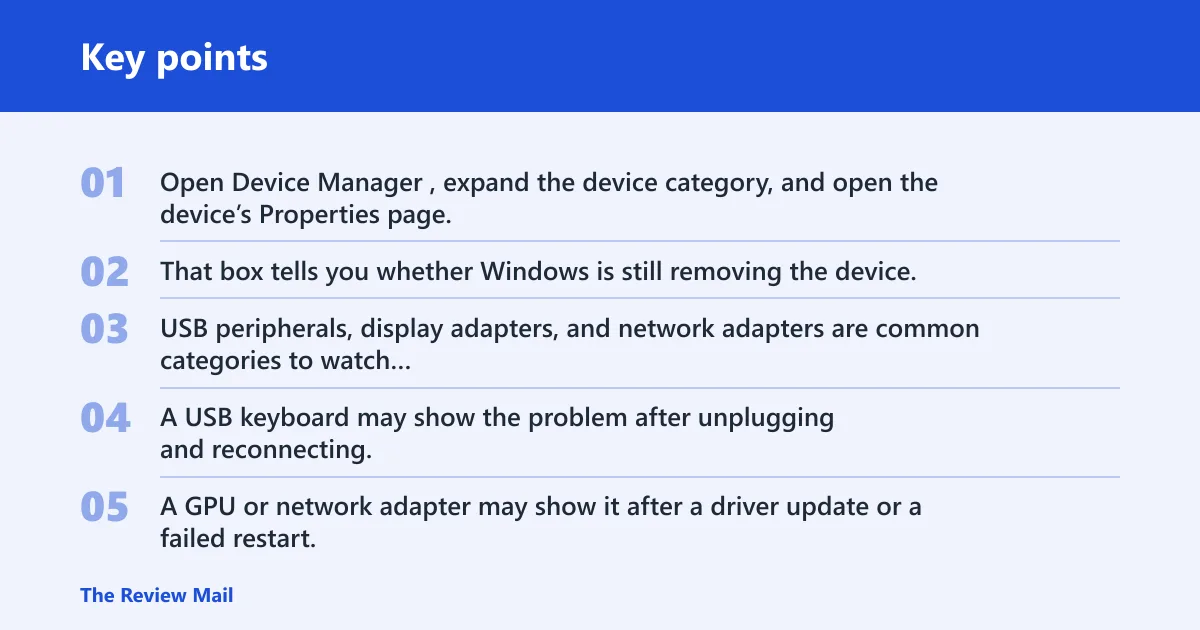
Open Device Manager, expand the device category, and open the device’s Properties page. Look at the device status line. That box tells you whether Windows is still removing the device, whether a driver is stuck, or whether the device is not being detected correctly.
Note the device type
USB peripherals, display adapters, and network adapters are common categories to watch here. A USB keyboard may show the problem after unplugging and reconnecting. A GPU or network adapter may show it after a driver update or a failed restart. That context helps separate a temporary state from a hardware or driver issue.
Likely causes
Code 21 often starts as a temporary removal state after a restart, unplug, or update. Less commonly, a driver is stuck or conflicting. A hardware device can also be disconnected, disabled, or failing, which keeps Windows from completing detection. Start with the least risky fix and move up only if the status does not clear.
Temporary removal state after a change
Windows can hold a device in a removal state for a short time after shutdown, sleep, unplugging, or a driver change. This is the easiest version to clear. If the device returns after reboot, you do not need deeper repair.
Driver conflict or stuck driver
A device driver may be outdated, stuck, or conflicting with another driver. That can happen with chipset software, USB controllers, GPU drivers, and network adapters. If Code 21 started right after a driver install, rollback or uninstall is the next move.
Disconnected, disabled, or failing hardware
An external device may have a loose cable, weak port, or power issue. An internal card or adapter may need to be re-seated. If the same error appears after a clean reconnect and restart, hardware moves higher on the list.
How do you clear the temporary removal state?
The fastest fix is a full Windows restart. Microsoft’s Safe Mode and startup guidance makes restart-based cleanup the first low-risk step after a device change. If that does not clear the error, reconnect the device and refresh detection in Device Manager.
Restart Windows, then recheck Device Manager
- Save open work.
- Select Start > Power > Restart.
- After sign-in, open Device Manager.
- Open the device Properties and check Device status.
If the code disappears, stop there. If it remains, move to reconnect and refresh.
Unplug or reseat the device, then refresh detection
- For USB gear, unplug the device.
- Wait about 10 to 15 seconds.
- Plug it back into a different port if available.
- For internal hardware, power down fully and reseat the card or adapter only if the device is meant to be user-serviceable.
- In Device Manager, select Action > Scan for hardware changes.
This is the right move after reconnecting or reinstalling a device. If the device appears normally, the removal state was the issue.
Is Code 21 a driver problem or hardware problem?
It can be either, but driver conflict is the better next guess if the error began after an update, reinstall, or rollback. Hardware becomes more likely when the device still fails after a clean reconnect, a restart, and a driver reset. A driver reinstall can fix Code 21 when Windows has the wrong or stuck driver loaded.
Roll back or uninstall the driver after a change
- Open Device Manager.
- Right-click the device and choose Properties.
- Open the Driver tab.
- Select Roll Back Driver if it is available.
- If rollback is not available, select Uninstall Device, then restart Windows.
- After restart, return to Device Manager and use Action > Scan for hardware changes.
Use this when Code 21 started after a driver change. If a network adapter worked before an update and then vanished after reboot, that pattern fits driver conflict more than hardware failure. If available, use a driver rollback guide for the exact device family before removing the driver entirely.
Update the driver only when the current one is clearly stale
- In Device Manager, open the device Properties.
- Select the Driver tab.
- Choose Update Driver.
- Select Search automatically for drivers.
- Restart Windows after the install finishes.
Do this when the driver is old, missing, or known-bad for your device. If the device still shows Code 21 after update, stop repeating the same step and move on.
Code 21 escalation table
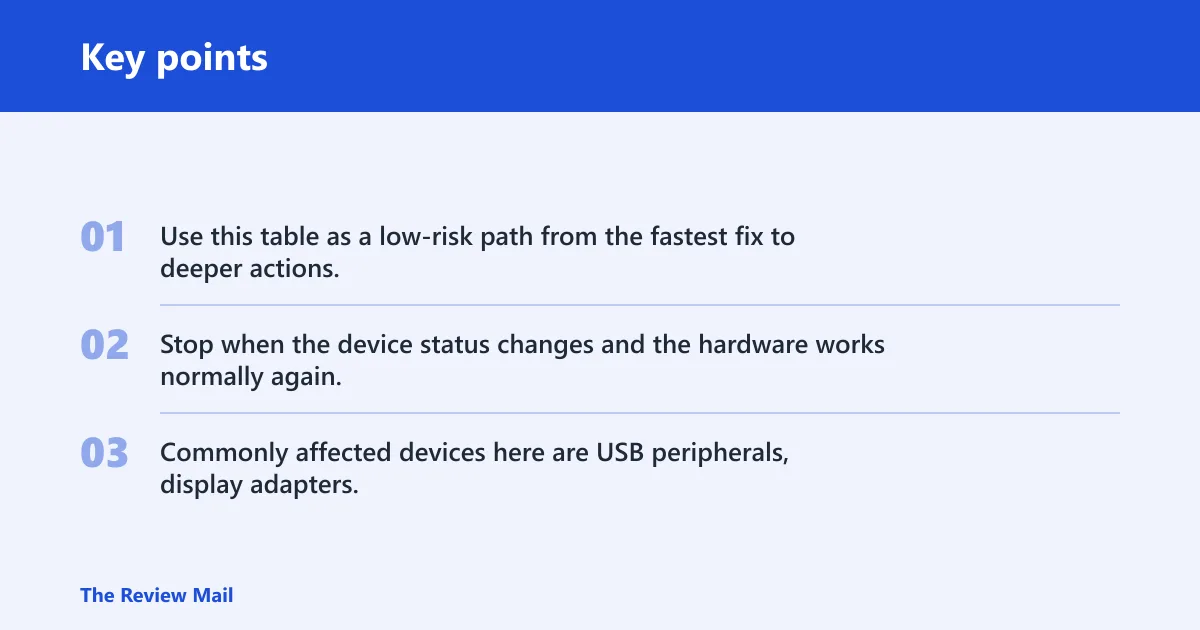
Use this table as a low-risk path from the fastest fix to deeper actions. Start at the top. Stop when the device status changes and the hardware works normally again. Commonly affected devices here are USB peripherals, display adapters, and network adapters.
| Symptom | Likely cause | Exact action | Expected result | When to stop |
|---|---|---|---|---|
| Code 21 appears after sleep, restart, or unplug | Temporary removal state | Restart Windows from Start > Power > Restart | Device status clears or changes to normal | Stop if the device returns |
| Device is external or recently disconnected | Disconnected or weak connection | Unplug, re-seat, or move to another port; then use Action > Scan for hardware changes | Windows redetects the device | Stop if the device is detected correctly |
| Error started after a driver install or update | Driver conflict or bad driver state | Device Manager > device Properties > Driver tab > Roll Back Driver or Uninstall Device | Windows reloads the device driver cleanly | Stop if Code 21 is gone after restart |
| Normal startup still shows the error | Third-party startup driver conflict | Boot to Safe Mode and recheck the device in Device Manager | Fewer drivers load, which helps isolate the conflict | Stop if the device works in Safe Mode |
| Error began right after a Windows or driver change | Bad update or configuration change | Run System Restore and choose a restore point from before the change | Windows settings and drivers roll back to the earlier state | Stop if the device returns after restore |
When should you use Safe Mode or System Restore?
Use Safe Mode when normal startup troubleshooting fails and you need to isolate third-party startup drivers. Use System Restore when Code 21 began right after a driver install or Windows update. Microsoft’s support pages for Safe Mode and System Restore support these as the right escalation tools when basic restart steps do not clear the problem.
Check in Safe Mode
- Open Settings > System > Recovery > Advanced startup and restart into recovery.
- Choose Troubleshoot > Advanced options > Startup Settings > Restart.
- Select Safe Mode.
- Open Device Manager and check the device status again.
If the device works here, a startup driver or service is the likely blocker.
Use System Restore after a bad change
- Open Control Panel > Recovery > Open System Restore.
- Choose a restore point from before the driver or Windows update.
- Finish the restore and let Windows restart.
- Check the device again in Device Manager.
This is the best rollback option when the error began after a clear system change.
Still not working?
If the device still shows Code 21 after rollback and restore, check whether it fails on another port, cable, or machine. If the same device works elsewhere, the problem is probably local to this PC. If several different devices show the same error, the issue may be broader than one driver.
Look for a pattern before you replace hardware
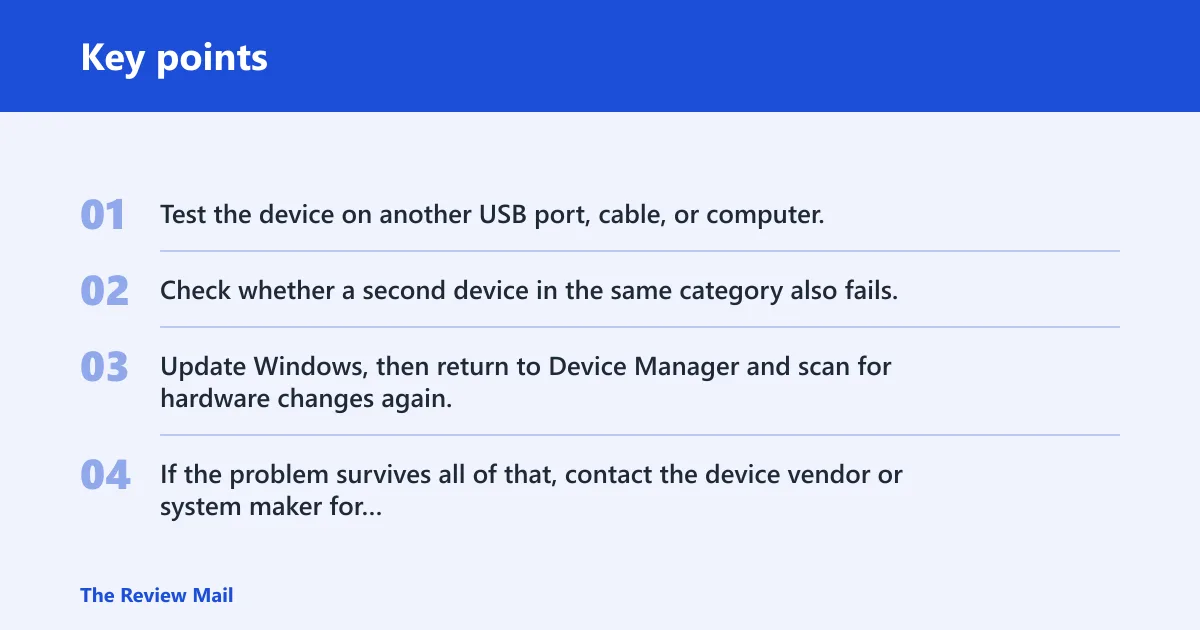
- Test the device on another USB port, cable, or computer.
- Check whether a second device in the same category also fails, such as another USB peripheral or another network adapter.
- Update Windows, then return to Device Manager and scan for hardware changes again.
- If the problem survives all of that, contact the device vendor or system maker for support.
If one display adapter shows Code 21 after a graphics update but the onboard network adapter works normally, that points to a device-specific driver problem rather than a full-system failure. Use vendor support when the guidance depends on the exact model or chipset.
Prevention
After driver changes, restart Windows before judging the result. That simple step prevents a lot of false alarms and clears temporary removal states more often than a second reinstall does.
Frequently asked questions
What is code 21 in Windows device Manager?
Code 21 is the status Windows gives a device when it is still being removed. Check the device in Device Manager, then restart the PC and scan for hardware changes. If the device comes back, the status was temporary rather than a hard failure.
How do I fix code 21 on a Windows PC?
Start with Start > Power > Restart, then open Device Manager and use Action > Scan for hardware changes. If that fails, roll back or uninstall the driver from the Driver tab. Move to Safe Mode or System Restore only if the error started after a change.
Can a driver reinstall fix code 21?
Yes. In Device Manager, open the device Properties, go to the Driver tab, and choose Uninstall Device or Roll Back Driver. Restart Windows afterward. If the device still fails, the problem may be the hardware or a deeper startup conflict.
Should I restart Windows after code 21 appears?
Yes. A reboot is the first-line fix because it clears transient device-removal states. Use Start > Power > Restart, then recheck the status line in Device Manager. If the device returns normally, stop troubleshooting there.
What is code vs standard in search results?
Search results can mix unrelated “code” pages with “standard” pages. For a Windows device error, that mix is a distraction. Code 21 in Device Manager is about a device removal state, not a general web search term or a different industry code system.
Is code 21 a hardware problem or a driver problem?
Either one is possible. If the error started after an update, driver rollback or uninstall is the better first move. If the device still fails after a clean reconnect, reboot, and Safe Mode check, hardware becomes more likely. Test another port, cable, or machine before replacing anything.
What is code 21 in a hospital?
That is a different code system and not part of Windows troubleshooting. If you are dealing with Device Manager, stay focused on the device status line, restart the PC, and use the driver steps above. Hospital and police codes do not help with a Windows device error.