Win 11 How to Shut Down
Use the Start menu power button for the standard Windows 11 shutdown path. If shutdown hangs or Windows is finishing updates, you may need a different path or a restart instead. This guide covers the main shutdown methods, how to avoid unwanted updates, when a force shut down is appropriate, and what to check when Windows 11 will not shut down cleanly.
How to shut down Windows 11
The safest default is the Start menu power button. Windows 11 also supports shutdown from the desktop with Alt + F4, from the Ctrl + Alt + Delete screen, and from the Quick Link menu opened with Win + X. Save your work first, because shutdown closes open apps and unsaved changes can be lost.
Use the Start menu power button
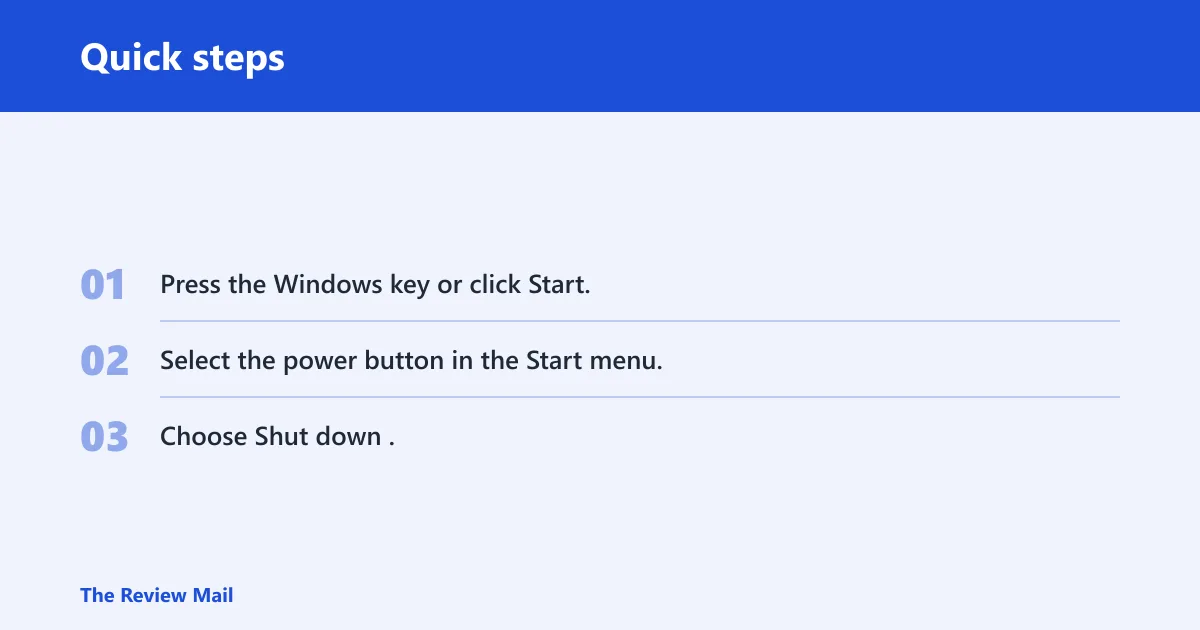
Open Start, select the power button, then choose Shut down. This is the standard shutdown path in Windows 11, and it appears alongside Restart and Sleep in the Start menu. (Learn how to restart Windows 11)
- Press the Windows key or click Start.
- Select the power button in the Start menu.
- Choose Shut down.
If you are already on the desktop, this is usually the clearest route. Save any open document first so the shutdown can close apps cleanly.
Use Alt + F4 from the desktop
Alt + F4 opens the Shut Down Windows dialog when the desktop is active. If an app window is focused, the shortcut closes that app first instead of opening the shutdown dialog. To use the shutdown dialog, click the desktop first, then press Alt + F4, choose Shut down, and confirm.
That makes Alt + F4 useful when you want a quick shutdown without opening Start, but it only works as a shutdown shortcut from the desktop state.
Use Ctrl + alt + delete or Win + X
The Ctrl + Alt + Delete screen usually includes a power icon in the lower-right corner. From there, you can choose Shut down or Restart even when the taskbar or Start menu is not responding. Windows also includes the Quick Link menu when you press Win + X; from there, use the power-related option shown on your system to reach shutdown.
Win + X is a menu path, not a universal single-key shutdown command. Because menu options can vary by Windows build and configuration, it is safer to think of it as a shortcut to the power controls rather than an immediate shutdown sequence.
Use a force shut down only when Windows is frozen, an app will not close, or the machine will not respond to normal power options. The safest method is always to try a normal shutdown first and save any open work if the system still responds.
Safest method
Try to close the unresponsive app, then use the Start menu, Alt + F4 from the desktop, or Ctrl + Alt + Delete again before forcing power off. If the system remains stuck, use the command-line force option only as a last resort. (Command Prompt basics)
A forced shutdown can lose unsaved documents, interrupt downloads, and leave files incomplete. If you still have any chance to save work, do that before forcing the power off.
Command-line force option
shutdown.exe supports /f to force-close apps. Use it only when normal shutdown methods fail and the PC refuses to power off cleanly. For example, shutdown /s /f requests a shutdown and force-closes apps at the same time.
How to shut down Windows 11 without updating
If Windows shows Update and shut down, it is trying to finish pending updates as part of power-off. To avoid updating right then, use a normal shutdown path instead of choosing the update prompt. If updates are already being installed, the safest option is to let them finish or restart when Windows asks. (Windows Update troubleshooting)
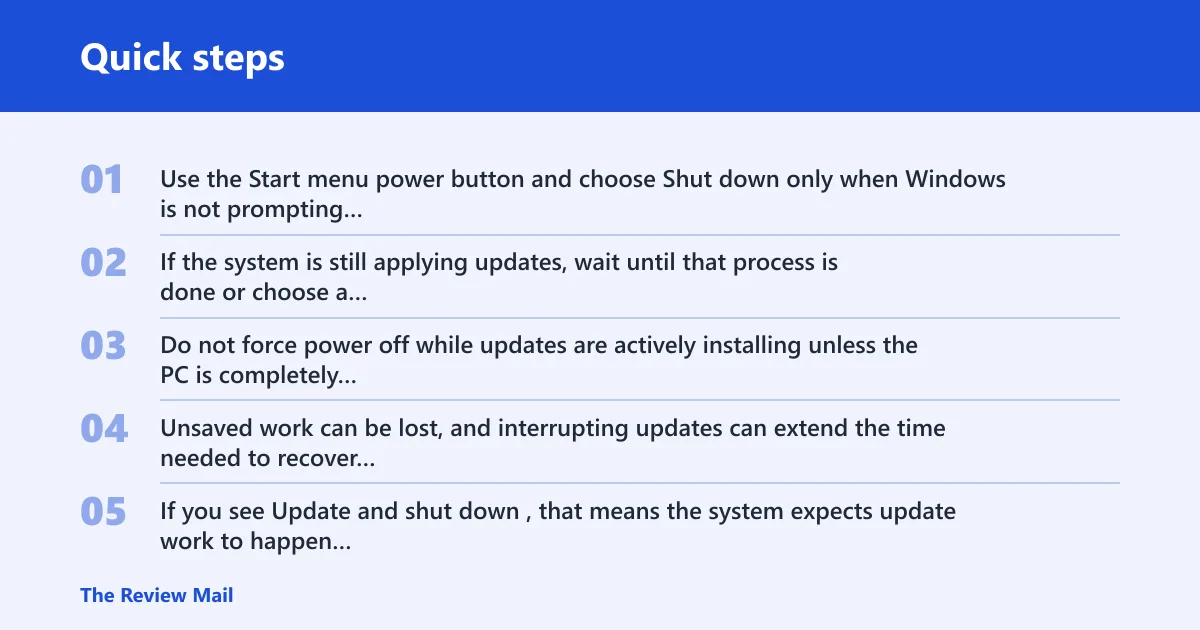
Safest method: use the Start menu power
Use the Start menu power button and choose Shut down only when Windows is not prompting to finish updates. If the system is still applying updates, wait until that process is done or choose a restart if Windows requests one.
Do not force power off while updates are actively installing unless the PC is completely stuck and no normal option responds. Unsaved work can be lost, and interrupting updates can extend the time needed to recover on the next boot.
What to watch
If you see Update and shut down, that means the system expects update work to happen before power-off completes. If you simply want the PC off for later use, check whether Windows is still downloading or installing updates before you choose a power option.
How to restart Windows 11
Restarting closes Windows and starts it again from scratch. It is often the right choice after updates or troubleshooting steps. Use the same power menus as shutdown, but choose Restart instead of Shut down. Restart is safer than force shutting down when Windows needs to reload system components.
Safest method: open Start, select the power
Open Start, select the power button, and choose Restart. If Start is unavailable, use Ctrl + Alt + Delete and choose Restart from the power icon there.
Save your work first, because a restart also closes open apps and can discard unsaved changes.
Fastest ways to shut down
The fastest normal method depends on where you already are. If the desktop is visible, Alt + F4 is often the quickest path to the shutdown dialog. If you prefer a standard routine, the Start menu power button is the clearest and most reliable option.
Desktop shortcut path with Alt + F4
When the desktop is visible, Alt + F4 opens the shutdown dialog instead of closing a program window. That makes it fast, but only if the desktop is active. If an app is focused, the shortcut closes that app first.
Power menu path from Start
The Start menu power button is the standard path and the one most users should learn first. Windows 11 places it in the Start menu, where it offers Shut down, Restart, and Sleep. That makes it the best default option for clean shutdowns.
Lock screen power button
The lock screen also includes a power button in the bottom-right corner. From there, you can choose Shut down, Sleep, or Restart without signing in first. This is useful when you want the PC off before logging back in.
Why won’t Windows 11 shut down?
Windows 11 may appear to ignore shutdown when an app is holding the session open, when updates are pending, or when the PC is actually sleeping or hibernating instead of shutting down. Fast Startup can also change the way shutdown behaves on the next boot. (What Fast Startup does in Windows 11)
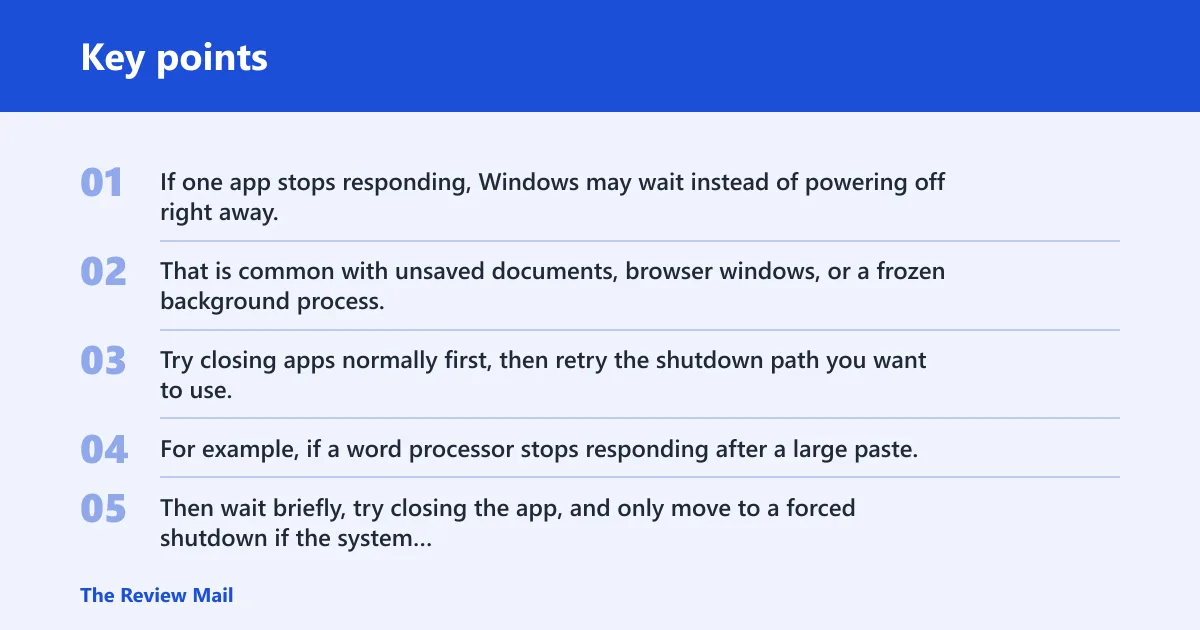
An app is still holding the session open
If one app stops responding, Windows may wait instead of powering off right away. That is common with unsaved documents, browser windows, or a frozen background process. Try closing apps normally first, then retry the shutdown path you want to use.
For example, if a word processor stops responding after a large paste, save the file if it still responds. Then wait briefly, try closing the app, and only move to a forced shutdown if the system stays stuck.
Updates are pending or already installing
Windows may show Update and shut down when it wants to install pending updates as part of the power-off process. If you choose that option, shutdown can take longer because Windows is finishing update work first. That is normal and does not necessarily indicate a failure.
If you need the PC off quickly, do not confuse Restart with Shut down. A restart is often used after updates because it reloads Windows from scratch instead of preserving part of the session state.
You are seeing sleep or hibernate instead of shutdown
Some laptop settings make the lid close action or power button trigger sleep, hibernate, or display-off behavior rather than shut down. That can look like a failed shutdown because the screen turns off and then the PC wakes later. Check the power action before assuming Windows is broken. (Sleep vs. hibernate in Windows 11)
A common mistake is to press the laptop power button, see the screen go dark, and assume the machine powered off. If the system resumes with the same open apps, it likely slept or hibernated instead of shutting down.
Fast Startup changes what full shutdown looks like
Fast Startup can make the next boot faster, but it also means Windows may use a hybrid shutdown path. If you need a true full shutdown, that difference matters. Microsoft documents Fast Startup as part of the power-off experience and includes settings for turning it on or off in Power Options. (Microsoft Support)
If you want a full shutdown for troubleshooting, use the normal Shut down option and review your Fast Startup setting afterward if shutdown behavior still seems inconsistent.
Shutdown.exe commands to know
shutdown.exe is the built-in command-line tool for power actions. Microsoft documents its shutdown and restart syntax, including /s for shutdown, /r for restart, /t for a delay, /f to force close apps, and /hybrid for hybrid shutdown behavior. (Command Prompt basics)
Command examples
| Command | What it does | Best use |
|---|---|---|
| shutdown /s | Shuts down Windows | Standard command-line shutdown |
| shutdown /r | Restarts Windows | After updates or troubleshooting |
| shutdown /s /t 0 | Performs a full shutdown right away | When you want an immediate clean shutdown |
| shutdown -s -t XXXX -f | Schedules a shutdown after a timer and forces apps closed | Timed shutdowns and stuck apps |
| shutdown /hybrid | Uses hybrid shutdown behavior | Fast Startup-related behavior |
For a delayed shutdown, replace XXXX with the number of seconds you want to wait before power-off. For example, a two-hour timer uses 7200 seconds.
Shutdown decision table
This table separates the common shutdown cases so you can choose the safest path fast. Use the symptom column to match what you see, then follow the safest action and check the warning before you force anything.
| Symptom | Likely cause | Safest action | Command/setting | Data-loss warning |
|---|---|---|---|---|
| Normal desktop, no error | Nothing is wrong | Use a normal shutdown | Start menu power button or Alt + F4 | Low, if work is saved |
| Apps frozen or window will not close | App hang or stuck process | Try closing the app, then force shut down if needed | shutdown /f after other steps fail | High for unsaved work |
| Need the PC off at a set time | Planned delay | Schedule the shutdown | shutdown -s -t XXXX | Low if you save first |
| PC must reboot after changes | Update or troubleshooting task | Use restart, not shut down | shutdown /r | Low to moderate if work is open |
| Shutdown appears to restart, sleep, or stall | Fast Startup, update prompt, or power setting confusion | Troubleshoot the power path and check update state | Power Options, Update and shut down, or shutdown /s /t 0 | Depends on whether files are saved |
How do you make the power button shut down?
Open Control Panel, go to Power Options, and change what the power button does. That setting can be assigned to Shut down on desktops and laptops. If the machine is a laptop, also check what closing the lid does, because that action can differ. (Microsoft Support)
Change power button and lid settings
- Open Control Panel.
- Go to Power Options.
- Choose Choose what the power buttons do.
- Set the power button action to Shut down.
- On a laptop, set the lid close action to match what you want.
If the lock screen power button does not seem to match your choice, check the same power settings again. A mismatched lid action or sleep setting can make shutdown behavior look inconsistent.
Frequently asked questions
How do I shut down Windows 11?
Use the Start menu power button and choose Shut down. That is the standard path in Windows 11. If you want a keyboard route, press Win + X to open the Quick Link menu and use the power option shown there. Alt + F4 also works from the desktop.
How do I shut down Windows 11 from the Start menu?
Open Start, select the power icon, and choose Shut down. In Windows 11, the Start button shows the Windows logo, and the power button is in the Start menu’s lower area. Save work first so the shutdown closes cleanly.
How do I shut down Windows 11 with Alt + F4?
Click the desktop so no app is active, then press Alt + F4. The Shut Down Windows dialog opens, and you can choose Shut down. If an app is focused, the shortcut closes that app first instead of opening the dialog right away.
How do I shut down Windows 11 using Command Prompt?
Open Command Prompt and use shutdown /s for a shutdown. For a restart, use shutdown /r. You can add /t for a delay and /f to force-close apps when a normal shutdown will not complete.
Why does Windows 11 say Update and shut down?
That message means Windows wants to finish pending updates as part of the shutdown process. It is normal after patch installs. If you choose it, the PC may take longer to power off because update work runs before shutdown completes.
How do I make Windows 11 power button shut down?
Open Control Panel, go to Power Options, and change the power button action to Shut down. On laptops, set the lid close action too, or the machine may sleep or hibernate when you expect a shutdown. Check the lock screen power button if behavior still looks off.