Windows 10 Keyboard Disabled Fix: Quick Recovery Steps
Use the On-Screen Keyboard first, then check Accessibility, Device Manager, and Filter Keys. If the keyboard works in BIOS or at sign-in but not in Windows, the fault is usually a Windows setting, not dead hardware. Skipping the wrong setting can leave you locked out of sign-in, shortcuts, and password entry. This guide shows a mouse-only Windows 10 keyboard disabled fix, including how to separate physical keyboard failure from touch-keyboard settings.
What the symptom means
A computer keyboard is the device with buttons or keys used to enter text. When it stops responding, the problem usually falls into one of two groups: the physical keyboard is not sending input, or Windows is hiding or redirecting input with settings, drivers, or services. Start with the mouse and do not assume every missing input path is the same fault.
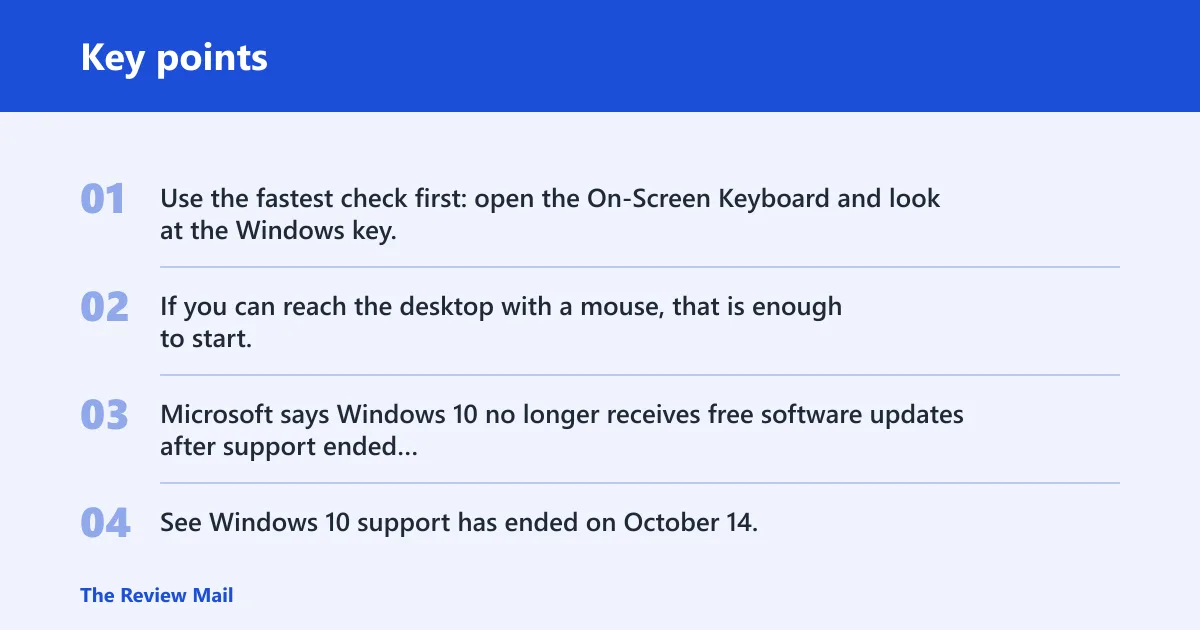
Use the fastest check first: open the On-Screen Keyboard and look at the Windows key, Num Lock, and whether only one key or the whole board is affected. If you can reach the desktop with a mouse, that is enough to start.
Keyboard recovery matrix
| Symptom pattern | Fastest safe fix | Escalation point | What you can do without typing |
|---|---|---|---|
| Entire keyboard dead | Open Settings > Ease of Access > Keyboard, turn off Filter Keys and Sticky Keys, then restart to reload input settings | If an external USB keyboard also fails in BIOS or at sign-in, stop treating it as a Windows-only issue and inspect hardware, port, or firmware | Use the mouse to open Settings, toggle accessibility switches, and launch the On-Screen Keyboard from the sign-in screen or Ease of Access menu |
| Only touch keyboard missing | Open taskbar settings and Services, then verify Touch Keyboard and Handwriting Panel Service is running and the touch keyboard is allowed to appear when needed | If the service will not start or disappears again after restart, move to Windows repair or component recovery | Use the taskbar, Settings, and Services with the mouse only; you do not need the physical keyboard to check the service state |
| Keyboard works in BIOS but not Windows | Check accessibility features, layout, and Device Manager. If Windows sees the keyboard but it behaves incorrectly, uninstall and restart so Windows reloads the device | If settings changes do not help and the same keyboard still fails after a clean reboot, move to driver rollback or reinstall | Use the On-Screen Keyboard to sign in, then open Device Manager and Windows settings without relying on the broken keyboard |
| One key disabled | Check debris, Sticky Keys, and language/layout mismatch. Use the On-Screen Keyboard to verify whether the same character works on screen | If the same key fails in BIOS, treat it as hardware damage or a local key-switch failure rather than a Windows setting | Use the On-Screen Keyboard to compare the missing key with the on-screen layout and confirm whether the problem is isolated |
| Keyboard disabled after update | Review Windows release health for known issues tied to the update, then use Device Manager to roll back or uninstall the keyboard driver if the timing matches | If rollback is unavailable or the keyboard still fails after restart, use a repair install or update reversal path | Use Settings > Update & Security > Windows Update and Device Manager to compare the build change with the failure |
| Laptop with no external keyboard | Use On-Screen Keyboard and a mouse to reach settings, then inspect accessibility, input services, and update history | If you cannot sign in or open Settings, use installation media repair or a recovery environment instead of repeated restarts | Open the sign-in screen keyboard icon or the Ease of Access menu, then work through the same mouse-only checks |
Microsoft says Windows 10 no longer receives free software updates after support ended and no longer receives technical support. See Windows 10 support has ended on October 14, 2025 and Download Windows 10 Disc Image (ISO File).
Likely causes, ranked
Most often, the cause is a Windows setting that changes how keystrokes are accepted. Less commonly, Device Manager needs a driver refresh, or a Windows service that supports touch input is stopped. After that come update conflicts, language/layout mismatches, and then actual hardware failure.
Accessibility settings such as Filter keys, Sticky keys, or Toggle keys
If the keyboard seems delayed, ignores combinations, or acts as if Shift or Ctrl is stuck, accessibility settings are a common cause. These controls can make a healthy keyboard feel broken, so turn them off first before assuming hardware failure. A restart helps Windows reload the input state cleanly.
- Open Settings > Ease of Access > Keyboard with the mouse.
- Turn Filter Keys off.
- Turn Sticky Keys off.
- Turn Toggle Keys off if it is enabled.
- Open the language indicator on the taskbar and confirm the keyboard layout matches the one you expect.
- After changing those settings, restart the PC so Windows reloads them.
Say your letter keys work in the login box, but the Shift key seems stuck and shortcuts behave oddly. That pattern often points to Sticky Keys or Filter Keys, not a failed keyboard.
Keyboard driver trouble in Device Manager
Device Manager is the best mouse-only place to check whether Windows still recognizes the keyboard, whether the driver needs replacement, or whether the device has an error state. If Windows shows the keyboard but it still does not type correctly, update or reinstalling the device is often the next operational step.
- Open the Start menu, use the mouse to right-click Start, and open Device Manager.
- Expand Keyboards and look for the hardware device list.
- Right-click the keyboard device and choose Update driver.
- If that does not help, choose Uninstall device.
- Restart the PC so Windows reloads the keyboard driver.
- If the keyboard still fails, open Device Manager again and check for warning symbols.
Do not jump to registry edits here. Device Manager is a common path: try updating the keyboard driver first, then uninstall it and let Windows reinstall it after a reboot.
Touch Keyboard and Handwriting Panel Service or on-screen keyboard issues
A missing touch keyboard is not the same as a dead physical keyboard. The touch keyboard is a Windows feature that can appear or stay hidden depending on device state, service status, and taskbar settings. If you only lost the touch keyboard, the fix is usually in Services or taskbar configuration rather than hardware.
- Open Start, search for Services with the mouse, and open
services.msc. - Find Touch Keyboard and Handwriting Panel Service.
- Open its properties and check the startup behavior.
- Set it to start automatically if it is disabled or stopped.
- Open the On-Screen Keyboard as a backup input method and test Num Lock and the Windows key.
- In Taskbar settings, confirm the touch keyboard is not set to Never if you want it visible.
For Microsoft guidance on the feature itself, see Use the On-Screen Keyboard (OSK) to type in Windows and Touch keyboard: need to swipe out a word?.
How to separate a hardware fault from a Windows fault
If the keyboard works in BIOS but not in Windows, the hardware is often still alive. If it fails in BIOS too, that points away from Windows and toward the keyboard itself, its cable, or the laptop’s input hardware.
- Restart, then enter BIOS or UEFI with the keyboard if possible.
- If the keyboard works there, return to Windows and test with the On-Screen Keyboard.
- If only one key fails, test that same key in BIOS and in the On-Screen Keyboard.
- If an external USB keyboard works in Windows, the built-in keyboard is a stronger suspect.
- If nothing works outside Windows, stop chasing software fixes and move to repair diagnosis.
What if the problem started after an update?
Check Windows release health for known issues before you spend time on the wrong fix. The same source recommends checking known issues before updating, and post-update keyboard trouble can come from a compatibility change, a driver replacement, or a feature update that changed input behavior.
- Open Settings > Update & Security > Windows Update.
- Review the update history and note the last successful install.
- Check Windows release information status for known issues tied to that build.
- Open Device Manager and roll the keyboard driver back only if that option is available.
- If the keyboard failed immediately after the update, use the uninstall-and-restart path from Device Manager.
Suppose the built-in keyboard worked yesterday and stopped right after a cumulative update. That timing makes a software conflict more likely than sudden hardware failure, especially if the keyboard still works in BIOS.
Windows 10 support and reinstall options
Windows 10 support ended on October 14, 2025. The same source says Windows 10 no longer receives free software updates after support ended, and it no longer receives technical support after support ended. That matters when a fix depends on future patches; there may not be one. See Windows 10 support has ended on October 14, 2025 and Download Windows 10 Disc Image (ISO File).
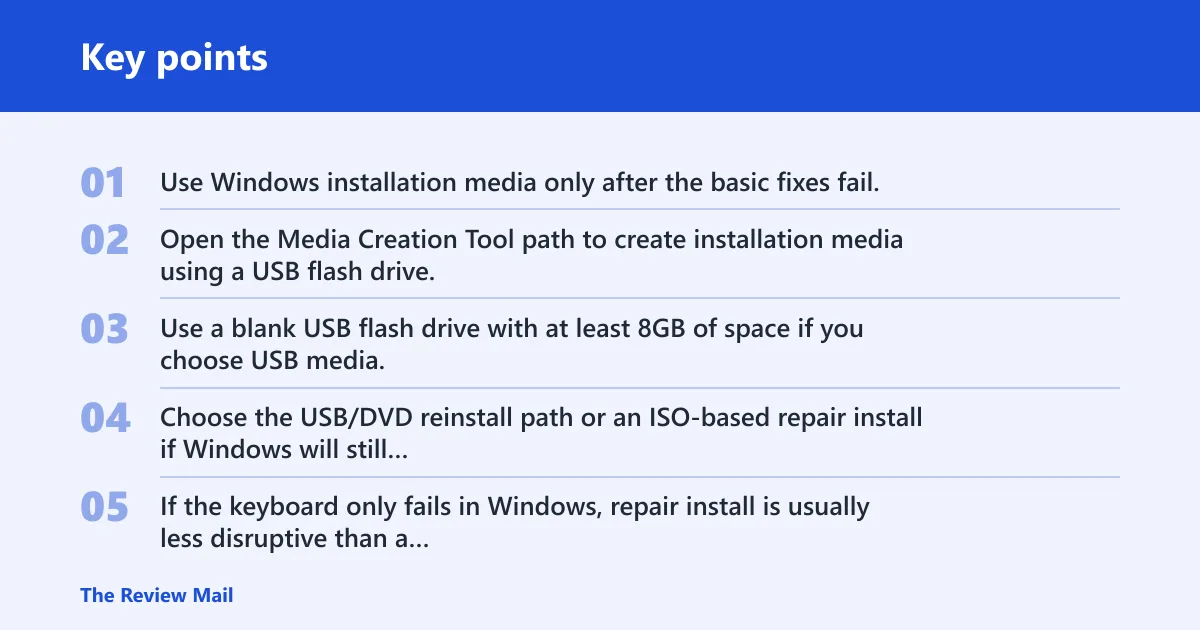
- Use Windows installation media only after the basic fixes fail.
- Open the Media Creation Tool path to create installation media using a USB flash drive, DVD, or ISO file.
- Use a blank USB flash drive with at least 8GB of space if you choose USB media.
- Choose the USB/DVD reinstall path or an ISO-based repair install if Windows will still boot.
- If the keyboard only fails in Windows, repair install is usually less disruptive than a full wipe.
Keep Windows Update history in view after a successful repair, so you can tie a repeat failure to the same build or driver change.
Still not working?
If the accessibility settings, driver refresh, touch-keyboard service, and update checks do not help, try an external USB keyboard before you do anything more invasive. If that works, the built-in keyboard or its connection is the problem. If it does not, focus on system repair or hardware service.
Stop at the point where the same failure appears in BIOS, on the sign-in screen, and in Windows after a clean restart. At that stage, a repair shop or vendor support is the sensible next step.
Frequently asked questions
Why is my keyboard disabled?
Most often, the keyboard is not truly disabled; Windows is blocking or rerouting input through accessibility settings, a layout mismatch, or a driver issue. Open Settings > Ease of Access > Keyboard, then check Device Manager > Keyboards. If BIOS input still works, focus on Windows settings first.
Why is my laptop keyboard disabled?
A laptop keyboard can appear disabled because of a Windows setting, a stopped driver, or a hardware fault in the built-in keyboard assembly. Test the On-Screen Keyboard first, then compare BIOS behavior with Windows behavior. BIOS working but Windows failing usually points to software, not the panel itself.
How do I re-enable my keyboard in Windows 10?
Open Settings > Ease of Access > Keyboard and switch off any enabled accessibility features. Then open Device Manager, uninstall the keyboard device, and restart so Windows reloads it. If the keyboard is missing only on the desktop, also check the language and layout indicator.
What should I check first if my keyboard suddenly stopped working?
Check the On-Screen Keyboard, then look for Filter Keys and Sticky Keys in Settings > Ease of Access > Keyboard. Next, test whether the keyboard works in BIOS. That quick split tells you whether you are chasing Windows settings or hardware trouble.
Will the on-screen keyboard help if my physical keyboard is disabled?
Yes. The On-Screen Keyboard is the safest backup input method when the physical keyboard will not type. It can help you sign in, open Settings, inspect Device Manager, and check Num Lock or the Windows key without needing the hardware keyboard to work first.