How to Fix Windows 11 PIN Error
Use the fix that matches the screen: if Windows says the PIN is incorrect, reset it; if it says the PIN is unavailable, remove and recreate it; if the PIN option is missing, sign in another way first, then restore Windows Hello. This article splits those three PIN faults and gives the shortest safe steps for each.
What this PIN error means
Windows Hello PIN is a Windows 11 sign-in method. It can stop working after updates, account changes, TPM changes, or damaged sign-in data. The safest fast path is password sign-in first, then rebuild the PIN after you get back into Windows.
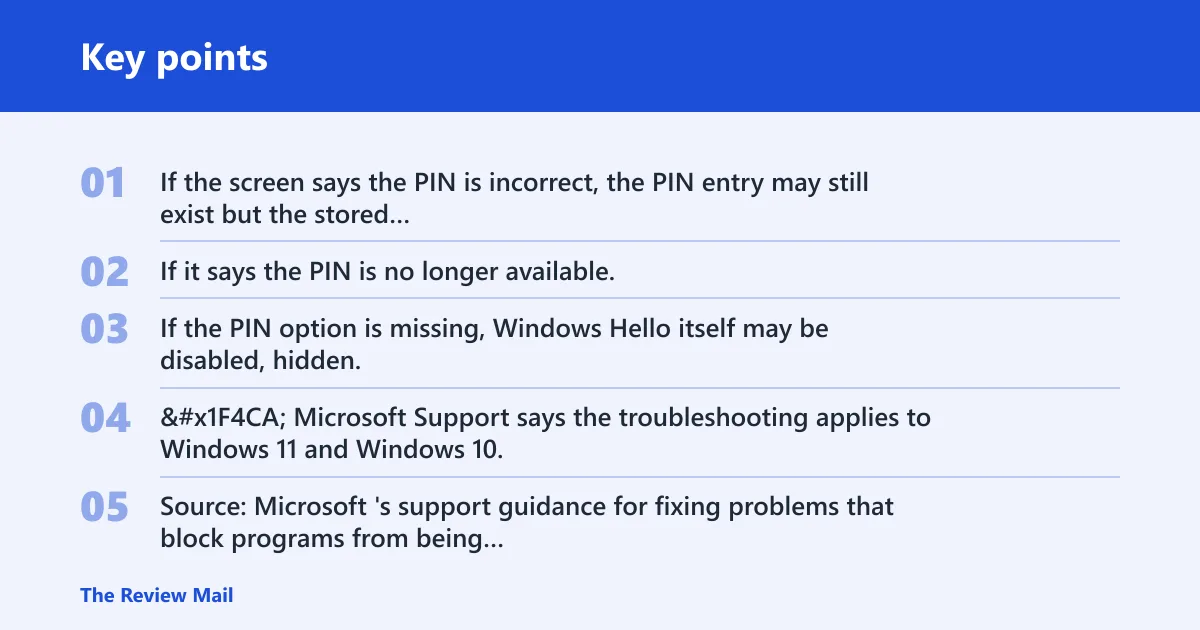
If the screen says the PIN is incorrect, the PIN entry may still exist but the stored credential is out of sync. If it says the PIN is no longer available, Windows usually needs a rebuild of the PIN data. If the PIN option is missing, Windows Hello itself may be disabled, hidden, or unable to load.
📊 Microsoft Support says the troubleshooting applies to Windows 11 and Windows 10. Source: Microsoft‘s support guidance for fixing problems that block programs from being installed or removed.
What you’ll need
- Your Windows 11 sign-in options screen.
- Microsoft account password or local account password.
- Access to Windows Recovery Environment through Shift + Restart if sign-in is blocked.
- A second device for password recovery, if your Microsoft account needs a reset.
- Time to rebuild the PIN after you get back into Windows.
Windows hello PIN troubleshooting matrix
| Symptom | Likely cause | Safest first fix | Escalation step |
|---|---|---|---|
| PIN no longer available | Windows Hello data is damaged or out of sync | Sign in with password from Windows 11 sign-in options | Remove and recreate the PIN in Settings > Accounts > Sign-in options |
| Incorrect PIN after a restart | Stored PIN data no longer matches the current system state | Restart once more, then try password sign-in | Reset the PIN after you reach the desktop |
| PIN stopped working after an update | Recent update changed sign-in components or TPM behavior | Try Windows update rollback if the change is recent | Use Windows Recovery Environment and automatic repair |
| PIN option missing from sign-in options | Windows Hello is hidden, disabled, or cannot load | Use the password route to reach Settings | Check sign-in options and rebuild Windows Hello PIN data |
| NGC folder access denied | Permissions block PIN data removal | Use administrator access from Windows Recovery Environment or Safe Mode | Reset the PIN after ownership and permission issues are cleared |
| TPM-related failure | Security data stored in the TPM no longer matches Windows Hello | Recover with password before touching TPM settings | Clear TPM only after data is backed up and sign-in is restored |
| Microsoft account password fallback | PIN path failed, but account credentials still work | Sign in with the Microsoft account password | Reset the PIN from Sign-in options once inside Windows |
| Reset this PC last resort | Repair, rollback, and PIN rebuild failed | Choose Reset this PC and keep my files if offered | Use a full reset only if the device still cannot sign in |
How do you sign in without a PIN on Windows 11?
Use the password route from Windows 11 sign-in options. If the device is linked to a Microsoft account, that password is the cleanest fallback. If the device uses a local account, use that local password instead. If the sign-in screen does not offer a password path, move to Windows Recovery Environment with Shift + Restart.
- On the sign-in screen, select Sign-in options.
- Choose the password icon instead of PIN.
- Enter your Microsoft account password or local account password.
- If the password option is missing, hold Shift and select Restart.
- Use Troubleshoot > Advanced options to reach repair tools.
Say your laptop shows “PIN is no longer available” after a sleep cycle and the password icon is still present. Use the password route first. That gets you back into Windows without risking the data stored in Windows Hello.
How do you fix a missing or unavailable PIN?
Start with the account password, then rebuild Windows Hello PIN data from the account settings page. This is the shortest safe path when Windows says the PIN is unavailable or when the PIN option has vanished from the sign-in screen. If the reset fails, the NGC folder may be blocked by permissions or damaged enough to need manual cleanup.
- Sign in with Sign-in options and your password.
- Open Settings > Accounts > Sign-in options.
- Select PIN (Windows Hello).
- Add the PIN again and finish the setup prompts.
If removal fails, check whether the NGC folder is protected. That folder stores Windows Hello PIN data, and permission blocks are common. Use Windows Recovery Environment, or boot to a repair path that lets you take ownership before deleting the damaged data.
How do you fix a PIN that stopped working after an update?
If the problem started right after a recent update, treat the update as the first suspect. A rollback can fix a sign-in regression faster than a PIN rebuild. If rollback is not offered, use automatic repair from Windows Recovery Environment, then rebuild the PIN after the system boots normally.
- Confirm the failure began after the most recent update listed in Settings > Windows Update > Update history, especially the latest quality update or driver update.
- Open Settings > Windows Update > Advanced options > Recovery.
- Select the option to uninstall the most recent update if it is available.
- If you cannot reach Windows, hold Shift and choose Restart.
- Use the recovery tools available there if Windows will not load correctly.
Suppose the PIN fails only after a cumulative update and the password still works. Roll back the update first. That avoids clearing security data that may still be valid.
What if the NGC folder will not delete?
Do not force deletion until you have the password path and a recovery route. The NGC folder holds Windows Hello PIN data, and access denied usually means Windows still owns the folder or a protected process is holding it open. Clear the permission issue first, then delete the damaged PIN store if needed.
- Sign in with your password, or open Windows Recovery Environment with Shift + Restart.
- Open Troubleshoot > Advanced options > Command Prompt.
- Run
takeown /f "C:\Windows\ServiceProfiles\LocalService\AppData\Local\Microsoft\Ngc" /r /d yand thenicacls "C:\Windows\ServiceProfiles\LocalService\AppData\Local\Microsoft\Ngc" /grant administrators:F /tto take ownership. - Delete the NGC folder at
C:\Windows\ServiceProfiles\LocalService\AppData\Local\Microsoft\Ngconly after access is granted. - Reboot, then return to Settings > Accounts > Sign-in options to set a new PIN.
Common first-timer mistake: trying to delete the folder from a normal desktop session and stopping at “access denied.” That usually means the repair path is incomplete, not that the folder is impossible to remove.
Should you clear TPM to fix Windows Hello?
Only after password recovery and PIN rebuild steps fail. TPM stores security-related data used by Windows Hello, so clearing it can fix mismatched sign-in data. It can also change device security state, which is why it belongs later in the sequence, not first.
- Sign in with the account password first.
- Open Windows Security > Device security > Security processor details.
- Review the TPM status before changing anything.
- Use the TPM clear option only if the PIN problem persists after rebuild attempts.
- Restart, then recreate the PIN in Settings > Accounts > Sign-in options.
Clearing TPM before you have another sign-in method can lock you out of other security features. Keep it as a later recovery step.
When should you use Windows Recovery Environment?
Use Windows Recovery Environment when the sign-in screen will not let you in through PIN or password routes, or when you need repair tools before trying a rebuild. It is reached from the login screen with Shift + Restart, and it gives access to automatic repair and advanced options.
- Hold Shift and select Restart on the sign-in screen.
- Choose Troubleshoot > Advanced options.
- Select Startup Repair if Windows will not load correctly.
- Choose Uninstall Updates if the error began right after an update.
- Use Command Prompt only if you need to repair permissions or remove damaged PIN data.
When is reset this pc the last resort?
Use Reset this PC only after password fallback, PIN rebuild, update rollback, and startup repair have failed. Microsoft recommends Reset this PC (keep your files) when earlier steps do not work. That path may preserve personal files, but apps and some settings can still be removed.
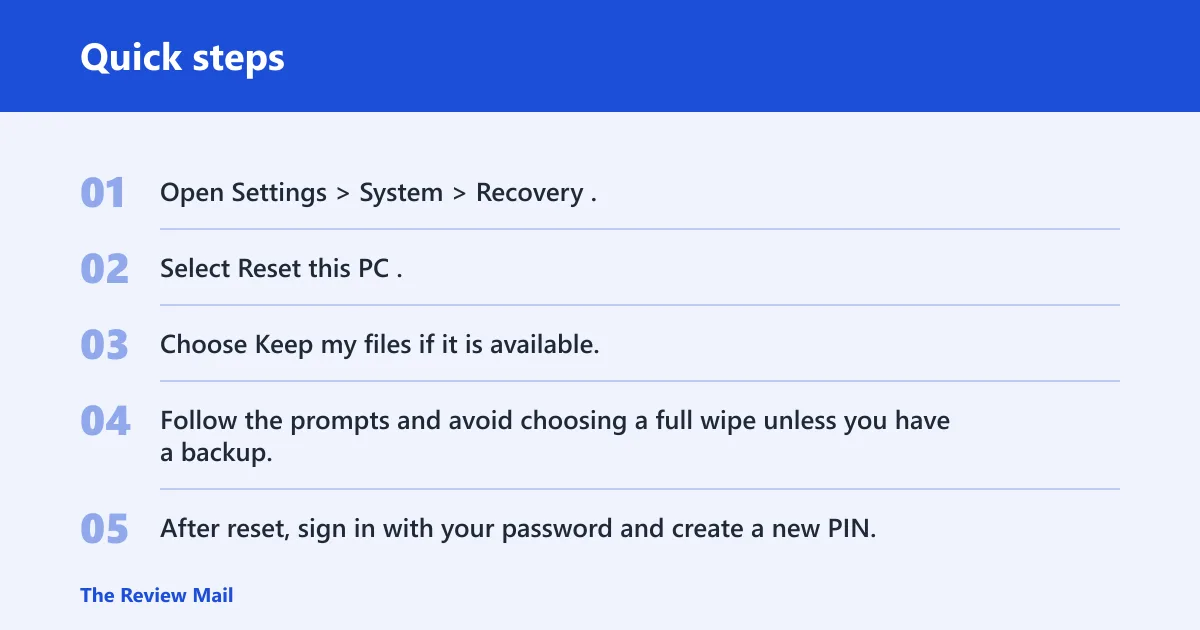
- Open Settings > System > Recovery.
- Select Reset this PC.
- Choose Keep my files if it is available.
- Follow the prompts and avoid choosing a full wipe unless you have a backup.
- After reset, sign in with your password and create a new PIN.
If you still cannot sign in after reset, stop and protect the files before trying anything more invasive. At that point, the issue is no longer a simple Windows Hello rebuild.
Common mistakes
Trying TPM clearing before password recovery can turn a PIN problem into a broader sign-in problem. Use the password route first.
Deleting the NGC folder without handling permissions usually ends in access denied. Fix ownership or use recovery mode before deleting anything.
Using Reset this PC before testing rollback or repair can remove useful recovery data and add more cleanup work. Save it for last.
Ignoring the difference between a Microsoft account and a local account leads to the wrong password prompt. Match the sign-in method to the account type shown on the device.
Do not keep retyping a broken PIN after a restart if the screen already says it is unavailable. Move to password sign-in and rebuild the credential.
Frequently asked questions
Why is my PIN not working on Windows 11?
The most common split is between an incorrect PIN, a PIN that is no longer available, and a missing PIN option. Start with Sign-in options, use the account password, and then choose the matching repair path: reset the PIN, rebuild Windows Hello data, or repair a recent update.
How do I reset my Windows 11 PIN if it says something went wrong?
Use the password to sign in, then go to Settings > Accounts > Sign-in options > PIN (Windows Hello). If that fails, check for NGC permission blocks.
What do I do if Windows 11 says my PIN is no longer available?
Do not keep retrying the same PIN. Choose password sign-in from Windows 11 sign-in options, reach the desktop, then remove and recreate the PIN. If the reset fails, use Shift + Restart and check whether the NGC folder or a recent update is blocking the rebuild.
Can I fix a Windows 11 PIN error without reinstalling Windows?
Yes. In many cases, password sign-in, PIN rebuild, Windows update rollback, automatic repair, or NGC cleanup solves the issue. Use Reset this PC only after those steps fail, and choose Keep my files if Windows offers it and your data still needs protection.