Win 11 Account Locked Out
First, identify the lockout: if you see “account has been locked” after bad sign-ins, stop guessing and match the fix to the account type. Microsoft account lockouts usually need online recovery at account.microsoft.com; local account lockouts follow the device’s sign-in policy; and a disabled or blocked admin account needs a different repair path than a temporary lockout. Getting the path wrong can keep you locked out longer or send you to the wrong recovery steps.
Quick triage: Using email to sign in? Go to account.microsoft.com. Local account after failed attempts? Wait for policy timeout. No other admin? Use WinRE/Safe Mode.
Which lockout do you have?
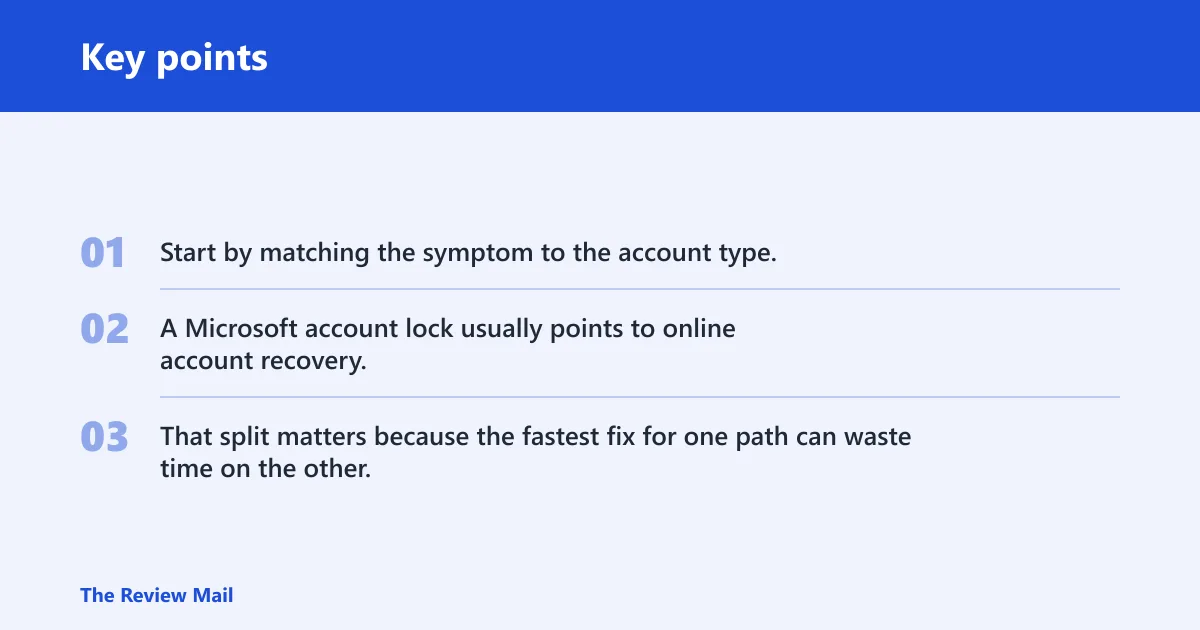
Start by matching the symptom to the account type. A Microsoft account lock usually points to online account recovery, while a local Windows account lock is handled on the device itself through local security policy or, on domain-joined PCs, domain policy. That split matters because the fastest fix for one path can waste time on the other.
| Symptom | Account type | Fastest fix | Required access | Fallback option |
|---|---|---|---|---|
| You see a lock message after sign-in attempts, and you use an email address to sign in | Microsoft account | Go to account.microsoft.com and start the access restore flow | Web access plus identity verification if prompted | Use the Microsoft account sign-in helper |
| You entered the wrong password or PIN several times, then Windows stopped accepting sign-in | Local Windows account | Wait for the account lockout policy to expire | None, if the policy timer is still running | Use another administrator account to clear the block |
| An administrator account will not open, but another admin on the device still works | Local administrator account | Use Local Users and Groups if available, or another admin tool, to clear the block | Another administrator account | Safe Mode or recovery tools |
| The locked account is the only administrator on the PC | Local account with no backup admin | Enter WinRE or Safe Mode, then use elevated Command Prompt or repair media | Recovery Environment or bootable USB | Enable the hidden administrator account |
| The lockout keeps returning after the policy window should have cleared | Either type, depending on the sign-in screen | Check for saved wrong credentials, policy settings, or account suspension | Access to the account management path or another admin | Repair-phase access with Windows installation media |
Why is your account locked out?
Most lockouts start with too many failed sign-in attempts. That can be as simple as a wrong password, a mistyped PIN, Caps Lock being on, or the wrong keyboard layout. For Microsoft accounts, Microsoft also says locks can be tied to suspicious activity or activity that violates Terms of Use.
Too many failed sign-in attempts
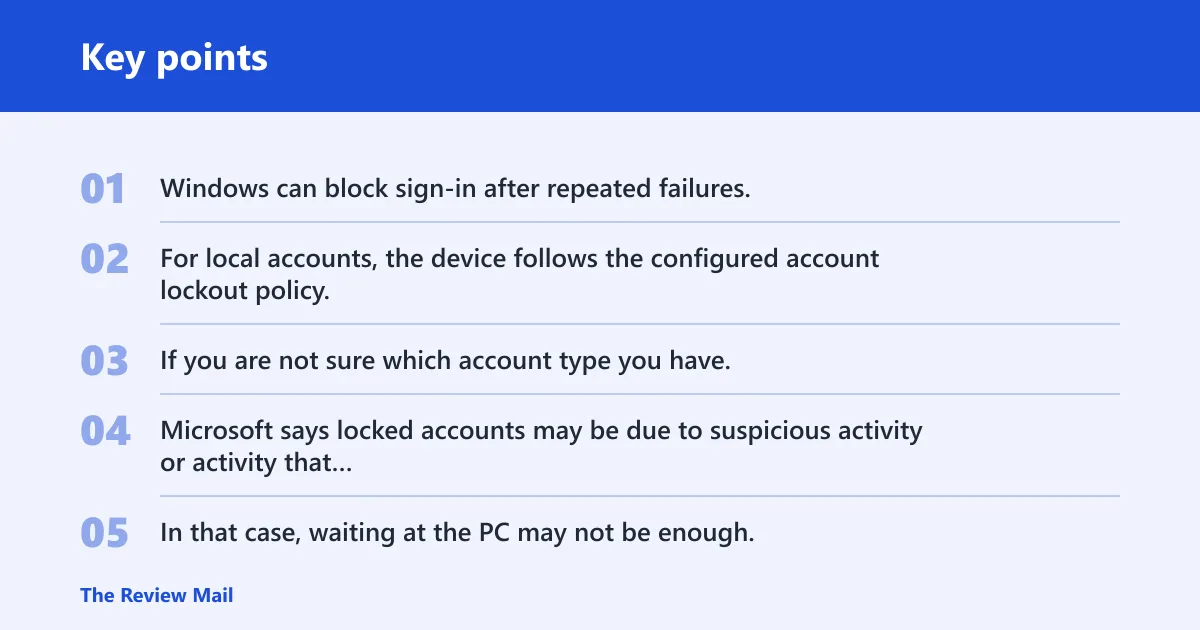
Windows can block sign-in after repeated failures. For local accounts, the device follows the configured account lockout policy, which is set in local security policy or Group Policy on managed systems. If you are not sure which account type you have, check the sign-in screen text before trying more passwords.
Suspicious activity or policy issues
Microsoft says locked accounts may be due to suspicious activity or activity that violates Terms of Use. In that case, waiting at the PC may not be enough. The access restore path starts online, and you may be asked to verify identity or submit a reinstatement request.
Simple input mistakes to rule out first
Before deeper recovery steps, check Caps Lock, Num Lock, password spelling, PIN entry, and keyboard layout. A common mistake is switching keyboard layout without noticing it, then retrying the same wrong characters enough times to trigger another lockout.
How long does a lockout last?
For a local Windows account, the timeout is whatever your account lockout policy is set to use. That can be brief or longer depending on the device or organization settings, so avoid assuming a fixed duration unless you have checked the policy.
Typical timeout length
For many local-account lockouts, the device restores access automatically after the configured lockout duration ends. If the timer is active, stop trying passwords until it expires. Repeated failures can keep the account blocked by refreshing the counter.
When the timer can run longer
Some systems use a longer account lockout policy, and managed PCs may inherit that setting from domain or security policy. If the account keeps relocking after you wait, you likely have a second problem, such as a saved bad credential or a Microsoft account issue.
What it means if the wait never ends
If the lockout timer never clears, do not assume the device is simply slow. The account may be disabled, the password may be different from what you expect, or a Microsoft account may be suspended online. At that point, move to the account-specific recovery path.
Microsoft account lockout steps
If the account uses an email address and Microsoft services, treat it as a Microsoft account first. The access restore path starts at account.microsoft.com. If normal sign-in is unavailable, Microsoft also provides a sign-in helper to route you through recovery steps and diagnose sign-in problems. (Microsoft Support)
Use account.microsoft.com first
Go to account.microsoft.com and follow the access restore prompts. Microsoft may ask you to verify identity before restoring access. If the account was locked for suspicious activity or a Terms of Use issue, the online account page is the correct starting point, not the Windows local sign-in screen.
Try the Microsoft account sign-in helper
Use the Microsoft account sign-in helper when you cannot sign in normally. It is the better route when the problem is not just a forgotten password, because it can guide you through recovery options and help separate password issues from account suspension.
Identity verification and reinstatement steps
Some Microsoft account locks require extra verification. Others may need a reinstatement form if the block is tied to policy or Terms of Use violations. If the account was flagged for suspicious activity, expect Microsoft to ask for proof that you are the owner before access returns.
Say your Outlook-based sign-in suddenly stops working on a laptop you use every day, and the screen says the account is locked. That points more toward Microsoft account recovery than a Windows-only local lock, so the fastest move is the web access restore flow, not Safe Mode.
What do I do if my Windows 11 local account is locked out?
If the account is stored on the device rather than Microsoft servers, wait for the temporary lockout to expire first. If another administrator account exists, use it to manage the account. If no other admin is available, move to Safe Mode or repair access instead of guessing at the password screen.
Use another administrator account
Sign in with a different administrator account on the same PC. That account can manage the locked local account and remove a block if one is set. This is the fastest path for local-account recovery because it avoids downtime and does not require offline repair steps.
Check Local Users and Groups
Open Local Users and Groups with lusrmgr.msc only on editions that include it; it is not available on all Windows 11 editions, including Home. Find the locked account, open its Properties, and clear the account disabled or blocked setting if it is selected. If the account is only temporarily locked by policy, this is not the right fix.
- Sign in with another administrator account.
- Open
lusrmgr.msc. - Select the locked user account.
- Open Properties.
- Uncheck the account blocked box.
- Apply the change and try the sign-in again.
Clear the account block option
The account block box is useful when the account is disabled without being deleted. Clearing it can restore access immediately if the password is still correct. If the sign-in still fails after the block is removed, the issue may be the password, the PIN, or a policy lockout that is still active.
How do I open an admin account in Windows 11?
An admin account open works the same way as a local account open, but it matters more because admin access controls the recovery options for the whole device. Use another administrator if you have one. If you do not, you will need WinRE, Safe Mode, or installation media.
Enter Safe Mode from recovery Environment
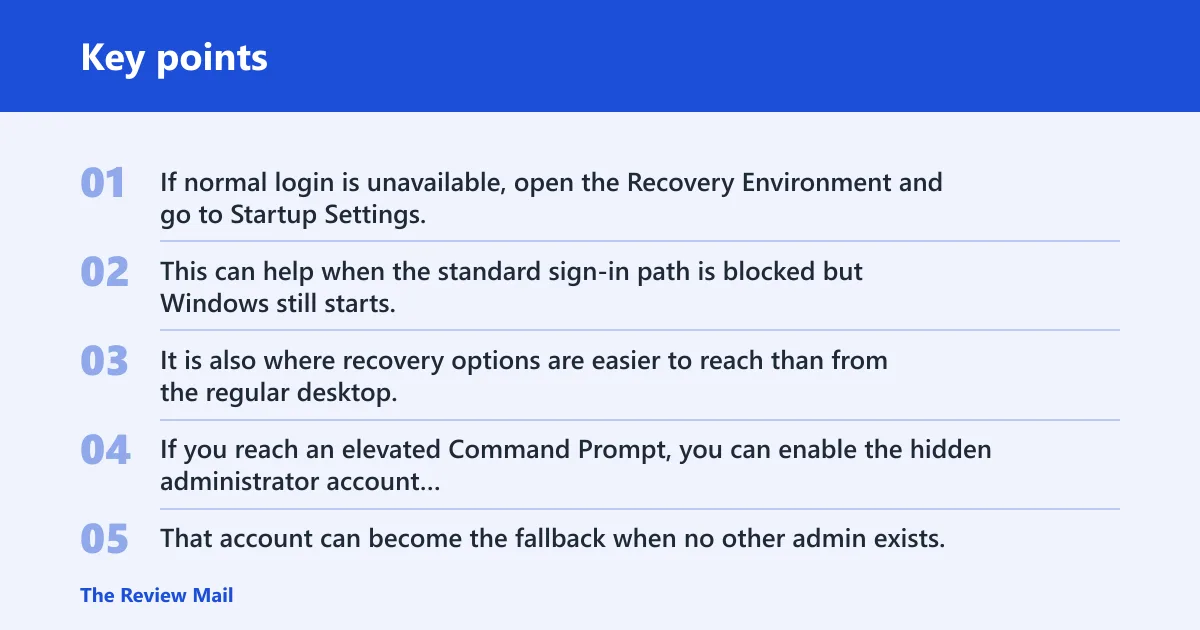
If normal login is unavailable, open the Recovery Environment and go to Startup Settings, then boot into Safe Mode. This can help when the standard sign-in path is blocked but Windows still starts. It is also where recovery options are easier to reach than from the regular desktop.
Enable the hidden administrator account
If you reach an elevated Command Prompt, you can enable the hidden administrator account with net user administrator /active:yes. That account can become the fallback when no other admin exists. Use it carefully, and disable it again after recovery if you no longer need it.
Use Windows installation media for repair-phase access
A bootable Windows 11 installation USB can open Command Prompt outside the normal login flow. That repair-phase access is useful when the locked account is the only admin and you need command-line recovery options. It is an advanced path, so use it only when standard account recovery is unavailable.
Suppose a small office PC has one local administrator and that account is locked after repeated PIN failures. If no second admin exists, the practical sequence is Recovery Environment, Safe Mode, then the hidden administrator or installation media path. Skipping ahead usually wastes time.
Windows 11 lockout
Use the table above as the main decision guide. It separates Microsoft account recovery, temporary local lockouts, and admin-level recovery paths so you can choose the right next step before you make the lockout worse.
What if no other admin exists?
If no second administrator account is available, use the Recovery Environment, Safe Mode, hidden administrator access, or Windows installation media. That path is more technical, but it is the correct fallback when the normal sign-in route is unavailable and the lockout is not just a short policy timer.
Enter Safe Mode from recovery Environment: go to Startup Settings
Go to Startup Settings from the Recovery Environment and boot into Safe Mode. This can expose recovery options that do not appear during a normal sign-in attempt. It is especially useful when the account is locked, the desktop will not open, and you still need administrative access.
Enable the hidden administrator account: from an elevated Command Prompt
From an elevated Command Prompt, run net user administrator /active:yes. That creates a fallback path into Windows if the hidden administrator account was available but disabled. Use it only as a recovery step, then shut it back off when the main account is fixed.
Use Windows installation media for repair-phase access: if Windows will not give
If Windows will not give you a working admin path, boot from a Windows 11 installation USB and open Command Prompt from the repair environment. This does not magically reset every account, but it can give you offline access for approved repair steps when the standard sign-in flow is blocked.
How do I fix a Microsoft account that says it has been locked?
Use Microsoft’s online access restore path first. Start at account.microsoft.com, then follow the prompts for identity verification or reinstatement if the account was flagged for suspicious activity or policy issues. If normal sign-in is blocked, the Microsoft account sign-in helper is the right next step.
Why Microsoft locked the account
Microsoft says locked accounts may be tied to suspicious activity or activity that violates Terms of Use. That means the lock can be about account protection, not just a wrong password. If the account is suspended, changing the password alone may not restore access.
When to use the sign-in helper
Use the sign-in helper when you cannot sign in normally or when the access restore flow is not obvious from the sign-in screen. It can steer you toward the right recovery form and help diagnose whether the problem is the password, a verification issue, or a broader account block.
Can I open Windows 11 without another administrator account?
Sometimes, yes. If the lock is only temporary, waiting may be enough. If the account is truly blocked and no other administrator exists, you will likely need Safe Mode, the Recovery Environment, hidden administrator activation, or Windows installation media. Without one of those paths, recovery options are limited.
When waiting is enough
If the account is only under a temporary lockout policy, the system may restore access when the configured duration expires. During that window, stop repeated attempts so the counter does not keep resetting.
When you need repair-phase access
If the lockout never clears and no second admin exists, bootable recovery methods become the practical route. Safe Mode, the hidden administrator account, and installation media all exist for this kind of problem. They are not first choice, but they are the right fallback when the normal desktop path is gone.
What should I do if the lockout timer never clears?
If the timer never clears, treat it as more than a temporary block. Check whether the account is Microsoft-based, whether another device keeps sending bad sign-in attempts, and whether policy or suspension is involved. Persistent lockouts usually mean the cause is still active.
Look for repeated bad sign-ins
Saved passwords, old mail apps, phones, and synced credentials can keep retrying the wrong sign-in in the background. That can re-trigger the lockout even after waiting. Fixing the source of the bad attempts matters more than waiting longer.
Check whether the account is suspended
If the account is a Microsoft account, a suspension or policy block can look like a lockout that will not end. In that case, account.microsoft.com and the Microsoft sign-in helper are the correct tools. A local Windows fix will not solve an online account restriction.
Frequently asked questions
Why is my Windows account locked out?
Most Windows account lockouts happen after too many failed sign-in attempts. The account may also be blocked because of suspicious activity, a policy issue, or a Microsoft Terms of Use violation. Check Caps Lock, password, PIN, and keyboard layout before moving to recovery steps.
How long is a Windows account locked out for?
A local account lockout lasts for the duration set in the account lockout policy. The exact time depends on the device or organization settings, so there is no single universal timeout. If the account still will not open after the policy window, move to the matching Microsoft or local-account recovery path.
Why does my user account keep getting locked out?
A recurring lockout usually means something keeps retrying the wrong credential. Saved sign-ins, a phone or mail app, or a mistyped password can trigger it again. For a Microsoft account, suspicious activity or a policy block can also keep the account from staying open.