Windows 11 Idle Memory Usage
Windows 11 idling at roughly 3–6 GB RAM used is usually normal on 8 GB systems, and higher readings can still be fine if memory drops when apps need it. Worry when idle use stays high and you see slow app launches, paging, or steady growth. Percent alone does not tell you that. A cache-heavy system can look busy and still run well, while a leak or background app can quietly eat memory. This guide shows how to separate normal standby/cache use from real waste by checking RAM size, idle baseline, and the symptoms that matter.
What idle memory usage means
Idle RAM usage is the memory Windows 11 keeps in use when no active apps are open. That number includes the OS, background services, drivers, cached data, and reserve memory, so it is not the same thing as wasted memory. The key question is whether the system stays responsive and reclaims RAM when demand rises.
Idle RAM versus free RAM
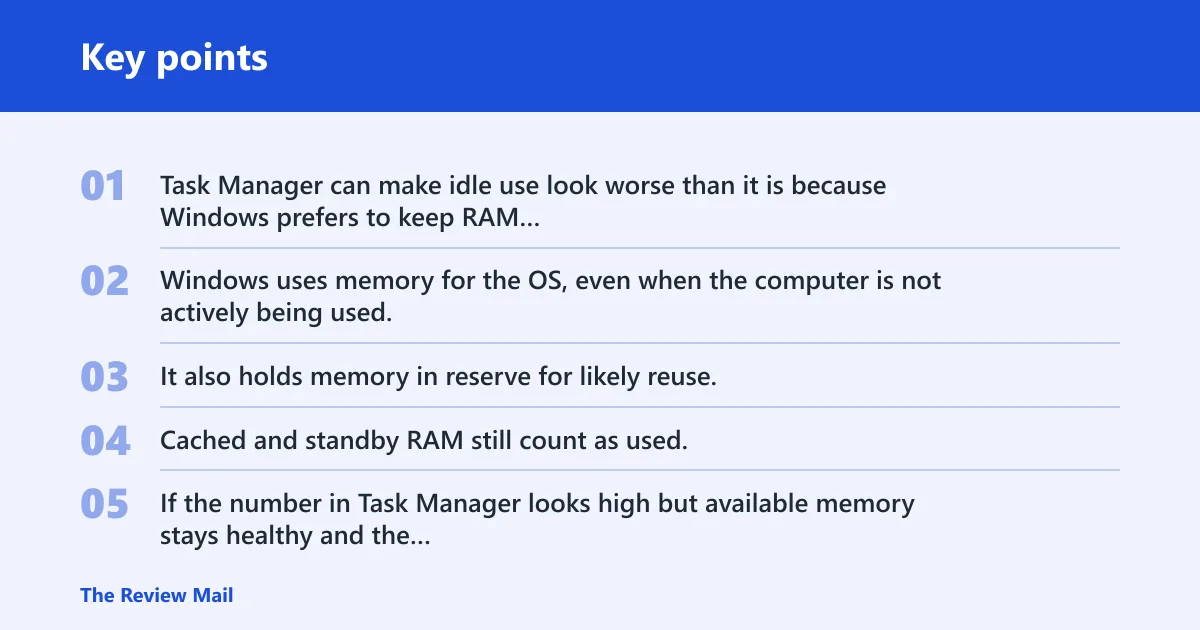
Task Manager can make idle use look worse than it is because Windows prefers to keep RAM occupied with useful data. Windows uses memory for the OS, even when the computer is not actively being used. It also holds memory in reserve for likely reuse. That reserve often helps apps reopen faster.
Free RAM is memory that is sitting unused. Cached and standby RAM still count as used, but they can be reclaimed quickly when a new app needs them. If the number in Task Manager looks high but available memory stays healthy and the machine feels normal, that is usually cache doing its job.
Why Windows keeps memory in use
Windows can reserve 1.8 to 2.4 GB of RAM even when idle. The Windows operating system itself runs between 0.8 and 2.0 GB of RAM. Those figures alone explain why “nothing running” rarely means close to zero memory use. On a modern Windows 11 PC, background work is part of the baseline.
How cache and standby memory fit
Cache and standby memory are there to speed up reopen times and reduce disk reads. They can look like high usage in a casual glance, but they are not the same as an app holding memory permanently. A common first-timer mistake is to treat every used gigabyte as a problem and clear useful cache instead of checking whether the system can reclaim it.
Is 50% idle memory normal on Windows 11?
Yes, 50% idle memory can be normal on Windows 11 if the machine has enough total RAM and stays responsive under load. A computer can idle at 25% RAM usage without concern on some systems, while 40% idle memory usage may be fine on some Macs but high on some Windows PCs. Percent alone is not the verdict.
What 50% looks like on 8 GB systems
On 8 GB systems, 50% idle means about 4 GB in use. That can happen with Windows, Defender, Search indexing, sync clients, and a browser left open in the background. If apps still launch quickly and available memory rebounds when you open something heavier, the reading is often acceptable.
What 50% looks like on 16 GB systems
On 16 GB systems, 50% idle is about 8 GB used. That is more comfortable because the same background load occupies a smaller share of total RAM. If the PC still has room for browsers, chat apps, and a game or editor without paging hard, the number is usually less important than the symptom pattern.
When 50% starts to matter
Fifty percent becomes a concern when the machine feels slow, the memory number climbs after startup and never settles, or Task Manager shows heavy paging. Watch for sluggish app launches, swapping, and a low available-memory figure that stays low even after closing browser tabs. That pattern points away from normal cache.
How much idle RAM is normal by system size?
Normal idle RAM use changes with installed memory. An 8 GB Windows 11 system can look busy at idle and still be fine, while a 32 GB system that sits at the same percentage may have far more headroom. Judge the reading against total RAM, not against a single universal target.
8 GB systems
8 GB systems have the tightest headroom. Idle use in roughly the 3–6 GB range can be normal, especially with security software, OneDrive, Widgets, and indexing active. The risk is not the baseline alone; it is how fast the machine hits paging when you open a browser with many tabs or a game.
16 GB systems
16 GB systems usually have enough room for Windows, background services, and several common apps without pressure. Idle use that lands around the middle of the range is often fine if available memory remains healthy and the commit limit is not close. If the system slows at that level, check a specific process rather than assuming Windows itself is the problem.
32 GB systems
32 GB systems should usually leave broad headroom at idle. If a 32 GB PC shows a surprisingly large baseline, the question shifts from “is this percentage normal?” to “what is holding memory?” That is where startup bloat, a stuck sync client, or a leak in a background service becomes more likely.
Why Windows 11 uses RAM at idle
Windows 11 uses RAM at idle because the operating system is still doing work. Background services, scheduled tasks, search indexing, driver helpers, and security scans continue even when no app window is open. Those activities can raise the baseline without signaling a fault.
Background services and scheduled tasks
Windows Update, Defender, Search indexing, telemetry, and sync tasks may run in the background. They may wake on a schedule, check for changes, or prepare data before you open an app. That is why a system can feel “empty” while Task Manager still shows several gigabytes in use.
Widgets, OneDrive, and Search indexing
Widgets, OneDrive, and Search indexing can all lift idle use. Widgets refresh content. OneDrive watches files and sync state. Search indexing keeps file and mail search fast. Any of them may be reduced selectively if they create noise or if a low-RAM PC needs more breathing room.
Security, telemetry, and sync activity
Security features are not optional clutter. Defender, telemetry, and sync activity can create short bursts of use that look like idle consumption from a distance. If the machine feels normal and the memory drops when those jobs finish, the pattern is usually benign. If use keeps rising, that is a different case.
Suppose a 16 GB laptop sits at 7.8 GB used after sign-in, then drops to 5.9 GB after a few minutes while background tasks settle. That pattern points to normal reservation and cache, not waste. If the number keeps climbing with the same apps closed, check for a process leak or runaway sync client.
Use Task Manager first, then Resource Monitor if you need process-level detail. The goal is to separate total memory use from which process is actually responsible. That distinction matters because the number at the top of Task Manager can hide a single leak or a set of small background consumers.
Task Manager Performance and processes views
Open Task Manager from the taskbar. In Performance, check total memory use, available memory, and whether the graph is steady or climbing. In Processes, sort by Memory to see which apps and background processes occupy the most RAM at idle.
The Memory column shows use by process. Working set is the memory a process is actively holding at the moment. Commit shows how much virtual memory a process has promised to use, which matters when physical RAM is tight and the system starts leaning on the pagefile.
Commit, working set, and available memory
Working set answers “what is in RAM right now?” Commit answers “how much memory has this process asked for overall?” Available memory tells you how much the system can hand out without immediate pressure. If commit is high and available memory is low, the pagefile becomes more relevant.
Resource Monitor for process-level follow-up
Resource Monitor is useful when Task Manager shows high idle use but no obvious culprit. It can separate process-level attribution more clearly and help identify unusual services or a leak. Use it after Task Manager if the top entries do not explain the baseline.
Idle memory usage decision table
This table maps common idle readings to the most likely explanation and the first check to use. Read it by total RAM and by symptoms, not by percentage alone. The same percentage can mean different things on 8 GB, 16 GB, and 32 GB systems.
| Installed RAM | Idle percentage | Idle GB | Feels slow? | Likely explanation | First tool/check |
|---|---|---|---|---|---|
| 8 GB | 25% to 45% | 2.0 to 3.6 GB | No | Normal Windows baseline, cache, and background services | Task Manager > Performance, then check Available |
| 8 GB | 45% to 70% | 3.6 to 5.6 GB | No | Still possible on a busy build with Defender, OneDrive, Search indexing, or browser leftovers | Task Manager > Processes, sort by Memory |
| 8 GB | 45% to 70% | 3.6 to 5.6 GB | Yes | Likely startup bloat, a heavy background app, or low-RAM paging pressure | Task Manager > Startup apps, then Resource Monitor |
| 16 GB | 25% to 45% | 4.0 to 7.2 GB | No | Normal baseline plus caching; common with sync and security tools | Task Manager > Performance and Processes |
| 16 GB | 45% to 60% | 7.2 to 9.6 GB | No | May still be fine if standby memory is high and usage drops under load | Check Commit and Available in Task Manager |
| 16 GB | 45% to 60% | 7.2 to 9.6 GB | Yes | Possible leak, oversized startup load, or pagefile pressure | Resource Monitor, then inspect top working sets |
| 32 GB | 20% to 35% | 6.4 to 11.2 GB | No | Normal background use for a larger-memory system | Task Manager > Performance |
| 32 GB | 35% or more | 11.2 GB or more | Yes or no | Startup bloat, an unusually active service, or a leak worth checking | Processes tab, then Resource Monitor for attribution |
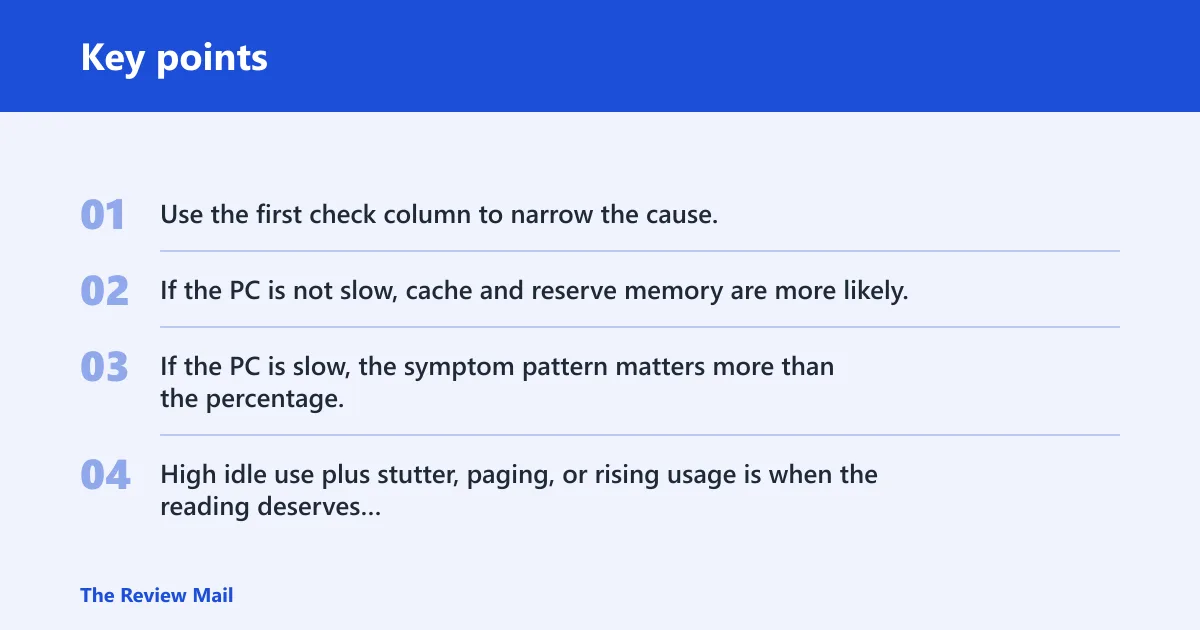
Use the first check column to narrow the cause. If the PC is not slow, cache and reserve memory are more likely. If the PC is slow, the symptom pattern matters more than the percentage. High idle use plus stutter, paging, or rising usage is when the reading deserves follow-up.
What to change if idle RAM is too high
If idle RAM is too high and the system feels slow, change the most likely cause first. Trim startup apps, reduce always-on features, and check whether a RAM upgrade is more sensible than further trimming. If the machine is already paging under normal use, more RAM may help more than cleanup.
Trim startup apps
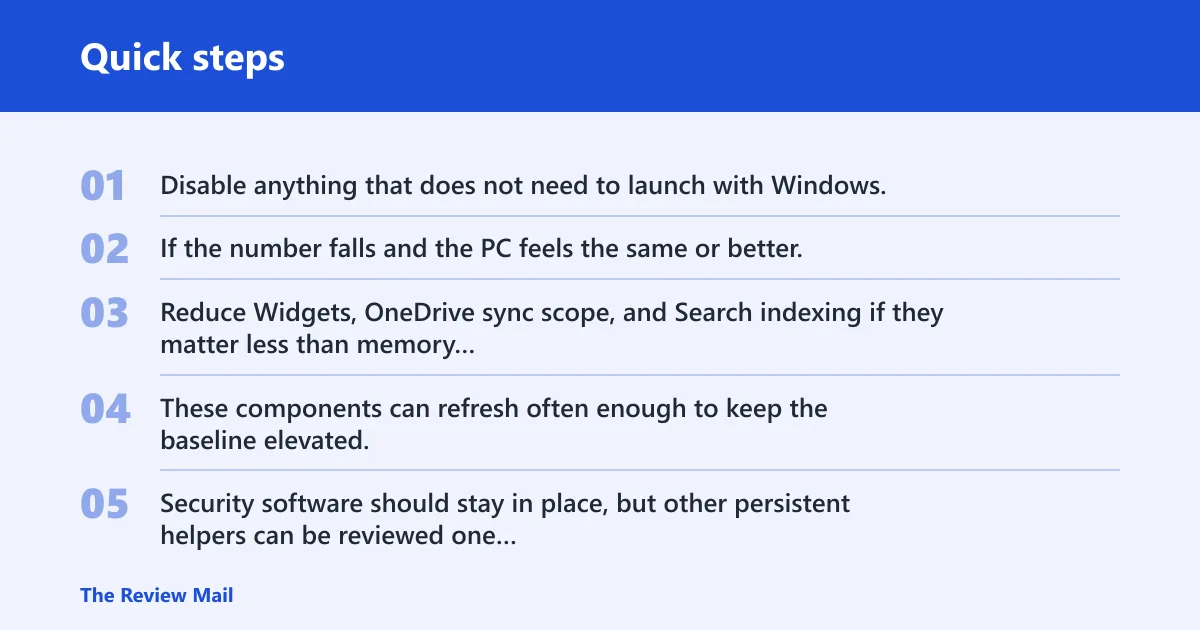
Startup apps often create the easiest win. Disable anything that does not need to launch with Windows, then reboot and compare the idle baseline. If the number falls and the PC feels the same or better, you likely found a contributor rather than a deeper problem.
Reduce always-on features
Reduce Widgets, OneDrive sync scope, and Search indexing if they matter less than memory headroom on this machine. These components can refresh often enough to keep the baseline elevated. Security software should stay in place, but other persistent helpers can be reviewed one by one.
When a RAM upgrade makes more sense
Upgrade RAM when the system regularly pages during ordinary work, not just because the idle percentage looks high. On 8 GB PCs, a jump to 16 GB can give more room for browsers, chat apps, and games. If the issue is a specific leak, though, more RAM only delays the same problem.
Say your 8 GB desktop shows 5.1 GB used at idle, then stutters when a browser and chat app open together. That is a strong hint that the machine is simply short on headroom, not that Windows is broken. The next step is to reduce startup load or move to 16 GB if the workload is permanent.
Frequently asked questions
How much memory usage is normal idle?
There is no single normal number for every Windows 11 PC. Idle use depends on installed RAM, background services, cache, and security tools. A system can sit at 25% RAM usage without concern on some machines, and a higher percentage can still be fine if the PC stays responsive and memory drops under load.
What is good idle memory usage?
Good idle memory usage is whatever leaves enough headroom for your usual apps and does not cause paging, stutter, or slow launches. On 8 GB systems, a higher idle share is easier to reach. On 16 GB and 32 GB systems, the same number should usually leave more room for active work.
Why is my Windows 11 memory usage high when nothing is running?
“Nothing running” usually means no visible app windows, not zero activity. Windows Update, Defender, telemetry, search indexing, and sync tasks can all keep memory in use. Cache and standby memory can also make the number look high even when the system is waiting for the next app launch.
Is 50 memory usage idle normal on Windows 11?
Yes, 50% idle can be normal on Windows 11, especially on 8 GB systems or on PCs with several background services active. The better test is whether available memory stays healthy and whether the machine feels slow, pages hard, or shows runaway growth after startup settles.
How do I tell if idle RAM usage is a problem or just cache?
Check whether memory drops when you open a heavier app, whether Available stays reasonable, and whether Task Manager shows a process that keeps growing. Cache should be reclaimable. A problem usually shows up as steady growth, slow app launches, or paging when you have not opened much at all.