How to Fix Computer Freezing Windows 11
Start with disk health, memory, drivers, and system files, in that order. If freezes show up during large copies or installs, suspect the drive. Blue screens or sudden reboots point more toward RAM or drivers. Skipping the pattern can send you down the wrong fix and raise the risk of data loss. This guide gives you a step-by-step triage flow for Windows 11 freezes, then the exact fixes for disk, RAM, driver, and Windows corruption causes.
What you’ll need
- Admin access to Windows
- A spare USB drive or cloud backup space
- Time for a restart if Windows asks for it
- Your Windows sign-in and recovery details
- Enough free space to save important files before deeper repairs
Freeze triage table
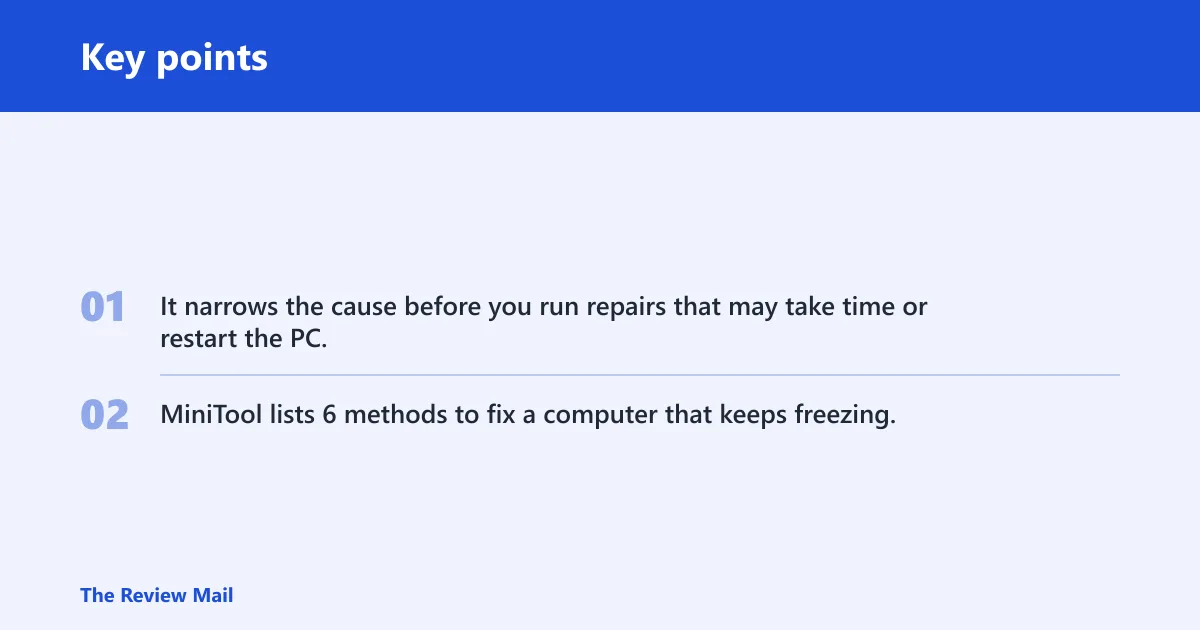
Use the symptom pattern first. It narrows the cause before you run repairs that may take time or restart the PC. MiniTool lists 6 methods to fix a computer that keeps freezing, and KapilArya’s Windows 11 guidance includes 10 solutions in detail, but the right order depends on what freezes, when it happens, and whether the disk is busy.
| Symptom | Likely cause | Fastest check | Safe first fix | Escalation trigger |
|---|---|---|---|---|
| Freezes at login | Startup app, driver, or damaged user profile | Task Manager > Startup apps | Disable the newest startup items | Freeze returns before the desktop loads |
| Freezes during file copies | Disk error, bad sector, SSD link issue | Task Manager > Performance > Open Resource Monitor | Run CHKDSK on the affected drive | Copies stall again or the drive disappears |
| Freezes after Windows Update | Buggy update or unresolved driver issue | Settings > Windows Update > Update history | Roll back the latest update or driver | More freezes after the rollback |
| Task Manager will not open | Severe system hang, driver lockup, or storage stall | Try Ctrl+Alt+Del, then wait 30 seconds | Force restart only if nothing responds | It freezes again within minutes |
| Disk is constantly active | Storage bottleneck, paging pressure, or bad disk | Resource Monitor disk activity and response time | Close the busy process, then check CHKDSK | Response time stays high after a reboot |
How do you stop a freeze safely?
Wait a moment, save your work if Windows still answers, and close only the frozen app before you restart the whole system. If the desktop is stuck but the shell still runs, restarting Windows Explorer is safer than a force reboot. Use a hard restart only when nothing responds at all. Microsoft’s Task Manager guidance supports using it to end unresponsive apps, and the Resource Monitor tool is the fastest built-in way to confirm whether a storage bottleneck is part of the freeze.
- Press Ctrl+Shift+Esc to open Task Manager.
- In Processes, select the app with “Not responding” and choose End task.
- If the taskbar or desktop is frozen, select Windows Explorer and choose Restart.
- If the system stays locked for about 30 to 60 seconds, hold the power button to force restart.
Say your browser locks while a large download is writing to an SSD. End the browser first, then watch whether the desktop recovers. If the freeze returns the next time a file is copied, give the disk priority over the app.
How do you check the disk first?
Check the drive first when freezes happen during copies, installs, or any task that drives disk activity hard. Windows Resource Monitor can show high disk response time and active processes, and you can open it from Task Manager’s Performance tab. That is the fastest way to separate a busy disk from an app that simply stopped responding. Microsoft’s CHKDSK guidance says it checks the file system and can locate logical errors; if bad sectors are suspected, the extended scan is the cautious next step.
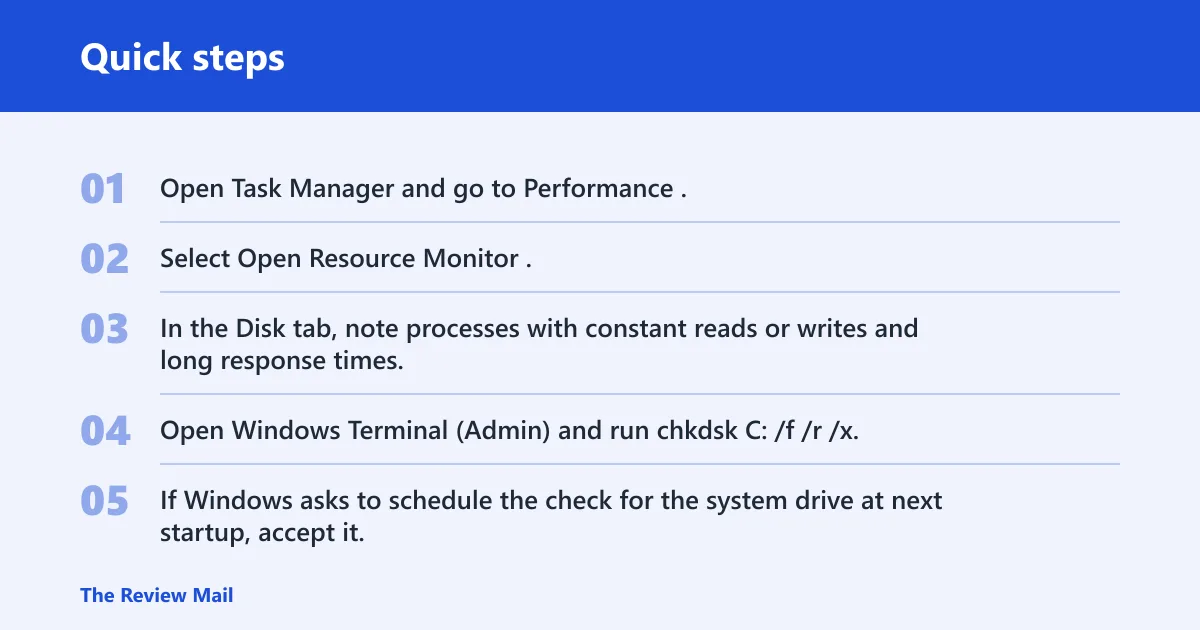
- Open Task Manager and go to Performance.
- Select Open Resource Monitor.
- In the Disk tab, note processes with constant reads or writes and long response times.
- Open Windows Terminal (Admin) and run
chkdsk C: /f /r /x, replacing C: with the affected drive if needed. - If Windows asks to schedule the check for the system drive at next startup, accept it.
AOMEI recommends CHKDSK for SSD freezing with chkdsk C: /f /r /x, and that same pass can flag file-system damage or bad sectors. If the drive keeps freezing after that check, inspect the storage device in Device Manager under disk and controller entries, then back up immediately. Microsoft’s Device Manager guidance is the right reference for checking storage and controller status without guessing at the hardware.
Suppose file copies freeze on a laptop with an SSD and Resource Monitor shows very high disk response time. If the same symptom appears after a restart, treat it as a storage fault until proven otherwise. A loose connection, bad controller driver, or disk error can stall the whole system.
How do you test RAM and system files?
Run memory and Windows file checks after the disk path looks less likely, or when freezes happen at random and not only during file activity. Windows Memory Diagnostic restarts the PC to test memory, while SFC and DISM repair damaged Windows files and the Windows image without changing your personal files. Microsoft documents both tools for corruption troubleshooting: SFC for protected system files and DISM for restoring the Windows image when SFC alone is not enough.
- Press Win+R, type
mdsched.exe, and choose Restart now and check for problems. - After Windows restarts, open Terminal (Admin) and run
sfc /scannow. - If SFC reports unresolved corruption, run
DISM /Online /Cleanup-Image /CheckHealth, then/ScanHealth, then/RestoreHealth. - Open Settings > Windows Update > Update history and check whether the freezes began after a recent update.
- If they did, uninstall the newest update or roll back the newest device driver in Device Manager.
YodaConditions reported a laptop freezing after a few minutes with no blue screen, and that kind of symptom often points to storage or memory rather than a clean software exit. KapilArya also includes a Windows Memory Diagnostic step using mdsched.exe, which makes it a sensible next check when disk tests do not explain the freeze.
How do you know if freezing is caused by RAM, disk, or drivers?
Look at timing and what else fails with the freeze. Disk issues can often show up during copies, installs, or constant drive activity. RAM problems often cause random hangs, app crashes, or reboots. Driver problems commonly appear after a Windows Update, after sleep, or when a specific device starts acting up. If Windows itself has become unstable across multiple apps, add system file corruption to the list and confirm it with SFC and DISM.
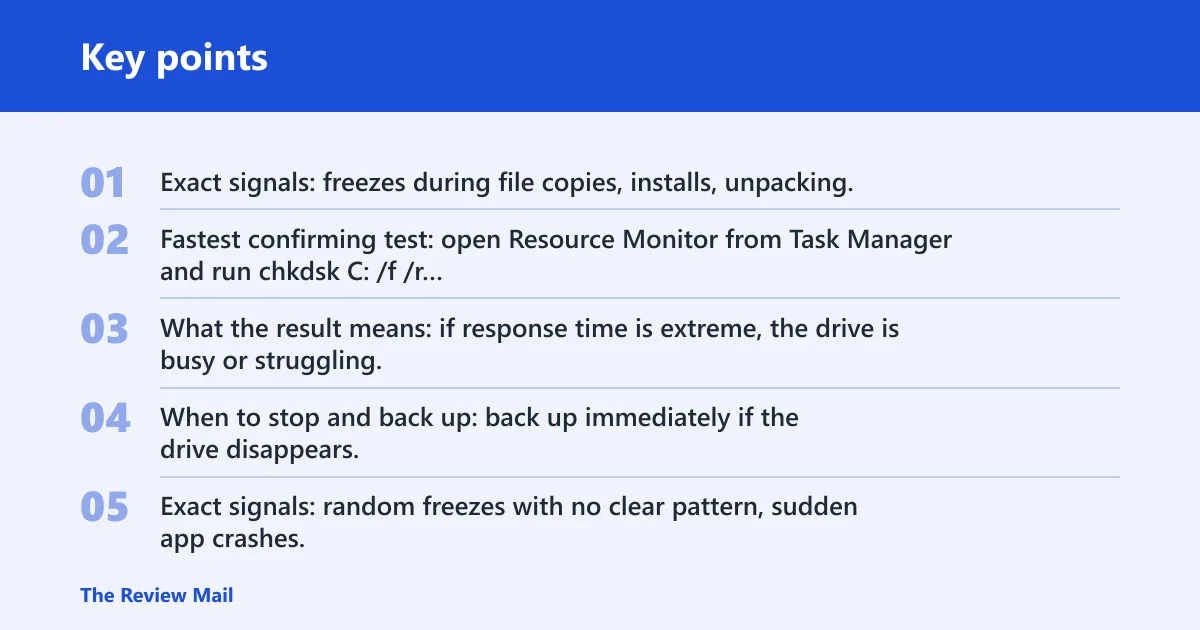
Exact signals: freezes during file copies, installs, unpacking, or any task that drives sustained reads and writes; long disk response times in Resource Monitor.
Fastest confirming test: open Resource Monitor from Task Manager and run chkdsk C: /f /r /x on the affected drive.
What the result means: if response time is extreme, the drive is busy or struggling; if CHKDSK finds errors, the file system or disk surface needs attention.
When to stop and back up: back up immediately if the drive disappears, CHKDSK reports serious damage, or freezes keep returning after a reboot.
Exact signals: random freezes with no clear pattern, sudden app crashes, or unexplained reboots.
Fastest confirming test: run mdsched.exe and let Windows Memory Diagnostic restart the PC and test memory.
What the result means: any memory error points to unstable RAM, a slot issue, or another hardware fault that needs more investigation.
When to stop and back up: if diagnostics report errors or the PC becomes less stable after the test, stop troubleshooting and copy files off the system first.
Exact signals: freezes after Windows Update, after sleep or wake, or when one device repeatedly misbehaves.
Fastest confirming test: check Settings > Windows Update > Update history and Device Manager for the newest changes.
What the result means: if rolling back the newest update or device driver reduces freezing, the cause is likely a bad update or a device driver conflict.
When to stop and back up: stop if the system keeps freezing after rollback or if the affected device disappears from Device Manager.
Windows corruption
Exact signals: freezes across multiple apps, broken system behavior after updates, or problems that survive a restart and do not track to one device.
Fastest confirming test: run sfc /scannow, then use DISM /Online /Cleanup-Image /RestoreHealth if SFC cannot repair everything.
What the result means: repaired files or a restored image points to Windows corruption rather than hardware failure.
When to stop and back up: if SFC and DISM fail repeatedly or the system remains unstable, back up files before deeper repair.
How does virtual memory and the paging file affect freezing?
Paging pressure can make Windows feel frozen even when the hardware is not failing. Symptoms include slow app switching, long pauses when you open a browser or large document, hard disk activity without obvious cause, and Task Manager showing memory pressure near its limit. Microsoft’s paging-file guidance recommends leaving the page file on System managed size in most cases, because Windows can then adjust it as memory demand changes.
Check memory pressure in Task Manager on the Performance tab by looking at Memory, especially committed usage versus available memory. In Resource Monitor, look for heavy paging activity alongside disk activity. If the system drive is too full, Windows may struggle to expand or use the paging file efficiently, and that can turn slowdowns into apparent freezes.
When low disk space is the root cause, freezing often gets worse after updates, installs, or when many apps are open at once. If the system drive is nearly full, free space first before you change anything else. Only move away from a system-managed paging file when a specific support case calls for it.
How do you stop Windows 11 from freezing?
The safest prevention path is simple: keep Windows and device drivers current, leave enough free disk space for updates and paging, and remove startup apps that you do not need. Do not change storage-mode settings in BIOS or UEFI as a casual fix. That can stop Windows from booting if the driver setup does not match. Microsoft’s Windows Update rollback and Device Manager guidance are the correct references when a fresh update or driver starts the problem.
- Open Settings > Windows Update and install pending updates.
- Open Device Manager and update storage, GPU, and chipset-related drivers.
- Open Task Manager > Startup apps and disable items you do not need at sign-in.
- Keep free space available on the system drive so Windows can manage its paging file automatically.
- If freezes return after sleep, test the device after a full restart and before reopening heavy apps.
Common mistakes
Running every repair at once wastes time and muddies the result. Start with the symptom, then move from disk to memory to files, not the other way around. If the system keeps freezing after login or during file copies, stop treating it as a one-off app problem.
- Skipping backup before
CHKDSK, SFC, or driver rollback. - Changing BIOS or UEFI storage settings without a clear reason.
- Running SFC and DISM before checking whether the drive itself is stalling.
- Ignoring repeated freezes after an update and assuming the issue will pass.
- Using the paging file as a manual size target instead of letting Windows manage it unless a support case says otherwise.
If a system freezes repeatedly, fails to stay stable after repairs, or keeps losing the drive in Device Manager, back up files first and then move to a repair install or a shop-level hardware check. AOMEI’s note to run SFC after CHKDSK is the right order when file-system damage is found, not the other way around. Microsoft’s guidance on CHKDSK, SFC, DISM, Device Manager, Task Manager, Resource Monitor, Windows Memory Diagnostic, Windows Update rollback, and paging-file settings all point to the same practical order: verify the disk, verify memory, then repair Windows only after the hardware path is less likely.
Frequently asked questions
What to do when Windows 11 freezes?
Open Task Manager with Ctrl+Shift+Esc, end the unresponsive app, and restart Windows Explorer if the desktop is stuck. If nothing responds for 30 to 60 seconds, force restart once. After that, check Task Manager > Performance and run chkdsk C: /f /r /x if the freeze involved file activity.
What should I check first if Windows 11 freezes after an update?
Check Settings > Windows Update > Update history first, then look at Device Manager for the newest storage or GPU driver changes. If the freeze began right after an update, uninstall the latest update or roll back the driver before you run deeper repairs like SFC or DISM.
Can bad sectors or SSD problems make Windows 11 freeze?
Freezes on Windows 11 can be caused by issues such as bad sectors, loose storage connections, controller issues, or SSD driver problems. Run chkdsk C: /f /r /x, then inspect the drive and controller entries in Device Manager. If the disk still disappears or stalls, back up files and treat it as failing hardware.
Should I run chkdsk, SFC, or DISM when Windows 11 freezes?
Use them in order: CHKDSK first for file system and disk checks, then sfc /scannow for missing or corrupted system files, then DISM /CheckHealth, /ScanHealth, and /RestoreHealth if Windows image damage remains. Do not run all three blindly at once.
How do I fix freezing without losing my files?
Back up important files first, then use non-destructive checks: Task Manager, Resource Monitor, CHKDSK, Windows Memory Diagnostic, SFC, and DISM. These steps are meant to diagnose and repair without wiping personal data. If the drive keeps failing or the machine will not stay stable, stop and copy data off the system.