Windows 11 Uses 8gb RAM Idle
Windows 11 using about 6 to 7 GB idle on an 8 GB system can be normal. If it sits near 7.5 to 8 GB with paging, stutters, or disk activity, treat it as a likely memory issue, and 16 GB may be the practical fix. Ignoring it can mean slower app launches, tab swapping, and constant drive churn. This guide shows how to separate normal cache use from a real RAM shortage and which settings actually help.
Why 8GB feels tight and when to upgrade
Yes, for light use. Windows 11 is generally described as supporting systems with 4 GB of RAM, so 8 GB is comfortably above the minimum. That does not mean 8 GB feels roomy. Windows 11 uses memory for cache, search, Widgets, Defender, and app shells, so a low-spec PC can feel crowded even when nothing obvious is open.
Why 8GB can still feel tight
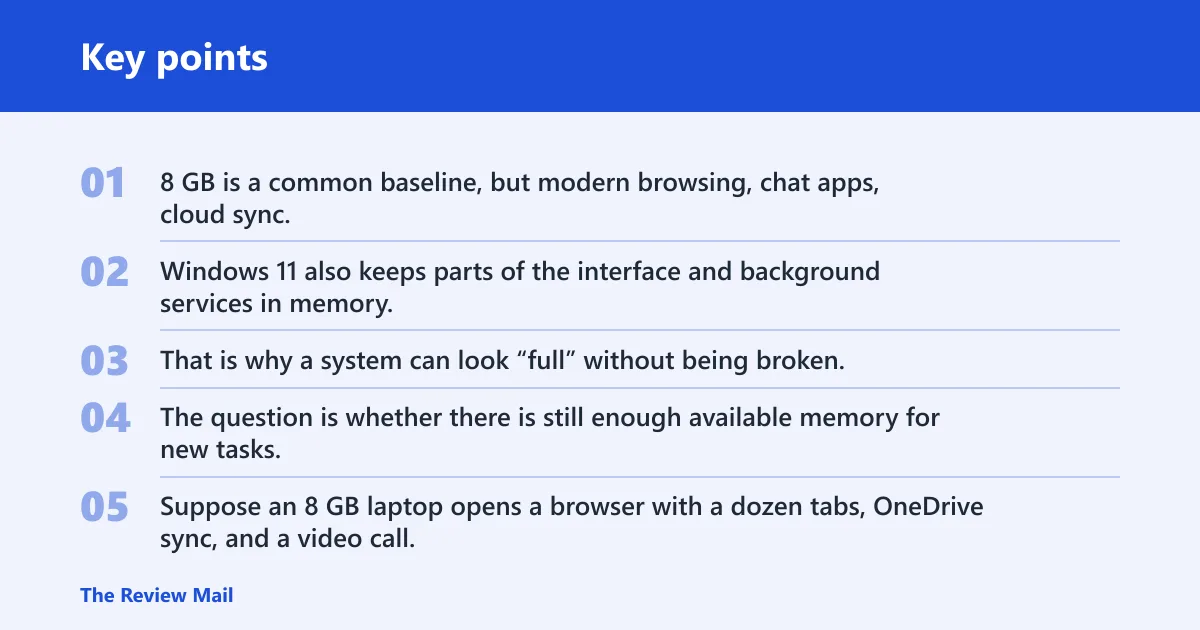
8 GB is a common baseline, but modern browsing, chat apps, cloud sync, and office tools can fill it fast. Windows 11 also keeps parts of the interface and background services in memory. That is why a system can look “full” without being broken. The question is whether there is still enough available memory for new tasks.
Suppose an 8 GB laptop opens a browser with a dozen tabs, OneDrive sync, and a video call. Idle numbers may look fine until one more app opens. Then Windows starts paging to disk, and the machine feels slow. That pattern points to capacity limits, not a fault in the memory manager.
When 16GB becomes the safer choice
Move to 16 GB if you keep several browser tabs open, work in school or office apps all day, game, or leave many startup apps running. Windows Latest reports Microsoft is optimizing Windows 11 for 8GB RAM PCs by the end of 2026 and says the work targets “memory optimization for 8GB and above.” That helps, but it does not turn 8 GB into extra headroom.
Windows Latest also says Microsoft’s past statements put an 8 GB system close to 6 GB used at idle, while a 16 GB system idles above 10 GB. Those figures make one point clear: more memory often stays in use because Windows keeps cache when it can. The extra room still matters, because it leaves more space for your apps.
What counts as normal idle memory use?
Normal idle use on Windows 11 is best judged by pressure, not by a single percentage. Cached memory and background services can push used RAM high even when the system is healthy. If Task Manager still shows meaningful available memory and the PC stays responsive, the number alone is usually not a problem.
Cached memory versus a real problem
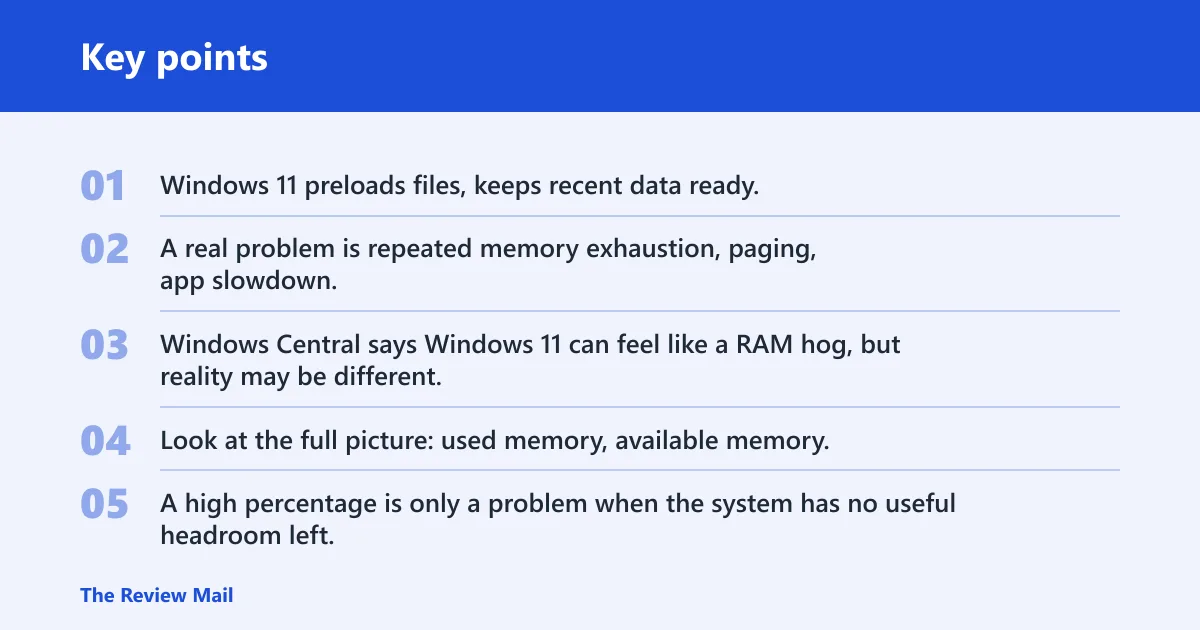
Windows 11 preloads files, keeps recent data ready, and runs services that may not show up on your desktop. That is intentional. It is not the same as a leak. A real problem is repeated memory exhaustion, paging, app slowdown, and disk activity when you have not opened much.
Windows Central says Windows 11 can feel like a RAM hog, but reality may be different. That is the right mindset here. Look at the full picture: used memory, available memory, and whether the machine is swapping. A high percentage is only a problem when the system has no useful headroom left.
Why available memory matters more than a single percent
Task Manager shows both percentage used and available memory. Available memory tells you whether Windows still has room to work. If the system has a few gigabytes available and feels quick, cache is doing its job. If available memory is very low at idle and the drive keeps working, the system is under pressure.
Microsoft’s support material appears to still treat 4 GB as the minimum for Windows 11. That floor is for support, not comfort. On 8 GB systems, the practical question is whether the PC stays responsive after startup and through a normal work session. If it does not, the capacity is the issue.
Windows 11 idle memory triage
This table turns idle RAM readings into a decision. Use it after a clean restart, before opening a heavy browser session. If the PC is already paging at idle, you have enough evidence to act.
| Idle % used | Available memory | Background apps present | Likely cause | Next action |
|---|---|---|---|---|
| 40% to 60% | 3 GB or more | A few normal services | Normal caching | No change needed; monitor only |
| 60% to 75% | 2 GB to 3 GB | Widgets, search, sync, browser helper apps | Expected background load | Trim startup apps if you want more headroom |
| 75% to 85% | 1 GB to 2 GB | Several startup items or a heavy shell component | High idle use on a tight system | Check startup apps, Widgets, and browser-based helpers |
| 85% to 95% | Under 1 GB | Few visible apps, but paging or disk activity continues | Memory pressure | Close background apps, then consider 16 GB |
| Near full, with stutters | Very low or none | Any mix of normal services | Upgrade required | Move to 16 GB if the RAM is upgradeable |
Gadget Hacks reports a PCMag test found an 8 GB laptop using 75% of memory while idle, with 1.9 GB available, while a 16 GB laptop used 45% at idle. That kind of split is why percentage alone can mislead. The 8 GB machine still had some headroom, but it had far less margin for real work.
Which background features use RAM on Windows 11?
Several normal features make idle use look high. Widgets may load only when opened on PCs with 8 GB or less, and the report says the change frees about 200 MB. Windows 11 also uses WebView2, search components, Defender, sync tools, and startup apps that keep memory busy.
Widgets and Search components
Widgets are not always resident in the same way on every setup. Microsoft says the feature can load only when opened on 8GB-or-less PCs, which helps explain some of the idle savings. Search also keeps parts of the shell active so it can respond quickly when you start typing.
WebView2 and first-party app shells
WebView2 is Chromium-based, so any Windows 11 feature or first-party app that relies on it carries browser-like memory overhead. That is expected. It is not a defect by itself. It becomes a problem only when too many of those components stay open at once on an 8 GB machine.
Picture a student laptop with Widgets enabled, OneDrive syncing, and a browser tab pinned for class notes. Each piece is normal on its own. Together, they can leave very little available memory, especially after a few extra tabs or a video call.
Defender, sync, and startup apps
Microsoft Defender, cloud sync clients, printer utilities, launchers, and tray apps often sit in the background. Some are useful. Some are optional. Startup bloat is one of the fastest ways to make an 8 GB system feel worn out before you even begin work.
How do you check whether memory use is abnormal?
Start with Task Manager, then confirm the OS build. A memory reading means little if you do not know whether the PC is on a stable release, a newer build, or an Insider build. The point is to separate normal Windows behavior from a specific bug or an old build that has not picked up fixes.
Use Task Manager for used and available memory
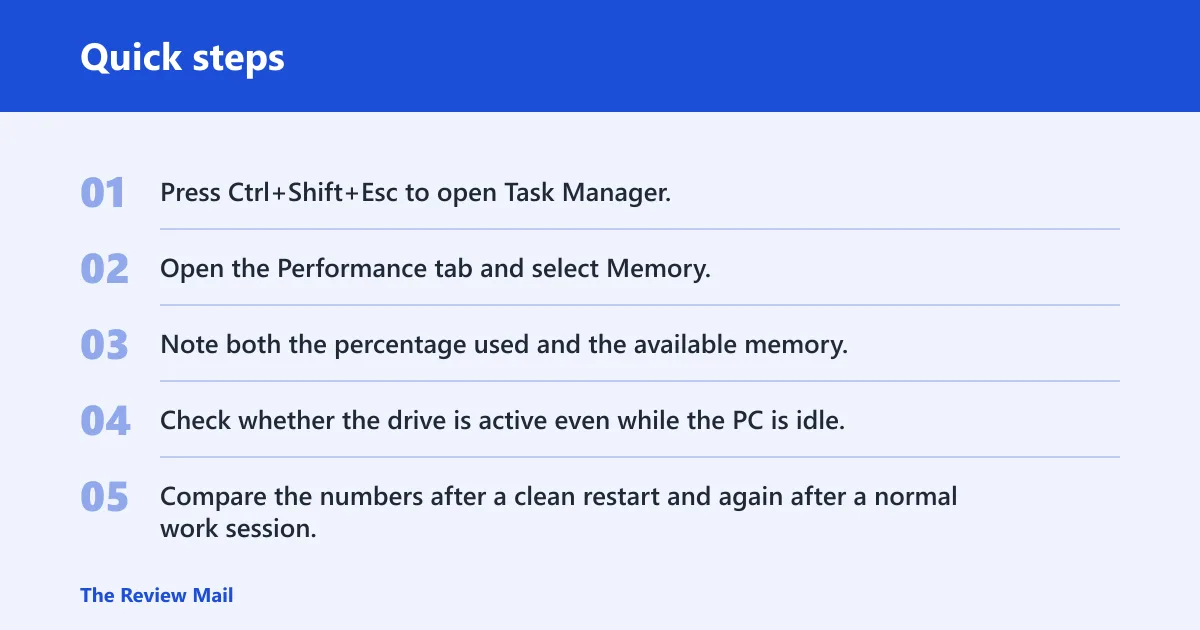
- Press Ctrl+Shift+Esc to open Task Manager.
- Open the Performance tab and select Memory.
- Note both the percentage used and the available memory.
- Check whether the drive is active even while the PC is idle.
- Compare the numbers after a clean restart and again after a normal work session.
If the system looks busy right after startup, wait a few minutes. Windows may still be finishing sync, search indexing, or app loading. If the numbers stay high and the machine still pauses on simple actions, that is stronger evidence of a real limit.
Check your OS build with winver or Settings
Use Settings > System > About or type winver to see the OS build. That matters because Microsoft’s memory optimization work is still being tested in Windows Insider builds, which are pre-release channels and not the same as stable general release. Do not assume a fix should already be present.
That point matters after major updates. Windows 11 support material says Windows 10 support ended on October 14, 2025, so many users are still moving between builds and support states. If your build is older, you may be seeing behavior that newer updates have already changed. (Microsoft Support)
What can you turn off to reduce idle RAM use in Windows 11?
The best first cuts are startup apps, Widgets, and background app activity you do not need. Those changes can lower idle use without breaking the system. Do not chase every service. Focus on the apps and features that reopen every boot and eat memory before you start working.
Reduce startup apps you do not need
Open Task Manager and review the Startup apps list. Disable launchers, chat tools, and update helpers that do not need to start with Windows. Leave security tools and drivers alone unless you know exactly what they do.
Trim Widgets and background app activity
If Widgets are active but rarely used, turn them off. Microsoft’s reported change to load Widgets only when opened on 8GB-or-less PCs is meant to cut idle use, but if your build has not picked that up yet, disabling the panel may still free memory. Also check app permissions for background activity in Settings.
Say your laptop boots with a browser, a game launcher, cloud sync, and Widgets all active. None of those is unusual by itself. Together, they can push an 8 GB system into paging before the first document opens. Removing just one or two of them can make the machine feel less cramped.
Look for one app that keeps reopening
If idle memory stays high after you trim startup items, watch for one app that relaunches itself. Some tray tools, browser helpers, and sync clients restart quietly after you close them. If a single app is responsible, replace it or configure it more lightly instead of changing the whole system.
Who should care most about 8GB versus 16GB?
Students, office users, gamers, and owners of older laptops do not need the same answer. 8 GB can be workable for light use, but 16 GB is the practical choice when the machine has to run several apps at once. If the RAM is not upgradeable, that choice belongs at purchase time.
Students and office users
For documents, email, learning platforms, and a modest browser load, 8 GB can still do the job. The problem starts when video calls, cloud sync, PDFs, and many tabs overlap. In that case, 16 GB buys smoother switching and fewer slowdowns during class or office hours.
Gamers
Games add pressure fast, especially when launchers, voice chat, and overlays stay open. An 8 GB gaming system may run a title, but it has little room left for browsers or background tools. For modern gaming, 16 GB is the safer baseline if you want fewer pauses and less paging.
Older laptops with non-upgradeable RAM
If the memory is soldered, the decision is limited. Clean up startup apps, disable extras you do not need, and accept that a heavy browser session may still push the machine hard. If the laptop already stalls at idle or during light multitasking, the next replacement should have 16 GB.
Frequently asked questions
Is 8gb ram ok for windows 11?
Yes, for light use. Windows 11 officially supports 4 GB RAM minimum, so 8 GB is within the supported range. It is fine for basic work, but it can feel tight once you keep several browser tabs, sync tools, and apps open at the same time.
How much idle ram usage is normal?
There is no single normal number for every PC. A system can sit at 6 GB used and still be healthy if Task Manager shows enough available memory and the PC stays responsive. Idle use becomes a problem when it leaves little headroom and starts paging.
Why is Windows 11 using so much RAM when idle?
Windows 11 uses RAM for cache, search, Widgets, Defender, WebView2-based components, and startup apps. That is normal behavior on many systems. It looks high because Windows keeps memory ready for faster response, not because every used gigabyte means a fault.
Should I upgrade from 8GB to 16GB for Windows 11?
Yes, if you browse heavily, work with office or school apps while keeping other tools open, or game. Microsoft is optimizing for 8GB and above, but 16 GB still gives more room for multitasking. It is the better practical choice for most heavy daily use.
How do I check whether Windows 11 memory usage is abnormal?
Use Task Manager to check both used and available memory, then compare the numbers after a clean restart. Also verify your OS build with Settings > System > About or winver. If memory stays near full and the drive keeps working, treat it as pressure.
What can I turn off to reduce idle RAM usage in Windows 11?
Start with startup apps, Widgets, and background activity for apps you rarely use. If one app keeps reopening or syncing in the background, trim that next. Leave security tools and drivers alone unless you know the effect of disabling them.