Windows Explorer 11 Slow Select File
If Windows 11 File Explorer is slow when you select a file, separate Explorer UI lag from folder-content lag first: if the delay appears in every folder, fix Explorer, search, context menu, or shell extensions; if it happens only in one folder, fix that folder’s contents. Using the wrong layer wastes time and leaves the real bottleneck untouched, so single-clicks, right-clicks, search, and browsing keep stalling. This guide shows how to test each path and apply the fastest fix first.
Explorer triage table
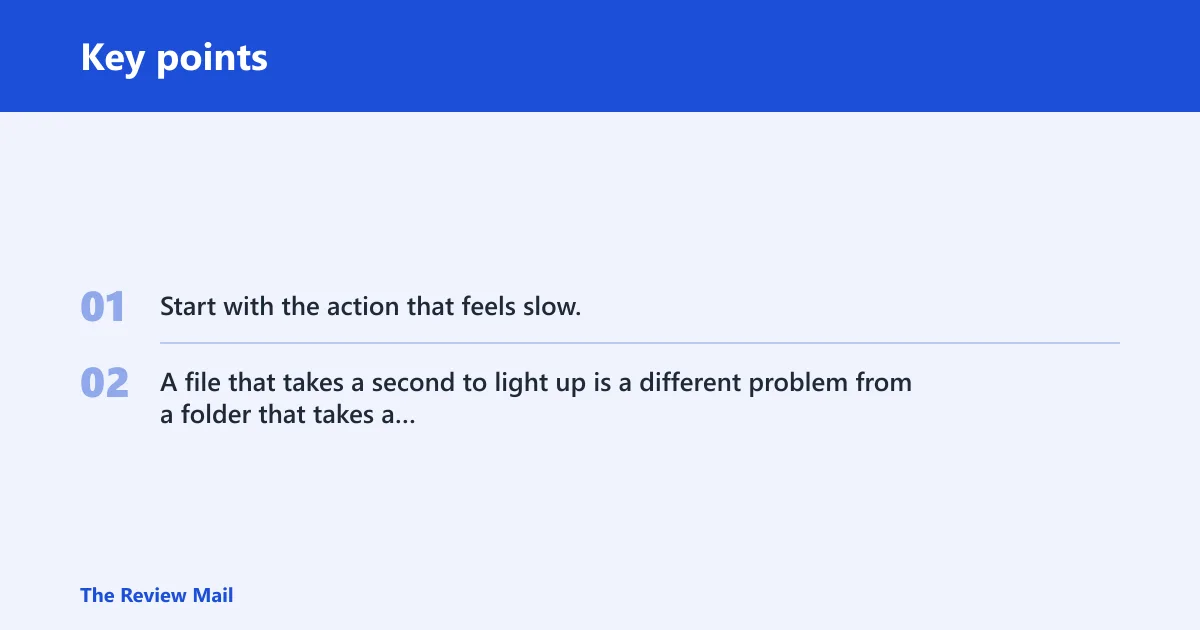
Start with the action that feels slow. A file that takes a second to light up is a different problem from a folder that takes a second to open, and both differ from a frozen right-click menu or a delayed search box.
| Symptom | Likely cause | Fastest test | Best fix | Verification step |
|---|---|---|---|---|
| Slow single-click selection | Explorer UI lag, preview generation, or a heavy folder view | Select a file in a plain folder with preview pane off | Restart explorer.exe, clear history, then test with This PC | Click five different files; the blue selection should appear at once |
| Slow folder open | Folder contents, Quick access, thumbnails, or cloud status checks | Open the same folder from This PC and compare it with a small local folder | Move the landing page to This PC and trim heavy folder contents | The folder should open in under a second on repeat opens |
| Slow right-click menu | Shell extensions from third-party apps | Right-click a file in Safe Mode or a new user account | Remove or disable problem context-menu add-ons | The menu should appear without the pause or resize delay |
| Slow search | Windows Search load, huge folders, or cloud integration | Search a small local folder versus a large folder with many files | Limit the search scope and cut integration overhead | Search results should return without a long spinner |
| Slow network-folder browsing | Network latency, server response, or cached credential checks | Open a local folder, then the network share, and compare timing | Use local copies for active work or check the network path separately | The local folder should still open quickly while the network share may lag |
Why file selection feels slow
A slow click often points to the folder view, not the whole app. If the highlight appears late after a single click, Explorer may be waiting on preview generation, thumbnail work, or a shell extension that wakes up when the folder refreshes.
UI lag versus folder-content lag
Explorer UI lag shows up everywhere: the selection highlight, the address bar, or the right-click menu all pause. Folder-content lag is narrower. One photo folder, one OneDrive path, or one network share stalls while the rest of File Explorer feels normal.
Picture a folder with about 4,000 camera files as an example of a slow single-click selection case. A single click on one image can feel slow because Explorer is reading thumbnails and metadata, while the same click in Documents feels instant. That points to the folder, not the shell.
Preview pane and thumbnail generation
The preview pane can make selection feel sticky because Explorer may try to generate previews as you move through files. Large photos, videos, and Office documents are common triggers. Turning off the preview pane is a fast way to check if the pause comes from rendering work.
Try the same folder with preview off, then on. If the delay shrinks, the folder content is doing the work, and you can leave preview off for that folder or use a cleaner view.
Quick access, Home, and This PC behavior
File Explorer in Windows 11 can open from the taskbar or Start menu, or with Windows logo key + E. By default, Windows 11 version 22H2 shows Desktop, Documents, Downloads, Pictures, Music, and Videos in Quick access, which means the landing page may spend time loading recent and frequent items before you even reach the folder you want.
You can set File Explorer to open to This PC instead of Home through File Explorer Options. This PC shows drives and main folders, so it is often a cleaner landing page when Home or Quick access feels slow.
Why is File Explorer slow in Windows 11 when I click a file?
A slow click usually means Explorer is waiting on the current folder view, not on the file itself. The common triggers are preview work, thumbnail generation, cloud status checks, or shell extensions that attach to the folder and intercept selection. If the delay happens in every folder, focus on Explorer-wide causes first.
What a slow select usually points
If the file highlight appears late after a single click, test a plain local folder with no preview pane and no heavy image set. If the pause remains there, restart explorer.exe, clear File Explorer history, and check whether Quick access or Home is loading too much on startup.
That same pattern can also come from context-menu add-ons. AOMEI notes a half-second delay when the context menu resizes after clicking in Explorer, which is why a right-click test matters even when the main complaint is selection lag.
When the folder is the problem, not Explorer
If one folder is slow and another is not, the contents are usually the bottleneck. Large photo libraries, video folders, OneDrive-synced directories, and network paths can make Explorer do extra work. Windows Search from Home can also pull from both the PC and the cloud, which adds load in mixed folders.
Suppose a project folder with around 20,000 files feels sluggish on only one machine. If a small local test folder opens and selects normally, the answer is likely file count, thumbnail churn, or sync status, not a broken Explorer install.
Fastest verification steps
- Open a small local folder.
- Click one file and watch whether the highlight is instant.
- Turn off the preview pane and test again.
- Open the same file type in This PC instead of Home.
- Right-click the file and see whether the menu pauses or resizes.
Fix Explorer the right way
Use the fix that matches the symptom. Restarting explorer.exe helps when the shell UI is stuck. Clearing history helps when Home or Quick access feels heavy. Switching to This PC helps when the landing page is the delay. Do those before hunting drivers or reinstalling apps.
Restart explorer.exe from Task Manager
explorer.exe is the Windows shell process. It controls File Explorer, the desktop icons, and the taskbar when it restarts. Open Task Manager, find Windows Explorer, and restart it when the whole shell feels off.
That is the fastest reset when selection lag follows you across folders. It refreshes the shell without logging out.
Restart explorer.exe from Command Prompt
You can also restart explorer.exe from Command Prompt if Task Manager is not responsive. That is useful when the desktop, taskbar, and Explorer are all slow at once. The restart should restore the shell view without changing your files.
If Explorer hangs again within minutes, the cause is probably not a one-time glitch. Look at Quick access, shell extensions, or a specific folder next.
Clear File Explorer history
Quick access can affect startup responsiveness because it keeps recent files and frequently used folders handy. Clearing File Explorer history removes those entries and can shrink the work Explorer does when it opens Home. Unpin trouble spots if one folder keeps surfacing and slowing the landing page.
Use this step when the lag is strongest at launch or when Home feels crowded. It is a small change with a clear test: open Explorer twice and compare the second launch with the first.
Switch the landing page to This PC
If Home is the slow part, move the landing page to This PC through File Explorer Options. This PC skips the recent-items focus and goes straight to drives and main folders, which often feels snappier on systems with many recent locations, network paths, or synced folders.
Windows 10 support ended on October 14, 2025, according to Microsoft Support. If you still compare behavior across Windows 10 and Windows 11, keep in mind that the Home and context menu experience changed in Windows 11, so the same symptom may have a different cause. (Microsoft Support)
Can Quick access slow File Explorer down?
Yes. Quick access can slow File Explorer when it has too many recent items, pinned folders, or stale history entries. Because it loads recent files and frequently used folders, it can add work to startup and make Home feel slower than This PC on the same machine.
Pinned and recent items
Quick access shows recent files and frequent folders by default in Windows 11 version 22H2. That convenience can backfire when the list gets long or points to slow locations such as removable drives, synced folders, or paths that are no longer valid.
Pin only the folders you open often. Unpin the rest, then reopen Explorer and check whether the start page appears faster.
Clear history and unpin trouble spots
Clear the File Explorer history if Quick access keeps loading stale or slow entries. Then remove pinned folders that live on network shares or cloud-synced paths. Those are common reasons Home feels slower than a plain local folder view.
A common first-timer mistake is blaming the file itself when the landing page is the real drag. If the delay is only on the first Explorer window, Quick access deserves the first cleanup.
When to test with a cleaner landing page
Switch to This PC if you want a clean comparison. If Explorer becomes faster there, the problem is likely Home, Quick access, or the history behind it. If This PC still feels slow, keep testing the current folder, shell extensions, and search behavior instead of changing random settings.
What causes File Explorer to freeze on folders, search, or right-click?
Freezes on folders, search, or right-click usually come from add-ons, search load, or heavy folder contents. Shell extensions are a frequent cause of context-menu stalls, Windows Search can slow large local or cloud folders, and network locations can pause while Explorer waits on the other end.
Shell extensions and context menus
File Explorer has a streamlined context menu with Cut, Copy, Paste, Rename, Share, and Delete at the top. Third-party shell extensions can still add more items and slow the menu before it appears. That is why a right-click delay can feel like a file issue even when the file is fine.
Test with a new user account or Safe Mode if the menu freezes often. If the pause disappears, the add-on list is the likely cause.
Windows Search load
Windows Search in File Explorer uses the top-right search bar and can search local and cloud files from Home. The same source says local search can slow when Office.com integration is part of the process. Large folders make the problem worse because Explorer has to sort through many more entries.
Limit search to a smaller folder or a known drive. If the smaller scope returns quickly, the search engine is working; the folder is too big for quick browsing.
Large media folders, OneDrive, and network paths
Large photo and video folders often slow opening, selection, and search because Explorer generates thumbnails and checks metadata. OneDrive or other cloud integration can add another layer of status checks. Network folders add latency on top of that, so the same click may feel fine locally and slow over the share.
Say your Downloads folder opens fast, but a synced Pictures folder with 8,000 images pauses on every click. That points to thumbnails and cloud status, not a broken shell. If the folder lives on a server, the network link may be the main delay.
Does File Explorer preloading actually make Windows 11 faster?
File Explorer preloading is meant to improve launch speed by keeping part of the app ready in the background. It can help some systems, but it is not a blanket fix for slow selection, slow search, or right-click freezes. Treat it as a launch tweak, not a cure for every Explorer problem.
What the memory cost means
Windows Latest reported that File Explorer preloading uses almost 35MB of RAM in its test. The same report measured File Explorer RAM usage at 32.4MB before preloading was enabled, and the test ran in a virtual machine with 4GB RAM. That gives you a useful baseline, not a guarantee of a speedup.
In practice, preloading makes the most sense when Explorer’s first open is the problem. If the slowdown happens only after you click files, right-click items, or search large folders, preloading is the wrong knob.
Frequently asked questions
Why is file explorer slow windows 11?
Most slowdowns come from one of four places: the shell itself, the landing page, the current folder, or add-ons tied to right-click and search. Separate those first. A slow first open points to Home or Quick access, while a slow click or menu points to the folder, shell extensions, or preview work.
Why is File Explorer slow in Windows 11 when I click or select a file?
A slow select usually means the folder view is doing extra work. Preview generation, thumbnails, cloud status, and shell extensions are common causes. Test the same file in a plain local folder with preview off. If the click is still late there, restart explorer.exe and clear File Explorer history.
Why is Windows 11 File Explorer so slow to open?
Slow launch usually comes from Home, Quick access, or a landing page packed with recent and frequent locations. Switch the start folder to This PC through File Explorer Options and compare. If launch improves there, the startup lag is about the landing page, not the entire shell.
How do I fix slow file explorer in Windows 11?
Start with the exact symptom. Restart explorer.exe for shell-wide lag, clear history for a busy Home view, switch to This PC if Quick access feels heavy, and disable preview if large media folders stall. Then test right-click, search, and network folders separately instead of applying every tweak at once.
Can Quick Access make File Explorer slower?
Yes. Quick access loads recent files and frequently used folders, and stale or network-based entries can slow the start page. Clear the history, unpin slow locations, and compare Home with This PC. If This PC opens faster, Quick access is part of the problem.
Should I restart Windows Explorer or File Explorer when it hangs?
Restart explorer.exe. That is the Windows shell process behind File Explorer, the desktop icons, and the taskbar. Use Task Manager when the shell still responds, or Command Prompt when it is more stuck. If the hang returns quickly, move to Quick access, shell extensions, or a heavy folder.