Device Is Not Working Correctly
In Device Manager, “device is not working correctly” means the exact error code should be checked first; Code 10 and Code 43 often point to a driver, firmware, or hardware issue. Skip that step and you can waste time reinstalling the wrong driver, miss a Windows update fix, or replace hardware that is still fine. This guide shows how to read the code, choose the right branch, and decide when to update, roll back, reinstall, or suspect a failed device.
What the Device Manager message means
The warning text is only the starting point. Open Device Manager, find the device, and read Device status on the General tab; the code there matters more than the generic warning. If the code changes after a reboot or update, that is useful too.
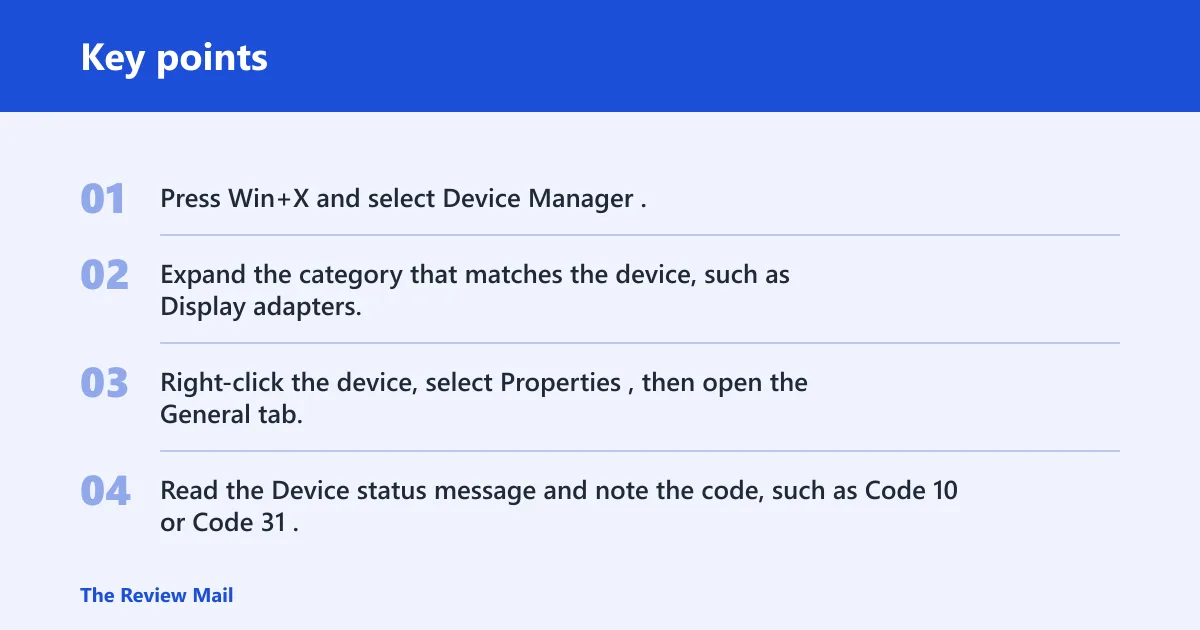
Start with Device Manager, inspect the code, then match the problem to driver, Windows Update, connection, or hardware.
Where to find the code
- Press Win+X and select Device Manager.
- Expand the category that matches the device, such as Display adapters, Network adapters, or Universal Serial Bus controllers.
- Right-click the device, select Properties, then open the General tab.
- Read the Device status message and note the code, such as Code 10 or Code 31.
Common causes and what to try first
Rank the likely cause before you touch a driver. Most often, the issue is a driver mismatch or corruption. Less commonly, Windows Update replaces a working driver or exposes a conflict. A loose cable, wrong port, or bad slot is next. Hardware failure comes later, after software fixes do not change the code.
Say your USB printer worked yesterday and now shows a code after a cumulative update. That points first to the driver branch, not to a dead printer. Suppose a desktop GPU shows Code 31 after a driver package change; the vendor driver and its components become the first target, not the monitor cable.
| Device type | Common code | Most likely cause | First safe action | Escalation threshold |
|---|---|---|---|---|
| GPU | Code 31 | Missing or corrupted driver components | Install the vendor driver package, then reboot | If the same code returns after a clean reinstall, stop changing drivers |
| Network adapter | Code 10 or Code 31 | Driver mismatch or failed update | Roll Back Driver, or reinstall the adapter driver | If the adapter still fails on another network profile or after reinstall, suspect hardware |
| USB device | Code 43 or Code 31 | Port, cable, or driver problem | Move it to a rear USB port and try a different cable | If it fails on another PC, suspect the device itself |
| Printer | Code 10 or unknown device | Driver or connection issue | Reinstall the printer driver and connect by direct USB or known-good network path | If the printer still shows the same code after reinstall, stop driver changes |
| Unknown device | Code 28 or Code 43 | Missing driver | Install the OEM driver or let Windows search Windows Update once | If Device Manager still cannot identify it after reinstall, check the vendor support page |
How do you fix a driver problem?
If the code points to a driver issue, use the driver branch in order: update, roll back, uninstall, then reinstall. Do not skip straight to reinstalling everything. For Error Code 31, the driver package itself is often the problem because Windows cannot load one or more required components.
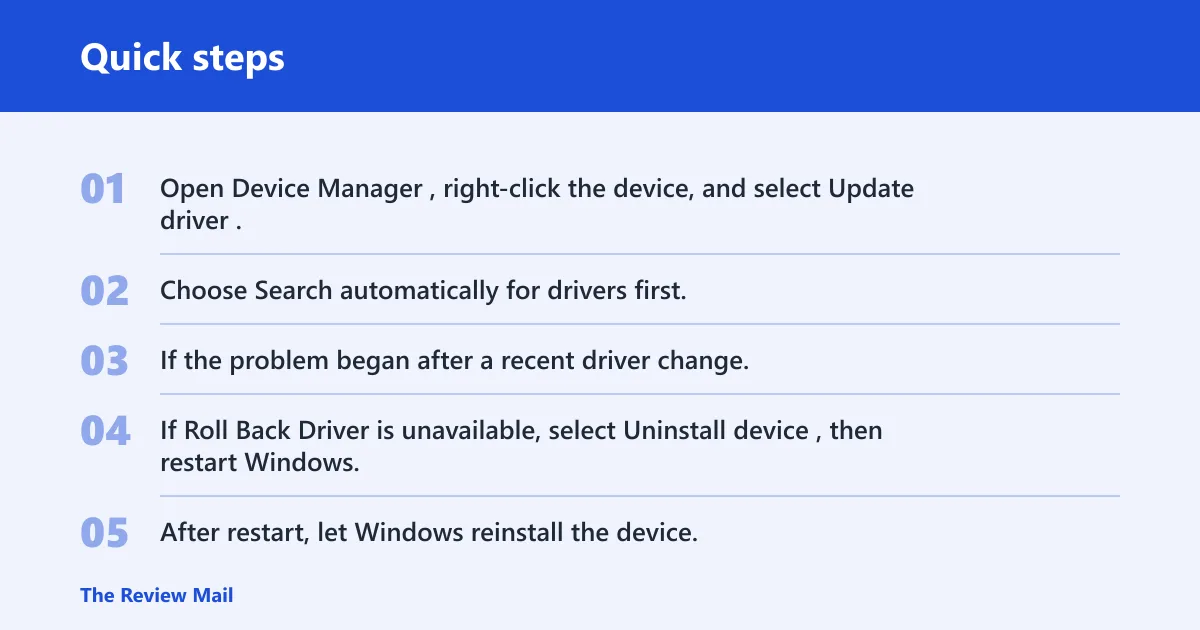
- Open Device Manager, right-click the device, and select Update driver.
- Choose Search automatically for drivers first. If that fails, open the device maker’s support page, download the latest package, and run the installer in Windows.
- If the problem began after a recent driver change, open Properties > Driver > Roll Back Driver.
- If Roll Back Driver is unavailable, select Uninstall device, then restart Windows.
- After restart, let Windows reinstall the device, or install the vendor package again if the device still needs its own driver.
When should you roll back, update, or uninstall a driver?
Use Roll Back Driver when the fault started right after a driver or Windows Update change. Use Update driver when the code has been present for a while, or when the device is still on an old package. Use Uninstall device when rollback is unavailable or the driver is badly corrupted.
What should you do after Windows Update?
Check whether the issue began right after Windows Update installed a new driver or feature update. Windows can replace device drivers automatically, and that can fix one model while breaking another. If the timing matches, treat the update as a likely cause rather than a cure.
- Open Settings > Windows Update > Update history.
- Check recent Driver updates and the date the failure started.
- Go back to Device Manager, open the device Properties, and try Roll Back Driver.
- If the problem returns after a rollback, pause updates for a short period in Settings > Windows Update.
Why is your USB device, printer, or port failing?
Connection issues are the next branch when the code appears on an external device. Use a direct USB port on the PC, not a hub or front-panel extension. Then move the device to a rear USB port, and try a different cable if the device uses one. For printers, a bad USB lead or dock is enough to trigger a Device Manager warning.
- Shut down the PC completely.
- Unplug the device from any hub, dock, or front-panel extension.
- Reconnect it to a rear USB port on the PC.
- If the device uses a cable, try a different cable that matches the device.
- If USB still fails, try a different port or, for a card reader or expansion device, a different slot where applicable.
Still not working?
If the same code returns after a clean reinstall, stop changing drivers. At that point, the next step is to test the device on another PC if one is available. If it fails there too, the device itself is the likely problem. If it works on another PC, the Windows install or host hardware is the better suspect.
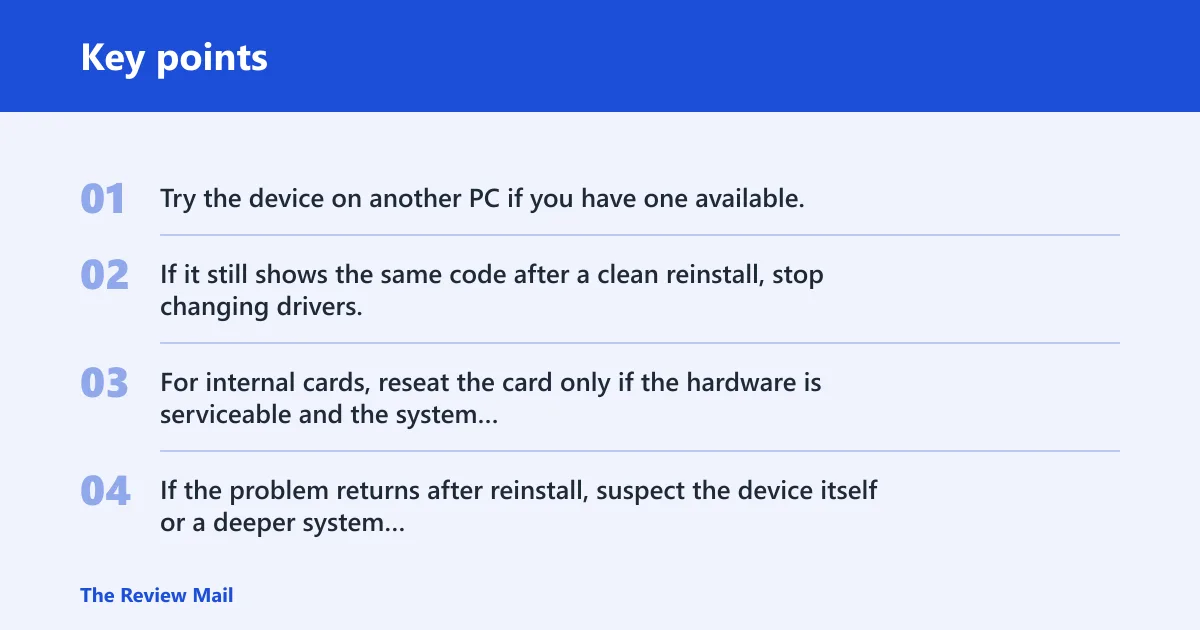
- Try the device on another PC if you have one available.
- If it still shows the same code after a clean reinstall, stop changing drivers.
- For internal cards, reseat the card only if the hardware is serviceable and the system is powered off.
- If the problem returns after reinstall, suspect the device itself or a deeper system issue.
A common first-timer mistake is to reinstall the driver three times in a row and never check whether the device works on another computer. That only hides the useful clue: whether the fault follows the device or stays with the Windows installation.
Prevention
After you get the device working again, keep a note of the driver version from the Driver tab. If the same code returns after a future Windows Update, that version number makes rollback much faster.
Frequently asked questions
Why does my device say it is not working correctly?
That message usually means Device Manager detected a problem loading the driver, communicating with the device, or reading the hardware state. Open the device’s Properties and use the code on the General tab to decide whether to update, roll back, or test the device on another PC.
What does “This device is not working properly” mean in Windows?
It is a generic Device Manager warning, not a diagnosis. The useful part is the code below it. For a quick check, use Device Manager > device Properties > Driver and compare the current driver date and version with the vendor’s support page.
How do I fix a device that is not working properly after an update?
Go to Device Manager, open the device Properties, and select Roll Back Driver on the Driver tab if it is available. If not, choose Uninstall device, restart Windows, and let it reinstall the driver. If the issue returns, pause further updates temporarily.
Why is my network adapter not working properly?
For a network adapter, the usual first checks are driver rollback and reinstall. Open Device Manager > Network adapters, right-click the adapter, and check Properties for the code. If the adapter still fails after reinstall, test the Ethernet cable, router port, or Wi‑Fi settings separately.
Why is my GPU showing this device is not working properly code 31?
Code 31 on a GPU often points to missing or corrupted driver components. Start with the vendor’s driver package, not a random generic driver. If the code returns after a clean reinstall, stop changing drivers and test the card in another system or have the hardware checked.
How do I know whether the problem is the driver, Windows, or hardware?
Use the result path, not guesswork. If Roll Back Driver fixes it, the driver was the cause. If Windows Update changed the timing and rollback helps, Windows likely introduced the conflict. If the same code survives another PC test and a clean reinstall, hardware becomes the stronger suspect.
What should I do if troubleshooting is not working?
Move to the next escalation: test the device on another PC, then stop if the same code remains after a clean reinstall. For removable hardware, try a different port, cable, or slot before concluding failure. If the device is internal and serviceable, reseat it only with power off.
Why phone is not working properly
That is outside Device Manager and Windows hardware troubleshooting. A phone that will not work properly needs phone-specific steps such as checking carrier service, battery state, storage, or the device’s own settings, not Windows driver actions.
Why my phone is not working properly
That question is also outside the Windows scope here. If the device is a phone, start with the phone’s settings, cable, battery, and carrier connection. Device Manager only helps when Windows is managing attached hardware like a phone in file-transfer mode.
Why washing machine is not working properly
A washing machine does not use Windows Device Manager, so the same error language does not apply. Check the appliance’s own display, power supply, water supply, and service manual instead of Windows driver steps.
Why phone network is not working properly
Phone network problems belong to the carrier, SIM, APN, and radio settings on the phone itself. In Windows, network-adapter errors are a different case. If a PC network adapter shows a code, use Device Manager; if a phone loses service, use the phone’s network settings.