Why Is File Explorer Slow Windows 11?
File Explorer is usually slow in Windows 11 because one bottleneck dominates: startup add-ins, folder view settings, shell extensions, search indexing, or a bad context-menu handler; fix the matching cause first, not everything at once. Chasing the wrong cause wastes time and can leave opening folders, right-click menus, or search painfully laggy. This guide maps each symptom to the fastest fix so you stop guessing.
File Explorer slowdown matrix
Start with the symptom. Then fix that part. A slow launch can often point to Quick Access or a stuck Explorer process. Slow folder changes often trace back to thumbnails, folder options, or a network path. Right-click lag points to shell extensions. Search delay can point to stale or incomplete indexing.
| Symptom | Most likely cause | Fastest safe fix | Time to try | Rollback risk |
|---|---|---|---|---|
| Slow launch | Quick Access, network locations, offline mapped drives, cloud-synced folders | Switch File Explorer to This PC, then restart Windows Explorer if needed | 1 to 3 minutes | Low; startup location is easy to change back |
| Slow folder changes | Thumbnail cache buildup, folder options, large image folders, remote paths | Rebuild the thumbnail cache, then review folder options | 5 to 15 minutes | Low; cache rebuild is reversible |
| Slow right-click menus | Third-party shell extensions and context menu handlers | Disable suspect handlers, then trim extra menu items | 10 to 20 minutes | Medium; disabled add-ons may affect app menus |
| Delayed thumbnails | Corrupt or bloated thumbnail cache, especially in photo-heavy folders | Run Disk Cleanup and rebuild the thumbnail cache | 5 to 10 minutes | Low; thumbnails rebuild automatically |
| Slow search | Stale or incomplete search indexing | Rebuild the search index from Indexing Options | 10 to 30 minutes | Low; the index can be rebuilt again |
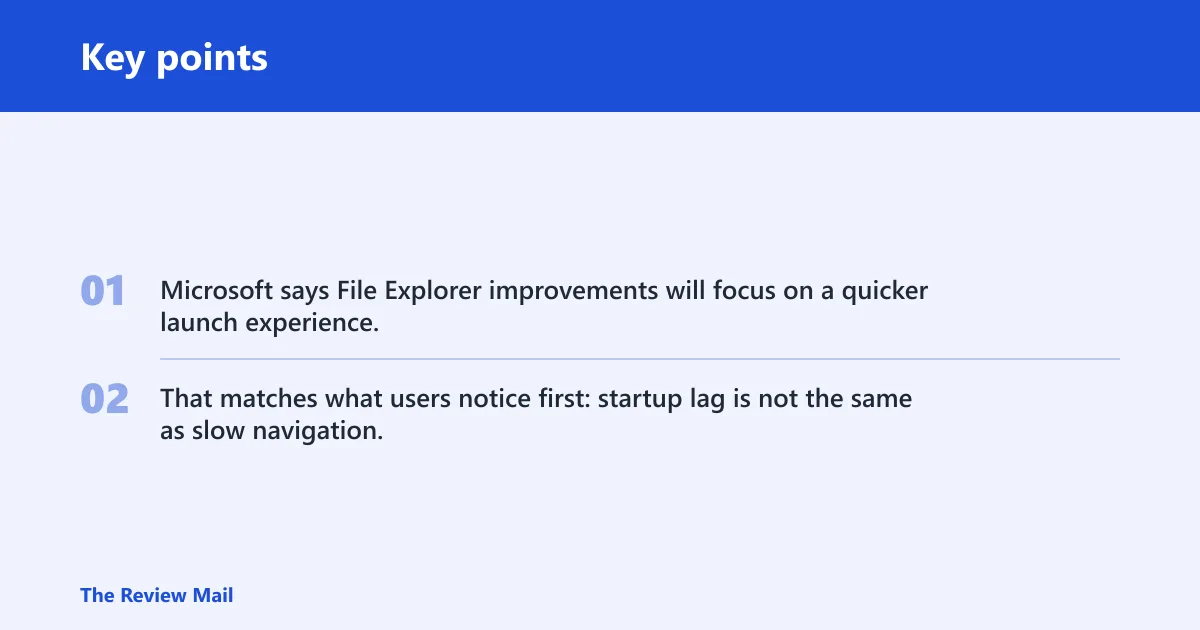
Microsoft says File Explorer improvements will focus on a quicker launch experience, plus reduced flicker and smoother navigation. That matches what users notice first: startup lag is not the same as slow navigation, and search delay is not the same as a bad context menu.
Why is File Explorer slow?
File Explorer is the Windows shell app for browsing files and folders, so one weak point can drag down only one part of it. A slow launch, slow folder navigation, delayed thumbnails, sluggish context menus, and slow search often have different causes, which is why a generic cleanup rarely fixes everything.
Match the symptom before you act
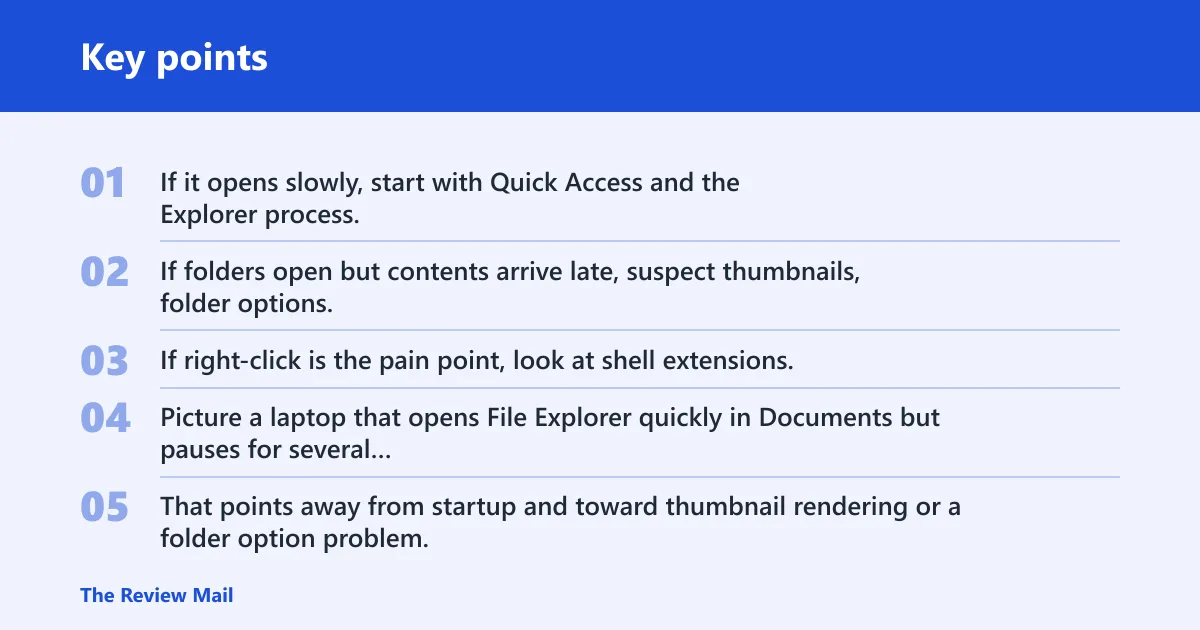
If it opens slowly, start with Quick Access and the Explorer process. If folders open but contents arrive late, suspect thumbnails, folder options, or network storage. If right-click is the pain point, look at shell extensions. If search is laggy, go straight to indexing.
Picture a laptop that opens File Explorer quickly in Documents but pauses for several seconds on a photo folder with 8,000 images. That points away from startup and toward thumbnail rendering or a folder option problem.
Why does File Explorer take so long to open?
Slow opening usually points to Quick Access, mapped network locations, cloud-integrated folders, or a temporarily stuck Windows Explorer process. Quick Access is the default start location, and AddictiveTips recommends switching File Explorer to This PC when startup is the problem. If Explorer feels stuck, restarting Windows Explorer from Task Manager is the fastest safe first step.
Check Quick Access first
Quick Access can slow startup when it is loading recent files, pinned folders, or locations that no longer respond quickly. If the delay happens before the window appears, change the default start location to This PC and compare the startup speed.
- Open File Explorer.
- Open Folder Options.
- Set “Open File Explorer to” to This PC instead of Quick Access.
- Close and reopen Explorer.
Windows Latest reported that preloading adds about 35MB of RAM, with baseline File Explorer RAM usage at 32.4MB before preloading and 67.4MB with preloading. Their launch comparison used 16 Edge tabs under load. That does not prove every slow launch is memory-related, but it does show Explorer startup can be affected by load.
Restart Windows Explorer from Task Manager
If Explorer slows down after running for a while, restart the Windows Explorer process in Task Manager. In Processes, it appears as Windows Explorer. This clears temporary hangs without changing your settings.
- Press Ctrl+Shift+Esc to open Task Manager.
- Find Windows Explorer in Processes.
- Right-click it and choose Restart.
Check for slow network paths
Network locations, offline mapped drives, and cloud-synced folders can stall startup while Explorer checks availability. That matters more in offices and on laptops that reconnect to shares, OneDrive, or VPN-backed paths. If startup only hangs when those locations are available, the delay is probably outside File Explorer itself.
Why is Windows 11 File Explorer slow to open folders?
Slow folder opening usually points to rendering, not startup. The common causes are thumbnail cache problems, folder view settings, huge photo libraries, or a folder that lives on a network share or offline drive. If the folder opens but contents appear late, rebuild thumbnails first.
Rebuild the thumbnail cache
Thumbnail cache corruption or buildup can slow folder rendering, especially in image-heavy folders. AddictiveTips recommends rebuilding the thumbnail cache through Disk Cleanup. That is the fastest fix when photos, videos, or mixed media folders take a long time to paint.
- Open Disk Cleanup.
- Select the drive that holds the slow folders.
- Choose thumbnail-related cleanup.
- Confirm and let Windows rebuild the cache.
Can thumbnails slow File Explorer down? Yes. A folder full of large RAW files or many JPGs can spend more time generating previews than listing names, so the delay can look like Explorer lag when the bottleneck is image rendering.
Review folder options if the delay is settings-related
AddictiveTips also recommends resetting folder layout with Reset Folders when view settings become part of the problem. That is useful when one folder type keeps opening in a broken or over-customized view, while other folders behave normally.
Should you reset folder options to speed up File Explorer? Yes, if the slowdown started after view changes or only affects one folder class. No, if the delay happens everywhere and points more clearly to thumbnails, network paths, or the Explorer process.
Watch for network and library folders
Large library folders, offline mapped drives, and cloud-integrated folders can stall navigation as Explorer waits for metadata. Say your Pictures library pulls from both a local SSD and an offline network share. The folder can feel slow even when the local files are fine, because Explorer still checks the unreachable path.
Why is the right-click menu slow?
Slow right-click menus usually come from shell extensions and context menu handlers, especially third-party add-ons. Too many entries can increase load time, and one bad handler can stall the entire menu. This is a separate problem from slow launch or slow search.
Audit shell extensions and handlers
Third-party shell extensions add commands, preview handlers, and file-type actions to Explorer. Useful tools can become a drag when too many load at once. Use an audit tool such as ShellMenuView to identify and disable suspect entries.
- List recent or unfamiliar context-menu items.
- Disable one suspect extension at a time.
- Test the menu again.
- Re-enable only the entries you need.
Trim cluttering context menu items
Every extra handler can lengthen the pause before the menu appears. If the lag is visible only on files with many installed apps, trim the menu list before touching broader repairs. That keeps the change narrow and easier to undo.
A common first-timer mistake is rebuilding the search index because the menu feels slow. That does nothing for a bad context-menu handler.
How do you fix slow search in Explorer?
Slow search usually means the index is stale, incomplete, or overloaded. File Explorer search uses Windows search indexing, so the best repair is usually to rebuild the index from Indexing Options. If the problem is broader, the Search and Indexing troubleshooter can help surface it.
Rebuild the search index
The same source recommends using Indexing Options and the Advanced rebuild action. That is the right move when Explorer search returns old results, misses obvious files, or takes far too long to answer.
- Open Indexing Options.
- Open Advanced settings.
- Choose Rebuild.
- Let Windows recreate the index.
Run the Search and Indexing troubleshooter
If search is stale or incomplete across Windows, not only in Explorer, use the Search and Indexing troubleshooter. That checks for indexing problems beyond a single folder or cache issue. If Explorer search is the only broken part, rebuild the index first.
Separate Explorer search from system search
If Start menu search also fails, the issue is probably wider than File Explorer. If only Explorer search lags, focus on the index and the folders it covers. That distinction saves time.
When broader repairs make sense
If symptom-specific fixes do not help, system file corruption or network stack issues may be involved. Those are not first-line fixes for every slowdown, but they matter when multiple Explorer features misbehave at once.
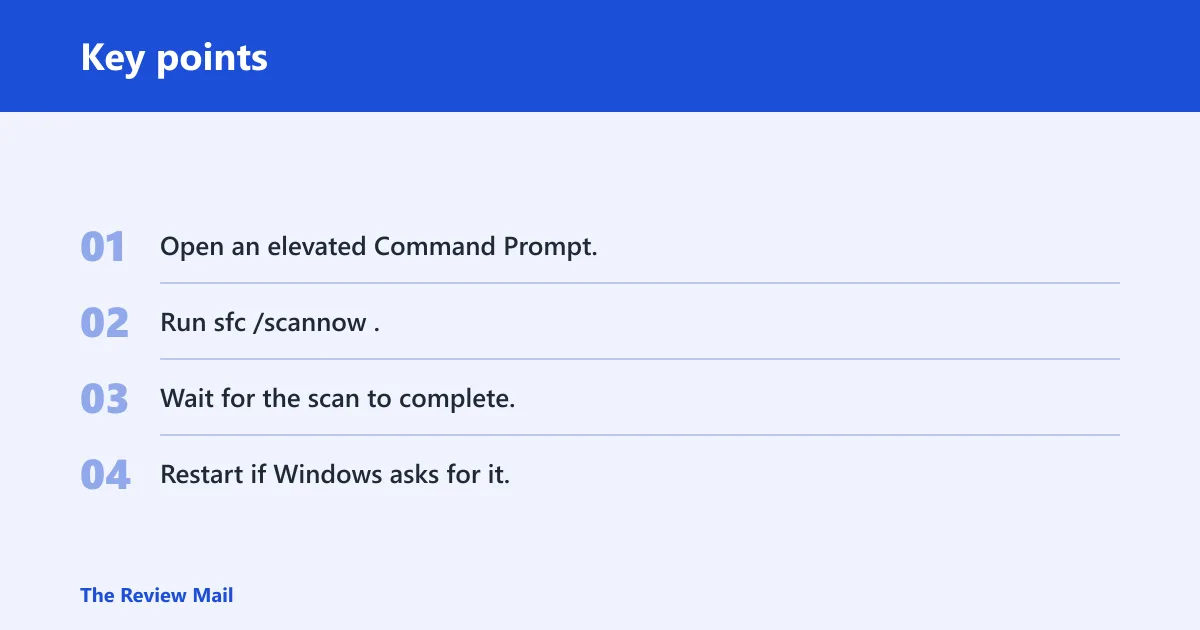
Run SFC /scannow
An SFC scan can repair system file corruption that affects Explorer and related shell components. The same source says the scan can take at least 15 minutes, so do not expect an instant result. It is a sensible next step when several Windows features feel unstable.
- Open an elevated Command Prompt.
- Run
sfc /scannow. - Wait for the scan to complete.
- Restart if Windows asks for it.
Use netsh winsock reset only for network-related stalls
The Winsock repair command is netsh winsock reset. It can help some Explorer-related stalls that involve network paths or name resolution, and it requires a restart. Use it when mapped shares, cloud paths, or other network-backed folders are part of the slowdown.
That fix is narrower than most people expect. It is not a general Explorer speed tool, and it does nothing for a bad thumbnail cache or a bloated context menu.
Frequently asked questions
Why is windows file explorer so slow?
Windows File Explorer is often slow because one component is blocking the rest: Quick Access at startup, thumbnails in image-heavy folders, shell extensions in the right-click menu, or search indexing. The fastest fix depends on which part feels slow first. Match the symptom before changing settings.
Why windows 11 file explorer so slow
Windows 11 File Explorer can feel slow when startup loading, folder rendering, search indexing, or context-menu handlers pile up. Microsoft has said its File Explorer improvements will focus on a quicker launch experience, reduced flicker, and smoother navigation, which lines up with those common pain points.
Why is file Explorer slow in Windows 11?
File Explorer is slow in Windows 11 when the delay comes from a specific bottleneck rather than the whole app. Quick Access and network paths tend to slow opening, thumbnail cache problems slow folder display, shell extensions slow right-click menus, and indexing problems slow search.
Why does File Explorer take so long to open on Windows 11?
Slow opening usually means Quick Access, mapped drives, or cloud-synced folders are being loaded at startup. The first safe fix is to switch File Explorer to This PC. If the app still feels stuck, restart Windows Explorer from Task Manager and check whether network locations are part of the delay.
How do I fix slow file Explorer in Windows 11?
Start with the symptom. For slow launch, switch to This PC or restart Windows Explorer. For slow folders, rebuild the thumbnail cache. For slow right-click menus, disable shell extensions. For slow search, rebuild the index. Use SFC /scannow or netsh winsock reset only when broader corruption or network issues fit the pattern.
Does Quick Access make File Explorer slower?
Yes, it can. Quick Access is a common cause of slow startup because it loads recent items and pinned folders when Explorer opens. If startup is the problem, change the default to This PC and compare the result. That fix is quick and easy to reverse if needed.
Can thumbnails slow File Explorer down?
Yes. Thumbnail cache problems can slow folder rendering, especially in folders with many photos or videos. Rebuilding the cache through Disk Cleanup is a common fix. If only image-heavy folders lag while other folders open normally, thumbnails are one of the first things to check.
Should I reset folder options to speed up File Explorer?
Reset folder options if the delay started after changing view settings or only affects a specific folder type. The same source recommends Reset Folders for that case. If the slowdown is broader, look first at thumbnails, search indexing, Quick Access, or shell extensions before resetting preferences.