Windows 11 25H2 Bug BSOD: What to Do First After Update
Windows 11 25H2 blue screens can be hard to triage because the problem may be tied to an update, a driver, or BitLocker-related behavior on affected systems. The issue affects Windows 11 versions 25H2 (KB5066835) and 24H2 (KB5066835), as well as Windows 10 version 22H2 (KB5066791), and Intel hardware that supports Modern Standby appears to be the primary target. Start by checking whether the crash happens during normal boot, after a specific update, or only on affected hardware before you change anything.
What a 25H2 blue screen means
A blue screen after a Windows 11 25H2 install usually means one of three things: a bad update interaction, a driver fault, or a BitLocker-related problem on affected systems. The first thing to pin down is when it happens: during normal sign-in, after reboot, or only after you enter recovery tools.
Separate the crash type first
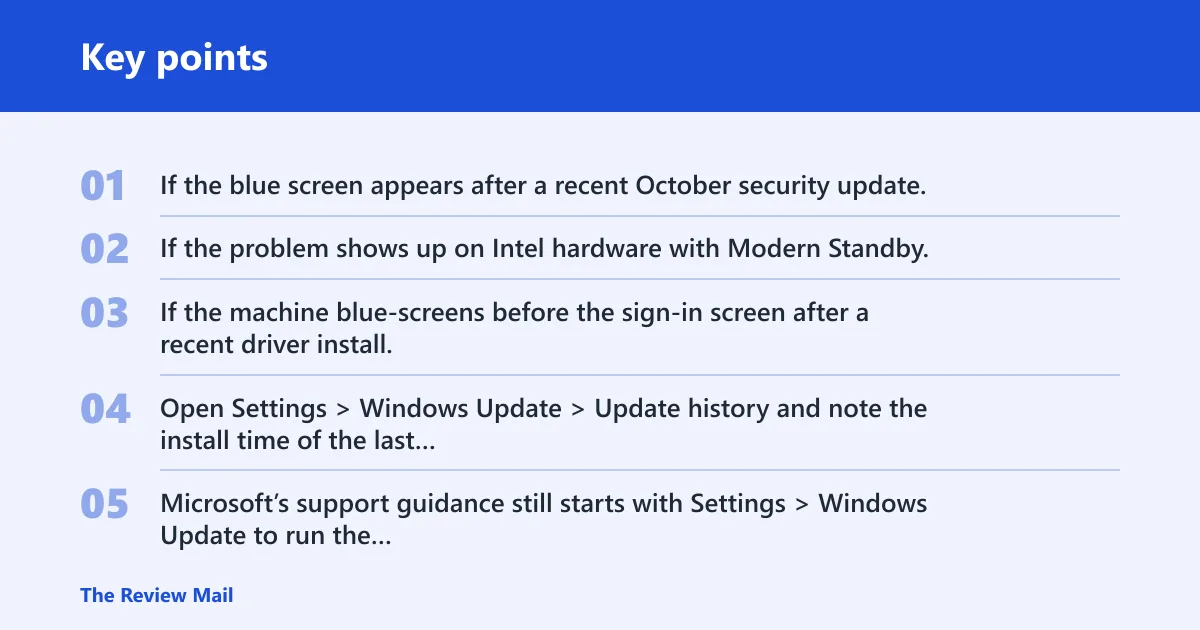
If the blue screen appears after a recent October security update, the update itself may be involved. If the problem shows up on Intel hardware with Modern Standby, that combination is worth checking closely because it matches the affected hardware pattern reported for this issue. If the machine blue-screens before the sign-in screen after a recent driver install, that is more consistent with a separate boot or driver issue than with an update-related problem.
Check update timing before rollback
Open Settings > Windows Update > Update history and note the install time of the last quality update. Microsoft’s support guidance still starts with Settings > Windows Update to run the update scan, and the known issues page is where rollout status appears on Microsoft Learn. (Microsoft Support)
Likely causes, ranked
Most often, a post-update blue screen is tied to the newest cumulative patch or a driver that did not like the new build. Less often, the problem is hardware instability. In this 25H2 case, BitLocker-related behavior on affected devices also matters, especially on Intel systems that support Modern Standby.
Update-related regression or bad cumulative patch
The October security updates are part of the timeline for this issue. If the crash began right after an October update, review the installed update date and compare it with the start of the problem before choosing a rollback path.
- Go to Settings > Windows Update > Update history.
- Check whether the relevant October update is installed.
- If the crash began right after that install, open Settings > System > Recovery > Advanced startup > Restart now.
- Follow Troubleshoot > Advanced options > Uninstall Updates, then choose Uninstall latest quality update.
- Restart and test before changing any drivers.
Use this path for a quality update, not for a feature update rollback. If the PC still boots normally, this is the least disruptive rollback option. If the machine is stuck in a boot loop, use WinRE from startup instead.
Driver fault or hardware instability
If the blue screen started after a GPU, storage, Wi-Fi, or chipset driver change, the update may be incidental. A driver bug often crashes in normal Windows use, not only in recovery tools. If the STOP code repeats across reboots and the crash timing does not match the update time, treat it as a driver or memory problem until proven otherwise.
- Enter Safe Mode with Settings > System > Recovery > Advanced startup > Restart now > Troubleshoot > Advanced options > Startup Settings.
- Choose the Safe Mode option.
- Open Device Manager.
- For the most recent changed device, open Properties > Driver.
- Select Roll Back Driver or Uninstall device, then restart.
- Run
sfc /scannowfrom an elevated Command Prompt if Windows still starts.
Collect the exact STOP code and parameters from the blue screen or C:\Windows\Minidump\*.dmp. That gives IT staff or support a real error signature instead of a guess. If the crash repeats after a driver rollback, run DISM /Online /Cleanup-Image /RestoreHealth after SFC and then re-test.
BitLocker-related behavior on affected devices
If the system is one of the affected versions and uses Intel hardware with Modern Standby, BitLocker may be part of the failure pattern. Check whether the crash began after the October security updates and whether it happens consistently on that hardware configuration. That combination is the clearest clue given for this issue.
- Open Settings > Windows Update > Update history and confirm the October update timing.
- Verify whether the device is an affected version.
- If the machine boots normally, copy important files to another drive before any repair.
- If the crash started after the latest quality update, use Settings > System > Recovery > Advanced startup > Restart now.
- Follow Troubleshoot > Advanced options > Uninstall Updates, then choose Uninstall latest quality update.
Out-of-band updates are emergency, non-routine patches that arrive faster than the normal cadence. If a later fix is posted, install it from Windows Update when available rather than making repeated changes to drivers or recovery settings.
Did KB5066835 trigger it?
If the blue screens started right after KB5066835, treat that update as the leading suspect. The affected systems include Windows 11 25H2 and 24H2 with KB5066835, and the issue is tied to Microsoft’s October security updates. That makes rollback reasonable only when the crash started immediately after install and the machine still boots far enough to remove the update safely.
When to uninstall the latest quality update
If the problem began within one reboot of KB5066835 and the PC can still reach Advanced startup, uninstall the latest quality update. Use the uninstall path from WinRE, not just Update history. The important path is Troubleshoot > Advanced options > Uninstall Updates, then Uninstall latest quality update.
- Restart into Advanced startup.
- Choose Troubleshoot.
- Select Advanced options.
- Choose Uninstall Updates.
- Select Uninstall latest quality update.
- Reboot and confirm whether normal boot behavior returns.
When to wait for the out-of-band fix
Wait when the machine still works well enough for normal use and the only breakage is tied to the known issue. If you can keep working in Windows, waiting is safer than rolling back an otherwise healthy update.
Is a driver causing the BSOD?
Use the driver path when the crash happens in normal Windows, the update timing is weak, or the bugcheck follows a device change. A driver fault often survives one reboot and may show up as recurring crashes on login, idle, sleep, or resume. Safe Mode is the cleanest next test because it strips out most third-party drivers.
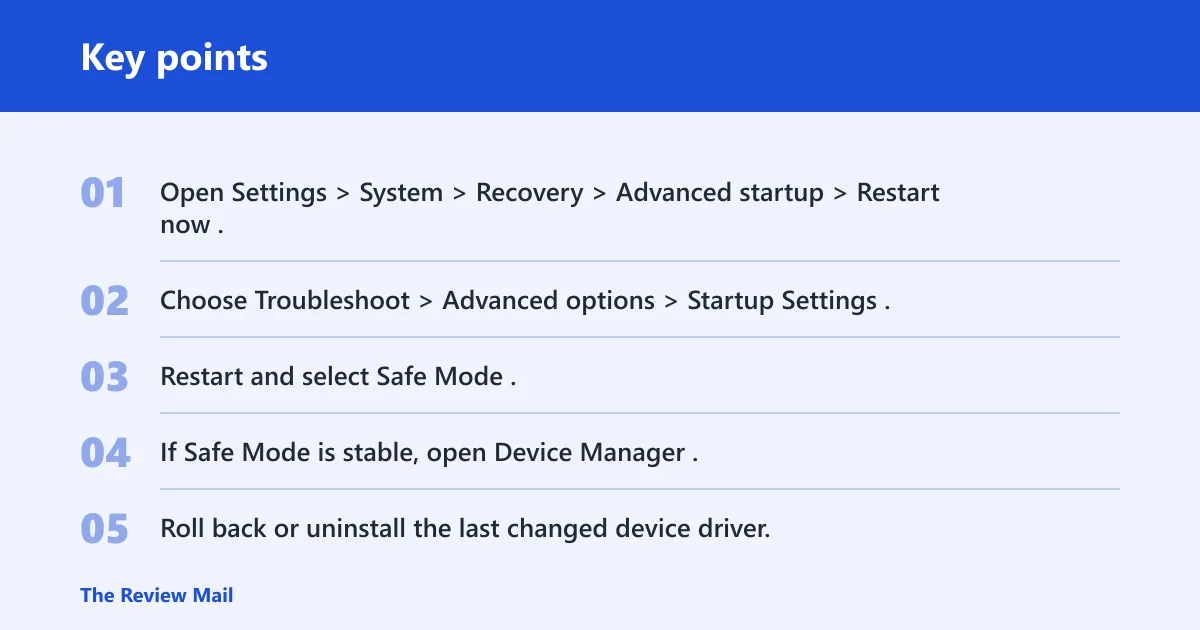
Use Safe Mode as the next test
- Open Settings > System > Recovery > Advanced startup > Restart now.
- Choose Troubleshoot > Advanced options > Startup Settings.
- Restart and select Safe Mode.
- If Safe Mode is stable, open Device Manager.
- Roll back or uninstall the last changed device driver.
- Restart normally and check whether the blue screen returns.
Capture minidumps before changing more settings
Open C:\Windows\Minidump\ and copy the newest dump file before you make more changes. If Windows will boot, the simplest practical review path is to open the dump with a debugger or hand it to support with the STOP code. Do not keep changing settings blindly; one repeated dump often points to the same module or device class.
For a memory check, run Windows Memory Diagnostic (mdsched.exe) or use memtest86 if the crash pattern still looks hardware-related after driver rollback. That step matters more when the STOP code varies from one boot to the next.
What if WinRE is broken?
If WinRE does not respond the way you expect, do not assume the whole PC is dead. The recovery toolkit is separate from normal Windows. The next move is to try a cleaner recovery path before you reset the machine.
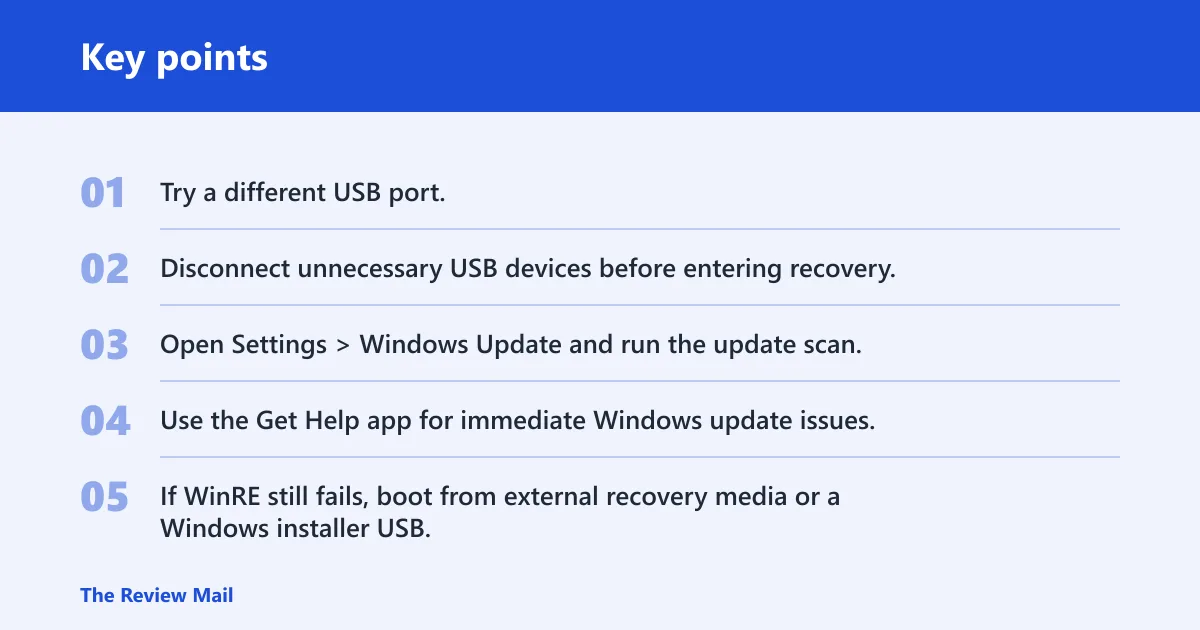
- Try a different USB port.
- Disconnect unnecessary USB devices before entering recovery.
- Open Settings > Windows Update and run the update scan.
- Use the Get Help app for immediate Windows update issues.
- If WinRE still fails, boot from external recovery media or a Windows installer USB.
If the device will not boot at all and WinRE is unusable, external recovery media is the next step. At that point, avoid a blind reset unless your backups are verified. A reset can remove useful recovery evidence and may complicate file retrieval.
For IT admins
If you manage many endpoints, watch the Microsoft release-health page and the Windows Updates API in Microsoft Graph for status changes. That gives you a programmatic way to monitor rollout issues, defer deployment, and confirm when a fix is available.
| Symptom timing and state | Most likely cause | Safest next step | Uninstall latest KB? | Use Safe Mode? | Wait for Microsoft? |
|---|---|---|---|---|---|
| Blue screen started right after KB5066835 and Windows still boots | Update-related regression | Advanced startup > Uninstall Updates > Uninstall latest quality update | Yes | No, unless the crash continues | No, not first |
| Windows boots, but recovery tools behave unexpectedly | Recovery-path issue | Try another USB port, then run the update scan in Windows Update | Usually no | No | Yes |
| Blue screen follows a driver install or device change | Driver fault | Safe Mode, then Device Manager driver rollback or uninstall | No | Yes | No |
| PC will not boot, and recovery tools also fail | Recovery path blocked or deeper system fault | External recovery media, then repair or data recovery | Maybe, only if recovery becomes usable | No | Possibly, if you can keep the device off-line |
Frequently asked questions
Why is Windows 11 25H2 causing BSODs?
Most reports point to update timing, not 25H2 itself in every case. Check whether the crash began after KB5066835, after a driver change, or on affected Intel hardware with Modern Standby. If the machine boots normally, use Settings > Windows Update > Update history first and compare the timestamp with the failure.
What are the known Windows 11 25H2 bugs right now?
The current issue to watch is the BitLocker-related blue screen problem tied to the October security updates on affected versions. Review the known issues and notifications page for status updates and the latest workaround. That page is the release-health source for rollout problems, so it is the best place to confirm whether a fix has posted.
How do I check whether a 25H2 update is the one causing my BSOD?
Open Settings > Windows Update > Update history and match the install time to the first crash. If the problem began immediately after KB5066835, remove it from Settings > System > Recovery > Advanced startup > Restart now > Troubleshoot > Advanced options > Uninstall Updates.
Which 25H2 KB updates are linked to recovery or boot problems?
If you manage devices, track the October security update in your rollout notes and watch the known issues page for status changes.
How do I run the BSOD troubleshooter in Windows 11?
Windows 11 does not have a dedicated modern BSOD troubleshooter. Use Settings > System > Recovery > Advanced startup > Restart now for Safe Mode, then run sfc /scannow and, if needed, DISM /Online /Cleanup-Image /RestoreHealth. For update-related problems, the Get Help app is the supported entry point.
Is Windows 11 25H2 any good or should I wait to upgrade?
If you rely on BitLocker workflows, recovery features, or use affected Intel Modern Standby hardware, it is reasonable to wait until the relevant fix appears on the known issues page and in Windows Update. If your device is already on 25H2 or 24H2 with KB5066835, confirm whether the issue matches the known pattern before making broader changes.