Disk Drive Update Windows 11: Safe Fixes and Checks
In Windows 11, treat a “disk drive update” as a decision tree: if Disk Management sees the drive but File Explorer does not, check letters, volumes, and policies first; update storage drivers only after that, and only from Device Manager or the PC maker. Skip those checks and you can miss the real fault, lose access to data, or install the wrong driver. This guide shows the safe order: visibility checks, driver updates, Windows Update, and when a failing drive needs replacement.
Figure out which drive problem you have
In practice, “update” can mean four different things: a Windows storage driver, a storage controller driver, drive firmware, or a Windows Update problem that needs free space and repair tools. Those are separate layers. If you mix them together, you can reach for format, initialize, or recovery steps before you know what is actually wrong.
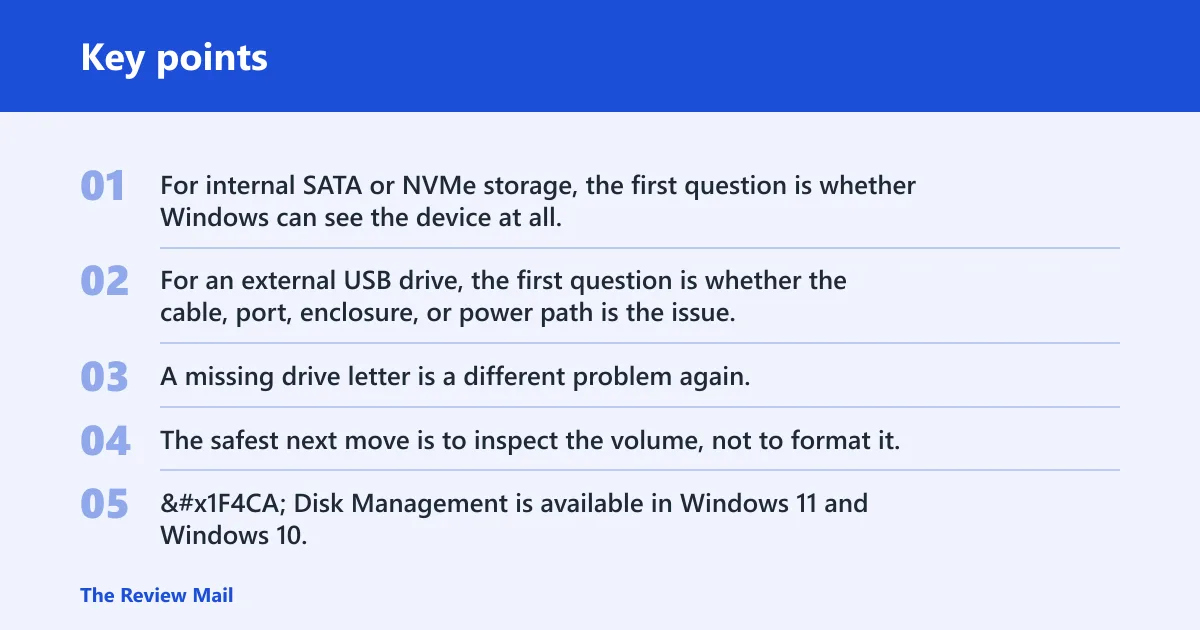
For internal SATA or NVMe storage, the first question is whether Windows can see the device at all. For an external USB drive, the first question is whether the cable, port, enclosure, or power path is the issue. A missing drive letter is a different problem again.
Which disk update path do I need?
| Symptom | Likely storage layer | Safest first action | What not to do |
|---|---|---|---|
| Internal HDD or SSD appears in Disk Management but not File Explorer | Partition or drive letter | Check whether a volume exists and whether it has a letter assigned | Do not format or initialize it first |
| External USB drive is missing after unplugging and reconnecting | USB path or enclosure | Try another port and cable, then check Disk Management | Do not assume the disk itself has failed immediately |
| Drive letter is gone, but the partition still shows healthy | Drive letter assignment | Assign or change the letter in Disk Management | Do not create a new partition over the existing one |
| Drive is absent from Disk Management | Hardware, controller, or cable | Check Device Manager, ports, and power, then decide whether a driver or hardware check is next | Do not format a disk Windows cannot detect |
| Windows Update says there is not enough space | Storage space, not disk failure | Free space with Storage Sense or Cleanup recommendations | Do not reinstall storage drivers as the first fix |
Suppose an internal SSD still appears in Disk Management as a healthy partition, but it vanished from File Explorer after a Windows 11 update. That points to a missing drive letter or a changed volume setting, not a dead disk. The safest next move is to inspect the volume, not to format it.
📊 Disk Management is available in Windows 11 and Windows 10. Source: Microsoft.
How do you check the drive in Disk Management first?
Open Disk Management first when a drive is missing, offline, or newly installed. It is the built-in tool for managing disks and volumes in Windows 11 and Windows 10, and Microsoft says it looks and works the same in both. Use it to read status, not to rush into formatting.
Disk Management can initialize new drives, create and format volumes, change drive letters, and extend or shrink volumes. Open it from Start, Search, Run with diskmgmt.msc, or Computer Management. If the disk is already there, you often do not need a driver change at all.
Open Disk Management. Use Start, Search, Run, or Computer Management to launch the tool. The goal is to see whether Windows recognizes the disk, the partition, and the volume state before you touch anything else.
Read the disk status. Look for labels such as Online, Offline, Unallocated, or Healthy. A visible volume with no letter is usually a safe recovery path; an unallocated disk is a different case and may need more caution.
Stop before formatting. If the disk contains data and a healthy partition appears, do not initialize or format it just because File Explorer is empty. Those actions can overwrite the path you need to keep.
How do you update disk drivers in Device Manager?
Use Device Manager when the issue points to storage drivers, a controller, or a device entry that looks wrong. Device Manager is the Windows hardware list and driver-status tool, and it can show disk drives and USB controllers. That makes it the right place for driver updates, not Disk Management.
For some storage problems after a Windows 11 update, the storage controller path can be more useful than the disk entry itself. If the issue points to storage drivers, open Device Manager and update the controller that sits between Windows and the drive. In some cases the controller may switch to Standard SATA AHCI Controller as a safer fallback when the vendor driver is the problem.
Open Device Manager. Search for Device Manager from Start and expand Disk drives and IDE ATA/ATAPI controllers or Storage controllers. If the disk is present here, Windows sees the hardware path, even if File Explorer does not.
Update the controller driver. Right-click the SATA or storage controller and choose the driver update option. If the manufacturer supplies a known storage package for your exact model, use that source rather than a generic package from elsewhere.
Reboot and recheck. Restart after the driver change, then return to Disk Management and File Explorer. Restart the PC, then look again, because storage driver changes often do not fully apply until Windows reloads the controller stack.
A common first-timer mistake is updating the disk entry instead of the controller entry. If the storage controller is the fault, the disk item may still look fine while the underlying path is unstable. That is why the controller category matters.
Why is a drive visible in Disk Management but not File Explorer?
Usually the volume is healthy but hidden because it has no drive letter. Disk Management manages drive-letter assignment, and a letter prevents a working partition from disappearing from File Explorer. This is one of the safest fixes because it changes visibility, not data.
Find the volume entry. In Disk Management, locate the partition that looks healthy but has no letter. If Windows shows it as a valid volume, you are usually dealing with visibility, not corruption.
Assign a letter. Right-click the volume and choose the option to change or assign a drive letter. Pick an unused letter and confirm the change. This is the standard fix when the partition exists but File Explorer does not show it.
Leave healthy data alone. If the partition already contains files, do not format it simply because it was hidden. A missing letter is not the same thing as an empty disk.
Say your data drive appears as Healthy in Disk Management with no letter, while the system SSD is fine. Assigning a letter is the correct first move. Formatting would be the wrong move because the volume already exists.
How do I check Windows Update space problems?
Low disk space can block Windows Update, and Microsoft notes that temporary files can trigger a low-space error. Start with Storage Sense and Cleanup recommendations before you touch drivers or partitions. If space is the bottleneck, storage cleanup is the fix, not a drive reinstall.
Microsoft recommends Storage Sense to remove temporary files and Recycle Bin items automatically. Cleanup recommendations can surface Temporary files, Large or unused files, Files synced to the cloud, and Unused apps. If it has been fewer than 10 days since an upgrade, Windows.old may still be removable to free space. (Microsoft Support)
Run Storage Sense. Turn it on in Settings to remove temporary files and Recycle Bin items automatically. This helps when Windows Update fails because the system partition is too full to stage the update.
Review Cleanup recommendations. Open the storage cleanup area and look through Temporary files, Large or unused files, Files synced to the cloud, and Unused apps. Clear only items you recognize and do not need.
Use the troubleshooter next. Run the Windows Update troubleshooter if space alone does not fix the failure.
Microsoft also says an external storage device can help complete the latest Windows update. That is a space workaround, not a storage repair. Use it when the update needs temporary room, not when a drive has vanished.
When should you stop and suspect hardware failure?
Stop and suspect hardware failure when the drive is absent from Disk Management after you have checked the cable, port, power, and controller entries. If Windows cannot see the device there, the issue may be hardware, enclosure, or firmware rather than a partition problem. Do not format what Windows cannot detect.
Internal HDDs and SSDs usually point toward controller, SATA, NVMe, or motherboard issues when they disappear completely. External USB drives add a second layer: cable, port, enclosure, and power can fail before the disk itself fails. That is why internal and external paths should stay separate.
Check Disk Management again. If the drive is absent from Disk Management, there is generally no safe reason to initialize, assign a letter, or format. Those steps only apply when Windows can already see the disk in some form.
Inspect Device Manager. Look for storage controllers, disk drives, and USB controllers with warning icons or missing entries. If the controller is missing or unstable, that shifts attention toward drivers or firmware rather than the partition.
Decide on replacement. If the disk remains absent after cable and controller checks, treat it as a hardware problem. At that point, recovery or replacement is the next conversation, not a formatting step.
Frequently asked questions
How do I update disk drivers in Windows 11?
Open Device Manager, expand the storage-related categories, and update the controller or disk entry that matches the problem device. If the issue appeared after a Windows update, check the SATA or storage controller first. Disk Management is for volumes and letters, while Device Manager is for driver updates.
Why does my hard drive disappear after a Windows 11 update?
A drive can disappear because the update changed the storage stack, removed a drive letter, or exposed a controller problem. Start with Disk Management to see whether the disk is still there. If it is visible there, the next check is usually the letter or controller, not formatting.
Should I use Disk Management or Device Manager to fix a disk issue?
Use Disk Management for partitions, drive letters, volume status, and new-disk setup. Use Device Manager for storage drivers, controller entries, and hardware warnings. If File Explorer is the only place where the drive is missing, Disk Management is usually the first stop.
What is the safest way to restore a missing drive letter in Windows 11?
Open Disk Management, find the healthy volume, and assign an unused letter. That is the safest fix when the partition already exists. Do not initialize, format, or delete partitions just because the volume is hidden from File Explorer.
How do I tell if my drive is missing because of a driver problem or hardware failure?
If Disk Management and Device Manager both see the device, the fault is more likely driver, letter, or partition related. If Disk Management does not see it at all, move to cable, port, power, controller, or hardware checks. Absence from both tools is the stronger warning sign.
Can low disk space stop Windows 11 from updating properly?
Yes. Microsoft says low space errors can appear when temporary files fill up. Use Storage Sense, Cleanup recommendations, and other safe cleanup tools first. If space is still tight, the Windows Update troubleshooter is more appropriate than storage-driver changes.
What should I check before formatting a drive that disappeared in Windows 11?
Check Disk Management first, then Device Manager, then the physical connection if it is an external USB drive. If the volume still exists and only the letter is missing, formatting is the wrong move. If the disk is absent entirely, formatting is not possible and should not be attempted.