Windows 11 Search Process High Memory
Windows 11 SearchHost.exe can briefly use high memory during reindexing, but steady spikes may point to a damaged index or a profile-specific search issue. If you ignore it, Start search can freeze, slow down, or go blank, and repeated resets can waste time when the cause is elsewhere. This guide helps you separate normal activity from a fault before you change Windows settings.
What SearchHost.exe does in Windows 11
SearchHost.exe is a legitimate Windows component. It hosts parts of the Windows Search UI, so it can show CPU and memory spikes when you type in search, open Start, or when the index updates in the background.
Normal behavior usually tracks with activity. A spike that fades after a search, a reboot, or a large sync completes is usually less concerning than memory that keeps climbing while the PC sits idle. If the process keeps growing and never settles, treat that as a fault pattern, not a normal burst.
What counts as normal memory use versus a stuck process
Normal spikes usually line up with a visible trigger: you type in the search box, open Start, or Windows finishes a recent update and starts reindexing. A stuck process is different. Memory grows steadily, search may lag or freeze, and the process does not settle after the trigger is gone.
SearchHost.exe also matters because it can be mistaken for malware when it is the real Windows file. Before deeper fixes, check its file location and Microsoft digital signature.
Is SearchHost.exe using high memory normal?
Brief high memory can be normal if it happens only while you search or right after Windows changes files. It is less normal if the spike continues while idle, repeats after every reboot, or grows until search stops responding. Those patterns usually point to the index, the Windows Search service, or a user profile issue.
Spike only while you search
If memory rises only while typing in Search or Start, the search UI is often reacting to live queries, thumbnail data, or recently changed files. That pattern usually calls for a lighter fix first: restart the search UI, restart Explorer, or wait for indexing to catch up.
Spike while idle
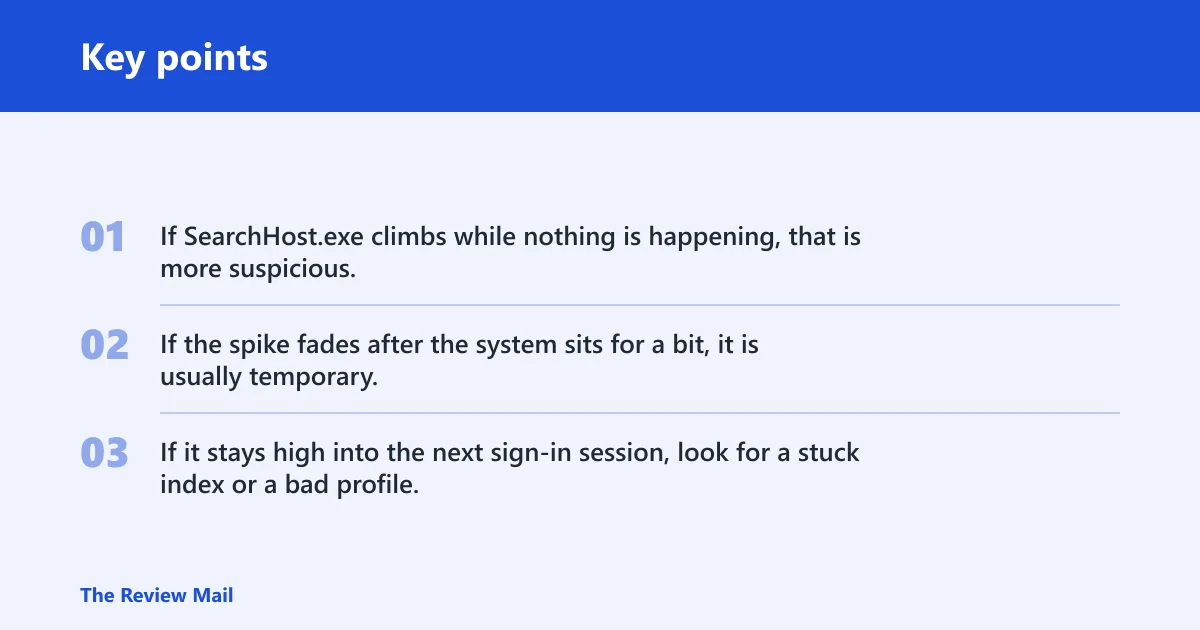
If SearchHost.exe climbs while nothing is happening, that is more suspicious. A background loop, a corrupted database, or a problematic indexed location can keep the process active when it should be quiet.
That is the pattern where you should inspect task activity, service state, and the index before rebuilding anything.
Spike after an update or reboot
After updates or a reboot, Windows may reindex files and refresh search metadata, which can temporarily increase SearchHost.exe memory use. That can push memory and disk use up for a while. If the spike fades after the system sits for a bit, it is usually temporary. If it stays high into the next sign-in session, look for a stuck index or a bad profile.
SearchHost.exe memory spike decision table
| Symptom pattern | Likely cause | First action | When to escalate |
|---|---|---|---|
| Spike only while searching | Search UI workload, recent file changes, or a brief reindex | Wait a few minutes, then restart SearchHost.exe or Windows Explorer if the UI stays stuck | Escalate if typing still freezes or memory keeps rising after searches stop |
| Spike while idle | Corrupted index, stuck search backend, or background loop | Restart the Windows Search service and run the Search and Indexing troubleshooter | Escalate if idle memory growth returns after restart |
| Spike after an update or reboot | Normal reindexing, but possibly a broken index if it does not settle | Leave the PC on long enough for indexing to finish, then check again | Escalate if the spike remains steady after normal idle time |
| Spike after OneDrive or large folder changes | Index stress from sync churn, backup sets, PST/OST stores, or developer folders | Reduce the indexed scope and remove the heaviest location first | Escalate if search is still slow after excluding the obvious folder |
How do you verify SearchHost.exe is legitimate?
SearchHost.exe should be treated as a normal Windows file until the path or signature looks wrong. Verify the binary location first, then confirm the Microsoft digital signature. If the file is in a strange folder, has a copied name, or fails signature checks, use Windows Security before deeper repair.
Open the process details. In Task Manager, find SearchHost.exe and open its file location or details view. The expected location is under SystemApps on Windows, not in a random user folder or downloads directory.
Check the signature. Open the file’s properties and confirm the Microsoft digital signature. A missing or invalid signature changes the risk profile and points away from normal search behavior.
Scan if anything looks wrong. Run a full scan in Windows Security. If the path or signature looks suspicious, follow with a Microsoft Defender Offline scan so the file can be checked outside the normal Windows session.
Odd paths, copies with near-identical names, and rename tricks are the main things to watch for. Legitimate SearchHost.exe is a Windows component; a fake one often relies on location, not the file name alone.
What should you check in Task Manager first?
Task Manager tells you whether the spike is tied to CPU, memory, disk, or all three. That matters because search-triggered spikes, update-time spikes, and idle spikes do not need the same fix. Check the pattern before you restart anything.
Watch CPU, memory, and disk. Open Task Manager and sort by the SearchHost.exe row. If disk is busy too, the search index is probably working or rebuilding. If only memory climbs while the system is idle, the process is more likely stuck.
Match the timing. Note whether the spike starts after typing in search, after a reboot, or after OneDrive or a large folder change. That timing often points to the trigger faster than the process list does.
Restart the stuck UI. If Start search is frozen, end SearchHost.exe or restart Windows Explorer from Task Manager. This resets the interface, not the cause, but it can clear a dead window while you test the next step.
Say your search box freezes every time you type “printer,” but only on one account. That points more toward a profile-specific search problem than a machine-wide failure, so a rebuild may not be the first move. (Microsoft Learn)
Suppose memory jumps from a few hundred MB to much higher after a large OneDrive sync. That pattern fits index pressure from file churn, especially if the sync touched thousands of files at once.
How do you fix Windows Search service spikes?
The Windows Search service is the backend service for Windows search. If the UI is slow but the service is stuck or misconfigured, restarting it often clears the immediate problem. A stable startup setting often used for this service is Automatic (Delayed Start).
Restart Windows Search. Open
services.msc, find Windows Search, and restart it. This can clear a bad service state without touching the index yet.Check the startup type. Confirm the service is set to Automatic (Delayed Start) if available on your system. That setting helps Windows bring search up after core services settle.
Run the troubleshooter. Open the built-in Search and Indexing troubleshooter and follow its prompts. It can address slow search, missing results, and search not working when the issue is basic configuration rather than corruption.
If search only fails in one account, sign in to another profile before you assume the whole service is broken. A user profile can have search corruption even when the system-wide service is healthy.
When should you rebuild or reset the index?
Rebuild the search index when search is broken in a way that points to corruption or bloat, not just a temporary spike. The search database can be a root cause, and problematic indexed locations can keep stressing it. Rebuilds help most when results are missing, stale, or search remains slow after a service restart.
Open Indexing Options. From there, check the indexed locations and choose the rebuild option if the index looks unhealthy. The rebuild starts fresh and can take time.
Expect temporary load. During a rebuild, CPU and disk use can rise before settling. That is normal while Windows repopulates the database.
Watch for one-profile failures. If one user profile still fails while another works, the issue may be profile-specific. In that case, a rebuild may help the system but not fully fix the user account.
Do not treat rebuilds as the first move for every spike. They are useful when the index itself looks damaged or bloated. They are less useful when the real trigger is a single heavy folder or a one-account search failure.
How do you cut indexing pressure without breaking search?
Settings under Privacy & security > Searching Windows let you change how much content Windows indexes. You can switch between Classic and broader indexing, then exclude large folders or heavy file sets that do not need fast search. That is often the least disruptive long-term fix.
Choose the right scope. Use Classic indexing if you do not need every location searched all the time. Broader indexing is useful for more content, but it can add load when large libraries keep changing.
Exclude heavy folders. Exclude large backup folders, developer trees, and mailbox stores such as PST or OST files if they do not need instant search. These locations can stress the index with constant churn.
Reduce sync churn. If OneDrive is changing thousands of files, pause or narrow the sync set before blaming SearchHost.exe alone. File churn often looks like a search bug because the index keeps chasing updates.
A common first-timer mistake is to rebuild the index before removing a 200 GB backup folder from indexing. That can waste time, because the same stress returns after the rebuild finishes.
Frequently asked questions
Why is SearchHost.exe using so much memory on Windows 11?
High memory use usually comes from one of three states: you are actively searching, Windows is reindexing after a change, or the index is stuck. If memory grows while the PC is idle and keeps climbing, the search database or a profile-specific search fault is more likely than normal use.
How do I reduce Windows 11 search process high memory?
Start with the least disruptive fix: restart SearchHost.exe or Windows Explorer, then restart Windows Search if the UI still lags. If the pattern repeats, reduce indexing scope in Searching Windows, exclude heavy folders, and rebuild the index only when the database looks corrupted or bloated.
Is SearchHost.exe a virus or a Windows process?
SearchHost.exe is a legitimate Windows component and it hosts parts of the Windows Search UI. Still, confirm the file location and Microsoft digital signature. If it runs from an odd folder or the signature fails, run Windows Security and, if needed, a Microsoft Defender Offline scan.
What should I do if Windows search lags and freezes?
First, check whether the freeze happens only during typing or even while idle. Then restart the search UI or Windows Explorer, restart the Windows Search service, and run the Search and Indexing troubleshooter. If results are still missing or stale, the index may need a rebuild.
Does rebuilding the search index fix high memory usage?
It can, but only when the index itself is the problem. Rebuilding helps with corruption, bloat, and some missing-result cases. It is less useful when the real cause is one large folder, OneDrive churn, or a single user profile with search corruption.
How do I restart the Windows Search service?
Open services.msc, find Windows Search, and restart it from the service list. The service name shown is Windows Search. If the startup type is available, Automatic (Delayed Start) is a common stable setting for it.