
Fix Registry Issues Windows 10: Safe Repair Steps
Fix registry issues in Windows 10 by starting with repair steps only when symptoms point to real corruption: failed boots, repeated crashes, broken updates, or malware traces; if Windows runs normally, leftover registry entries usually do not need manual cleanup. Bad edits can break logon, device drivers, and startup. This guide shows how to tell harmless registry clutter from actual damage and which safe repair steps to try first.
What registry problems look like
The Windows Registry stores configuration data for the operating system, installed applications, hardware, and user preferences. Malware, power loss, bad installs, faulty updates, or accidental edits can damage it. That is different from leftover uninstall entries, which are often just orphaned keys after a program is removed.
Random errors, crashes, app launch failures, and slow startup can point to registry trouble, but they can also come from damaged system files, a bad driver, or a broken update. If the problem appears only in one app, the registry for that app or the app itself is a more likely target than the whole Windows registry.
What you’ll need
- Windows Security for a malware scan
- Administrator access for SFC and DISM
- A restore point or full backup before changing anything
- Windows Recovery Environment if Windows will not boot normally
- A keyboard and time to let repairs finish without interruption
Is it corruption or just registry clutter?
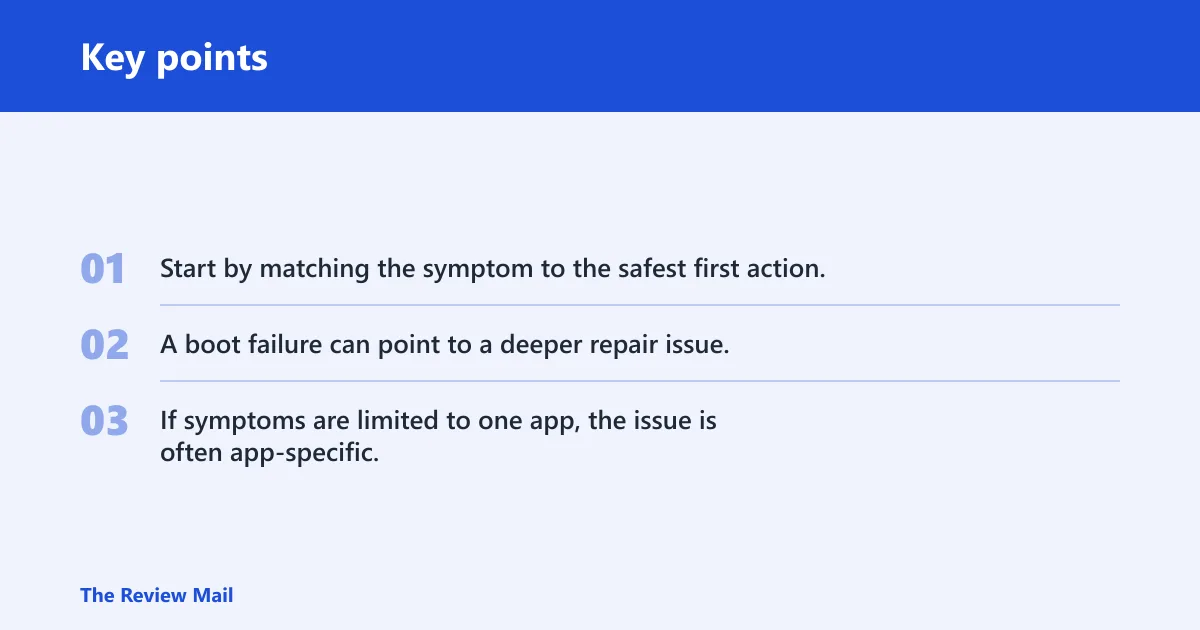
Start by matching the symptom to the safest first action. A boot failure can point to a deeper repair issue; a leftover entry after uninstall usually does not usually suggest registry corruption. If symptoms are limited to one app, the issue is often app-specific, not proof that the whole registry is corrupt.
| Symptom | Likely cause | Safest first action | When to escalate |
|---|---|---|---|
| Slow startup | Startup apps, damaged system files, or leftover entries | Run Task Manager > Startup, then SFC | Use DISM if SFC reports errors it cannot fix |
| App crash on launch | Broken app files or app-specific registry entries | Repair or reinstall the app | Escalate only if other apps also fail or system files are damaged |
| Windows boot failure | Deeper system damage or startup corruption | Run Startup Repair from Windows Recovery Environment | Use System Restore or Reset if Startup Repair fails |
| Malware suspicion | Malicious edits to settings or startup behavior | Run Windows Security full scan | Use SFC, then DISM, after the scan if symptoms remain |
| Post-uninstall leftovers | Orphaned keys from a removed program | Leave them alone unless the app still fails | Only edit manually if you know the exact key and have a backup |
Fix registry issues safely
The safest way to repair a corrupted registry in Windows 10 is to protect the system first, then move through built-in repair tools in order. Do not start with a cleaner or manual edits. Windows does not include a built-in registry-cleaning command, and registry tools that promise a quick cleanup can remove entries you still need. (Microsoft Learn)
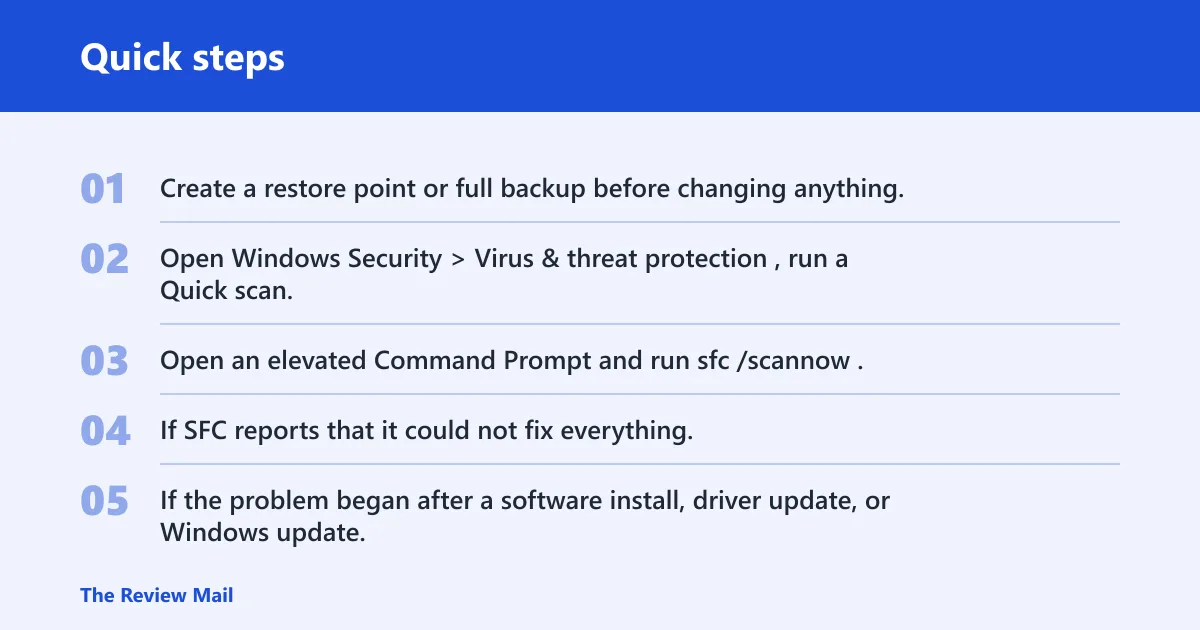
- Create a restore point or full backup before changing anything. Use Control Panel > System > System protection or Settings > Update & Security > Backup if you already have a backup path set up.
- Open Windows Security > Virus & threat protection, run a Quick scan, then choose Scan options > Full scan if startup behavior changed suddenly, pop-ups appeared, or Windows is acting like malware may be present.
- Open an elevated Command Prompt and run
sfc /scannow. This checks protected Windows system files before you touch the registry directly. - If SFC reports that it could not fix everything, run
DISM /Online /Cleanup-Image /RestoreHealthfrom an elevated Command Prompt, then runsfc /scannowagain. - If the problem began after a software install, driver update, or Windows update, open Control Panel > Recovery > Open System Restore and roll back to a restore point from before the change.
- If Windows will not boot normally, enter Windows Recovery Environment > Troubleshoot > Advanced options > Startup Repair.
- If repair tools fail and Windows still behaves badly, use Settings > Update & Security > Recovery > Reset this PC as the last resort. Choose the least destructive option that still fixes the machine.
Say your PC starts normally but one app crashes every time you launch it, while the rest of Windows works. That pattern points more toward the app or its own settings than a broken whole-system registry, so reinstalling the app is safer than editing keys by hand.
Suppose Windows Security finds nothing, SFC reports that it found corrupt files, and the PC still slows down at sign-in. Run DISM next, not a cleaner, because the Windows image behind system file servicing may still be damaged.
When does SFC or DISM help?
SFC and DISM fix different layers. SFC repairs protected Windows system files with sfc /scannow. DISM repairs the Windows image behind file servicing with DISM /Online /Cleanup-Image /RestoreHealth. Neither tool is a registry cleaner, and neither one removes orphaned app entries. (Microsoft Support)
What SFC repairs
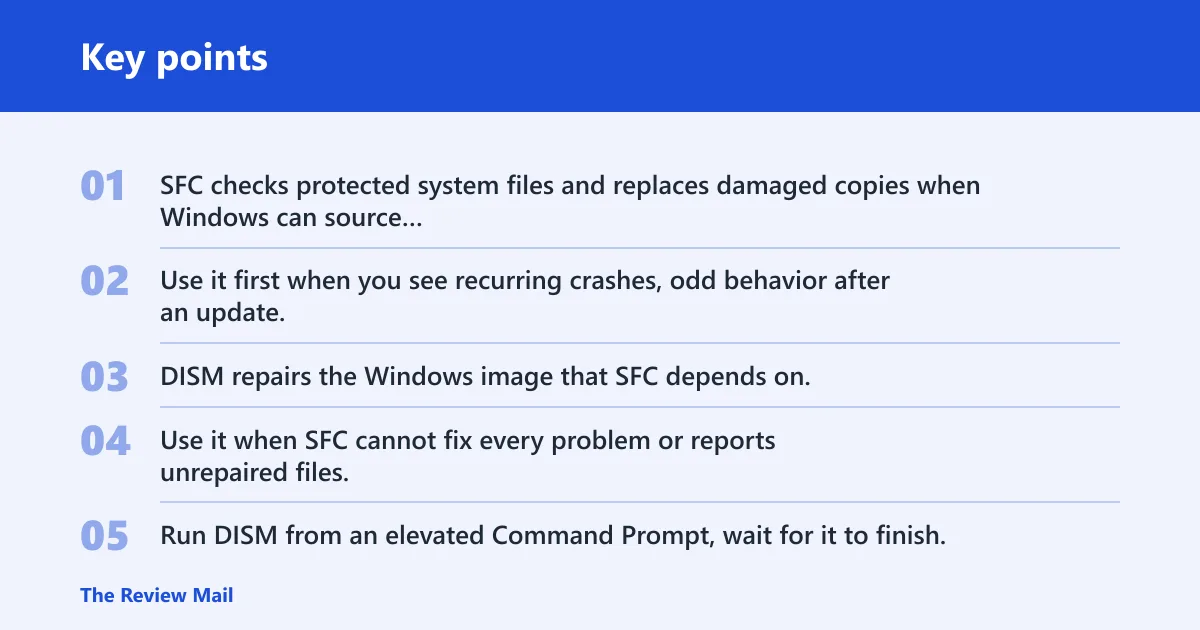
SFC checks protected system files and replaces damaged copies when Windows can source clean versions. Use it first when you see recurring crashes, odd behavior after an update, or messages that point to system file damage. Run it from an elevated Command Prompt.
What DISM repairs
DISM repairs the Windows image that SFC depends on. Use it when SFC cannot fix every problem or reports unrepaired files. Run DISM from an elevated Command Prompt, wait for it to finish, then run SFC again so Windows can recheck the repaired image.
What they do not fix
They do not clean leftover uninstall keys, and they do not turn a normal app removal into a registry problem. If the symptom is only a stale entry in an uninstall list or a leftover setting from a removed app, repair tools usually add no value.
Windows registry decision table
Use this table to decide if you are dealing with corruption or simple clutter. The goal is to stop as soon as the problem matches a safer, narrower fix.
| Symptom | Likely cause | Safest first action | When to escalate |
|---|---|---|---|
| Slow startup after a recent update | Startup conflict or damaged system files | Check Startup apps, then run SFC | Use DISM if SFC cannot clear the error |
| App crash on launch | App files or app-specific registry data | Repair or reinstall the app | Escalate only if the crash affects more than one app |
| Windows boot failure | Startup-level system damage | Run Startup Repair | Use System Restore or Reset if it still fails |
| Malware suspicion | Suspicious edits to settings or startup behavior | Run Windows Security full scan | Follow with SFC and DISM if symptoms remain |
| Post-uninstall leftovers | Orphaned registry entries | Usually do nothing | Manual editing only if you know the exact key |
Common mistakes
Registry cleanup goes wrong when people treat every leftover entry like damage. Most orphaned keys are harmless. They become a problem only when a specific app still calls for them or when manual edits remove the wrong path.
- Using registry cleaners first: They are optional third-party tools, not the default fix, and they can remove entries that still matter.
- Editing keys by hand: Use regedit only if you know the exact key and have a backup.
- Skipping malware checks: If startup behavior changed suddenly, scan before repair work.
- Resetting too early: Try SFC, then DISM, then System Restore before you reset Windows.
- Confusing clutter with corruption: A leftover uninstall entry is not the same thing as broken Windows.
Frequently asked questions
How do I fix registry errors in Windows 10?
Start with sfc /scannow from an elevated Command Prompt, then run DISM /Online /Cleanup-Image /RestoreHealth if SFC cannot finish the job. If the problem started after a recent update or driver change, use Control Panel > Recovery > Open System Restore before you consider Reset.
What is the safest way to repair a corrupted registry in Windows 10?
A cautious path is to back up first, then try Windows Security, SFC, DISM, System Restore, Startup Repair if needed, and use Reset only as a last option. That order limits risk because it starts with built-in repair tools and moves to broader recovery only when the narrower fix fails.
Does SFC fix registry issues in Windows 10?
SFC fixes protected Windows system files, not orphaned app entries or general registry clutter. Run sfc /scannow when crashes or startup problems suggest file damage. If SFC reports unrepaired files, follow with DISM /Online /Cleanup-Image /RestoreHealth and rerun SFC.
Can DISM repair registry corruption in Windows 10?
DISM repairs the Windows image used for system file servicing, so it can help when registry-like symptoms are really caused by damaged system components. It does not clean leftover keys. Run it only after SFC points to a deeper repair need, then recheck with SFC.
Is there a built-in command to clean the Windows registry?
No. Windows does not provide a built-in command for registry cleaning. The supported tools are SFC, DISM, System Restore, Startup Repair, and Reset. If you need to inspect a key, reg.exe can query, add, delete, or export values, but that is manual work, not cleanup.
Should I use a registry cleaner to fix Windows 10 registry errors?
Not as the first choice. Registry cleaners are optional third-party tools, and they carry safety and support risks because they can remove entries that still matter. If Windows Security, SFC, DISM, and System Restore do not solve the problem, compare the specific symptom before touching the registry.
How do I repair registry problems after malware or a bad update?
Run Windows Security > Virus & threat protection > Full scan first if malware is suspected. For a bad update, go to Control Panel > Recovery > Open System Restore and roll back to a point before the change. If the issue remains, use SFC, then DISM.
What should I do if Windows won’t boot because of registry corruption?
Enter Windows Recovery Environment > Troubleshoot > Advanced options > Startup Repair first. If that fails, try System Restore. If Windows still cannot boot, use Reset this PC as the last resort after you have exhausted the safer repair paths.