Fix Windows 11 Memory Problems: Causes and Fixes
Fix Windows 11 memory problems by checking Task Manager first. A memory leak occurs when an app keeps allocating memory and doesn’t release it, so its committed usage climbs over time. High RAM at idle is not always a fault because Windows can keep data in cache or standby memory that is available when needed. If RAM stays high at idle, review the busiest processes and startup items; if one app climbs steadily, treat it as a possible leak; if you see out-of-memory errors, review the paging file. Picking the wrong cause wastes time and can leave apps crashing or the system slowing down as memory is depleted over time. This guide shows how to tell normal cache from a leak, startup bloat, or a too-small paging file, then fix the right one.
When to worry about high RAM use in Windows 11
High RAM use is not always a fault. Windows can keep data in memory, and that can look busy even when the PC is healthy. Cache and standby memory usually help the system respond faster, while a leak is more likely when one process keeps increasing its committed usage over time. Warning signs include a steady climb over time, low-memory pop-ups, repeated crashes, or a blue screen tied to memory corruption.
Memory triage table
| Symptom pattern | Likely cause | Verification step | Best fix | Escalate |
|---|---|---|---|---|
| Steady 80% to 99% RAM at idle | Low physical memory, background processes, or browser load; Windows 11 itself uses more memory than previous versions. | Task Manager > Processes; sort by Memory and compare with only a few apps open. | Close tabs, trim startup items, and review the heaviest background tasks. | Startup audit, paging file review, Windows Security scan |
| RAM climbs over hours | Memory leak, often from an app or a stuck process. | Watch the same process in Task Manager > Processes and note whether its memory keeps rising. | Restart the app or end the process if it is clearly unnecessary. | Performance Monitor leak check, app update, driver review |
| One app spikes after launch | Heavy app load; modern applications, particularly web browsers like Chrome or Edge, can also consume a large portion of your RAM. | Open the app alone and sort Task Manager by Memory. | Close it and reopen it, or reduce open tabs. | Extension cleanup, Safe Mode, Windows Security scan |
| Out-of-memory pop-up | Paging file too small or a leak. | Check Performance > Memory and the paging file setting. | Increase virtual memory and disable unneeded startup items. | Paging file review, clean boot, RAM health test |
| Blue screen: memory management | Memory corruption, driver fault, or bad RAM. | Check whether the crash repeats after updates and whether Memory Integrity is off. | Update Windows, update or roll back drivers, then test RAM. | Windows Memory Diagnostic, DISM, chkdsk |
| High RAM after boot | Startup overload and services loading at sign-in. | Compare memory use before sign-in and after sign-in. | Disable unnecessary startup programs in Task Manager. | Startup audit, clean boot, Windows Update check |
| Low virtual memory warnings | Paging file limits or a bad custom setting. | System Properties > Performance > Advanced > Virtual memory. | Use the system-managed size, or raise the custom size if needed. | Paging file review, storage check, restart |
| Memory integrity conflicts | Core isolation conflict, usually from an old driver or security tool. | Windows Security > Device security > Core isolation details. | Update or remove the conflicting driver, then turn Memory Integrity back on. | Driver rollback, Windows Security scan, update Windows |
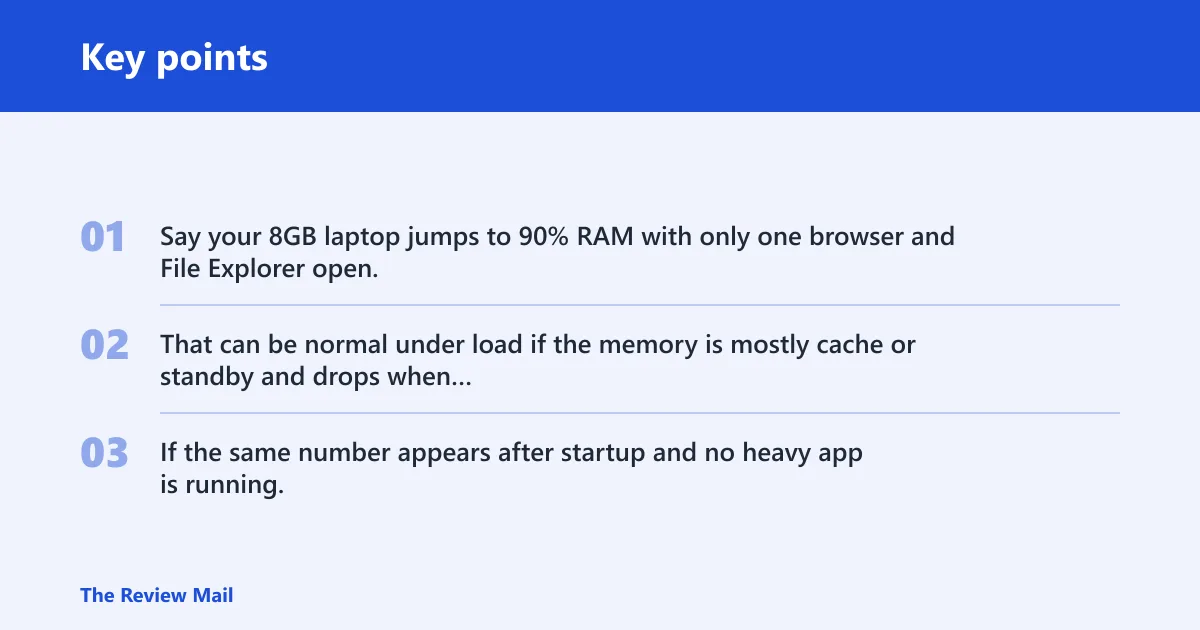
Say your 8GB laptop jumps to 90% RAM with only one browser and File Explorer open. That can be normal under load if the memory is mostly cache or standby and drops when you need it. If the same number appears after startup and no heavy app is running, the problem is usually background load, a process that keeps its committed memory growing, or a paging file that is too tight.
Likely causes of high memory usage
Most often, the cause is startup overload or background processes. Less commonly, one app leaks memory over time, or the paging file is too small. If the problem keeps coming back after normal cleanup, check the source step by step.
Most common: startup load and background processes
Windows Update, antivirus, and other services can use RAM right after boot. That is different from a leak because usage settles once the machine calms down, rather than climbing forever.
- Open Task Manager with Ctrl+Shift+Esc.
- Go to the Processes tab and sort by the Memory column.
- Look for Windows Update, antivirus, browser helpers, sync tools, or launchers.
- If a process is clearly unnecessary, select it and choose End task.
- Go to the Startup tab and review the list manually or sort by Startup impact.
- Restart and compare memory use after sign-in.
Less common: one app leak or browser load
If a process allocates memory and does not free it, Windows can slow down and may experience system failures as memory is depleted over time. A browser or another app can also stay heavy after tabs close.
- Open Task Manager and sort by Memory.
- Leave the system running and check again after 30 to 60 minutes.
- If one process keeps growing, close it and reopen it.
- If the same app keeps climbing, leave the PC alone for a while, then check whether it is still rising.
- If the shell is the problem, select Windows Explorer and choose Restart.
- If a browser is the problem, close it and reopen it.
Lower frequency: paging file limits, malware, or memory integrity conflicts
Windows 11 may still be fine on smaller systems, but it has less room for browsers and apps to share memory. If the paging file is mis-set, or if security or driver conflicts block memory handling, out-of-memory warnings can follow.
- Open Windows Security and run a Quick scan.
- Check Windows Security > Device security > Core isolation details for Memory Integrity status.
- If Memory Integrity is off, update the related driver or uninstall the conflicting one, then try turning it back on.
- Open Settings, then System > About, and select Advanced system settings.
- In Performance settings, go to the Advanced tab and click Change under Virtual memory.
- Leave automatically manage paging file size for all drives turned on unless you have a specific reason to change it.
Do startup apps use too much memory?
Yes. Startup programs can load before you even open your main apps, and they can push a low-RAM PC into high usage immediately after sign-in. The fastest check is Task Manager’s Startup tab, where you can disable anything you do not need at boot.
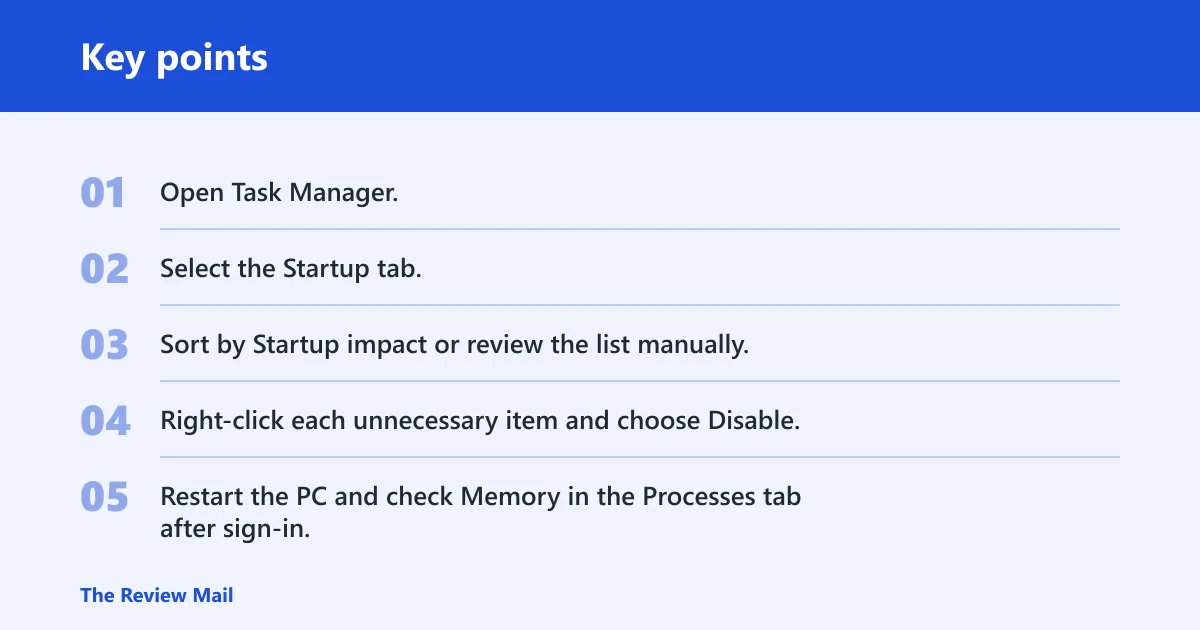
- Open Task Manager.
- Select the Startup tab.
- Sort by Startup impact or review the list manually.
- Right-click each unnecessary item and choose Disable.
- Restart the PC and check Memory in the Processes tab after sign-in.
A common mistake is turning off every startup app in Windows 11 before checking which ones are actually causing the memory slowdown. Leave security tools, touchpad software, audio components, and hardware support entries alone unless you know what they do; start with launchers, updaters, chat apps, and cloud sync tools.
Is one app leaking memory?
If memory keeps rising over time, treat it as a leak until proven otherwise. That is different from normal high usage, where the number rises and then settles. The source is often a browser or another app, or Windows Explorer itself.
- Open Task Manager > Processes.
- Click the Memory column to sort from highest to lowest.
- Leave the PC alone for a while, then check whether the same app keeps climbing.
- If the shell is the problem, select Windows Explorer and choose Restart.
- If a browser is the problem, close it, remove suspicious extensions, and reopen it.
- If the leak returns, update or reinstall the app.
How do you fix virtual memory?
Virtual memory, or the paging file, supplements physical RAM. A bad setting can trigger out-of-memory errors, while a system-managed file usually gives Windows the most room to adapt. If low-memory warnings continue, review whether the system-managed setting is in place before changing anything else.
- Open Settings, then System > About, and select Advanced system settings.
- Under Performance, choose Settings.
- Open the Advanced tab and click Change under Virtual memory.
- Use a system-managed paging file unless you have a specific reason to set a custom size.
- If you change the setting, click Set, OK, and restart your computer.
Memory integrity and blue screen checks
Memory Integrity in Windows Security can conflict with a driver that is not compatible with core isolation. If the system shows a blue screen with memory management, do not stop at RAM settings alone. Check the security setting, then update Windows before you move to deeper hardware tests.
- Open Windows Security.
- Go to Device security > Core isolation details.
- Check whether Memory Integrity is off, and review any blocked driver notice.
- Run a Quick scan from Virus & threat protection.
- Open Settings > Windows Update and install pending updates.
Picture a desktop that blue-screens with MEMORY_MANAGEMENT after a driver update. If Memory Integrity is off and a recent driver is flagged, that points to a compatibility issue before it points to failing RAM.
Still not working?
If the problem survives startup cleanup, paging file changes, app restarts, and Windows updates, move to hardware and file-system checks. Persistent crashes after those steps are the point where RAM health, storage integrity, or deeper system corruption becomes the next question.
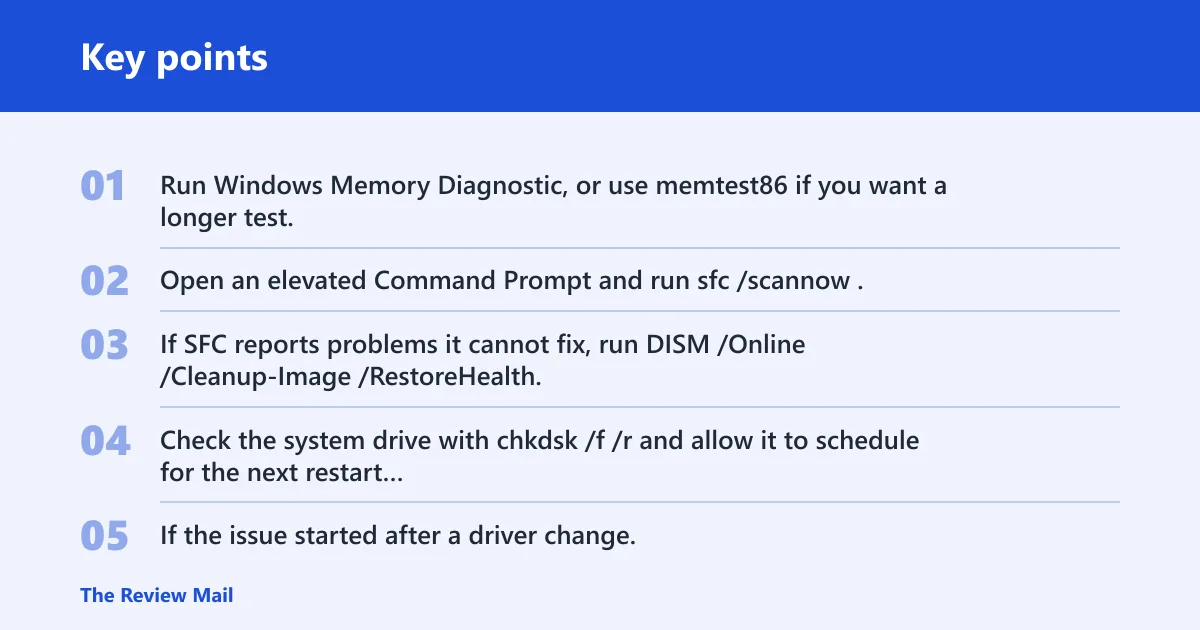
- Run Windows Memory Diagnostic, or use memtest86 if you want a longer test.
- Open an elevated Command Prompt and run
sfc /scannow. - If SFC reports problems it cannot fix, run
DISM /Online /Cleanup-Image /RestoreHealth. - Check the system drive with
chkdsk /f /rand allow it to schedule for the next restart if prompted. - If the issue started after a driver change, roll back or uninstall that driver in Device Manager.
Prevention: keep startup apps lean, leave the paging file on system-managed size unless there is a clear reason to change it, and check browser extensions after each major browser update.
Frequently asked questions
How do I fix windows 11 memory integrity is off?
Open Windows Security > Device security > Core isolation details and check for blocked drivers. Update or remove the conflicting driver in Device Manager, restart, and try turning Memory Integrity back on. If the toggle still fails, install pending Windows Update items first, then check again.
How to fix windows 11 high memory usage
High memory use on Windows 11 can come from background services, browser load, or low RAM. Sort Task Manager by Memory, disable startup items, and check for a paging file set too low. If the number rises over hours, treat it as a leak and inspect the app that keeps growing.
How to fix blue screen windows 11 memory management
Install Windows updates first, then check Device security for Memory Integrity and driver conflicts. After that, run Windows Memory Diagnostic or memtest86, plus sfc /scannow and chkdsk /f /r if crashes continue. A repeatable blue screen after those steps is the point to suspect RAM or storage hardware.