Restart Problems Fix Windows 10
Use the symptom you can see. If Windows 10 restarts normally, use Start > Power > Restart; if it loops, hangs, or keeps asking for a restart, move to recovery, safe mode, update, or power settings steps. Choosing the wrong path can leave updates stuck, files unsaved, or the PC trapped in a reboot loop. This guide maps normal restart commands, forced reboot methods, and fixes for repeated restart prompts, frozen restarts, and blocked reboot states.
Windows 10 restart problems: what the symptom means
A restart problem is not one thing. A clean restart path fails differently from a reboot loop, a black screen, or a command that does nothing. Start with the symptom you can actually see, then choose the least invasive fix that matches it.
What counts as a restart failure
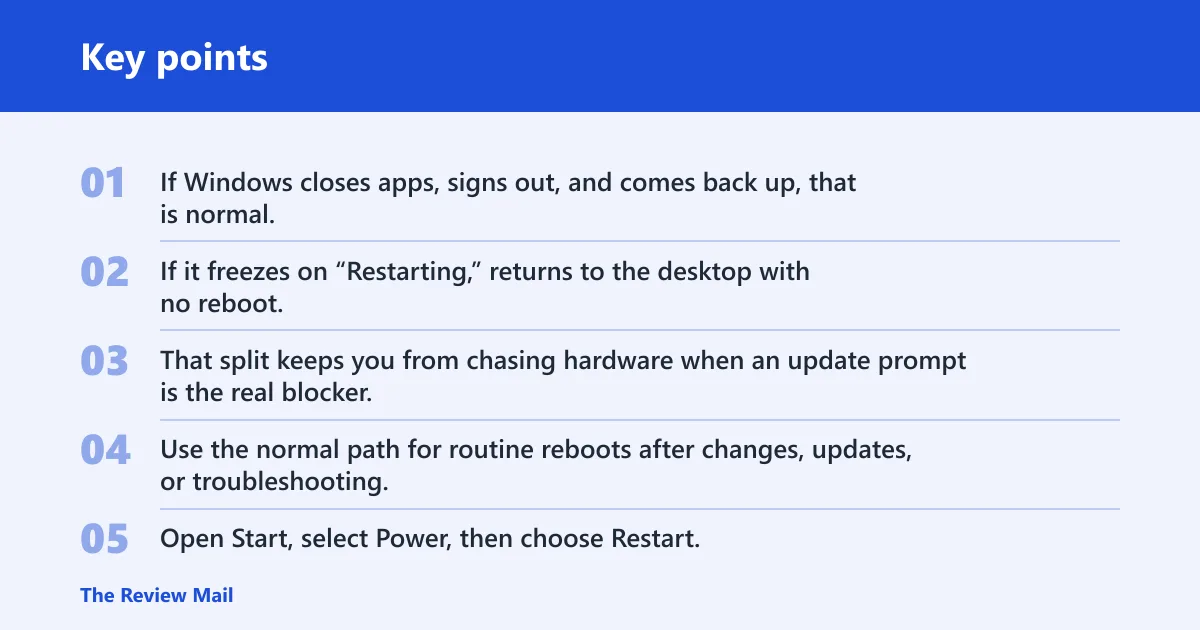
If Windows closes apps, signs out, and comes back up, that is normal. If it freezes on “Restarting,” returns to the desktop with no reboot, shows a black screen, or keeps restarting after logo screens, treat it as a failure path. That split keeps you from chasing hardware when an update prompt is the real blocker.
When a normal restart path is enough
Use the normal path for routine reboots after changes, updates, or troubleshooting. Open Start, select Power, then choose Restart. Save your work first, because a restart can close open files and apps without warning. (Microsoft Support)
When you need a fix path instead
Move to a fix path when restart input is ignored, the machine loops, or Windows asks for a restart again and again. Suppose a laptop shows “Restart required” after an update but never clears the prompt after a normal reboot. That points to a pending update or stuck service, not a simple keyboard shortcut problem.
Likely causes, from most common to less common
Most restart failures come from software, update, or power-state conflicts. Less commonly, a damaged boot component or a startup problem sits behind the same symptom. Work through the causes in that order so you do not jump straight to recovery steps before checking the basics.
Pending Windows Update or restart-required loop
- Open Settings > Update & Security > Windows Update.
- Select Restart now if Windows shows it.
- If you need to avoid the update for the moment, use a normal restart path after saving work, then return to Windows Update later.
- If a reboot is already queued, open Run or Command Prompt and run shutdown /a to cancel it.
This branch fits the cases where the PC keeps asking to reboot after updates or restarts into the same prompt. Windows Update includes a Restart now option, and that is the cleanest path when the update itself is waiting.
App, driver, or service hang during reboot
- Try Ctrl + Alt + Del and use the power icon if the desktop is partly frozen.
- On a desktop, press Alt + F4 with the desktop in focus to open the Shut Down Windows dialog, then choose Restart from the dropdown.
- Use Windows key + X, U, R for a fast restart path when the shell still responds.
- If the system still hangs, boot into Safe Mode and remove recent driver changes with Device Manager rollback or uninstall.
Say your PC goes black for a moment, then returns to the desktop instead of rebooting. That often means an app or driver is blocking the handoff. A keyboard-only path can get around a frozen Start menu, and Safe Mode helps separate Windows itself from the last driver change.
Sleep and hibernate settings
- Open Control Panel > Power Options > Choose what the power buttons do.
- Select Change settings that are currently unavailable.
- Review Sleep, Hibernate, and Fast Startup settings.
- Turn off the settings one at a time if restart trouble began after a power-plan change.
Power-state settings can affect how the PC transitions during shutdown and restart. If the issue started after changing a power plan, checking these settings is a reasonable next step.
Corrupted system files or boot components
- Access the Windows Recovery Environment.
- Select Troubleshoot > Advanced options > Startup Repair > Restart in WinRE.
- If Windows still loads far enough, run
sfc /scannowfrom an elevated Command Prompt. - If file repair is still incomplete, run
DISM /Online /Cleanup-Image /RestoreHealthand retry the restart.
Startup Repair is a built-in Windows recovery tool that helps fix issues preventing the operating system from starting. It runs from the Windows Recovery Environment (WinRE) and automatically diagnoses and repairs common startup problems such as corrupted system files or boot configuration errors. It is especially useful when your computer has missing or damaged system files, corrupted boot configuration data, or other startup-related problems.
Recovery environment access problems
- If Windows will not boot normally, interrupt the boot sequence during startup and repeat until Windows opens WinRE.
- If the device is not booting up, use a USB installation media to access the Windows Recovery Environment.
- If the device is not starting from the USB flash drive, change system BIOS settings to ensure it can boot from USB.
When Windows cannot reach the desktop, WinRE is the recovery path for Startup Repair and other recovery tools.
Windows 10 restart methods
Use these when Windows is still responsive and you only need a normal reboot path. They are not repair steps; they are alternate ways to reach the same restart action.
Start menu and Alt+F4
The standard path is Start > Power > Restart. If the desktop has focus, Alt + F4 opens the Shut Down Windows dialog, and Restart is available from the dropdown. That shortcut is useful when the Start menu is slow or blocked.
Ctrl+Alt+Del and the login screen
Ctrl + Alt + Del can restart a partially frozen system, and the login screen also includes a power icon with Restart. These paths matter when the desktop shell will not respond but the sign-in layer still works.
Run and command-line restart commands
Open Run with Windows key + R and enter shutdown /r /t 0 for an immediate reboot. The broader command shutdown /r works in Windows 10 and Windows 11, and shutdown /a cancels a pending shutdown or reboot if one is queued. (Wikihow)
Restart command ignored: what to check first
If Windows accepts a restart command but does nothing, the problem is usually a freeze, a blocking app, or a queued reboot event. Test the fastest command path first, then move to recovery if the shell or sign-in screen is stuck.
- Try shutdown /r /t 0 from Run or Command Prompt.
- If a reboot is already queued and you need to stop it, use shutdown /a.
- Press Ctrl + Alt + Del and check whether the security screen appears.
- Use the login screen power icon if Windows reaches sign-in but not the desktop.
- If the desktop remains unresponsive, boot to Safe Mode and remove recent startup or driver changes.
A common first-timer mistake is to keep clicking Restart while a frozen app is still holding the session. That can look like a command problem when the real blocker is the app, driver, or sign-in layer.
Restart failure triage table
This table separates symptom, likely cause, and the fastest safe fix so you do not mix normal restart paths with failure repair.
| Symptom | Likely cause | Fastest safe fix |
|---|---|---|
| Restart works from Start menu, but you need a faster path | No failure; just a different access path | Use Alt + F4, Ctrl + Alt + Del, or shutdown /r /t 0 |
| Restart command is ignored | Frozen shell, blocked app, or sign-in screen issue | Try shutdown /r /t 0, then shutdown /a if a reboot is queued and stuck |
| Restart loop after Windows Update | Pending update or update restart loop | Open Settings > Update & Security > Windows Update and choose Restart now |
| “Restart required” message keeps returning | Update did not finish cleanly | Cancel any queued reboot with shutdown /a, then use Windows Update again |
| Black screen after restart | Driver hang or display handoff problem | Use Ctrl + Alt + Del; if that fails, boot into Safe Mode and roll back the last driver |
| PC restarts, then returns to the desktop without rebooting | App or service blocking the restart | Use Task Manager to close the app, then try shutdown /r /t 0 |
| Restart freezes on the spinning dots | Corrupted startup files or boot data | Run Startup Repair from WinRE |
| Restart loop before sign-in | Corrupted system files or boot configuration | Open WinRE and run Troubleshoot > Advanced options > Startup Repair > Restart |
| Restart fails after power-plan changes | Sleep, Hibernate, or Fast Startup setting conflict | Review the power settings in Power Options |
| Restart fails even after repair steps | Recovery media or firmware access issue | Check USB boot access and BIOS settings for the recovery path |
Why does my Windows 10 keep restarting?
If Windows keeps restarting, the loop is usually caused by an update that never finishes, a bad driver, or startup corruption. A one-time failed reboot is different from a machine that keeps bouncing back into the same cycle. If the loop continues after one or two repair attempts, move to Safe Mode or Startup Repair.
- Check Settings > Update & Security > Windows Update for a pending restart.
- Unplug nonessential USB devices and reboot again.
- Boot to Safe Mode and roll back recent driver or startup changes.
- Open WinRE and run Startup Repair.
Windows Update restart issues
Use this path when Windows asks for a reboot to finish updates, but the restart never completes cleanly. The goal is to finish the update without creating a second problem in the process.
- Open Settings > Update & Security > Windows Update.
- Select Restart now if it appears.
- If Windows is already trying to restart and is stuck, use shutdown /a to cancel the queued action.
- Try the normal restart path again after closing background apps.
- If the update still blocks the system, boot into Safe Mode and rerun Windows Update later.
To restart without updating Windows 10, cancel the queued reboot with shutdown /a when possible, then restart later after you have closed update dialogs. That is safer than forcing the machine off mid-install, which can leave the same update in a half-finished state.
Still not working?
If restart failures survive the steps above, stop cycling the same commands and switch to a deeper recovery path. Use Startup Repair from WinRE first, then boot from USB installation media if Windows will not load far enough to reach recovery tools. If the device will not boot from USB, change system BIOS settings so it can boot from the installer.
If the system still fails after software repair, inspect firmware-related startup settings or ask the device vendor or a repair shop to check the board. If the device still will not restart after software repair, the problem may still be at the recovery or boot-access level.
Prevention: keep Windows Update current and avoid turning off the machine while updates or driver installs are in progress.
Frequently asked questions
Why did my windows restart?
Most likely, Windows restarted because of an update, a driver change, or a queued reboot command. If it happened once, check Windows Update first. If it keeps repeating, move to Safe Mode and Startup Repair, then review the power settings or recovery path if the loop remains.