Device Manager Exe Location Windows 11
Device Manager in Windows 11 opens from devmgmt.msc, usually at C:\Windows\System32\devmgmt.msc; there is no separate Device Manager .exe, because it runs as an MMC snap-in. If you use the wrong launcher path, you waste time chasing a bad shortcut instead of the system tool itself. This guide shows the entry-point options, the file path behind Device Manager, and the quickest recovery steps when Search or Win+X fails.
Why device Manager opens from multiple places
Device Manager is the Windows hardware-management utility that lists installed hardware components and helps you install, uninstall, or reinstall device drivers. In Windows 11, it can be opened from several places because Windows can launch it through Search, Win+X, Run, Control Panel, File Explorer, Command Prompt, PowerShell, or Task Manager. Microsoft’s support pages show Device Manager as a standard Windows tool you can find through Search and other built-in entry points.
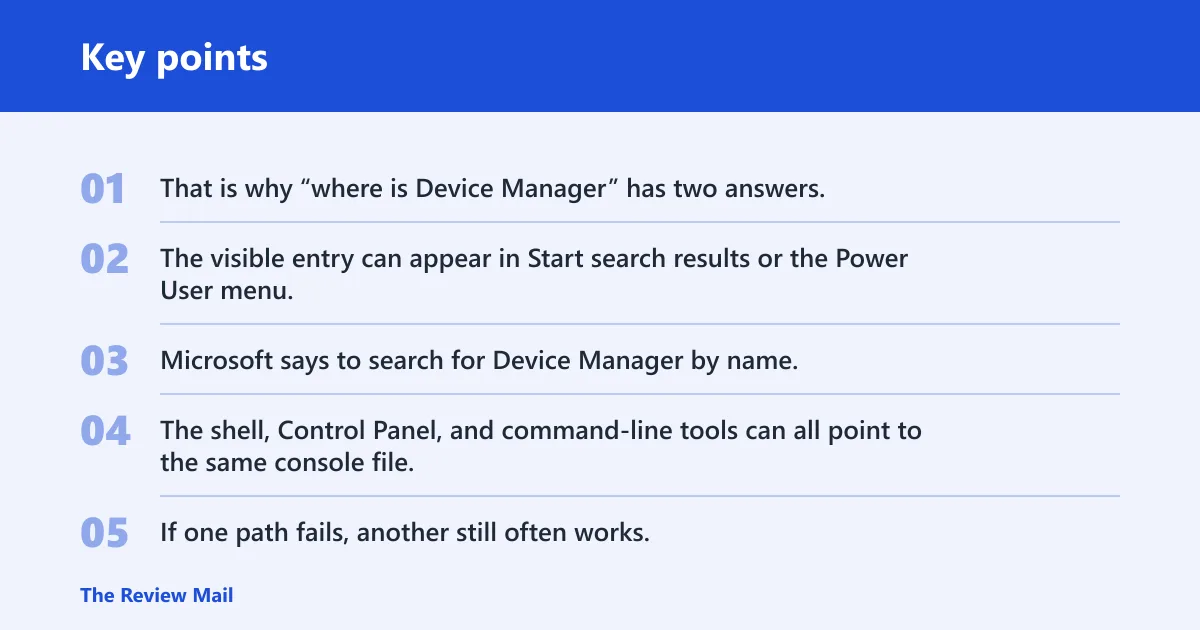
That is why “where is Device Manager” has two answers. The visible entry can appear in Start search results or the Power User menu, while the underlying launcher file lives in the Windows system folders. Microsoft says to search for Device Manager by name, and Windows 11 documentation also shows alternate openers such as Run and Control Panel.
Why the app can open from several places
Windows 11 does not rely on one shortcut. The shell, Control Panel, and command-line tools can all point to the same console file, devmgmt.msc. If one path fails, another still often works, which is why Microsoft support documents several routes instead of only one.
Say Start search returns nothing after you type “Device Manager.” The tool may still open from Run or the File Explorer address bar, because the launcher file is separate from the search UI.
Is there a device manager.exe file?
No separate device manager.exe file is needed for this tool. The correct launcher is devmgmt.msc, an MMC console file that Windows opens through Microsoft Management Console. That matters because users often search for an .exe that does not exist, then miss the real path in System32.
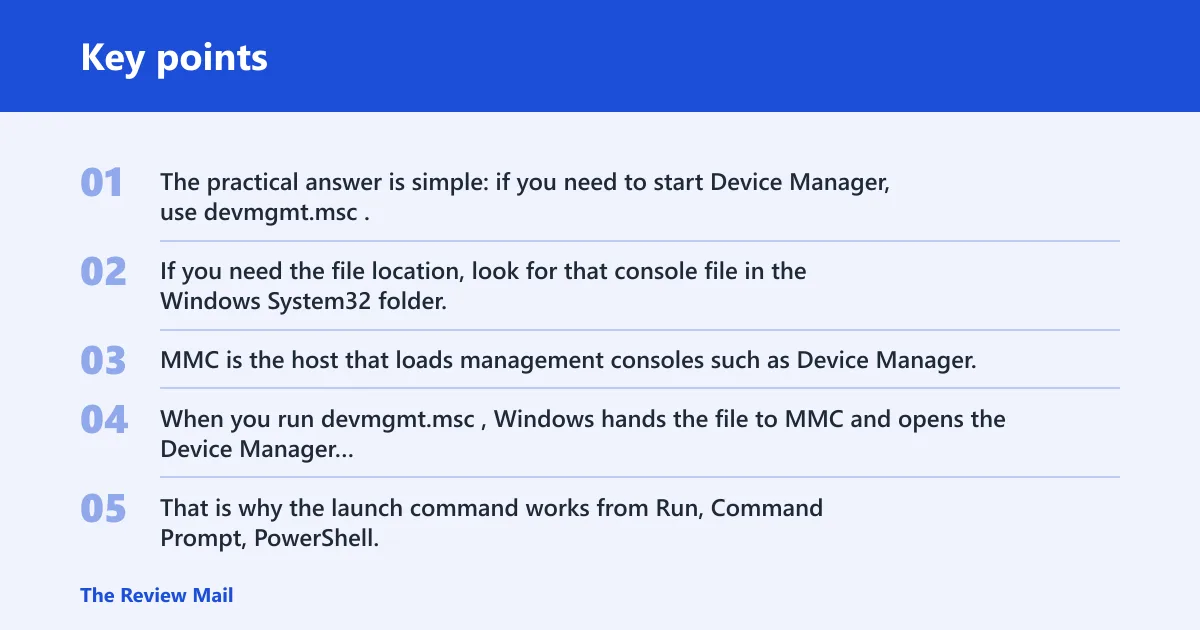
The practical answer is simple: if you need to start Device Manager, use devmgmt.msc. If you need the file location, look for that console file in the Windows System32 folder, not for a standalone executable with a different name.
How MMC opens the console file
MMC is the host that loads management consoles such as Device Manager. When you run devmgmt.msc, Windows hands the file to MMC and opens the Device Manager interface. That is why the launch command works from Run, Command Prompt, PowerShell, File Explorer’s address bar, and Task Manager.
Microsoft’s MMC documentation explains that .msc files are console snap-ins opened by Microsoft Management Console, and Device Manager uses that behavior. If you are checking a file path in Explorer, expect a System32 context on the Windows drive. On a standard install, that means the file sits under C:\Windows\System32.
Device Manager location and file path
The expected file location is C:\Windows\System32\devmgmt.msc on typical Windows 11 installations. That is the path context you want when the question is about the launcher file itself, not just the menu entry. Microsoft’s file-location guidance for Windows system files uses the same System32 convention, though the exact setup can vary on nonstandard installs.
In File Explorer, browse to the Windows drive, then open Windows, then System32. You should see devmgmt.msc there. If you only need to open Device Manager, you do not have to browse there manually; typing the command is faster.
How do you open Device Manager fast?
The fastest paths are Start search, Win+X, and the Run command devmgmt.msc. Start search is the familiar path; Win+X is the quickest mouse-and-keyboard route; Run is the most direct command-based launch. If Search or Win+X is broken, move to Run first.
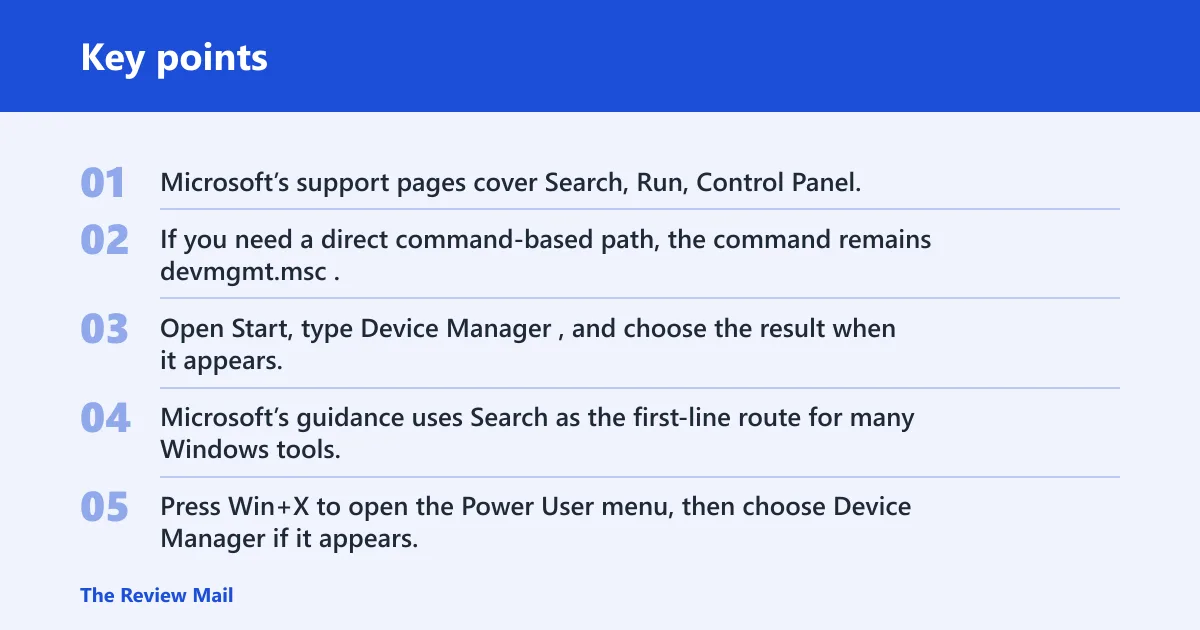
Microsoft’s support pages cover Search, Run, Control Panel, and Task Manager as standard Windows entry points, and the same command works across them. If you need a direct command-based path, the command remains devmgmt.msc.
Start search
Open Start, type Device Manager, and choose the result when it appears. Microsoft’s guidance uses Search as the first-line route for many Windows tools, including Device Manager, because it is fast when indexing and the shell are working normally.
Win+X and Control Panel
Press Win+X to open the Power User menu, then choose Device Manager if it appears. You can also open Control Panel and navigate to Device Manager from there. Microsoft still documents Control Panel as a valid access point for several classic Windows settings and tools.
Run, command Prompt, PowerShell, and task Manager
Press Win+R, type devmgmt.msc, and press Enter. You can also run the same command from Command Prompt, PowerShell, or Task Manager’s Run new task option. These direct-launch methods are useful when Start search or the desktop shell is unstable.
For a step-by-step command path, see open Device Manager from Command Prompt. If the problem started after a driver or update change, see fix Windows Update driver issues.
Can you open it from File Explorer?
Yes. File Explorer can launch devmgmt.msc from the address bar, and it can also take you to the System32 folder for the file-location lookup. That makes Explorer useful both as a launcher and as a place to verify that the console file is present on the Windows drive.
Microsoft documents File Explorer as a standard Windows navigation tool, and the address bar accepts launch commands in the same way Run does. Use Explorer when you want a quick fallback that also helps confirm the path.
Use the address bar
Open File Explorer, click the address bar, type devmgmt.msc, and press Enter. This uses the same launcher file that Run and command-line tools use, so it is a good backup when Start search fails.
Browse to System32
If you need the file location itself, go to the Windows drive, open Windows, then System32. That folder is the expected location for devmgmt.msc on typical Windows 11 systems that follow the standard layout.
Device Manager troubleshooting table
This table separates the symptom from the likely cause and the fastest next step. Use the command devmgmt.msc whenever the system still accepts direct launches, and remember the standard file path is C:\Windows\System32\devmgmt.msc on typical installs.
| User symptom | Likely cause | Best launch path |
|---|---|---|
| Search finds nothing | Start search is broken or the index is not returning the Device Manager result | Press Win+R, type devmgmt.msc, or open it from File Explorer’s address bar |
| Win+X missing Device Manager | The Power User menu entry is absent or the shell menu is failing | Use devmgmt.msc in Run, Command Prompt, or PowerShell |
| Run works | The launcher file is fine, even if the menus are not | Keep using devmgmt.msc from Run for the fastest repeat launch |
| Need file location in Explorer | You want the actual path, not just a shortcut | Browse to C:\Windows\System32\devmgmt.msc in File Explorer |
Frequently asked questions
Where is device Manager in Windows 11?
Device Manager is available through Start search, Win+X, Control Panel, Run, File Explorer, Command Prompt, PowerShell, and Task Manager. If you want the direct launcher, use devmgmt.msc. If you want the location context, look in C:\Windows\System32.
Where is the Device Manager exe located?
There is no separate Device Manager .exe to find. The real launcher is devmgmt.msc, which Windows opens through MMC. The expected file location is C:\Windows\System32\devmgmt.msc, not a standalone executable with a different name.
Where is device manager.exe in Windows 11?
That filename is the wrong target. Windows 11 uses devmgmt.msc for Device Manager. If you need the file, check C:\Windows\System32. If you need to open the tool, run devmgmt.msc from Run, File Explorer, Command Prompt, PowerShell, or Task Manager.
What command opens Device Manager in Windows 11?
The direct command is devmgmt.msc. It works in Run, Command Prompt, PowerShell, File Explorer’s address bar, and Task Manager’s Run new task box. That command opens the same Device Manager console whether or not the Start menu is working.
Why can’t I find Device Manager in Start search?
Start search can fail because the search UI is broken, the index is slow to respond, or the shell is having a wider problem. If that happens, use devmgmt.msc in Run or the File Explorer address bar. Those paths bypass the search result entirely.
Is Device Manager in System32 on Windows 11?
Yes, the expected path context is C:\Windows\System32\devmgmt.msc. That is the file-location answer users usually want when they ask where Device Manager lives. The tool itself opens through MMC, so the file you are looking for is the console file, not a standalone .exe.