Windows Cannot Determine Settings for This Device Windows 10 Fix
If Device Manager says “Windows cannot determine the settings for this device,” treat it as a device-enumeration failure: check the driver first, then the port or cable, then the device firmware, and finally Windows 10 compatibility. Start in Device Manager, open the device’s Properties, and read the exact Device status code before changing anything.
This guide is part of our Windows driver errors: full list and fixes series.
Likely causes
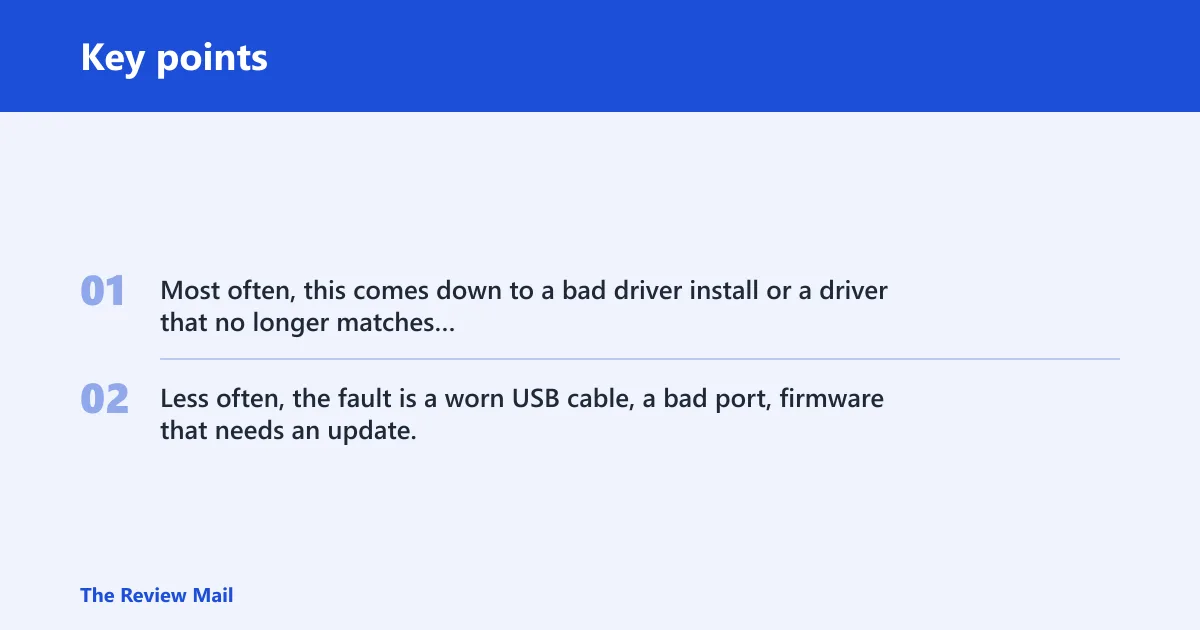
Most often, this comes down to a bad driver install or a driver that no longer matches the device or Windows 10 build. Less often, the fault is a worn USB cable, a bad port, firmware that needs an update, a chipset or BIOS mismatch, or a Windows compatibility block that stops detection from completing cleanly.
| Device Manager result | What it usually means | Best next step |
|---|---|---|
| Unknown device | Windows sees hardware but cannot map it to the right driver or class | Check hardware IDs, then install the OEM driver package |
| Warning icon | Device Manager reports an error such as Code 34 or a related driver fault | Read Device status, then uninstall, roll back, or update the driver |
| Working device but wrong behavior | The device loads, but the driver, firmware, or settings are not correct | Compare driver provider, version, and device instance location |
| Device absent | Windows is not detecting the hardware at all | Test another port, cable, slot, or the device itself |
How should you read Device Manager first?
Start in Device Manager, open the device’s Properties, and read Device status before reinstalling anything. Then check Driver Provider, Driver Version, and Device instance location. If the Events tab is present, it can confirm whether Windows detected the device, failed installation, or reconfigured it after a restart.
- Right-click Start and open Device Manager.
- Expand the device class: Universal Serial Bus controllers, Bluetooth, Network adapters, Printers, or Display adapters.
- Right-click the device and open Properties.
- Read Device status first, then note Driver Provider and Driver Version.
- Check Device instance location to match the physical port, slot, or bus.
- Open Events if it appears, then look for install or reconfiguration entries.
Device detection decision tree
Use device class to choose the next step. USB and peripheral devices usually fail at the port, cable, or driver layer. Internal adapters usually need the OEM driver or chipset package. Printers and displays often fail because Windows installed a generic driver that does not match the device’s feature set.
USB and peripheral branch
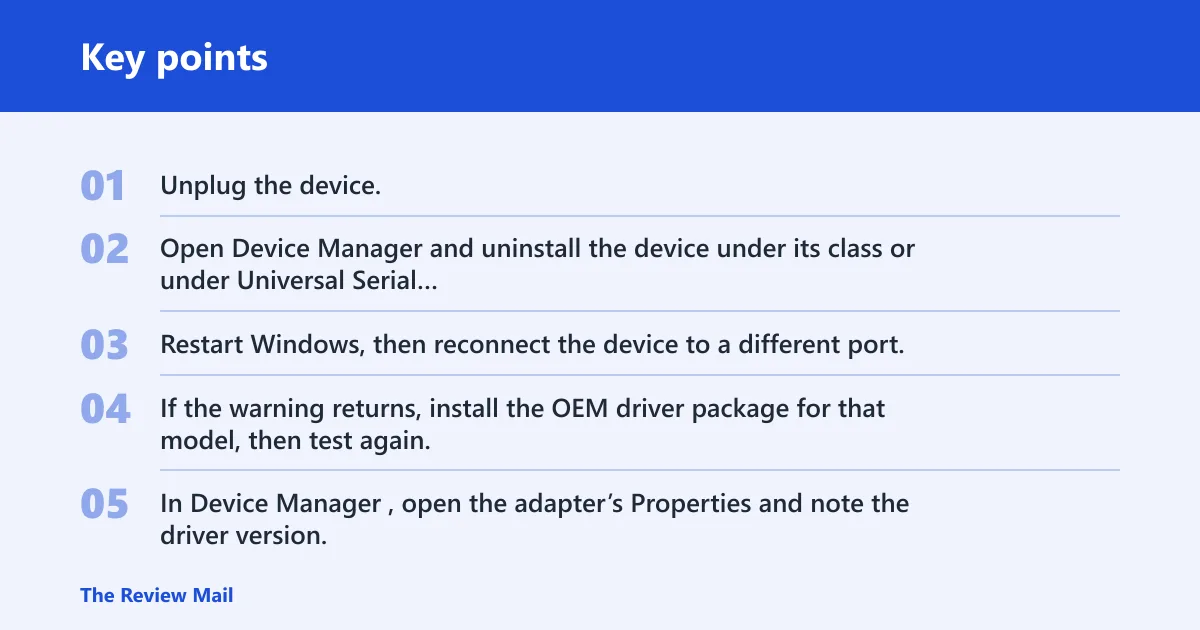
For a USB device, mouse, keyboard, headset, or external storage device, start with the physical path. If the device appears with a warning icon, reinstall the driver first. If it is absent, test a different USB port and cable before touching Windows settings.
- Unplug the device.
- Open Device Manager and uninstall the device under its class or under Universal Serial Bus controllers.
- Restart Windows, then reconnect the device to a different port.
- If the warning returns, install the OEM driver package for that model, then test again.
Internal adapter branch
For Wi‑Fi, Bluetooth, storage, or other internal adapters, the fix usually depends on model-specific software. If the adapter shows Code 34, a generic Microsoft driver may load but still fail to match the hardware cleanly. If the device vanishes after restart, chipset or BIOS support is the next layer.
- In Device Manager, open the adapter’s Properties and note the driver version.
- If the driver was updated recently, choose Roll Back Driver if available.
- If rollback is unavailable, use Uninstall device, then restart to redetect.
- Install the OEM driver package and, if listed, the chipset package or BIOS update for the exact model.
Printer and display branch
Printers and display adapters often fail when Windows installs a basic driver that does not expose the device’s full settings. A common first-time mistake is reinstalling the same generic package twice and expecting a different result. For these classes, the model-specific driver usually matters more than the Microsoft generic one.
- If it says Microsoft and the device behaves incorrectly, remove the device and install the OEM package.
- For printers, also check Settings > Bluetooth & devices > Printers & scanners and remove the device there if it is duplicated.
- For displays, recheck the cable and port, then install the monitor or GPU driver from the manufacturer.
Why does Windows say this device cannot be configured?
The cause can be a driver mismatch, a bad install, a safeguard hold that blocks a known-bad update path, or a firmware, chipset, or BIOS conflict that stops Plug and Play from finishing.
Say your USB-to-serial adapter works on one port but not another. If Device Manager shows a warning icon on both ports, the driver path is the first suspect. If the adapter disappears only after reboot, check firmware or chipset support before blaming the cable.
Suppose a Surface device or other laptop keeps showing the error after a fresh install. If the device driver and Windows build are both current but the error persists, check for a blocked update or a model-specific firmware package before repeating the reinstall.
How do you fix the driver path?
Use the driver path when Device Manager shows a warning icon, the driver version is old, or the device still behaves badly after it loads. If the current driver is wrong or corrupted, uninstalling it and redetecting the device is often the cleanest reset. If the problem started after an update, rollback is safer than another reinstall.
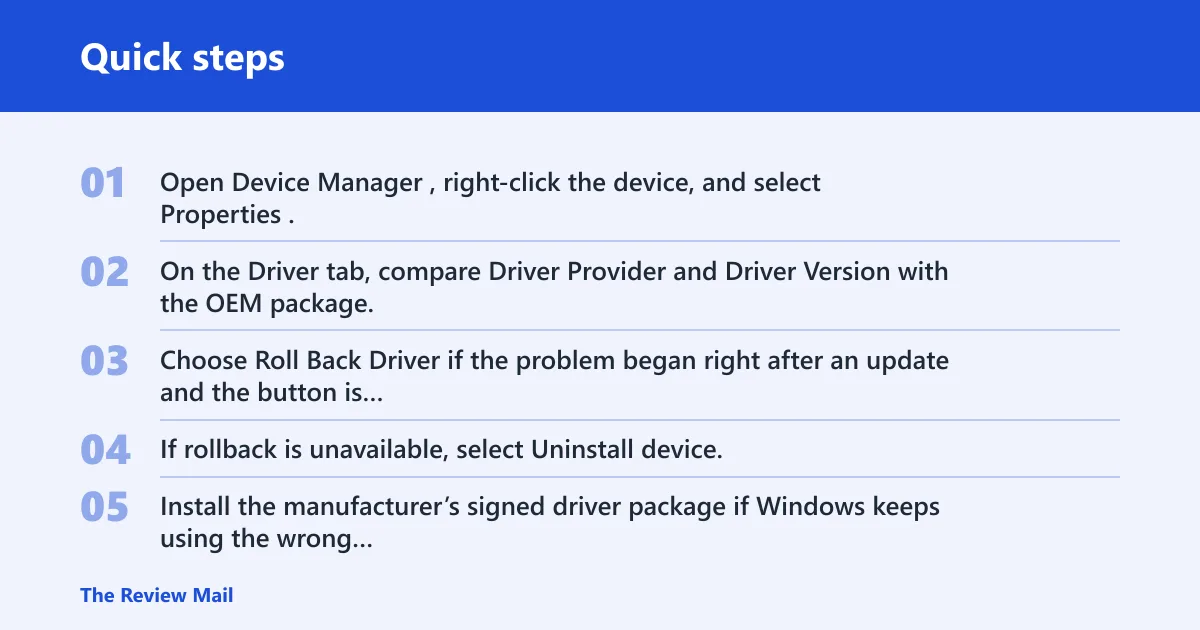
- Open Device Manager, right-click the device, and select Properties.
- On the Driver tab, compare Driver Provider and Driver Version with the OEM package.
- Choose Roll Back Driver if the problem began right after an update and the button is available.
- If rollback is unavailable, select Uninstall device, then restart Windows so Plug and Play redetects it.
- Install the manufacturer’s signed driver package if Windows keeps using the wrong generic driver.
Use the OEM package when the device is internal, specialized, or feature-sensitive. Use the Microsoft generic driver only when the maker has no newer signed package for Windows 10 or the device is a basic class device that does not need vendor features. Driver compatibility still matters on Windows 10, especially across newer builds.
Should you update Windows before reinstalling the device driver?
Yes. In Windows 10, start with Settings > Update & Security > Windows Update, then install the latest cumulative update and restart. That can fix detection code, device class support, and signed-driver validation before you spend time reinstalling the same package.
- Go to Settings > Update & Security > Windows Update.
- Select Check for updates and install everything offered.
- Restart Windows after updates finish.
- Return to Device Manager and check whether the device now redetects.
- If the device still fails, look for a vendor driver or firmware package rather than repeating the same Windows Update cycle.
Microsoft may place safeguard holds on devices with known compatibility issues. That can mean Windows Update may block a feature update or driver path even when the hardware appears to be fine. For commercial and education devices, Microsoft recommends validating applications and devices before broad deployment, because controlled rollout can delay the exact fix you were expecting. Windows 11 feature updates also reset support lifecycles, with Home and Pro receiving 24 months of support after the annual feature update and Enterprise and Education receiving 36 months.
How do you find the right driver for a printer, USB device, or internal component?
Start with the model name, hardware revision, and device class, not the Windows edition. The safest match is generally the manufacturer’s signed package for the exact model and Windows 10 architecture. If the OEM offers chipset, BIOS, or firmware updates alongside the driver, install those in the order the maker specifies.
- Open Device Manager and copy the device name and any hardware ID shown in Properties.
- Go to the manufacturer’s support page for that exact model.
- Download the Windows 10 package that matches the device class and system architecture.
- Install any chipset, BIOS, or firmware package listed as a prerequisite.
- Restart, then reconnect or rescan the device.
For printers and displays, choose the device maker’s package when the generic driver misses features such as trays, color profiles, or resolution controls. For internal components, model-specific support packages are usually the better path than a broad Microsoft driver.
Can this be caused by Windows Update or a compatibility hold?
Yes. A blocked update, a safeguard hold, or a driver that is waiting on a newer cumulative update can leave the device in a half-configured state. If the problem began after Windows Update, check whether the device still errors after the latest cumulative update and restart.
- Open Settings > Update & Security > Windows Update.
- Install the latest cumulative update, then restart.
- Check Device Manager again for the same warning icon or Code 34.
- If the issue started after a feature update, wait for the OEM package or a later cumulative update rather than forcing the same build again.
The Windows homepage states Windows Hello can use face, fingerprint, or PIN sign-in. That kind of device support can also depend on specific drivers, so a compatibility block may affect one device class while others continue to work normally. (Microsoft)
What if the device still shows an error after restarting?
If the error returns after restart, move from software to hardware checks. At that point, repeated reinstalls usually waste time unless Device Manager shows a clear driver change. The next escalation is usually a port, cable, slot, or known-good-device test, followed by OEM support if the hardware still fails.
- Try another USB port, cable, dock, or expansion slot.
- Test a known-good device of the same class.
- Reinstall the OEM driver package and any chipset or firmware update the maker lists.
- If the device still shows the same status in Device Manager, use the manufacturer’s support package or service channel.
Prevention is simple here: keep the OEM driver package, chipset package, and BIOS or firmware level aligned with the device model, and avoid swapping in generic drivers when the hardware depends on vendor features.
Frequently asked questions
How do I fix a device that won’t install correctly in Windows 10?
Open Device Manager, read Device status, then uninstall the device and restart so Windows can redetect it. If the same warning returns, install the OEM driver package from the manufacturer’s support page, then run Settings > Update & Security > Windows Update and restart again.
Does this error mean my driver is missing or corrupted?
Not always. A missing or corrupted driver is one possibility, but a driver mismatch, firmware conflict, or Windows compatibility block can produce the same warning. Check Driver Provider, Driver Version, and Device status before replacing anything.
How do I uninstall and reinstall a broken device in Device Manager?
Right-click the device in Device Manager, choose Uninstall device, and restart Windows. After reboot, Plug and Play should detect the hardware again. If it does not, install the manufacturer’s driver package and test another port or cable.