There Is a Problem with This Device: Fixes by Code
If Device Manager shows Code 10, start with a driver or startup problem; if it shows Code 43 or the disk disappears from Disk Management, it is reasonable to suspect storage or hardware first. Ignoring the warning can leave a phone, USB drive, or internal device unusable and can risk data loss if you keep retrying random fixes. This guide maps common symptoms and Device Manager codes to driver, storage, or hardware causes before you try repairs.
What the warning means
The message usually means a driver problem, a hardware fault, or a device Windows cannot start cleanly. These are Device Manager error codes, and the same workflow is commonly used in Windows 10 and Windows 11. The exact fix changes with the code family, so the first job is to identify the code.
When it points to a driver issue
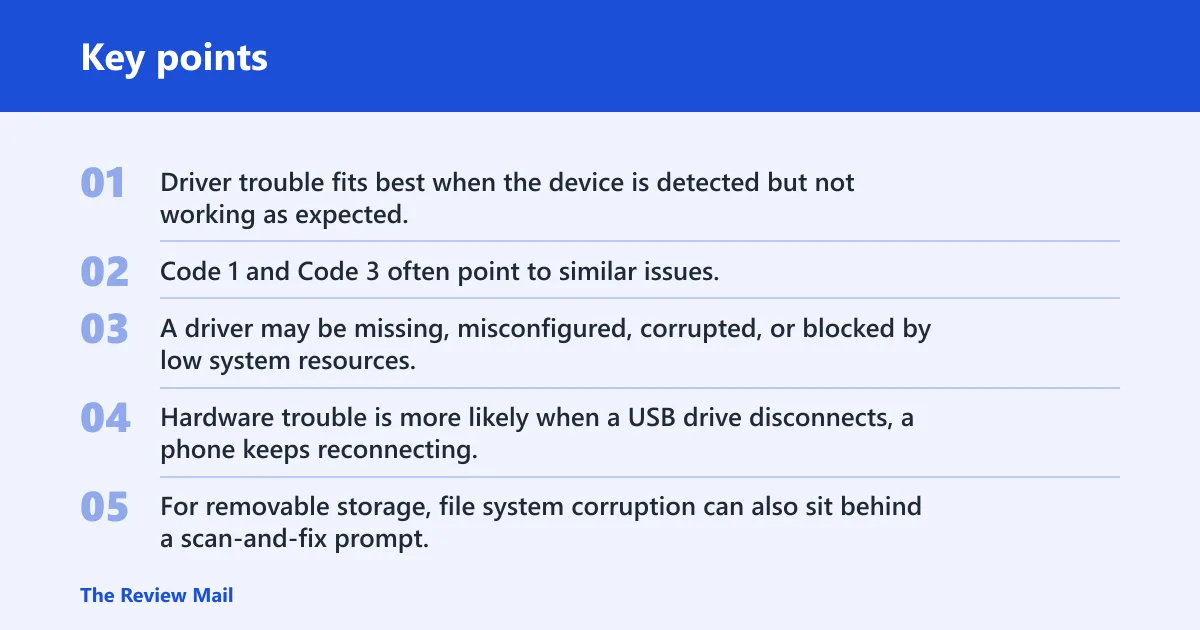
Driver trouble fits best when the device is detected but not working as expected, especially after an update, a reboot, or a new connection. Code 1 and Code 3 often point to similar issues. A driver may be missing, misconfigured, corrupted, or blocked by low system resources.
When it points to hardware or storage trouble
Hardware trouble is more likely when a USB drive disconnects, a phone keeps reconnecting, or an internal component shows Code 43 and still fails after a driver refresh. For removable storage, file system corruption can also sit behind a scan-and-fix prompt. In that case, data safety comes first.
How to find the error code in Device Manager
You find the code in Device Manager by opening the device’s Properties and checking the Device status area. Microsoft’s workflow is the same on Windows 10 and Windows 11. That code decides whether you should update a driver, check resources, or move to hardware checks. (Microsoft Support)
Open device Manager
- Right-click the Start button.
- Select Device Manager.
- Expand the category that matches the device.
- Right-click the device and open Properties.
Read the Device status box
The Device status area is where Windows shows the code and short message. If the message says the device is not working properly, do not stop there. Read the code number, because Code 1, Code 3, and Code 43 call for different next steps.
Device error triage table
| Symptom context | First three checks | Likely code family | Safest next step |
|---|---|---|---|
| USB flash drive or removable disk | Check for a scan and fix prompt, safely eject and reconnect, confirm whether files are visible in File Explorer | Storage or hardware warning, sometimes not a Device Manager code | Recover important data first, then run repair tools only if Windows still sees the drive |
| Phone connected by USB | Try a different cable, confirm the port works, check whether the phone trusts the PC or is set to charge only | Driver issue or connection failure, sometimes Code 1 or Code 43 | Update or reinstall the phone driver, then reconnect and scan for hardware changes |
| Internal device such as Wi-Fi, audio, or Bluetooth | Open Properties, read Device status, check for a recent Windows update or driver change | Code 1, Code 3, or Code 43 | Update the driver first, then reinstall it if the code remains |
| Account or app warning that repeats outside Device Manager | Sign out and back in, check app permissions, confirm sync status, verify the message appears in Windows or in the app itself | Often not a Device Manager code at all | Treat it as an account or app problem unless Device Manager also shows an error |
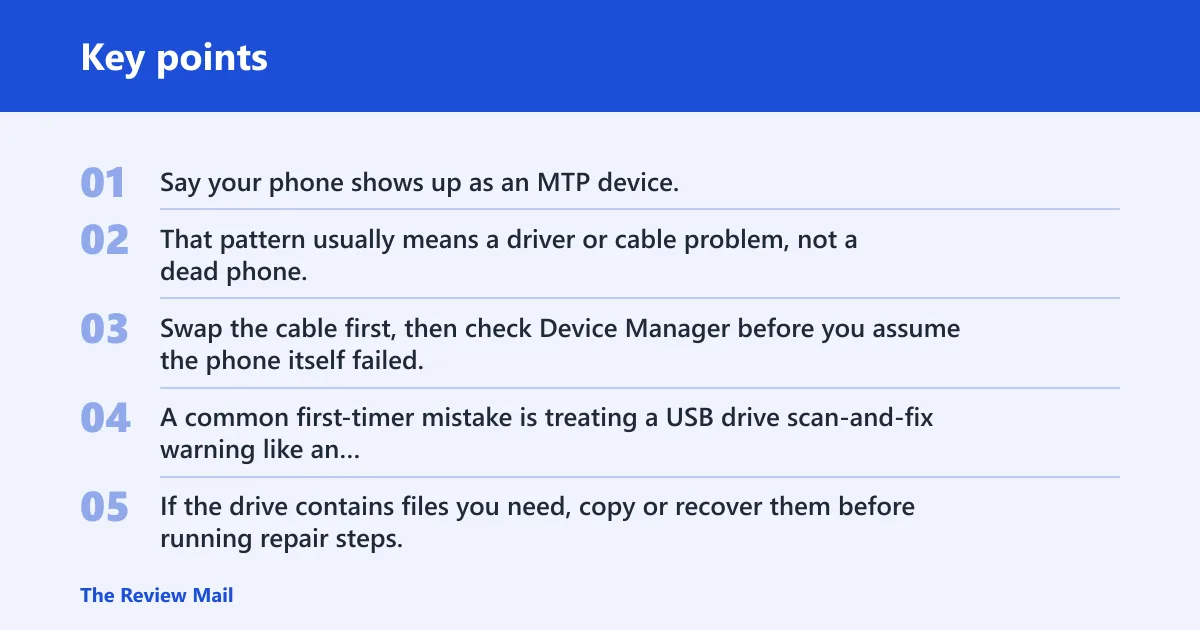
Say your phone shows up as an MTP device, but photos will not transfer after a Windows update. That pattern usually means a driver or cable problem, not a dead phone. Swap the cable first, then check Device Manager before you assume the phone itself failed.
A common first-timer mistake is treating a USB drive scan-and-fix warning like an ordinary driver alert. If the drive contains files you need, copy or recover them before running repair steps, because file system damage can get worse if the drive is unstable.
What does Code 1 mean?
Code 1 means the device is not configured correctly. Microsoft recommends updating the driver first. In practice, this usually means Windows has a device entry, but the driver is missing, mismatched, or did not finish installing cleanly.
What to try first
Open the device’s Properties, go to the Driver tab, and choose Update driver. If Windows finds a newer driver, install it and restart the PC. Then reopen Device Manager and check whether the code cleared.
When to reinstall the driver
If updating does not help, uninstall the device from Device Manager and restart Windows so it can detect the device again. That is often the next step for a bad install. If the same Code 1 returns, use the device maker’s driver package rather than guessing with a generic one.
What does Code 3 mean?
Code 3 can mean the driver might be corrupted, and it can also mean the system is low on memory or other resources. Microsoft suggests closing open applications for Code 3, then checking the device again. If the code remains, the driver may need a clean reinstall.
Close apps and check virtual memory
Close memory-heavy applications, save your work, and restart if the system feels overloaded. If the machine is short on virtual memory, Windows may fail to load the driver cleanly. That matters most on older systems, VMs, and heavily loaded laptops.
Restart and recheck the device
After closing apps, restart Windows and open Device Manager again. If the device still shows Code 3, uninstall the driver, then use Action > Scan for hardware changes. Microsoft includes that refresh step after driver removal, and it can force Windows to rebuild the device entry.
What does Code 43 mean?
Code 43 is a common Device Manager error and often points to driver failure or hardware trouble. If a device reaches Code 43, the problem may be deeper than a bad install. Cable faults, port issues, power problems, or a failing device can all fit.
Check cable, port, and power first
For phones and USB devices, try a known-good cable and a different port. Avoid hubs during the first pass. If the device needs external power, confirm that it is receiving enough. A weak connection can trigger repeated disconnects that look like a driver fault.
When the device may be failing
If the code persists after driver updates and a fresh connection, hardware failure becomes more likely. For internal components, that can mean the device itself, the port, or the controller on the board. At that point, vendor support is often the right next move.
How do I fix there is a problem with this device error?
Start with the code, then move from the least risky fix to the more disruptive one. Update the driver first for Code 1 or suspected driver problems. If that fails, uninstall and reinstall the driver, restart Windows, and recheck Device Manager. Use Safe Mode only when normal startup steps do not help.
Try Safe Mode and hardware refresh steps
Safe Mode helps when startup software, third-party filters, or background utilities keep breaking the device. Boot into Safe Mode, open Device Manager, and check whether the warning still appears. If the device behaves there, the conflict is likely software-related rather than a hard failure.
Use Action > Scan for hardware changes
After a driver uninstall or a cable swap, use Action > Scan for hardware changes in Device Manager. That can make Windows redetect the device without a full reboot. If the warning stays after the rescan, go back to the code and the symptom context instead of repeating the same step.
Fix USB drive errors safely
For removable disks, treat the warning as a data-risk event first. EaseUS frames this kind of alert as a scan-and-fix prompt for removable disks, and says it can appear after inserting a USB flash drive. The safer order is to recover data before other repair actions.
Use scan and fix first
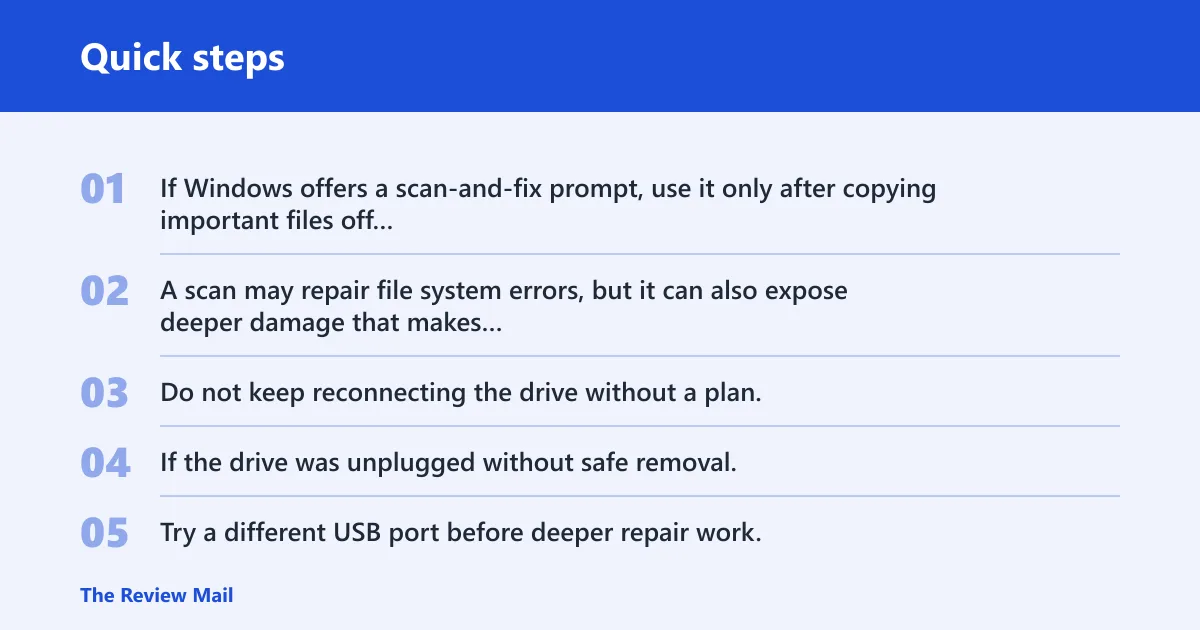
If Windows offers a scan-and-fix prompt, use it only after copying important files off the drive if possible. A scan may repair file system errors, but it can also expose deeper damage that makes the drive less stable. Do not keep reconnecting the drive without a plan.
Check safe removal and file system damage
If the drive was unplugged without safe removal, file system corruption is a real possibility. Try a different USB port before deeper repair work. If Windows still flags the disk, the problem may be with the file system rather than the cable or port.
Run CHKDSK when Windows flags a disk issue
CHKDSK is the disk check utility used in drive repair workflows. Use it when Windows identifies a disk problem and the drive is still visible. It can help repair some file system errors, but it is not the first step if the drive contains data you still need to save.
Can outdated drivers cause there is a problem with this device?
Yes. Outdated drivers can cause this warning, and wikiHow notes they are a common cause of the blue screen error on Windows 10 or Windows 11. An older or mismatched driver can also trigger Code 1 or Code 43 after a Windows update or device swap.
Is there a problem with my phone or is it a Windows driver issue?
It depends on where the warning appears. If the message is only inside Device Manager when the phone is connected by cable, it is more likely a Windows driver or connection issue. If the phone itself keeps showing sync, connection, or trust prompts, the problem may sit on the device side instead.
What went wrong with my phone when Windows says there is a problem with this device?
Usually one of three things happened: Windows loaded the wrong driver, the cable or port is unstable, or the phone is set in a mode that does not expose data to the PC. Check the exact Device Manager code first. Then decide whether to update the driver, change the cable, or inspect phone-side settings.
Frequently asked questions
Why does my device say there is a problem with this device?
Windows uses that message when Device Manager detects a problem starting or communicating with the device. The real cause depends on the code in Properties. Code 1 usually means a bad or missing driver, while Code 43 can mean a driver or hardware failure.
How do I find the exact error code in Device Manager?
Open Device Manager, right-click the device, choose Properties, and read the Device status box. That is where Windows shows the code and short message. Use that number before you try a fix, because the next step changes by code family.
What is the difference between code 1, code 3, and code 43?
Code 1 means the device is not configured correctly, which often means a missing or misconfigured driver. Code 3 can mean the driver might be corrupted or that Windows is low on memory or other resources. Code 43 is more often a driver or hardware failure signal.
Should I reinstall the driver or update it first?
Update it first. Microsoft recommends updating the driver for Code 1, and that is the least disruptive move for many driver warnings. If the update fails or the code remains after a restart, uninstalling and reinstalling the driver is the next practical step.
Why does my phone keep saying a problem repeatedly occurred?
Repeated warnings usually mean the device keeps dropping out of the connection, the driver keeps failing, or the phone and PC are not agreeing on the transfer mode. Try a different cable, a different USB port, and then a driver refresh. If it still repeats, the device may need vendor support.
What went wrong with my phone?
If Windows is the only place showing the warning, start with Device Manager and the exact code rather than assuming the phone is broken. A driver mismatch, a bad cable, or a mode setting can all trigger the message. If the phone fails on multiple PCs, hardware trouble becomes more likely.