How to Fix Error Code 15 22 1001
To fix error code 15 22 1001, first identify which failure you have: Edge sign-in or sync, Event Viewer event 1001, or both. The repair path changes if the code appears in Microsoft Edge versus Windows logs. Pick the wrong cause, and sync can stay broken, crash reports can keep returning, or a Windows file or profile problem can stay hidden. This guide shows how to tell those cases apart and the fastest fixes for each one.
What you’ll need
- Windows version and build number from Settings > System > About
- Administrator access for repair commands and some update prompts
- A stable network connection
- Restart after each change
- Access to Event Viewer
- Windows Security for a full scan
- Enough free disk space for updates, temporary files, and repair logs
What error 15 22 1001 means
This code is ambiguous. It can point to a browser sign-in or sync failure, a Windows Event Viewer entry, or another app-specific problem, so the exact window matters more than the number alone. If you see it in Edge, start with account and channel checks; if you see Event ID 1001 in Windows logs, start with system repair and crash-recovery checks. Code 22 in Device Manager is a separate device-disabled status.
Related codes that are not the same issue
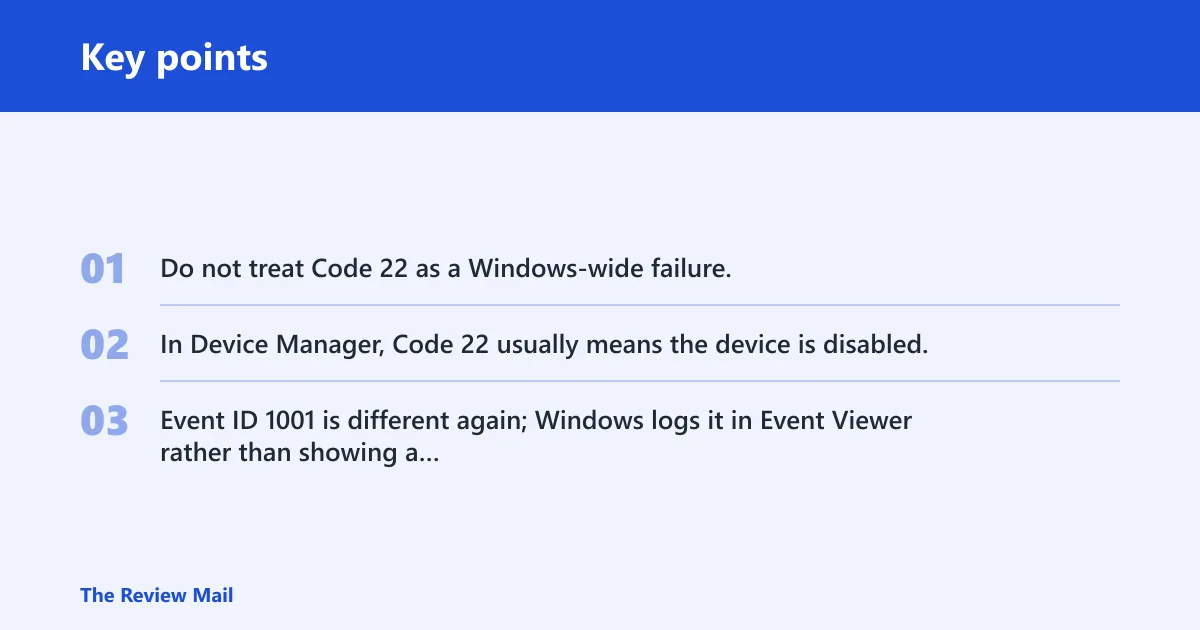
Do not treat Code 22 as a Windows-wide failure. In Device Manager, Code 22 usually means the device is disabled. Event ID 1001 is different again; Windows logs it in Event Viewer rather than showing a pop-up, and it can appear with crashes, blue screens, or unexpected reboots.
15 22 1001 decision table
| Exact symptom | Likely source | First two actions to try |
|---|---|---|
| Edge says sign-in failed and sync never starts | Edge | Check the account status and password, then open edge://settings/help and update Edge |
| Sync is greyed out or stuck on “turning on” | Edge | Review Settings > Profiles > Sync, then restart Edge and sign in again |
| Event Viewer shows Event ID 1001 after a crash | Windows | Open Windows Logs > Application, then run a Windows Security full scan |
| The code returns after every reboot | Windows | Check Windows Update and driver updates, then run SFC and DISM |
| Device Manager shows Code 22 at the same time | Hardware | Enable the device in Device Manager, then check its driver version and reboot |
| Repeated crashes, blue screens, or unexpected reboots | Windows | Run SFC and the DISM repair commands, then check memory and disk health |
| System feels unstable after a driver update | Windows | Roll back or update the driver, then clear temp files and restart |
| Crashes happen only under heavy load or during gaming | Hardware | Check temperatures and power delivery, then test memory and storage |
How do you identify the source?
Check where the code appears before changing anything. If it is inside Edge, treat it as an account or sync problem first. If it appears in Event Viewer under Windows Logs, treat it as a Windows error report. If Device Manager also shows Code 22, you have a separate device issue that needs its own fix path.
Step 1: Confirm the exact window
- Read the title bar and the message shown with the code.
- Open Event Viewer > Windows Logs > Application if the code came from Windows.
- Open edge://settings/help if the code came from Edge sign-in or sync.
Step 2: Match the symptom to the source
- If sign-in is blocked in Edge, stay in Edge and work on the browser path first.
- If crashes or reboots are involved, stay in Windows repair steps.
- If Code 22 appears in Device Manager, open the device properties and re-enable it there.
Suppose Edge shows a sign-in failure on one Windows 11 laptop, but Event Viewer stays clean. That points to an account or browser-path problem, not system corruption. One wrong assumption can send you into SFC and DISM when a profile refresh or update check would be enough.
Step 1: Fix Edge sign-in or sync failures
If the code shows up while you sign in or sync in Edge, start with the browser path. Open edge://settings/help first and check whether Edge is up to date. Then verify the account, sync settings, and any sign-in prompts before changing anything else.
- Open edge://settings/help and let Edge check for updates.
- Go to Settings > Profiles > Sync and confirm sync is turned on.
- Check the Microsoft account status, password, and any security prompts.
- Close Edge fully, reopen it, and sign in again.
- If the error started after a temporary outage, wait and retry later before changing the profile.
If that did not work, try this next
- Open Edge settings and clear browser data or reset browser settings from the available Edge options on your build.
- Check whether your Edge channel is Stable, Beta, or Dev.
- Restart the PC, then test sign-in again.
A common first-timer mistake is to wipe browser data before checking whether the sign-in failure is already tied to a temporary service issue. If the account works later the same day, that points away from local corruption and toward a temporary service issue.
Step 2: Fix Windows 1001 or system issues
If Event Viewer shows Event ID 1001, work on Windows repair instead of browser recovery. Windows logs Event ID 1001 in Event Viewer rather than showing a pop-up, and it can appear with crashes, blue screens, or unexpected reboots. Update problems, driver issues, corrupted system files, low disk space, or faulty hardware can all contribute, so check updates and system health early.
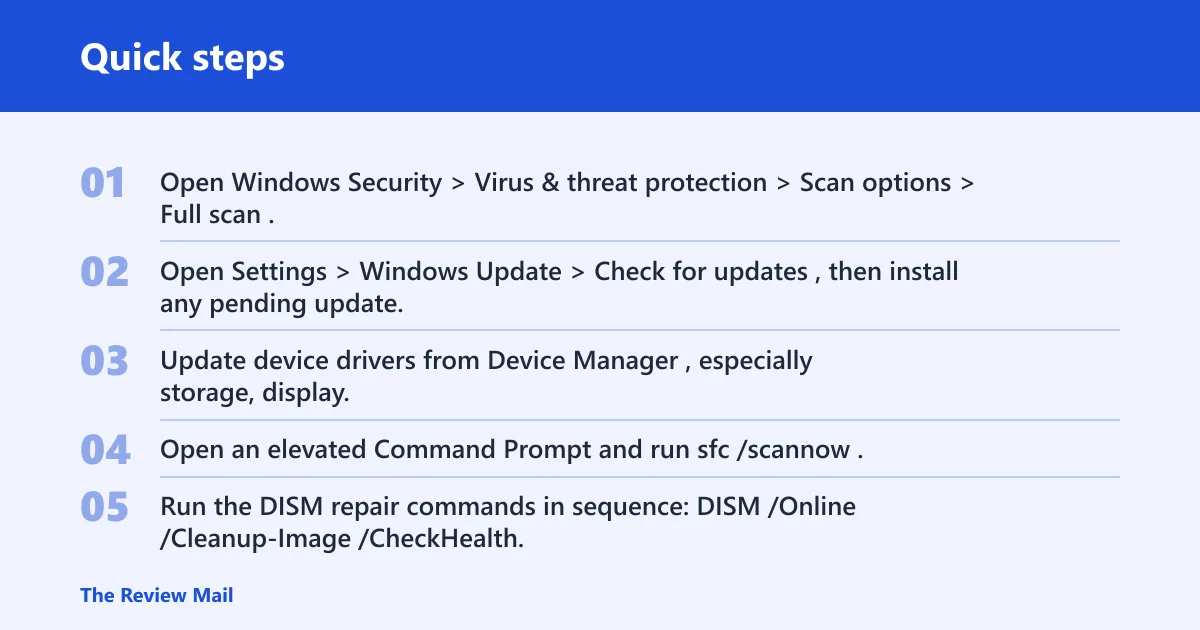
- Open Windows Security > Virus & threat protection > Scan options > Full scan.
- Open Settings > Windows Update > Check for updates, then install any pending update.
- Update device drivers from Device Manager, especially storage, display, and network drivers.
- Open an elevated Command Prompt and run
sfc /scannow. - Run the DISM repair commands in sequence:
DISM /Online /Cleanup-Image /CheckHealth, /ScanHealth, and /RestoreHealth.
If that did not work: clear temporary files through Settings
- Clear temporary files through Settings > System > Storage > Temporary files.
- Check free disk space and remove large unused files if storage is tight.
- Restart the PC after each repair pass.
- If the error repeats, check memory and disk health before reinstalling Windows.
If the machine only fails during heavy multitasking, check virtual memory settings after the scans and updates are complete. Add more paging-file space only if you still see the crash path after a restart.
Common mistakes
The most common errors are simple. People treat every 1001 entry as the same problem, skip the reboot after a repair, or run system tools before confirming whether the source is Edge, Windows, or hardware. Another mistake is ignoring an administrator prompt, which can stop SFC, DISM, or update installs from completing.
- Do not mix Edge sign-in failures with Event Viewer entries.
- Do not assume Code 22 and Event ID 1001 are the same issue.
- Do not skip Windows Update after driver repairs.
- Do not keep retrying the same step without checking the exact source first.
- Do not leave third-party antivirus active during a Windows Security full scan if it interferes with the scan path.
Why do I keep getting error code 15 22 1001?
It keeps returning when the original cause was only hidden, not fixed. A browser sign-in problem, a driver issue, a broken system file, low memory, or a disabled device can all bring the same symptom back after reboot.
Picture a desktop that shows Event Viewer 1001 after every restart, but only after a display driver update. That pattern points to a driver or system-file problem, not a browser issue. If the same symptom appears after a clean reboot and update check, move to repair tools and hardware checks rather than retrying sign-in.
When to escalate
Escalate if the error returns after Edge updates, Windows updates, SFC, DISM, and a full scan. Contact Microsoft Learn if the problem follows account sign-in. Contact the app vendor if Event Viewer does not point to Windows. Contact hardware support if crashes continue with known-good drivers and storage checks.
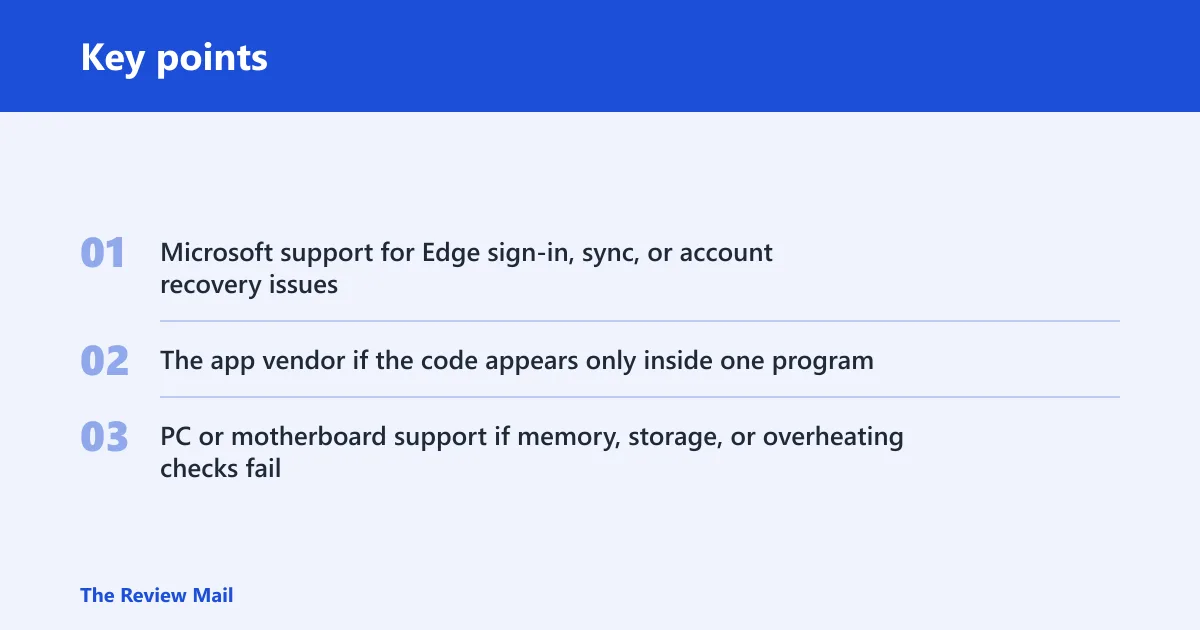
- Microsoft support for Edge sign-in, sync, or account recovery issues
- The app vendor if the code appears only inside one program
- PC or motherboard support if memory, storage, or overheating checks fail
Frequently asked questions
What is the 1001 error code?
In Windows, 1001 is usually an event number, not a single root cause. It appears in Event Viewer and can track crashes, reboots, or other error reports. The next step depends on the surrounding message, which may point to drivers, files, memory, or hardware.
Why do I keep getting error code 15 22 1001: repeated returns usually mean?
Repeated returns usually mean the source has not changed: an Edge account issue, a Windows log issue, a driver problem, or a failing device. Check the exact app or log, update Windows and drivers, run SFC and DISM, and restart after each change to verify whether the symptom is gone.