Windows Is Removing This Device: Windows 10 Fix
Code 21 usually means Windows is currently removing the device, and the simplest fix is often to wait, restart, and check Device Manager again. Start by opening Device Manager and checking whether the entry is still present after a restart. If it is, continue with the steps below.
What Code 21 means in device Manager
Open Device Manager, right-click the device, choose Properties, then open the General tab and read the status box. That is where Code 21 appears.
Picture a USB headset that disappears from the list and then shows the same status in Device Manager after removal. In that case, Windows is often still finishing the removal process, so a restart or refresh may clear it.
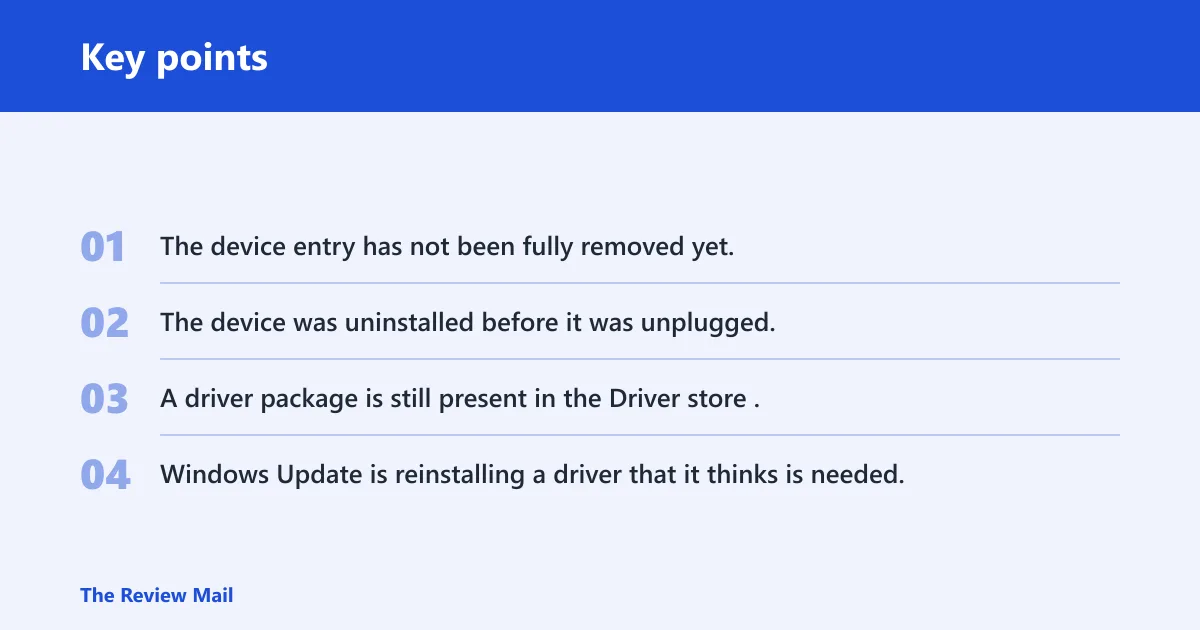
Likely causes, from most to least common
- The device entry has not been fully removed yet.
- The device was uninstalled before it was unplugged, so Windows rediscovered it and reinstalled drivers for it.
- A driver package is still present in the Driver store.
- Windows Update is reinstalling a driver that it thinks is needed.
📊 Source: Microsoft.
Code 21 decision table
| Symptom timing | Likely cause | Exact next step |
|---|---|---|
| Just appeared | The device may still be in the removal process | Check Device Manager > Properties > General again after a restart. |
| Still present after restart | The device or driver may still be installed | Unplug the device, then remove it from Device Manager. |
| Returns after removal | Windows may have rediscovered the device or reinstalled the driver | Use pnputil to remove the driver package from the Driver store. |
| Device disappears but the driver package remains | The package still exists in the Driver store | Delete the driver package with pnputil /delete-driver <Published Name> /uninstall. |
Should you wait, restart, or refresh?
Restart the PC, then return to Device Manager and check the device status again. If the device is still listed after a restart, continue with removal steps instead of deleting driver packages right away.
- Open Device Manager and select the device with Code 21.
- Restart the PC.
- After sign-in, return to Device Manager and check the device entry again.
- If the device is still present, right-click it and choose Uninstall device.
- In Confirm Device Removal, select Delete the driver software for this device, then select OK.
Why does it come back after reboot?
If the same device returns after a reboot, Windows may be rediscovering it or reinstalling a driver for it. That can happen when the device was not unplugged before uninstalling, or when Windows Update finds that a necessary driver is missing. For USB and Bluetooth devices, disconnect the hardware or disable the adapter before trying removal again. For internal storage or chipset hardware, avoid repeated removal attempts and move to vendor support.
Say a Bluetooth adapter disappears and then shows the same status again after startup. That points to a device being detected again, not just a one-time display issue. A USB printer is less risky to test than an NVMe controller or system chipset entry.
- Open Device Manager and confirm the same device still shows Code 21 on the General tab.
- If it is USB or Bluetooth, disconnect the device or disable the adapter before removing it again.
- If it is internal storage or chipset hardware, stop and use vendor support.
- For removable hardware, physically unplug it before uninstalling it.
- Right-click the device entry, choose Uninstall device, and select Delete the driver software for this device.
What if the removal is really an uninstall problem?
If the device disappears but the driver package or associated software still remains, use the standard Windows uninstall path for the device or driver package. On Windows 10 and Windows 11, open Device Manager, right-click the device, choose Uninstall device, and select Delete the driver software for this device when prompted.
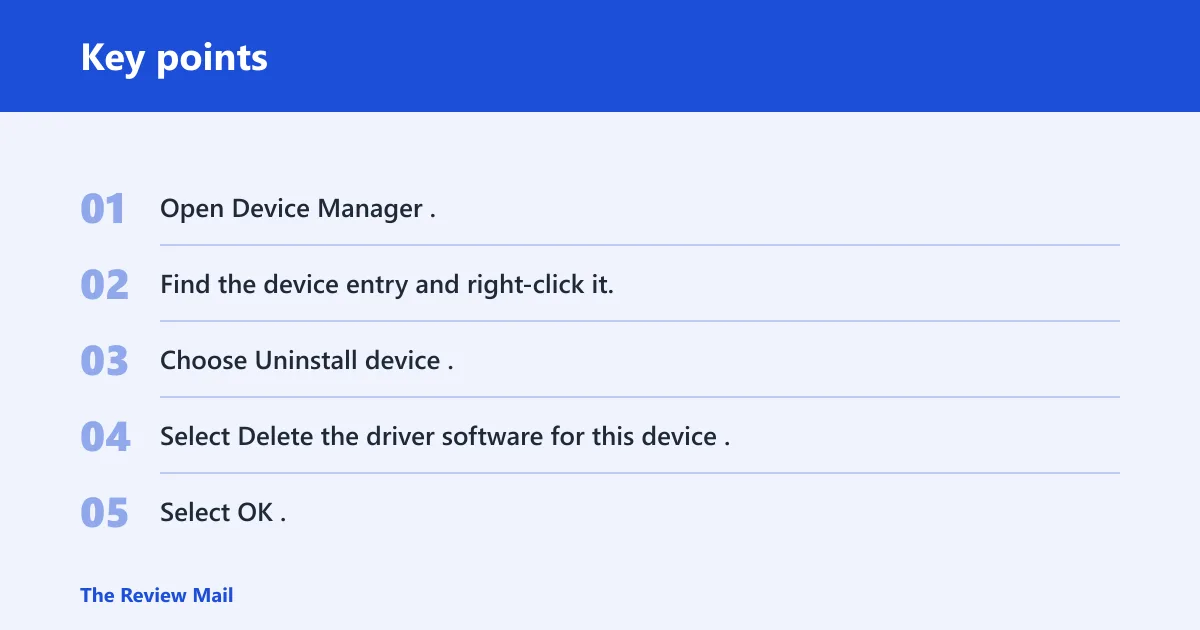
- Open Device Manager.
- Find the device entry and right-click it.
- Choose Uninstall device.
- Select Delete the driver software for this device.
- Select OK.
- If needed, use pnputil /delete-driver <Published Name> /uninstall to remove the driver package from the Driver store.
When manual driver cleanup is the next step
If the driver still lingers, use pnputil to delete the driver package from the Driver store. Before uninstalling a device, physically unplug the device from the system when possible. Then right-click the entry in Device Manager, choose Uninstall device, and select Delete the driver software for this device in the confirmation box. If the package remains, use pnputil /delete-driver <Published Name> /uninstall after identifying the package name first.
Still not working?
Check whether the device still appears after the uninstall and restart sequence. If it does, Windows may be reinstalling the driver because the device is still connected or because Windows Update is restoring a required driver. For USB or Bluetooth hardware, disconnect the device or disable the adapter and try the uninstall path again. For internal storage or chipset hardware, stop and use vendor support.
Windows Update can reinstall a driver if it detects that a necessary one is missing. That matters for devices whose drivers keep returning after reboot. If the hardware is critical, or if the driver belongs to storage or chipset components, stop before removing anything else and hand it to the device vendor or a technician.
Before uninstalling external hardware, unplug it, then confirm the device is gone in Device Manager before you close the tool.
Frequently asked questions
Why does Windows keep saying it is removing this device?
Open Device Manager, check Properties > General, and see whether the device is still listed. If it is, restart the PC and check again. If the same entry remains, remove the device and its driver software from Device Manager.
How long should Windows removing this device take?
There is no fixed timer here. If the device is still present after a restart, continue with removal steps in Device Manager rather than waiting.
How do I fix Windows is removing this device in Device Manager?
Open Device Manager, select the device, and choose Uninstall device. In the confirmation box, select Delete the driver software for this device, then select OK. If the package remains, use pnputil /delete-driver <Published Name> /uninstall only after you have identified the correct package name in the Driver store.
Should I restart if Windows is removing this device?
Yes. Restart the PC, then return to Device Manager and check whether the device is still listed. If it is, proceed with uninstalling the device and its driver software.
Will Safe Mode help if Windows is removing this device?
Safe Mode can help if normal startup keeps reinstalling the device or driver, because fewer drivers and services load there. Use it only if the device still comes back after a normal restart; then unplug removable hardware or disable the adapter and try the uninstall path again.
Does refreshing device Manager fix Code 21?
A refresh can show whether the device is still present, but it does not remove the device or the driver package. Use Device Manager to uninstall the device, and use pnputil if the driver package still exists in the Driver store.
Is this message temporary or a real hardware problem?
Check whether the device is still listed after a restart and uninstall attempt. If it keeps coming back, Windows may be rediscovering the device or reinstalling the driver. For internal storage or chipset hardware, use vendor support.
What if the device removal gets stuck after a reboot?
Unplug removable hardware, disable USB or Bluetooth devices if needed, and then repeat the uninstall path in Device Manager. If the hardware is internal storage or chipset related, do not keep retrying; use vendor support instead.
Can a Windows troubleshooter fix a device removal issue?
If the issue is a leftover driver package, use the standard Windows removal steps in Device Manager and pnputil. Those steps are the relevant removal tools here.
Does Windows 10 still get support for this kind of fix?
Microsoft documents these uninstall steps for Windows 10 and Windows 11. The Device Manager and driver package removal steps here apply to both.