Stop Code ACPI BIOS Error: How to Fix It in Windows
Start by removing recently added hardware or nonessential USB devices, then check for driver or firmware changes that line up with when the stop code began. If the machine still fails, use Safe Mode, Startup Repair, and model-specific firmware recovery methods in that order. This guide gives a practical decision tree for ACPI_BIOS_ERROR, so you can choose the next step without making recovery harder.
What does ACPI_BIOS_ERROR mean?
ACPI_BIOS_ERROR is a Windows stop code that appears when the system cannot work correctly with ACPI firmware during startup or power management.
ACPI, or Advanced Configuration and Power Interface, handles sleep and hibernation, CPU control, and hardware resource allocation. That is why this stop code can appear during startup, after a machine change, or during Windows installation on Windows 10 or Windows 11.
Likely causes, ranked
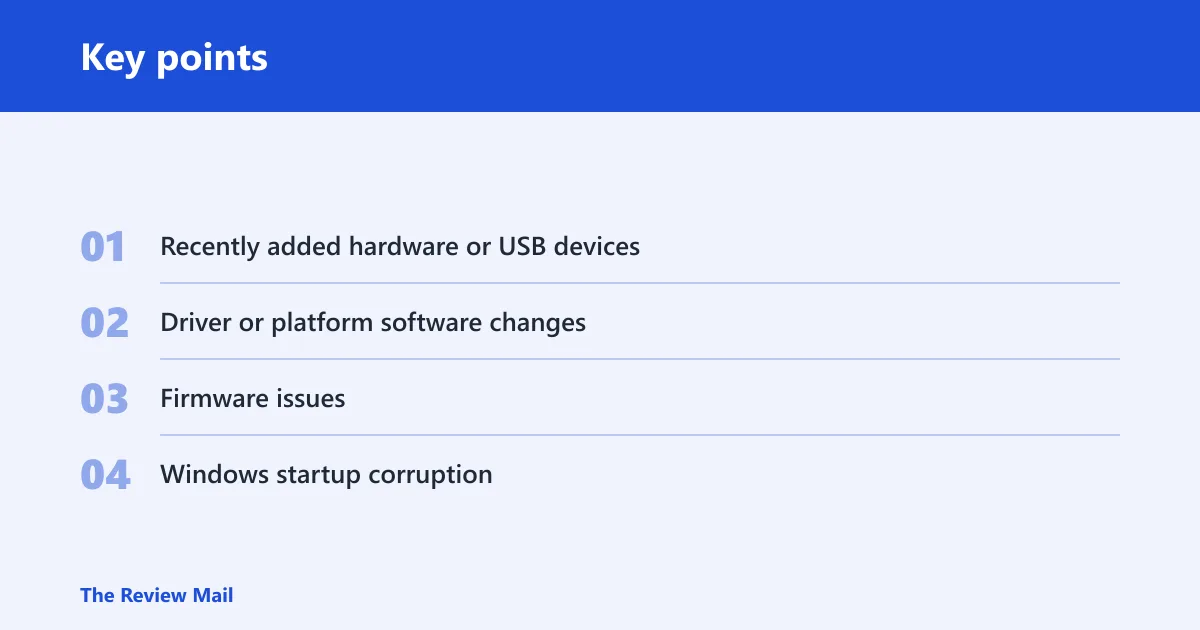
- Recently added hardware or USB devices. New SSDs, RAM modules, docks, expansion cards, and USB devices can change how the system starts.
- Driver or platform software changes. Chipset or related drivers can affect how Windows communicates with hardware.
- Firmware issues. A BIOS or UEFI setting, update, or recovery problem can prevent normal startup.
- Windows startup corruption. If the system files or boot configuration are damaged, the stop code may appear during boot.
For example, if a desktop starts normally before a new device is added and then begins stopping at startup afterward, remove that device and test again before changing firmware.
If a laptop still reaches Safe Mode but not a normal desktop session, focus first on recently changed hardware, drivers, and startup repair before you assume the operating system must be reinstalled.
ACPI_BIOS_ERROR triage matrix
| Symptom | Likely cause | Safe first action | Escalation |
|---|---|---|---|
| Normal boot fails, Safe Mode still works | Driver or recent change affecting startup | Boot Safe Mode and remove the newest driver or device | Check chipset drivers from the OEM support page, then review firmware |
| Boot fails right after adding RAM, SSD, dock, expansion card, or USB device | Recently added hardware | Power down and remove the new device first | Re-test with stock hardware before any BIOS flash |
| Failure starts after a BIOS or UEFI update | Firmware issue | Check the exact PC or motherboard model and the vendor recovery path | Use vendor rollback or recovery tools if available |
| Windows will not boot at all | Startup failure | Run Startup Repair from recovery media | Use the OEM BIOS recovery method or service support |
Should you remove hardware first?
Yes. If the problem began after a change, remove newly added hardware and nonessential peripherals before you touch firmware. That is the safest first move because a device conflict can look like a firmware problem.
- Power off the system and wait until all lights and fans stop.
- Unplug nonessential USB devices, docks, external drives, and card readers.
- Remove the newest internal change, such as a RAM stick, SSD, or expansion card.
- Reconnect only keyboard, mouse, display, and power.
- Start the computer normally and check whether the stop code returns.
On an OEM desktop, a dock or USB storage device can be enough to trigger the fault. On a laptop, a new NVMe drive or memory module is a more common clue. If the machine starts cleanly after removal, add one item back at a time.
Should you update drivers first?
Yes, if Safe Mode works or if the problem began after Windows updated. Chipset drivers are often the first driver package to check because they affect how Windows talks to platform hardware. Get them from the OEM support page for the exact model, not from a generic driver site.
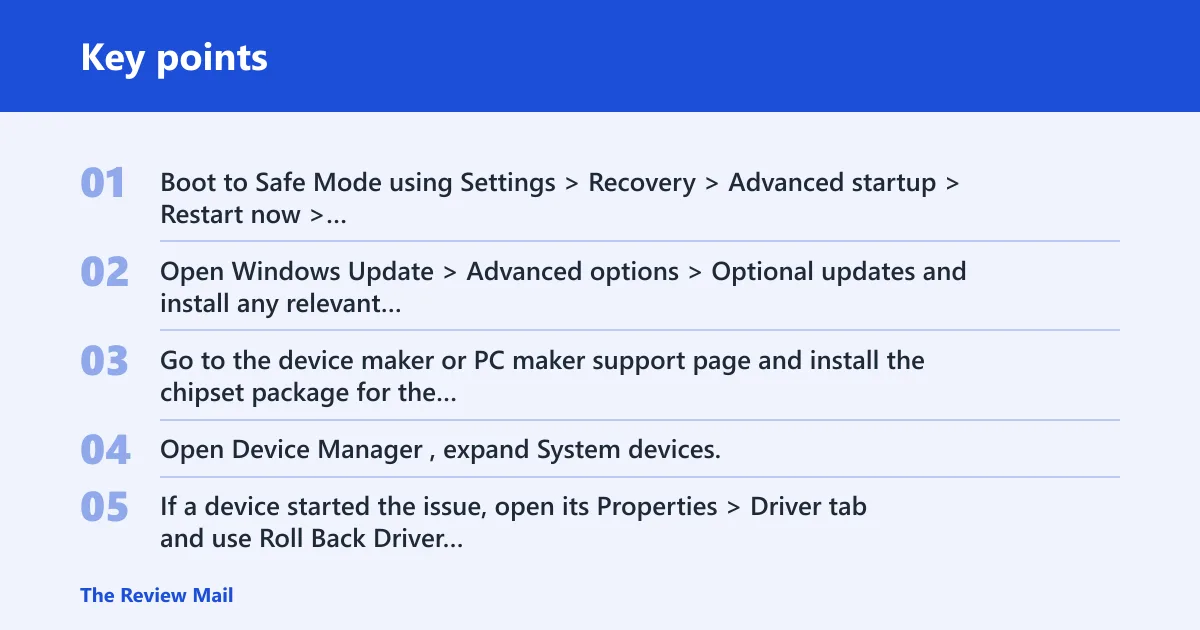
- Boot to Safe Mode using Settings > Recovery > Advanced startup > Restart now > Troubleshoot > Advanced options > Startup Settings.
- Open Windows Update > Advanced options > Optional updates and install any relevant driver or quality updates.
- Go to the device maker or PC maker support page and install the chipset package for the exact model.
- Open Device Manager, expand System devices, and check for warning icons on platform components.
- If a device started the issue, open its Properties > Driver tab and use Roll Back Driver or Uninstall device.
sfc /scannow
DISM /Online /Cleanup-Image /RestoreHealth
Windows Update can help with related OS fixes or optional driver updates. It usually cannot replace faulty firmware. If chipset updates help but the stop code remains, move to firmware checks instead of repeating driver installs.
Should you flash BIOS or UEFI firmware first?
Only after you confirm the exact PC or motherboard model. BIOS or UEFI firmware updates are model-specific, and flashing the wrong image can leave the system unbootable. Vendor tools are often named EZ Flash, M-Flash, or Q-Flash, and they are platform-specific.
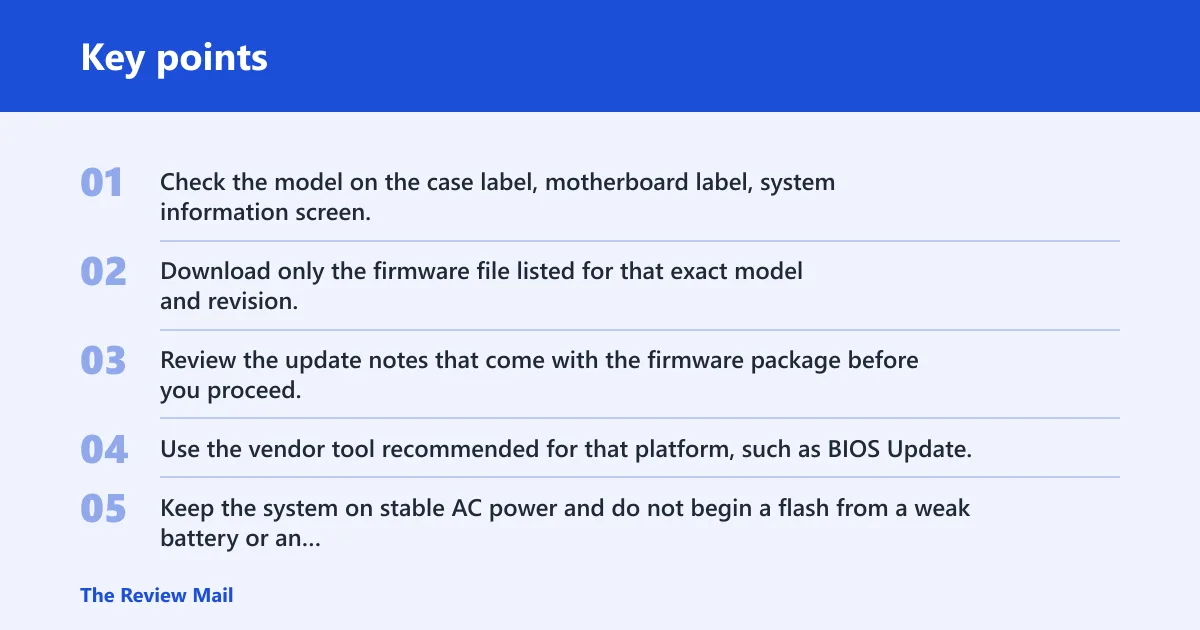
- Check the model on the case label, motherboard label, system information screen, or OEM support page.
- Download only the firmware file listed for that exact model and revision.
- Review the update notes that come with the firmware package before you proceed.
- Use the vendor tool recommended for that platform, such as BIOS Update, UEFI Firmware Update, EZ Flash, M-Flash, or Q-Flash.
- Keep the system on stable AC power and do not begin a flash from a weak battery or an unstable outlet.
Do not flash immediately if the model is unclear, the system is on questionable power, or the machine is already unstable after a failed update. That is the point where recovery support matters more than speed.
Can Safe Mode help?
Yes. Safe Mode can still boot when normal startup fails, and that makes it useful for separating driver trouble from other startup problems. If Safe Mode works, the system is often far enough along to remove a new driver, uninstall a new device, or confirm that the failure only happens during a full boot.
- Use Settings > Recovery > Advanced startup > Restart now.
- Choose Troubleshoot > Advanced options > Startup Settings.
- Restart and select the Safe Mode option.
- If Windows loads, remove the newest driver or device first.
- If Windows will not boot at all, open Startup Repair from recovery media or recovery options.
Startup Repair is the next step when the machine will not reach the desktop. If recovery options are unavailable, use installation media or the manufacturer’s recovery path before trying more invasive changes.
Still not working?
If hardware removal, Safe Mode, and driver updates do not stop the crash, move to vendor recovery and model-specific firmware support. That is the point where the issue is more likely to require recovery tools or vendor assistance than routine Windows repair.
- Check the exact motherboard or PC model again.
- Check whether the vendor offers BIOS recovery, rollback, or crisis-recovery steps for that platform.
- If the error started after a BIOS update, follow the manufacturer’s recovery sequence rather than reinstalling Windows.
- If the machine still will not start, contact the PC or motherboard vendor and provide the exact stop code, current firmware version, and model name.
Write down the machine’s exact model and current firmware version before you change hardware or flash anything. That avoids downloading the wrong file later.
Frequently asked questions
What is stop code acpi bios error?
It is a Windows blue screen related to ACPI firmware handling. A practical first step is to remove recently added hardware or USB devices, then check drivers or firmware that changed around the same time. Microsoft Learn
What is stop code acpi_bios_error 0xa5?
That wording points to the same ACPI-related startup failure. If the system still reaches Safe Mode, remove recent hardware or drivers first. If it does not boot, move straight to Startup Repair and vendor recovery tools.
Does acpi bios error mean the BIOS is incompatible with Windows?
Not always, but it can mean the firmware and Windows are not handling startup correctly together. Check recent hardware changes, driver updates, and firmware updates before assuming the whole operating system is at fault.
Why does acpi bios error happen after a hardware upgrade?
A new SSD, RAM module, dock, expansion card, or USB device can change the hardware setup enough to trigger the problem. Remove the newest part first, then retest before you change firmware.
What should I do if Windows will not boot past acpi bios error?
Use recovery media or the built-in recovery path to run Startup Repair first. If Safe Mode is available, update chipset drivers and remove recent devices there. If the machine still fails, use the vendor’s BIOS recovery or support path for the exact model.