Can T Connect to This Network Win 11?
Forget the saved Wi‑Fi profile first, then check the adapter and driver, and only after that try router band settings or a full network reset. Skip that order, and you can waste time on settings that still work while the broken network stays broken.
Likely causes
The quickest way to narrow this down is by symptom. One SSID failing while others work usually points to a bad saved profile, password mismatch, or router compatibility problem. Every network failing points more toward the adapter, driver, or Windows settings. A post-update failure usually sits between those two.
One network only
When only one Wi-Fi name fails, the stored profile is the first place to check. Corrupted credentials, a stale password, or a profile that survived a router change can block association with that single SSID while other networks still work.
All networks fail
If no Wi-Fi network connects, look at the adapter, driver, airplane mode, or Windows network stack before touching the router. This pattern is less likely to be one bad profile, because the failure follows the PC across different access points.
Hotspot and router mismatch
Phone hotspots and some routers add a compatibility layer. A device can reject one hotspot while joining another, especially after a phone setting change or a router band change. That points to the hotspot or router first, not to the saved password alone.
After an update
A Windows update can leave a working setup in a broken state without changing the password. In that case, adapter restart, driver repair, and the built-in troubleshooter belong before a full network reset, because they can fix the common post-update breakpoints without wiping everything.
📊 Microsoft says the guide applies to both Windows 10 and Windows 11. Source: Microsoft.
Wi-Fi decision table
Use the symptom first, not the most obvious fix. The table below separates profile corruption, adapter faults, hotspot issues, and router-side mismatch so you can stop when the evidence points in the right direction.
| Symptom | Likely cause | Best next step | Escalation point |
|---|---|---|---|
| One SSID fails, others connect | Saved profile or password corruption | Forget the network in Manage known networks and reconnect | If the same SSID still fails on another device |
| All Wi-Fi networks fail | Adapter, driver, or Windows wireless state | Turn Wi-Fi off and on, then restart the adapter in Device Manager | If every SSID still fails after a restart |
| Fails right after a Windows update | Driver change or wireless setting change | Run the Network and Internet troubleshooter in Get Help | If the adapter still cannot join any SSID |
| Hotspot fails but home Wi-Fi works | Hotspot compatibility or saved hotspot profile | Forget the hotspot, turn it off and back on, then reconnect | If another network also fails from the same PC |
| iPhone hotspot fails only on this PC | Phone hotspot settings or compatibility | Test another Wi-Fi network from the PC, then rejoin the hotspot | If the phone joins other devices but not this one |
| Password accepted, then disconnects | Profile mismatch or adapter power state | Forget the saved network and disable/enable the adapter | If it repeats after a fresh join |
| Network appears, but no join attempt succeeds | Airplane mode, Wi-Fi radio state, or driver problem | Turn Airplane mode off and confirm Wi-Fi is on | If the adapter still does not authenticate |
| Wi-Fi adapter missing in Device Manager | Driver or hardware fault | Scan for hardware changes, then install or roll back the driver | If the adapter never returns |
| Only one router fails | Router-side mismatch or band issue | Try the other Wi-Fi band, then power-cycle the router and modem | If the same PC joins other networks |
| Everything fails after several fixes | Corrupted network settings | Reset TCP/IP and Winsock, then use Windows network reset | If rejoining networks still fails after reset |
Can Windows 11 forget a bad Wi‑Fi profile?
Yes. If only one network fails, remove the stored profile first, because a bad saved credential can block reconnecting even when the password is correct. On Windows 11, go to Settings > Network and Internet > Wi-Fi > Manage known networks, select the problem network, and choose Forget.
- Open Settings > Network and Internet > Wi-Fi > Manage known networks.
- Select the problem network.
- Choose Forget.
- Return to the Wi-Fi list, select the same network, and enter the password again.
- If the same password is stored on another device, confirm it there too.
Say your laptop joins a coffee-shop network but still fails on your home SSID. Forgetting only the home profile is the right first move. If the SSID still fails after that, the problem is no longer just the stored entry.
Is the Wi‑Fi adapter the problem?
If every wireless network fails, or the adapter disappears from the list of devices, look at the Wi‑Fi adapter next. A bad driver, disabled adapter, or power-management issue can stop SSID association entirely. Device Manager is where you check that state and reset the adapter.
- Right-click Start and open Device Manager.
- Expand Network adapters.
- Right-click the Wi-Fi adapter and choose Disable device, then Enable device.
- If the problem started after a driver change, choose Properties > Driver > Roll Back Driver if it is available.
- If rollback is unavailable, choose Uninstall device, then restart Windows.
If the adapter is missing entirely, use Action > Scan for hardware changes in Device Manager after the restart. If it still does not return, the issue is no longer a normal profile or password problem.
Can a hotspot or router block only one device?
Yes. A phone hotspot or router can work with one device and fail with another. That often means a compatibility issue, not a dead network. Try the same SSID on the other band if the router offers both 2.4 GHz and 5 GHz, then power-cycle the network gear.
- On the PC, open Settings > Network and Internet > Wi-Fi > Manage known networks.
- Select the hotspot or router SSID and choose Forget.
- Turn the phone hotspot off and back on, then reconnect.
- If the router offers both 2.4 GHz and 5 GHz, try the same SSID on the other band.
- If the router has a separate modem, unplug both devices, wait 30 seconds, then power them back on.
Microsoft says many consumer Wi-Fi routers support different frequency bands, and it also recommends unplugging the router power cable for at least 30 seconds. If the PC joins other networks but not this one, the router or hotspot deserves attention before any full Windows reset. (Microsoft Support)
Should you reset the network stack now?
Not yet. Start with the automated Network and Internet troubleshooter, because Microsoft recommends it in Get Help on Windows 11 and it runs diagnostics automatically. If profile fixes fail after that, move to TCP/IP and Winsock reset, then check IPv6 for compatibility testing.
- Open Get Help and run the Network and Internet troubleshooter.
- If you prefer the built-in path, open Settings > System > Troubleshoot > Other troubleshooters and launch the network-related troubleshooter there.
- Open Command Prompt as administrator and run:
netsh winsock reset
netsh int ip reset
- Restart Windows after the command sequence completes.
- Open the Wi-Fi adapter properties in Control Panel > Network and Internet > Network and Sharing Center > Change adapter settings, then inspect Internet Protocol Version 6 (TCP/IPv6) for compatibility testing.
If IPv6 testing changes the result, the router or network may not support the same configuration well. That does not prove IPv6 is bad; it tells you the connection issue sits in the compatibility layer rather than the password field.
If that didn’t work, try this next
Use the most invasive step only after the earlier checks. Windows network reset returns adapters and network settings to defaults, and you will need to rejoin networks afterward. Save this for the point where the adapter still fails after profile repair, driver checks, and stack resets.
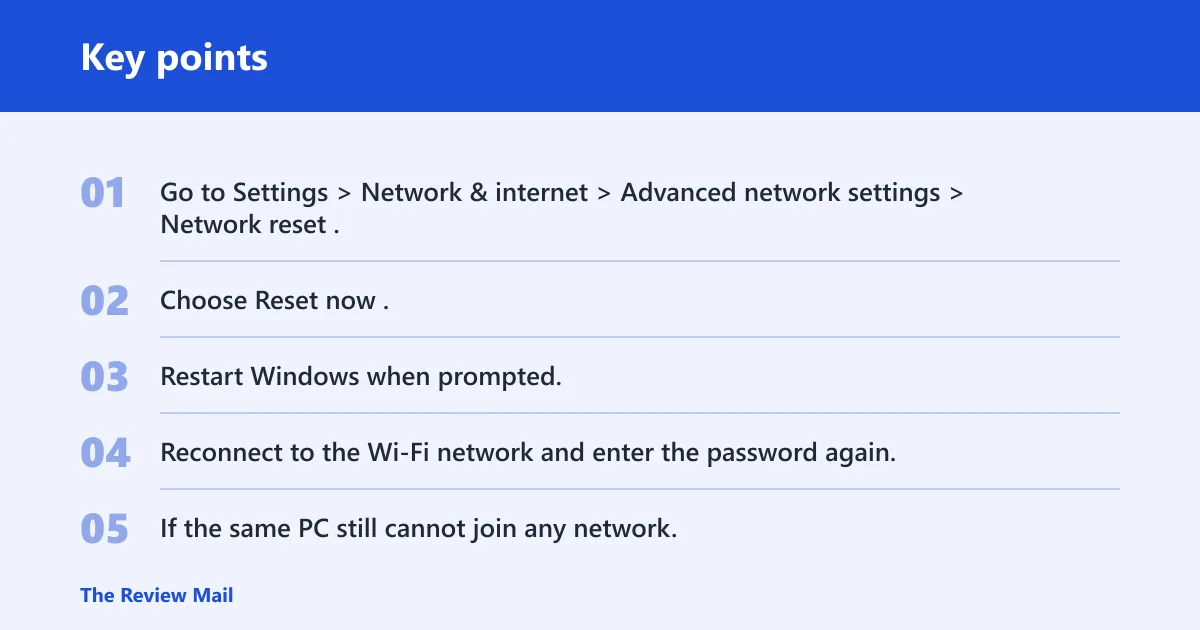
- Go to Settings > Network & internet > Advanced network settings > Network reset.
- Choose Reset now.
- Restart Windows when prompted.
- Reconnect to the Wi-Fi network and enter the password again.
- If the same PC still cannot join any network, escalate to device support or the router vendor.
A common first-timer mistake is jumping straight to network reset after one failed connection attempt. That can erase useful settings before you know whether the fault lives in one profile, one adapter, or one hotspot.
Frequently asked questions
Can t connect to this network windows 11 wifi?
Start with Settings > Network and Internet > Wi-Fi > Manage known networks, then Forget the SSID and reconnect. If that fails, run the Network and Internet troubleshooter in Get Help, because Microsoft says it automatically runs diagnostics and attempts to fix most connection problems.
Can t connect to this network windows 11 fix?
Use a short sequence: Forget the network, toggle the Wi-Fi adapter off and on in Device Manager, then run netsh winsock reset and netsh int ip reset from an elevated Command Prompt. Reboot after the commands complete.
Can t connect to this network windows 11 hotspot?
Forget the hotspot in Settings > Network and Internet > Wi-Fi > Manage known networks, turn the hotspot off and back on, and try the connection again. If it still fails, test a different Wi-Fi network on the PC to see whether the fault follows the phone or stays with Windows.
Can t connect to this network windows 11 after update?
After an update, open Device Manager and check the Wi-Fi adapter first. Disable and re-enable it, then roll back the driver if the option exists. If the adapter still fails, run the Network and Internet troubleshooter in Get Help before touching network reset.
Can t connect to this network windows 11 iphone hotspot?
For an iPhone hotspot, forget the saved hotspot profile, turn Personal Hotspot off and back on, and reconnect from Windows 11. If another PC or phone joins the hotspot but this one does not, check the Windows adapter and driver next.
Can t connect to pc on network windows 11?
If the Wi-Fi link is up but another PC is unreachable, the issue may be sharing, firewall, or name resolution rather than Wi-Fi association. Check the Windows network profile, then confirm that both devices are on the same network and that file sharing is allowed.