Irq 0 Request Failed: How to Fix It in Windows
irq 0 request failed in Windows usually means a driver could not register or route its interrupt request. In Windows, this usually means a device driver could not start or communicate with hardware. The fastest fix path is to check the failing device, update or roll back its driver, then verify IRQ assignment and BIOS/UEFI settings if the error returns. Ignoring it can leave the device unstable, cause boot errors, or trigger repeated hangs and driver crashes. This guide maps common Windows 11 symptoms to the quickest fix, then moves into driver-level debugging when the fault persists.
What the error means and what causes it
The message points to interrupt setup trouble, not a random Windows glitch. In plain terms, a device asked the system for an interrupt line and the request failed, so the failure usually sits with the device driver, the firmware route to that device, or a hardware conflict on the same line.
That is separate from IRQL crash talk. IRQL is a Windows priority mask for interrupt handling, and high-IRQL crashes such as IRQL_NOT_LESS_OR_EQUAL or DRIVER_IRQL_NOT_LESS_OR_EQUAL involve invalid or pageable memory at high IRQL. That is a different problem from a device that cannot get its interrupt registered at all.
Most often, the first suspects are USB devices, PCIe cards, storage controllers, GPUs, and network adapters. A common mistake is to replace the motherboard before testing whether the irq 0 request failed error only appears after attaching a specific PCI card or booting with a particular BIOS setting.
Likely causes
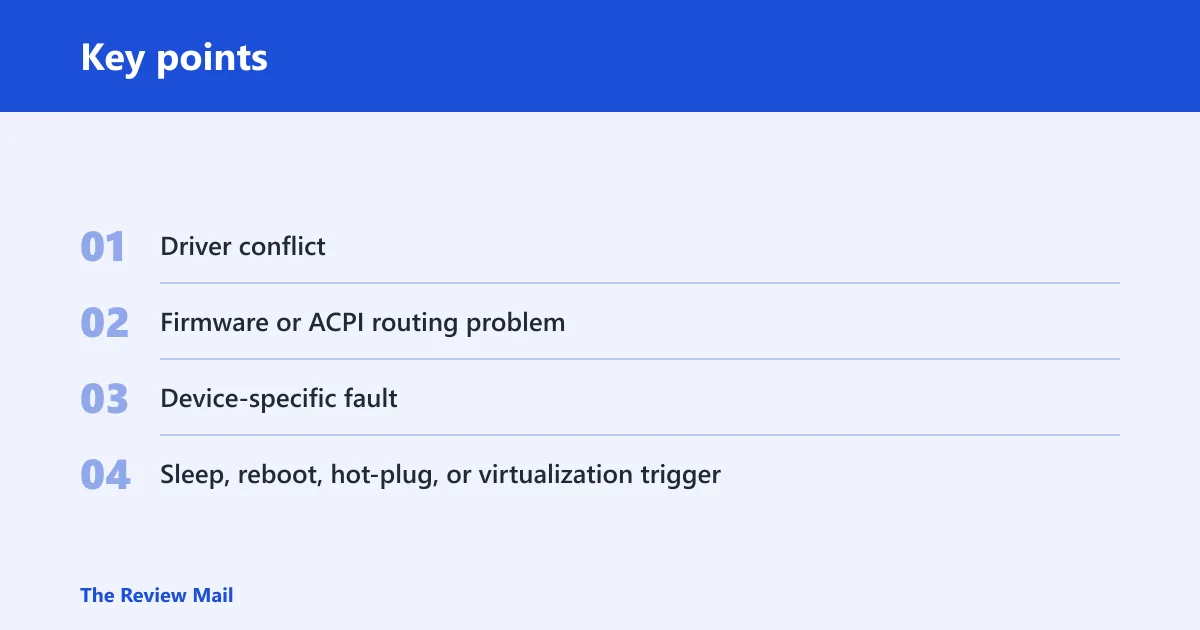
- Driver conflict: the driver cannot claim the interrupt path, often because another component already did.
- Firmware or ACPI routing problem: BIOS/UEFI tables route the interrupt wrong, or a manual setting blocks automatic assignment.
- Device-specific fault: the USB, PCIe, storage, GPU, or network device stops responding at startup or wake.
- Sleep, reboot, hot-plug, or virtualization trigger: the device works cold, then fails after wake, restart, connect, or a VM feature changes the path.
IRQ triage table
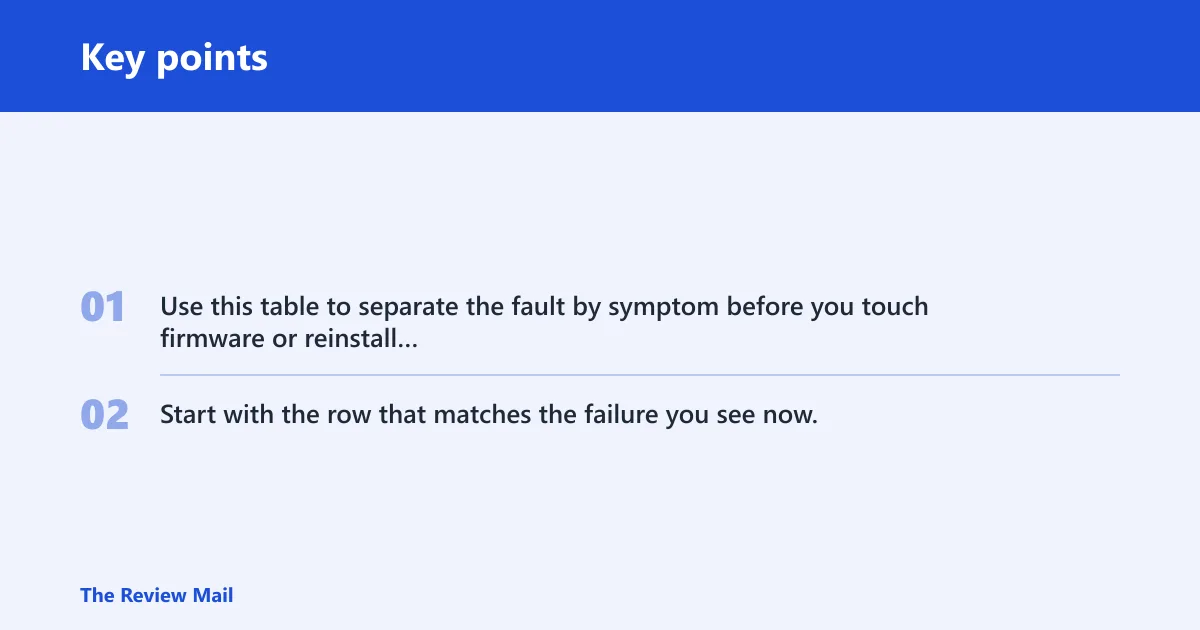
Use this table to separate the fault by symptom before you touch firmware or reinstall anything. Start with the row that matches the failure you see now.
| Symptom | Likely layer | Fastest check | Next action |
|---|---|---|---|
| Device vanishes after sign-in | Driver or USB/PCIe power | Device Manager > View > Show hidden devices | Unplug extra peripherals, then reinstall the device driver |
| Device fails to start in Device Manager | Driver or firmware routing | Check Properties > General for a device start error | Roll back the last driver, then restore automatic BIOS settings |
| Fails only after restart | Fast startup or initialization order | Full shutdown, then cold boot | Disable Fast Startup as a test, then retest |
| Fails only after sleep | Power management | Wake the PC with only keyboard, mouse, and display connected | Disable selective suspend or wake-related device power saving |
| Fails on hot-plug | USB or external controller | Reconnect with all hubs and docks removed | Move the device to a direct motherboard port |
| USB device works on one port, not another | Port, hub, or controller | Test one port at a time | Use a rear motherboard port, not a front-panel hub |
| PCIe card fails after a move to another slot | Card or slot | Reseat the card and compare slots | Update chipset firmware, then replace the card if the fault follows it |
| Storage device drops during boot | Controller or firmware | Check SATA/NVMe cabling and controller mode | Restore default controller settings, then reinstall the storage driver |
| GPU-related display loss or reset | GPU driver or PCIe signaling | Boot with the display on the integrated port if available | Roll back the GPU driver, then check PCIe defaults in firmware |
| Problem appears with no obvious Device Manager warning | Firmware, ACPI, or virtualization | Check recent firmware, hypervisor, or hot-plug changes | Restore automatic settings, remove the trigger, then retest |
Is the device on USB, PCIe, or onboard hardware?
Start by classifying the device path, because the fastest fix depends on whether the fault lives on USB, PCIe, or onboard hardware. For USB, remove hubs, docks, and extension cables first. For PCIe, compare a different slot. For onboard devices, restore automatic firmware settings before changing link speed or timing options.
- USB: open Device Manager, expand Universal Serial Bus controllers, and note any warning icons. Unplug hubs and docks, then connect the device to one direct motherboard port at a time.
- USB: if the device fails on the same port, try another rear port on the motherboard. Compare a known-good cable if the device uses one.
- PCIe: power down, reseat the card, and move it to another slot. If the fault follows the card, the card is more likely than the slot.
- Onboard devices: enter BIOS/UEFI and restore automatic or default values for onboard device control, PCIe, and USB settings before changing advanced link speed or timing.
- Onboard devices: if the issue started after a firmware change, test again with only keyboard, mouse, and display connected.
Suppose a USB audio interface works on one rear port but fails when moved to a front-panel header. That points to the hub or cable path, not the interface itself. Change one variable at a time: direct motherboard port first, then cable, then hub.
Does it fail after reboot, sleep, or hot-plug?
Boot state matters because some IRQ-routing faults appear only after a restart, resume, or reconnect. Test a full shutdown and cold boot first, then test sleep and wake separately. If the device fails only after one of those transitions, the trigger is likely power-state related rather than a steady driver install problem.
- Use Start > Power > Shut down, then power the PC back on and test the device before opening extra apps.
- Test sleep and wake separately from restart behavior. If sleep breaks the device, focus on power management rather than the base driver.
- As a test, disable Fast Startup in Control Panel > Hardware and Sound > Power Options > Choose what the power buttons do.
- For hot-plug problems, disconnect the device, remove other external peripherals, then reconnect it alone.
- If virtualization software or a virtual adapter appeared recently, disable that component and retest the same device path.
Picture a network adapter that works after a cold boot but drops after sleep. That pattern fits power-state handling more than a bad cable. If the same adapter also fails when a dock is attached, the dock becomes the next suspect.
Driver terms in logs
Windows logs and Device Manager messages can help narrow down whether the issue is a driver start problem, a firmware routing problem, or a hardware conflict. Start with Event Viewer, Device Manager, and the device’s Properties page. If a device shows a start failure, note the exact message text, when it appears, and whether the failure happens after boot, sleep, or a hot-plug event.
Device Manager and event details
Open the device in Device Manager, then check the General and Events tabs. The General tab often shows whether the device is working, starting, or failing. The Events tab can show when Windows detected the device, loaded the driver, or reported a start problem. If the device only fails after a change, compare the timestamp against recent driver, firmware, or Windows updates.
- Open Device Manager and inspect the device under its category.
- Check Properties for warning icons and current device status.
- Use Event Viewer to review system and driver events around the failure time.
When Windows needs a clean device start
If the device only fails after a restart or wake, remove power-sensitive variables first. Disable Fast Startup, unplug extra peripherals, and test the device on a direct motherboard port. If the device is external, try a different cable and a different port before reinstalling anything. If the device is internal, restore BIOS/UEFI defaults for storage, USB, or PCIe-related settings.
- Test the device after a full shutdown.
- Remove docks, hubs, and other adapters.
- Return firmware settings to automatic or default values before deeper changes.
What should you try next?
If the device still fails after the checks above, move from isolation to repair. Roll back the latest driver first, then reinstall the current vendor package. If the vendor offers a chipset, storage, GPU, or network bundle, install that package rather than a generic inbox driver when the device maker says to do so.
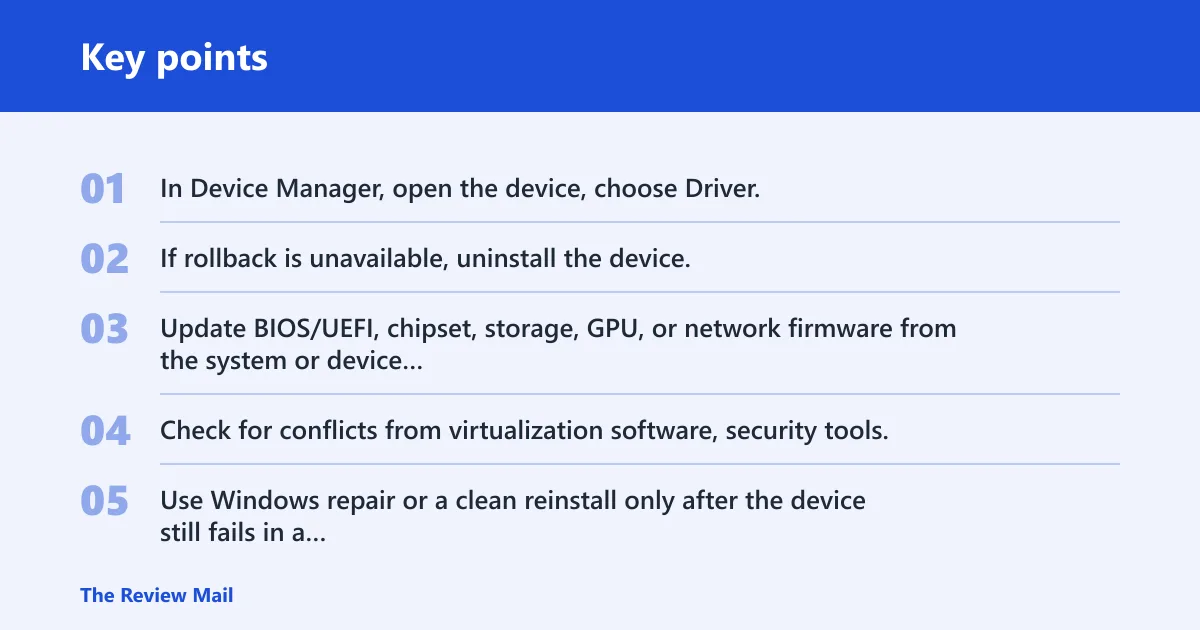
- In Device Manager, open the device, choose Driver, then try Roll Back Driver if the option is available.
- If rollback is unavailable, uninstall the device, check the box to remove the driver software if present, then reinstall the vendor package.
- Update BIOS/UEFI, chipset, storage, GPU, or network firmware from the system or device maker.
- Check for conflicts from virtualization software, security tools, or a recent Windows update, then retest after removing the trigger.
- Use Windows repair or a clean reinstall only after the device still fails in a known-good configuration.
For Windows installation media, Microsoft says you can reinstall Windows with the media tool MediaCreationTool.exe, and recommends a blank USB flash drive with at least 8 GB. A product key might be needed, though modern devices may have the key embedded in firmware. Microsoft says Windows 10 support ended on October 14, 2025, so an older system may also need a broader upgrade plan. (Microsoft Support)
If the fault follows the same hardware after driver rollback, firmware update, and a clean Windows repair, replacement becomes the practical next step. Contact the device manufacturer with the exact model name, the symptom, and the boot state that triggers it.
Frequently asked questions
What does a failed interrupt registration mean in Windows?
It usually means Windows or a driver could not assign the device an interrupt path, so the device may not start, may disappear after boot, or may fail when it wakes from sleep. Check the device status in Device Manager, then review recent driver and firmware changes.
Why would a device start error happen again after reboot or sleep?
A device can fail again if power management, firmware routing, or initialization order changes after a restart or resume. Test a cold boot, disconnect docks and hubs, and turn off Fast Startup as a diagnostic step.
How do I know whether to trust Device Manager or Event Viewer first?
Use Device Manager first to see whether the device is present and whether Windows reports a problem. Then use Event Viewer to check the timing of the failure and compare it with driver, firmware, or Windows updates.
When should I reinstall the driver instead of changing firmware settings?
Start with the driver if the problem began after an update or if the device is failing only in one Windows profile or one boot state. Change firmware settings first if the device fails across clean boots, multiple ports, or different cables.
What is the best first test for a USB device?
Use a direct rear motherboard port, remove hubs and docks, and test with a known-good cable if the device uses one. That isolates the port path before you change software or firmware settings.
What should I try if a PCIe card fails in one slot but not another?
Keep the card in the working slot, then update chipset and system firmware if available. If the failure follows the card instead of the slot, the card itself is more likely the problem.
How do I approach a storage device that drops during boot?
Check the cable, controller mode, and firmware defaults first. If the drive still drops out, reinstall the storage driver and compare the behavior after a cold boot versus a restart.
What if none of the basic checks help?
Roll back the last driver, reinstall the vendor package, update firmware, and retest in a known-good setup with only essential devices attached. If the same hardware still fails, contact the manufacturer for replacement or advanced support.