Windows Device Location Disabled
Check location at three layers: device, user account, and Microsoft account sync. If the device, user account, or Microsoft account sync is blocked, Find my device may stay off. Checking the wrong layer wastes time and can leave recovery tools and location-based apps unavailable. This guide shows how to find the blocked layer, then turn it on in the right order on Windows 10 and Windows 11.
Location troubleshooting matrix
| Symptom | Likely cause | Exact fix |
|---|---|---|
| Location services is greyed out in Settings | A device-wide block from administrator policy, work or school management, or another device control | Open Start > Settings > Privacy & security > Location on Windows 11, or Start > Settings > Privacy > Location on Windows 10. If the toggle is still locked, sign out of the managed account, check whether the PC is enrolled in work or school management, or ask the device administrator to release the policy. |
| Find my device says unavailable or cannot be turned on | Location services is off, or policy blocks the feature that depends on location | Turn on Location services first. If the feature still stays unavailable, check for administrator control or work/school policy that blocks device location. Find my device depends on location services. |
| Apps are denied location even though the main setting looks available | Let apps access your location is off, or it cannot be changed because Location services is off | Turn on Location services, then switch on Let apps access your location for the signed-in user. If that per-user toggle is greyed out, the device-wide setting is still blocking it. |
| Location history still appears in the Microsoft account after Windows history was removed | Windows removed local history storage in March 2025, but cloud location activity may still exist in the Microsoft account | Check the Microsoft account privacy dashboard and clear location data at account.microsoft.com. Removing local Windows history does not automatically remove cloud-stored activity. |
📊 Microsoft says location history local storage and related settings were removed in March 2025. Source: Microsoft.
Why Windows says device location is disabled
Windows usually means the device-wide location layer is off, not that every app permission is broken. When Location services is disabled, Windows and apps cannot access device location, and Find my device cannot rely on that service either. The fix depends on whether the block sits at the device level, the user level, or in Microsoft account sync.
Device-wide block
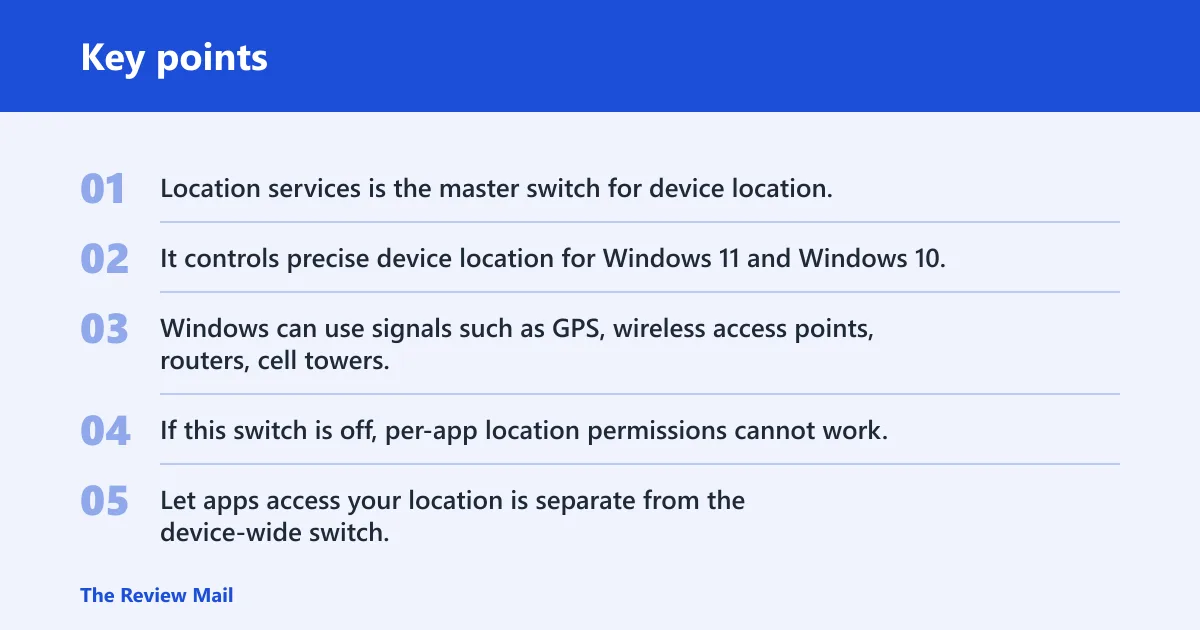
Location services is the master switch for device location. It controls precise device location for Windows 11 and Windows 10, and Microsoft says it also supports automatic time zone and Find my device. Windows can use signals such as GPS, wireless access points, routers, cell towers, IP address, or a default location to determine position.
If this switch is off, per-app location permissions cannot work. That is the first dependency to check.
Per-user app block
Let apps access your location is separate from the device-wide switch. It affects app access to location data for the signed-in user, but it only works after Location services is already on. If the user toggle is greyed out, the device layer is still blocking it.
Policy or management restriction
Administrators can control whether location services can be used on the device. A work or school PC can also apply policy that may grey out the toggle or stop Find my device from turning on. The right fix is not another privacy click, it is removing or changing the management rule.
Account sync versus local history
A separate problem is cloud data. Windows removed local location history storage and related settings in March 2025, but if you are signed into a Microsoft account, location activity may still be saved in the cloud. That can make Windows look “not cleared” even after the local history is gone.
How do you turn on location services in Windows 11?
Open Start > Settings > Privacy & security > Location, then turn on Location services. On Windows 10, the path is Start > Settings > Privacy > Location. Use that page first, because it is the device-wide control that must be on before app access can work.
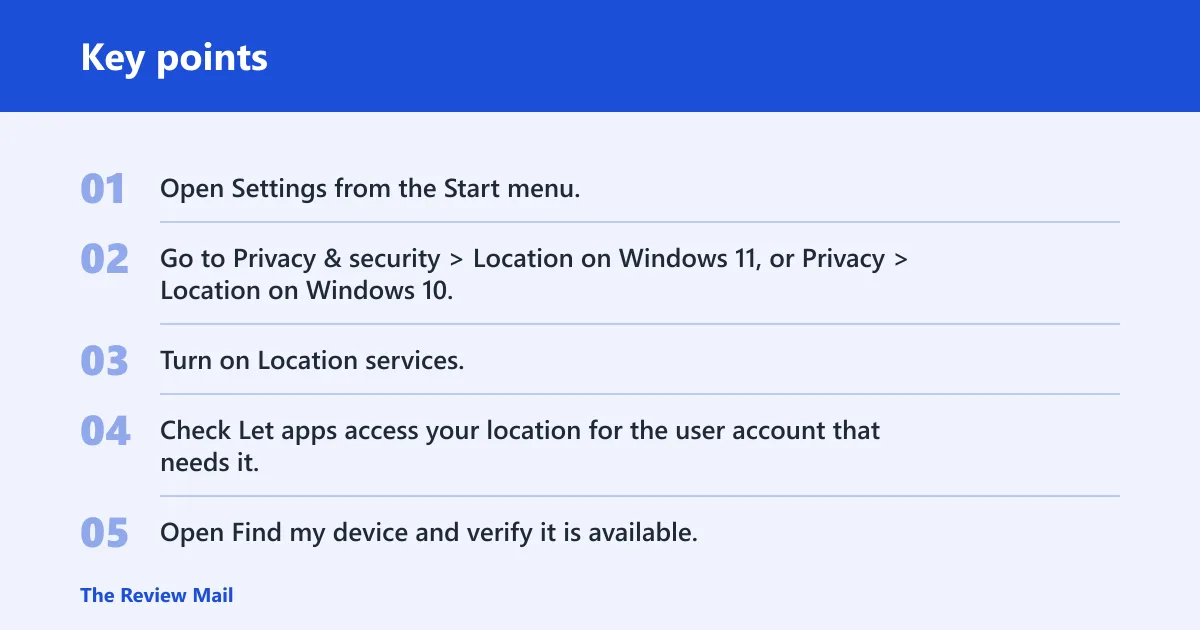
- Open Settings from the Start menu.
- Go to Privacy & security > Location on Windows 11, or Privacy > Location on Windows 10.
- Turn on Location services.
- Check Let apps access your location for the user account that needs it.
- Open Find my device and verify it is available.
If the toggle will not move, stop there and look for management or administrator control. A blocked device setting must be fixed before anything lower in the chain can work.
Say your laptop shows a greyed-out Location services control after joining a work account. That points to policy, not a random app problem. The more you click through app permissions first, the longer the lockout lasts.
Check for a usable location source
Windows location is not only GPS. It can also use wireless access points, routers, cell towers, IP address, or a default location when precise location is unavailable. If the device has no strong signal source, Windows may still show limited contextual features, but precise device location can be weak or unavailable.
A common first-timer mistake is to expect a desktop PC without GPS to behave like a phone. It may still provide a rough location from IP address or network signals, but that is not the same as full device location for Find my device.
Why is the Let apps access your location toggle greyed out?
That toggle is usually greyed out because Location services is off at the device level, or because the PC is managed by an administrator or organization. The per-user setting cannot be changed until the device-wide setting is allowed first. On a managed PC, the lock may come from policy rather than from Windows Settings.
Fix the device setting first
Go back to Start > Settings > Privacy & security > Location, or the Windows 10 Location page, and confirm Location services is on. If it is off, app access cannot be turned on individually. Microsoft’s dependency chain is strict here.
Check for work or school management
If the machine is connected to a work or school account, the organization may control location access. The same can happen on home PCs if device settings are enforced by administrator policy. In that case, the toggle is not broken; it is intentionally locked.
Look for signs that the device is managed, such as a work or school account tied to the device, restricted settings, or a notice that says some options are managed by your organization. If so, the fix is to change the policy or ask the administrator to do it.
Reset the app only after the device layer works
Do not start by resetting the app. If Location services is off, the app will still fail after a reset because the device layer is still closed. Turn on the device setting first, then recheck app permission. That order avoids chasing the wrong fault.
Find my device and default location
Find my device depends on location services. Microsoft lists it as one of the features enabled by location services, so if device location is disabled, the feature may not turn on or may stay unavailable. A default location is a separate fallback, used when precise location is unavailable.
When to set a default location
Use a default location when the PC cannot determine precise location reliably, such as a desktop with no strong wireless signal or limited hardware support. It is a manual fallback, not a replacement for Location services. It can help apps and Windows behave more sensibly when a precise reading is missing.
What to check if Find my device stays unavailable
First, confirm Location services is on. Next, check whether a work or school policy is blocking the feature. If the toggle is still unavailable after the device setting is on, the issue is usually management, not GPS hardware.
Suppose a family PC shows the Find my device option but keeps switching back off after sign-in. That often means the device is subject to a policy or account rule, not a temporary app glitch. Fix the control point above it, then return to the feature.
Location history and Microsoft account
Windows removed local location history storage and related settings in March 2025. That does not mean your Microsoft account is empty. If you are signed in, location activity may still be stored in the cloud, and that data can be cleared separately at account.microsoft.com.
What Windows removed locally
The local history that used to appear in Windows Settings is gone. So if you removed it on the PC and still see location activity later, you are probably looking at cloud data rather than local storage.
How to clear saved location data
Open the Microsoft account privacy dashboard and delete the saved location activity there. That is the place Microsoft points to for cloud-stored location data. Clearing Windows settings alone will not remove what is saved in the account.
What the privacy dashboard can still show
The Microsoft account privacy dashboard can show saved location activity associated with the account. Use it when Windows itself no longer shows a local history control, or when you want to remove cloud records that remain after the device history has been cleared.
| Question | Where to check | What to expect |
|---|---|---|
| Device location disabled | Windows Settings location page | Location services is the first switch to inspect |
| App access blocked | Let apps access your location | This works only after Location services is on |
| Find my device unavailable | Device policy and location services | Policy or admin control can keep it off |
| History still visible online | Microsoft account privacy dashboard | Cloud data can remain after local history is gone |
Frequently asked questions
Why is Windows saying device location is disabled?
Windows usually means the device-wide Location services setting is off, or an administrator has blocked it. When that switch is off, Windows and apps cannot access device location. Check the Settings path first, then look for work or school management if the control is greyed out.
How do I fix Find my device when location is disabled?
Turn on Location services first, because Find my device depends on it. If the feature still stays unavailable, check whether the device is controlled by work or school policy. Find my device is not independent of the location layer, so fixing app permissions alone will not restore it.
Can an administrator block location on a Windows PC?
Yes. Administrators can control whether location services can be used on the device. That can grey out the main switch, block app access, or keep Find my device unavailable. On managed PCs, the fix is policy change, not another Settings toggle.
How do I clear saved location history in Windows?
Windows removed local location history storage and related settings in March 2025, so there may be nothing local left to clear. If location activity still appears, sign in to the Microsoft account privacy dashboard and delete the cloud-stored location data at account.microsoft.com.
What is the difference between device location and app location permissions?
Device location is the master Location services control for the whole PC. App location permissions are the per-user settings under Let apps access your location. If the device setting is off, app permissions cannot work, even if the individual app switch looks available.
Does turning off location services stop all apps from tracking me?
No. Microsoft notes that some third-party apps can still use other technologies to infer location, and Windows can still use IP address for limited contextual features when location services is off. Turning off the main switch blocks Windows device location, but it does not end every form of location inference.