Windows 11 Window Is Stuck Off Screen
If a Windows 11 window is stuck off screen, use the taskbar button, Alt + Tab, Win + Shift + Arrow, or the keyboard Move command based on where it went; one of those often brings it back in under 10 seconds. Leaving it there can stall your work, with the app open but out of reach. This guide covers a taskbar-visible window, a second monitor, another desktop, or one nudged past the screen edge.
What an off-screen window means
An off-screen window is still open, but its frame sits outside the visible desktop area. The fix depends on where it landed: fully hidden, partly clipped by an edge, parked on a different monitor, or moved to another virtual desktop. Match the symptom first, then press shortcuts.
Say your browser still appears on the taskbar, but only its title bar is missing and you can see a thin strip at the bottom. That points to a partial off-screen placement, not a lost app. Suppose the app disappears from the active desktop right after you unplug a second monitor; that usually means the window remembered the old display position.
Which off-screen window fix should you use?
Use the symptom that matches what you can still see. If the app is visible in the taskbar but not on the desktop, start with Task View or the taskbar Move command. If it is only clipped at an edge, use Win + arrow keys first. If it sits on another monitor or desktop, move it there before trying to drag anything.
| Symptom | Fastest method | Exact shortcut/click path | When to skip that method |
|---|---|---|---|
| Fully off screen | Alt + Tab, then Move | Alt + Tab > Alt + Space + M > arrow keys > Enter | Skip if the app is already on a different desktop or monitor. |
| Partially off top or side | Win + arrow keys | Select the app > Windows key + left or right arrow multiple times | Skip if the title bar is unreachable and the app will not take focus. |
| On another monitor | Win + Shift + left or right arrow | Focus the app > Windows key + Shift + left arrow or right arrow | Skip if the monitor is disconnected and Windows no longer sees it. |
| On another desktop | Task View | Windows key + Tab > pick the desktop or window > move it to the current desktop | Skip if the app is already on the active desktop and only shifted past the edge. |
Why is my Windows 11 window opening off screen?
Most often, Windows restores the app to its last known position after your display setup changes. A second monitor may have been unplugged, the resolution may have changed, or the app may have opened on another virtual desktop. Less often, Windows remembers a position that no longer fits the current screen layout.
Windows Central reports that off-screen windows can happen after a multi-monitor setup or unexpected system behavior, and MakeUseOf and TechCult both point to display changes and disconnected monitors as common triggers. That fits Windows 11’s habit of saving window placement between sessions and setups.
Saved window positions after docking or undocking
When a laptop is undocked, a window that lived on the external display may reopen where that monitor used to be. The window is still running; it is just parked outside the active screen area. A quick Win + Shift + left arrow or right arrow can move it back if the target display is still detected.
- Click the app on the taskbar to give it focus.
- Press Windows key + Shift + left arrow or right arrow to move the window one screen.
- If it does not appear, press Windows key + Tab and check whether it landed on another desktop.
- Use the taskbar Move command if the app is visible but still unreachable.
Wrong or changed display resolution
A lower or mismatched resolution can push the window beyond the visible bounds. TechCult says the recommended display resolution should be selected, and that a lower resolution can trigger the off-screen problem. This is one of the few cases where a settings change, not a shortcut, is the cleanest fix.
- Open Settings > System > Display.
- Under Scale and layout, open Display resolution.
- Choose the recommended resolution.
- Return to the app and use Win + arrow keys if it still sits near an edge.
A window opened on a disconnected second display
If the app was last on an external monitor and that monitor is gone, the window may still behave as if it exists. MakeUseOf says disconnected second monitors can lead to window placement issues. In that case, reconnecting the display or forcing the app onto the primary screen is usually faster than hunting for it visually.
- Reconnect the external monitor, if available.
- Press Windows key + Tab to open Task View.
- Select the window or desktop that contains the app.
- Move the app back to the current screen with Windows key + Shift + left arrow or right arrow.
A window moved to a different virtual desktop
Windows 11 virtual desktops can hide an app without minimizing it. If the taskbar shows the app but the current desktop is empty, the window may simply be on another desktop. Task View is the fastest way to verify that, because it shows open windows and desktops visually.
- Press Windows key + Tab to open Task View.
- Look for the app on another desktop at the top of the screen.
- Open that desktop or drag the window to the current one.
- Press Esc to exit Task View after moving it.
How do you bring it back with the keyboard?
Use keyboard recovery when the mouse cannot grab the title bar. Alt + Tab selects the hidden app, Win + arrow keys pulls it toward a visible edge, and Alt + Space + M opens move mode when the window cannot be dragged. The same source lists those shortcuts as direct recovery steps for an off-screen window.
Use Alt + Tab to focus the hidden app
Alt + Tab is the cleanest first move when the app is open but not easy to click. It switches focus to the hidden window so the next shortcut acts on the right target. That matters when several apps are open and the off-screen one is not the active window.
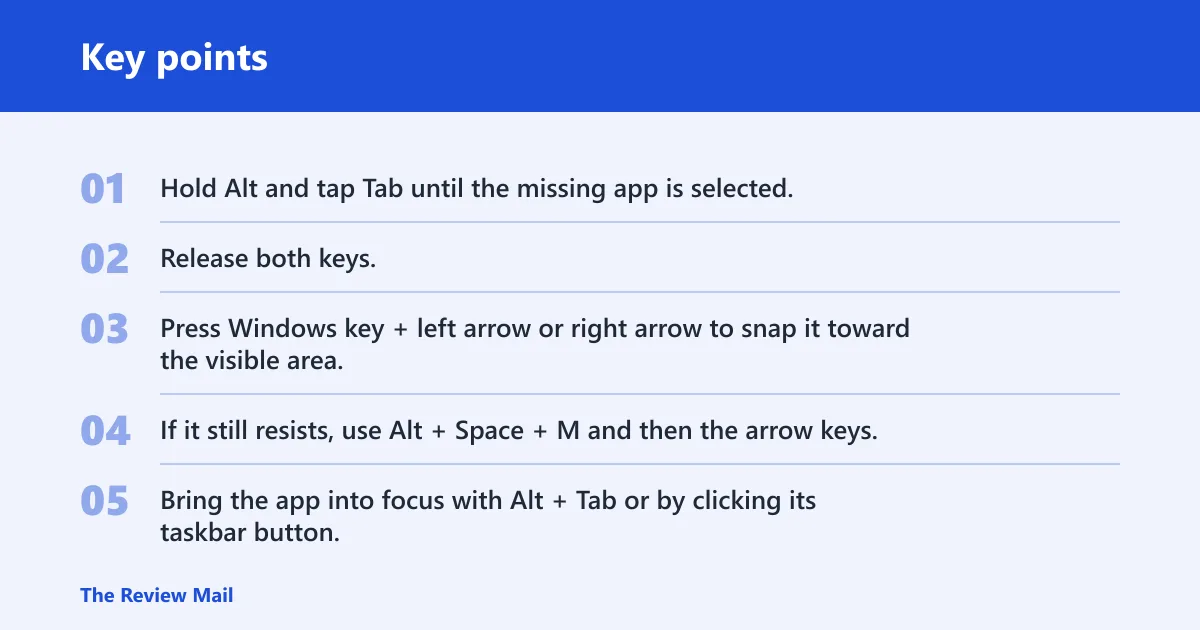
- Hold Alt and tap Tab until the missing app is selected.
- Release both keys.
- Press Windows key + left arrow or right arrow to snap it toward the visible area.
- If it still resists, use Alt + Space + M and then the arrow keys.
Use Windows key + arrow keys to snap it back into view
Windows key + left arrow and Windows key + right arrow can reposition a selected window back onto the screen. The same source says to use the shortcut multiple times if needed. That repeated tap is useful when the window is only partly visible or parked just outside the monitor border.
- Bring the app into focus with Alt + Tab or by clicking its taskbar button.
- Press Windows key + left arrow or right arrow once.
- Repeat the same arrow direction until the window appears fully.
- Stop when the title bar and borders are visible.
Use the Move command when dragging is not possible
When the title bar is off screen, the old keyboard move mode still helps. The same source describes Alt + Space + M as the move shortcut, and the arrow keys then do the placement work. This is the best fallback for a window that exists, but cannot be dragged with the mouse.
- Focus the app with Alt + Tab.
- Press Alt + Space + M.
- Use the arrow keys to slide the window toward the visible desktop.
- Press Enter to set the new position.
How do you use the taskbar to move a hidden window?
The Windows 11 taskbar is the best route when the app still has a taskbar button. A Shift + right-click on the taskbar icon exposes the Move command, which is useful when the drag handle is gone. Windows 11 keeps this keyboard-mouse hybrid path available for windows that are visible in the taskbar but not on the desktop. (Wikihow)
Use Shift + right-click to open the Move command
wikiHow says Shift and right-clicking the taskbar icon opens a Move option. On Windows 11, that route is especially useful when the app window is present but its frame is outside the screen and you cannot reach the title bar. It is one of the fastest ways to avoid hunting through settings.
- Find the app’s icon on the Windows 11 taskbar.
- Hold Shift and right-click the icon.
- Select Move from the context menu.
- Use the arrow keys to reposition the window, then press Enter.
Use the taskbar thumbnail or window button
If the app shows a preview thumbnail, click it once to bring the window forward, then immediately use Win + arrow keys. That step matters because the taskbar click gives the hidden window focus before you try to move it. If the app is minimized, the same click can restore it.
- Point to the app on the taskbar.
- Click the thumbnail or button.
- Press Windows key + left arrow or right arrow.
- If it is still clipped, use the Move command instead.
How do you recover a window on another monitor or desktop?
If the window is on another monitor or virtual desktop, screen-edge fixes will not help until you locate it. Task View is the best visual locator in Windows 11, because it shows open windows and desktops in one place. The same source recommends opening it with Windows key + Tab when a window is off screen.
Use Task View to find the open window
Task View is the clearest recovery path when the app is not on the current desktop. It can also help if the window is off screen but still open somewhere else. The same source notes that Task View can help recover an off-screen window on Windows 11.
- Press Windows key + Tab to open Task View.
- Look for the app in the open windows area or on another desktop.
- Click the app to bring it forward.
- Move it to the current desktop if needed.
Move it to the active display or desktop
Once the app is visible in Task View, move it back to the place you are using now. For another monitor, use Win + Shift + left arrow or right arrow. For another desktop, drag the window into the current desktop view or open that desktop directly. wikiHow also notes that Win + Ctrl + left or right arrow checks a different desktop.
- Open Task View with Windows key + Tab.
- Switch to the desktop or monitor where the app is open.
- Bring the app onto the active desktop or display.
- Press Esc to leave Task View after confirming the move.
Fix the display settings if windows keep going missing
If windows keep reopening off screen, the placement problem may repeat after every resolution or display change. The first setting to check is the recommended display resolution. If an external monitor was unplugged, reconnect it or reset the layout before chasing the app again. This is the right point to fix the cause, not only the symptom.
Check the recommended display resolution
The same source says a lower resolution can trigger the window going off screen, and the recommended display resolution should be selected. This is the most direct settings check when windows keep reopening in the wrong place after a display change. It also helps when the app seems to land beyond the edge after you sign in.
- Open Settings > System > Display.
- Open Display resolution.
- Choose the recommended value.
- Relaunch the app and confirm the window opens within the visible desktop.
Reset placement after unplugging a second screen
Unplugging a monitor can leave the app tied to coordinates that no longer exist. The same source says disconnected second monitors can lead to window placement issues, and Windows Central notes that multi-monitor setups can cause the window to end up off screen. Reconnecting the display once, then moving the app, often clears the stale placement.
- Reconnect the missing monitor if possible.
- Open the affected app.
- Use Windows key + Shift + left arrow or right arrow to move it to the main screen.
- Close and reopen the app to confirm the new placement is remembered.
Before you disconnect a monitor or end a remote session, move the app back to the main display and close it there. That gives Windows a current, visible position to restore next time.
Still not working?
If the window keeps returning off screen after docking, undocking, or remote access, move up the escalation ladder. Try Task View first, then the taskbar Move command, then the display resolution check. If none of those sticks, restart the app after reconnecting the original monitor, or restart Windows to clear a stale desktop layout. If the issue repeats after a specific dock or remote client, the hardware or session software may need vendor support.
A common first-timer mistake is to keep dragging at the screen edge when the window is actually on another desktop. That wastes time. Switch to Task View first, because it tells you whether you need a monitor fix, a desktop switch, or a simple arrow-key move.
Frequently asked questions
How do I bring a window back that is off screen on Windows 11?
Start with Alt + Tab to select the window, then press Windows key + left arrow or right arrow several times. If the app is visible in the taskbar but still unreachable, use Shift + right-click on its taskbar icon and choose Move, then use the arrow keys and Enter.
How do I move a window that I can’t see on Windows 11?
Use Alt + Tab to focus it, then press Alt + Space + M to enter move mode. After that, tap the arrow keys until the window reappears and press Enter to lock it in place. If the app is on the taskbar, Shift + right-click can expose Move faster.
What keyboard shortcut moves an off-screen window back?
Windows key + left arrow and Windows key + right arrow are the main repositioning shortcuts. The same source says to use them multiple times if needed. For a deeper move, Alt + Space + M followed by the arrow keys is the better fallback.
How do I recover a window on a second monitor in Windows 11?
Press Windows key + Shift + left arrow or right arrow after selecting the app. If that does not work, open Task View with Windows key + Tab and move the app to the current desktop. If the monitor is disconnected, reconnect it first or the app may stay outside the visible area.
Can display resolution make a window go off screen?
Yes. A lower or changed resolution can push a saved window position beyond the visible desktop. Open Settings > System > Display, then choose the recommended display resolution. If the window is already hidden, use Win + arrow keys after the resolution change to pull it back.