Windows K Device Not Showing Up
If Windows key plus K does not show devices, the fix usually comes down to three checks: your PC supports Miracast, the wireless display feature is enabled, or the receiver is visible and ready to pair. If you guess wrong, you can waste time rebooting, reinstalling drivers, and changing settings that have nothing to do with the failure. This guide shows how to check each link in the chain and fix the exact point where discovery breaks.
Why Win+K finds no devices
Win+K opens the Connect or Cast sidebar and shows nearby wireless displays after discovery succeeds. If nothing appears, the break is usually on the sender PC, the receiver device, or the Windows feature stack that handles wireless projection. Sorting those layers first is faster than random restarts.
What Win+K is supposed to show
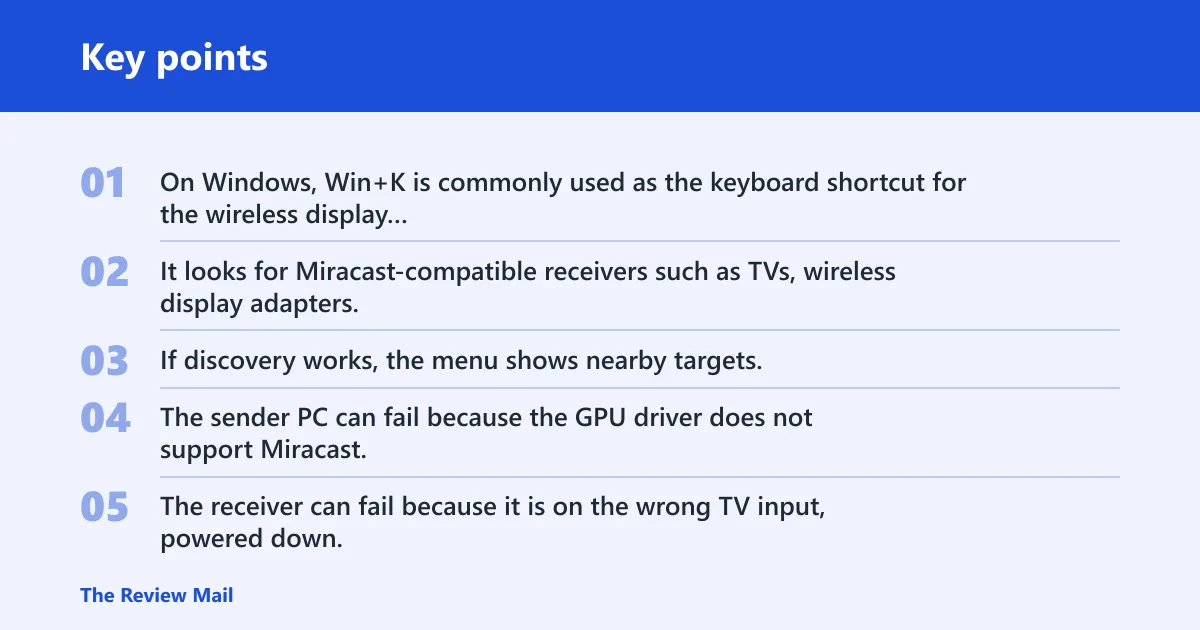
On Windows, Win+K is commonly used as the keyboard shortcut for the wireless display picker. It looks for Miracast-compatible receivers such as TVs, wireless display adapters, and other PCs set to receive projections. If discovery works, the menu shows nearby targets. If it does not, the list stays empty.
Where the chain usually breaks
The sender PC can fail because the GPU driver does not support Miracast, the Wi-Fi adapter is off, or Bluetooth and wireless discovery are blocked. The receiver can fail because it is on the wrong TV input, powered down, hidden behind an old paired entry, or not ready to accept a cast. Windows itself can block projection through missing features, policy, or privacy settings.
How to separate sender, receiver, and feature issues
Start with the receiver, then check the PC, then check Windows projection features. That order avoids fixing a healthy layer while the real failure stays hidden. A useful shortcut: if one Windows PC sees the TV and another does not, the receiver is probably fine and the problem sits on the sender side.
Say your laptop sees no cast targets in an office meeting room, while a nearby phone can still see the room’s wireless display adapter. That points away from the adapter and toward the laptop’s Windows feature state, driver support, or managed-device restrictions.
Miracast and wireless display support
Miracast is the wireless display standard that Win+K depends on for PC-to-TV projection. It generally requires support from both the graphics driver and the Wi-Fi driver, and availability can vary by hardware and Windows version. If Miracast is missing, Win+K has nothing valid to discover. (Microsoft Support)
Why Miracast matters for Win+K
Win+K does not create a display target by itself. It queries wireless display support already present on the system and nearby receivers that can accept a Miracast connection. No Miracast support means no usable projection path, even if Wi-Fi appears normal for browsing.
How GPU and Wi-Fi drivers affect support
Display driver support matters because the GPU must expose the Miracast path correctly. Wi-Fi driver support matters because wireless discovery and transport depend on the adapter. A generic or outdated OEM driver can leave the PC connected to the internet but unable to project wirelessly.
What hardware and edition limits change
Some devices and editions simply do not include the needed wireless display support. Windows 11 may require the optional Wireless Display feature, and some older systems rely on OEM driver bundles that can be sensitive to version mismatches. If the hardware chain is missing, settings changes alone will not fix it.
Check the receiver first
Before changing the PC, confirm that the TV, monitor, or wireless display adapter is actually ready to receive. Wrong input selection, no power, or a stale adapter state can make a healthy PC look broken. This check also catches receiver entries that remain in Windows after the real device has changed.
TV input, adapter power, and proximity
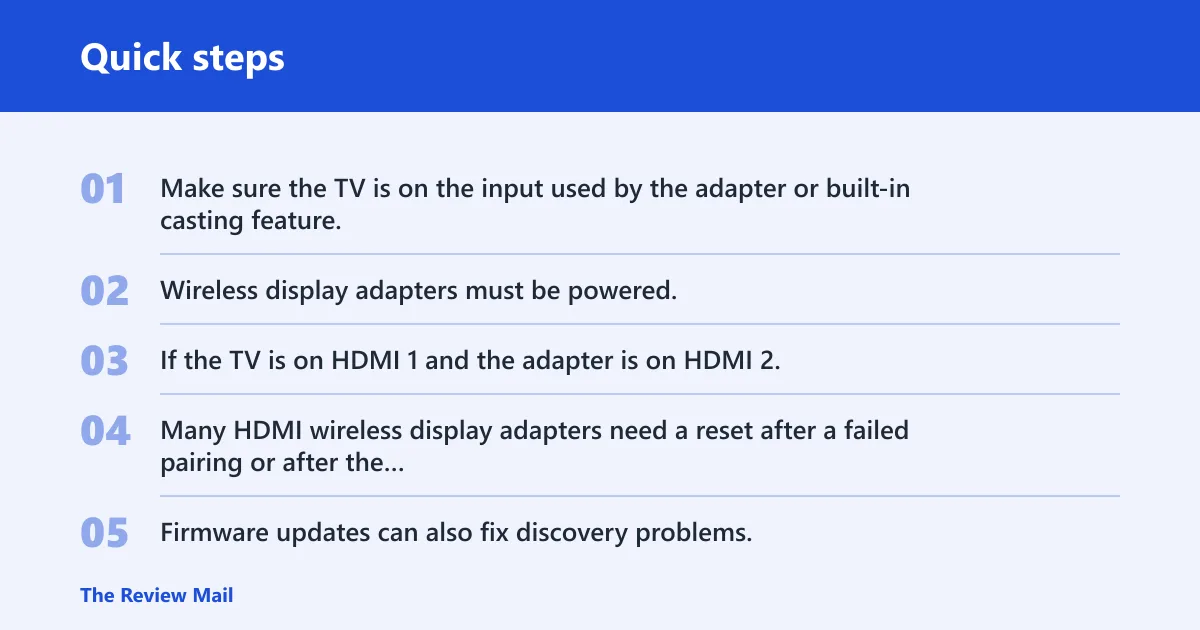
Make sure the TV is on the input used by the adapter or built-in casting feature. Wireless display adapters must be powered, and the receiver should be close enough for discovery to complete without signal drop. If the TV is on HDMI 1 and the adapter is on HDMI 2, the connection may never appear usable.
Wireless display adapter reset and firmware
Many HDMI wireless display adapters need a reset after a failed pairing or after the host PC changes. Firmware updates can also fix discovery problems. If the adapter is visible once and then disappears, a reset is more useful than repeated reconnect attempts.
Old receiver entries and paired device conflicts
Windows can keep old wireless display records. A stale receiver entry may hide the correct target or keep Win+K focused on a dead pairing. Remove the old entry if Windows still lists it, then try discovery again from a clean state.
Suppose a living-room TV worked last month but now Win+K shows the same TV name, then drops it after a few seconds. That pattern often points to a stale receiver record, a bad adapter state, or the TV being on the wrong input rather than a total Windows failure.
Windows 11 wireless display support
Windows 11 can need the optional Wireless Display feature before it can receive or fully manage wireless projection. If that feature is missing, Win+K may behave differently from a comparable Windows 10 PC, even on similar hardware. Projection settings also need to allow the target PC to appear.
Install the optional Wireless Display feature
On Windows 11, check whether Wireless Display is installed. If it is absent, add it through Optional features in Settings. After installation, restart the PC if Windows asks for it, then try Win+K again. A missing feature can leave the menu empty even when the hardware supports Miracast.
Check Projecting to this PC
If the goal is to receive a projection on this computer, open the Projecting to this PC settings page and make sure receiving is enabled. If that setting is off, the PC will not appear as a target. The same applies if the device is set to allow projections only from specific sources.
Look for metered network or privacy blocks
Windows may block wireless projection on metered networks or through privacy and firewall settings. Managed PCs can also restrict projection with policy. If a work laptop cannot appear or connect while a home PC can, the difference may be policy rather than hardware.
Wi-Fi and Bluetooth adapter checks
Win+K discovery depends on the wireless adapters being present, enabled, and correctly driven. Wi-Fi is central to the projection path, and Bluetooth can affect discovery behavior on some systems. Airplane mode and power saving can hide adapters without making the problem obvious.
Use Device Manager to spot disabled or missing adapters
Open Device Manager and look under Display adapters, Network adapters, and Bluetooth. A disabled adapter, a missing device, a warning icon, or a generic driver name can point to the break. Right-clicking the adapter lets you enable it, uninstall it, roll back a driver, or rescan for changes.
- Open Device Manager.
- Check Display adapters for the GPU model and warning icons.
- Check Network adapters for the Wi-Fi adapter state.
- Check Bluetooth for a disabled or missing radio.
- If needed, uninstall the problem device, then select Scan for hardware changes.
Check airplane mode and power saving
Airplane mode can turn off the radios that discovery needs. Power-saving settings can also let Windows turn off the Wi-Fi or Bluetooth adapter when the system is idle. If Win+K fails after sleep or on battery power, these settings deserve a close look.
Rescan after uninstall, rollback, or re-enable
After a driver rollback or uninstall, rescan the hardware so Windows reloads the adapter cleanly. This is especially useful when a bad update changed the Wi-Fi or GPU driver and discovery stopped soon after. If the adapter returns only after a rescan, that was the break.
Display driver and GPU checks
The display driver can decide whether Miracast is available at all. OEM GPU drivers matter because they often include the exact wireless display support the hardware expects. If the driver is broken, Win+K may find nothing even though the TV and Wi-Fi are fine.
Why OEM GPU drivers matter
Windows Update may install a working display driver, but not always the best one for wireless projection. OEM drivers often include hardware-specific support for the Miracast path. If discovery failed right after a graphics update, the new driver is a strong suspect.
When to roll back or reinstall
Use a rollback if Win+K stopped working after a recent driver change. Use a clean reinstall if the driver is corrupted, generic, or missing features. A clean reinstall is also worth trying when Device Manager shows the GPU but projection support still fails.
How display driver issues break discovery
A broken display driver can stop the PC from advertising a projection-capable state. That means Win+K may open, but no receiver list appears, or the list appears and then closes without connecting. If the same receiver works from another PC, the GPU path on the failing machine is the likely problem.
Windows k device not troubleshooting matrix
This matrix separates the symptom from the failing layer so you can choose the next step quickly. It also shows where Windows 10 and Windows 11 can differ, especially when Wireless Display must be installed on Windows 11 before discovery works.
| Symptom | Likely failing layer | Exact check | Next action |
|---|---|---|---|
| No devices found | Sender PC or Windows feature stack | Check Miracast support, Wi-Fi status, Device Manager, and whether Windows 11 has Wireless Display installed | Enable Wi-Fi and Bluetooth, install Wireless Display on Windows 11, then update or roll back GPU and Wi-Fi drivers |
| TV appears but won’t connect | Receiver or projection policy | Confirm the TV input, adapter power, Projecting to this PC settings, and any metered network or firewall restriction | Reset the adapter, change the TV input, and check whether a managed PC blocks projection |
| Receiver appears then vanishes | Receiver visibility or stale cache | Look for old paired entries, adapter firmware issues, power-saving sleep, or an unstable Wi-Fi adapter | Remove the stale receiver entry, reset the adapter, and retry discovery from a clean state |
| Works on one PC but not another | Sender-side driver or edition difference | Compare GPU driver version, Wi-Fi adapter state, and whether the failing PC has the needed Windows 11 feature installed | Repair the failing PC’s drivers or feature set rather than changing the receiver |
When a cable is the right fallback
If the receiver is fine, the drivers are current, and Win+K still fails, use HDMI. That is the right fallback when wireless casting keeps dropping, when a managed PC blocks projection, or when the hardware simply does not support Miracast reliably.
Frequently asked questions
Why is my device not showing up?
Usually the PC cannot discover a Miracast receiver, or the receiver is not visible. Check the TV input, adapter power, Wi-Fi and Bluetooth state, Device Manager, and whether Windows 11 has the Wireless Display feature installed. If one PC sees the device and another does not, focus on the sender PC.
Why won’t windows k work
Win+K usually fails because the discovery chain is broken. The issue may be missing Miracast support, a disabled wireless adapter, a stale receiver entry, or a blocked projection setting. Work from the receiver to the sender to Windows features instead of treating every failure the same way.
Why is windows k not working?
If Win+K opens but shows no usable target, the most common causes are driver support and projection settings. Check Device Manager for the GPU and Wi-Fi adapter, confirm Projecting to this PC is enabled where needed, and on Windows 11 verify that Wireless Display is installed.
Windows k not finding tv
If the TV never appears, check that it supports Miracast or that its wireless display adapter is powered and on the right HDMI input. Then check the sender PC for Miracast support, current Wi-Fi and GPU drivers, and any policy or firewall restriction that could hide discovery.
Windows k not working with windows 11
Windows 11 can need the optional Wireless Display feature, so the fix path is not always the same as Windows 10. Install that feature if it is missing, confirm the adapter and GPU drivers are current, and check projection settings and managed-device blocks before assuming the TV is at fault.