Windows 11 Network Discovery Won’t Stay on
Windows 11 network discovery usually will not stay on because the current network is set to Public, the required services are stopped, or a firewall rule turns it back off after restart. If you ignore the cause, shared folders, printers, and other PCs can disappear again after sign-in or reboot. This guide checks profile, services, firewall rules, and the restart failures that make discovery look fixed for a few minutes.
What it means when Network Discovery will not stay
Network Discovery is the Windows 11 feature that makes nearby devices visible in File Explorer > Network. On a trusted network, it should stay enabled for that profile. If it keeps switching back off, Windows is applying a rule, service state, or profile setting that overrides the toggle.
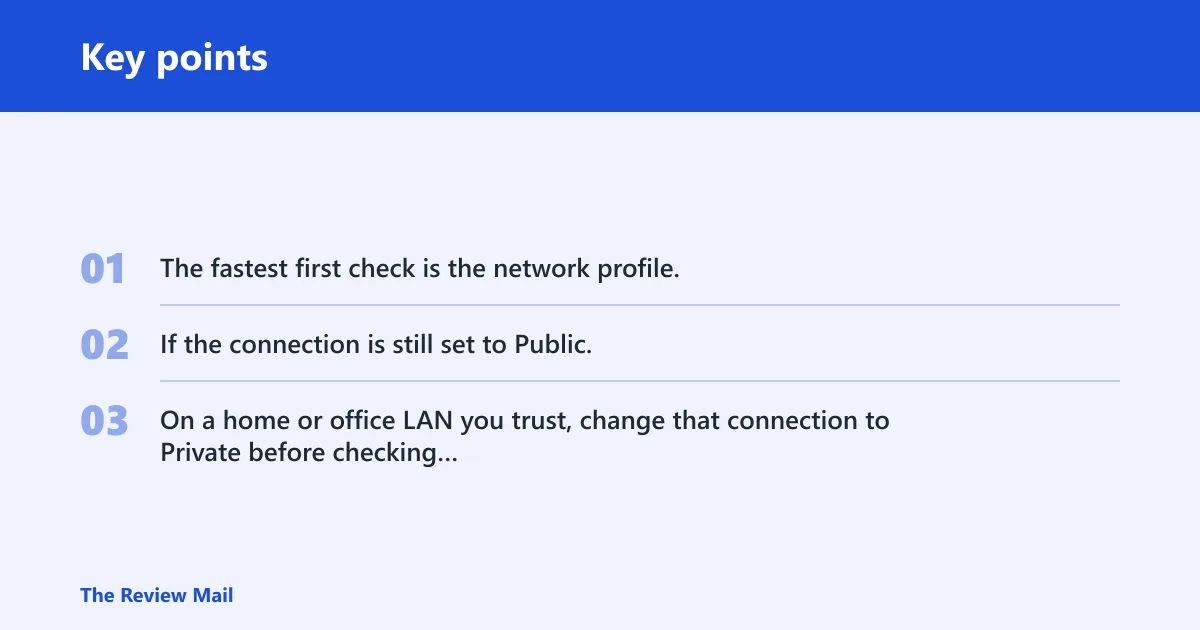
The fastest first check is the network profile. If the connection is still set to Public, Windows can disable discovery again even after you turn it on. On a home or office LAN you trust, change that connection to Private before checking anything else.
Why does Network Discovery keep turning off?
It usually falls into one of four buckets: profile mismatch, required service failure, firewall rule blocking, or a restart/sign-in problem that restores the old state. Home PCs most often fail on profile or services. Office PCs more often fail because policy or a managed security tool keeps restoring a disabled state.
Most likely causes, ranked
- Profile-based: the active network is Public, so discovery is disabled by design.
- Service-based: one or more required services stop or fail to start when needed.
- Firewall- or policy-based: Windows Defender Firewall, third-party security, or domain policy blocks the rule set.
- Restart-related: the setting appears to work, then disappears after reboot or sign-in because startup behavior is broken.
Say your laptop shows devices in Network for two minutes, then the list empties. That pattern usually points to Function Discovery Resource Publication stopping after boot, not a bad cable or a missing share.
Suppose the toggle turns off the moment you leave the page. That usually means a policy, security product, or service startup problem is forcing the setting back.
| Symptom pattern | Most likely cause | Single best next check | How to verify the fix |
|---|---|---|---|
| Toggle turns off immediately | Service, policy, or security software | Check the required services and Local Group Policy or managed security rules | The switch stays on after you close and reopen Advanced sharing settings |
| Works until reboot | Startup type or recovery setting | Set the discovery services to Automatic and start them again | After a full restart, the services still show Running |
| Works on Private but not Public | Network profile mismatch | Change the active connection to Private in Settings | Network still shows devices after reconnecting |
| Appears briefly, then disappears | Function Discovery Resource Publication stopping | Check that service first, then its startup type | The service remains Running for several minutes after sign-in |
| Firewall changes do nothing | Third-party security or domain policy | Temporarily check managed security tools or policy | The rule remains enabled after a restart |
Is your network profile set to Private?
Yes, for a trusted home or office network, it usually should be. Windows 11 disables discovery on Public networks by design, so the setting can look broken when the profile is the real issue. Change the active network to Private, then confirm it stays that way after you reconnect.
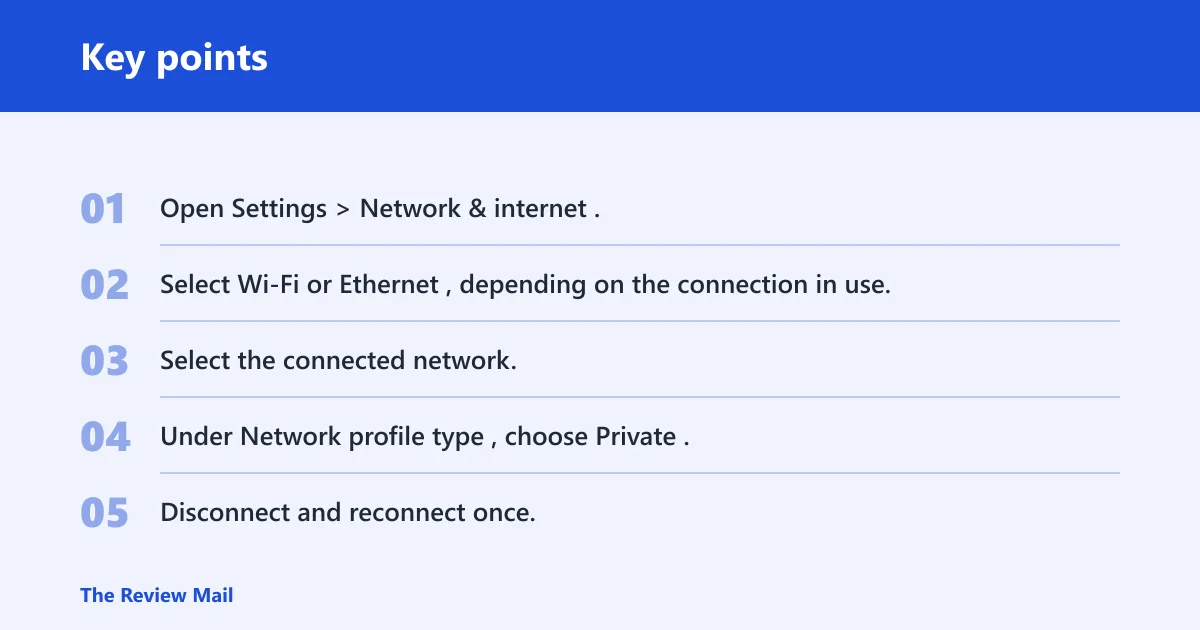
- Open Settings > Network & internet.
- Select Wi-Fi or Ethernet, depending on the connection in use.
- Select the connected network.
- Under Network profile type, choose Private.
- Disconnect and reconnect once.
- Open File Explorer > Network and check whether devices remain visible.
If the profile flips back to Public, a workplace policy may be controlling it. On a managed PC, that is common and you may need IT to change the rule at the domain or MDM level. On supported editions, the relevant local policy is in Local Group Policy Editor > Computer Configuration > Windows Settings > Security Settings > Network List Manager Policies.
Which Windows services must stay running?
The discovery stack depends on several services being able to run when needed rather than staying continuously active all the time. Pureinfotech lists DNS Client, Function Discovery Provider Host, Function Discovery Resource Publication, SSDP Discovery, and UPnP Device Host as required services for discovery. Guiding Tech also notes that the services need automatic configuration.
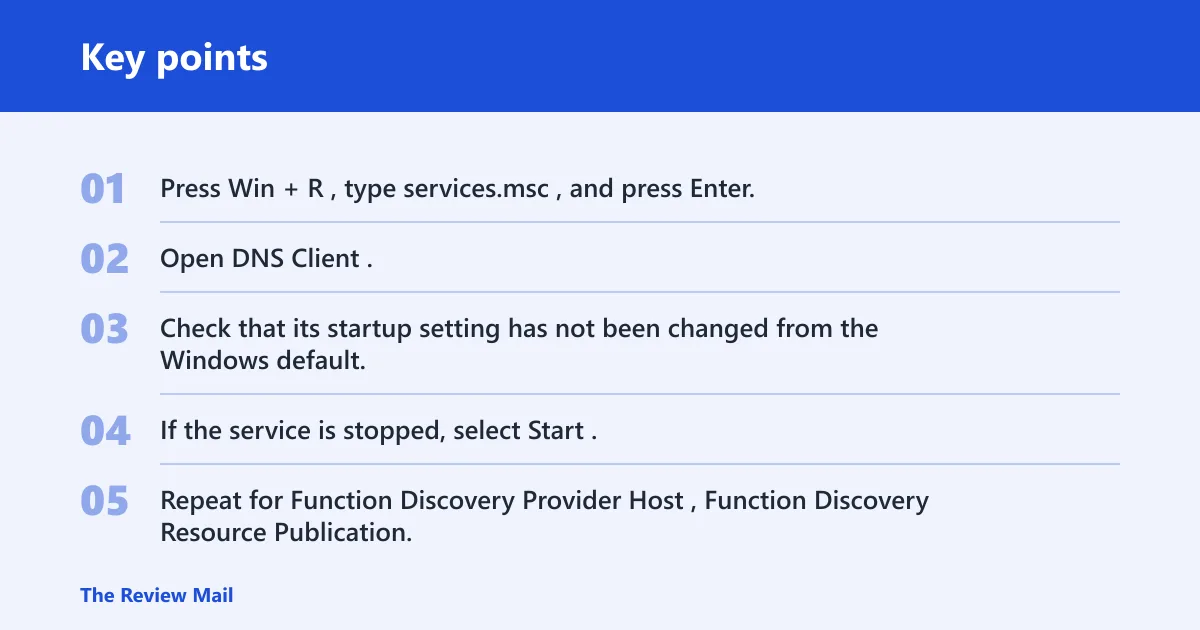
- Press Win + R, type
services.msc, and press Enter. - Open DNS Client.
- Check that its startup setting has not been changed from the Windows default.
- If the service is stopped, select Start.
- Repeat for Function Discovery Provider Host, Function Discovery Resource Publication, SSDP Discovery, and UPnP Device Host.
- Restart the PC and check whether discovery still works after sign-in.
If Function Discovery Resource Publication stops again after sign-in, that is the more useful clue. It points to the service itself, a dependency, or a startup conflict rather than the Network Discovery switch.
How do I allow Network Discovery through Windows Firewall?
Windows Defender Firewall can sometimes block discovery even when the profile and services appear correct. The rule set must allow Network Discovery, and on many systems File and Printer Sharing is enabled alongside it. If the box is checked for the wrong profile, or a third-party security tool overrides Windows Firewall, the toggle may not stick.
- Open Control Panel > System and Security > Windows Defender Firewall.
- Select Allow an app or feature through Windows Defender Firewall.
- Choose Change settings.
- Check Network Discovery for Private.
- Check File and Printer Sharing for Private.
- Save the change, then reopen the window to confirm the checks remain selected.
If those boxes clear themselves, do not stop looking at Windows first. A managed firewall rule, endpoint security product, or domain policy may be restoring the previous setting. On a home PC, temporarily disable a third-party security suite to confirm whether it is controlling the rule.
What if discovery disappears after a restart?
That pattern usually means the setting changes in the session, but startup behavior does not hold. Check the service startup type and recovery behavior first. Then verify the profile and firewall rules after a full restart, not just after toggling the feature on.
- Open
services.msc. - Open Function Discovery Resource Publication.
- Check that its startup setting has not been altered from the default.
- On the Recovery tab, set the first and second failures to restart the service if available.
- Repeat for the other discovery services.
- Restart the PC and return to File Explorer > Network.
A common first-timer mistake is checking the switch right after waking the PC, then assuming the fix held. Use a full shutdown and restart. Sleep and fast startup can sometimes hide a service problem that reappears at the next cold boot.
Should you reset network settings?
Use Network reset only after profile, service, and firewall checks fail. Guiding Tech recommends it as a last resort. It removes and reinstalls network adapters and returns networking to defaults, which can clear a damaged stack but also wipe custom adapter settings.
- Open Settings > Network & internet > Advanced network settings.
- Select Network reset.
- Choose Reset now.
- Restart when Windows prompts.
- After reboot, recheck the network profile, discovery toggle, and firewall rules.
Prevention: after you fix it, keep the trusted network set to Private and confirm the discovery services still work after major updates.
Frequently asked questions
Why does network discovery keep turning off in Windows 11?
Most often because Windows is applying a Public profile, a required service has stopped, or a firewall or policy rule is restoring the old state. The fastest check is Settings > Network & internet to confirm the network is Private, then services.msc to verify the discovery services are available when needed.
How do I stop network discovery from turning off on Windows 11?
Set the active network to Private, confirm Function Discovery Resource Publication and the related services are configured correctly and can start when needed, then allow Network Discovery and File and Printer Sharing through Windows Defender Firewall on the Private profile.
Why can’t I turn on network discovery windows 11?
A managed firewall, domain policy, or stopped service can block the change. Check services.msc first for DNS Client, Function Discovery Provider Host, Function Discovery Resource Publication, SSDP Discovery, and UPnP Device Host, then check the firewall rules for the Private network.
How do I make network discovery stay on in Windows 11?
Use a Private profile, keep the discovery services set correctly, and confirm the firewall rules remain checked after a restart. If the setting only survives one session, inspect Function Discovery Resource Publication first because it is the service most likely to make devices vanish again.
Is network discovery only supposed to work on a private network?
For normal trusted sharing, yes. Windows 11 is commonly set to keep discovery off on Public networks, so a Public profile can make it look like the feature is broken. Switch the connection to Private in Settings > Network & internet before testing anything else.
Should I reset network settings if network discovery won’t stay on?
Only after profile, service, and firewall checks fail. A reset can fix a damaged network stack, but it also removes and reinstalls adapters and returns networking to defaults. Afterward, recheck the profile and discovery services before assuming the problem is gone.