Proxy Server Keeps Turning on Windows 11
A proxy server keeps turning on in Windows 11 when something else writes the setting back after you change it; fix the layer restoring it, then turn proxy off there. If you only switch it off in Settings, it can return after reboot, clash with managed network rules, or leave background components pointed at the wrong proxy.
What Windows 11 is doing
Windows 11 can store proxy settings in more than one place. The visible one lives in Settings > Network & internet > Proxy, but Windows services can also use a separate WinHTTP proxy, and automatic sources such as WPAD or a PAC script can put proxy details back in place.
Start by noting where the symptom appears: one user account, one browser, one network, or the whole device. That split matters. A browser-only problem points to an extension or browser setting. A system-wide setting that returns after reboot points to policy, a VPN or filter app, or another process writing the value back.
What is causing it?
The most likely causes are policy or device management, a VPN or filter app, startup persistence, or unknown software. Less often, the proxy is coming from a PAC file, WPAD, or a browser extension (reported by bleepingcomputer.com). The sign to watch for is specific: a managed-by-organization message, a PAC URL, a loopback or localhost proxy value, or a setting that returns after reboot.
Say your laptop keeps switching back to a proxy after a reboot, and the address looks like 127.0.0.1 or localhost. That pattern usually points to a local filter or security tool rather than a public proxy server. Suppose the setting only comes back in one browser, while Windows itself stays off. That points to the browser profile or an extension, not the whole device.
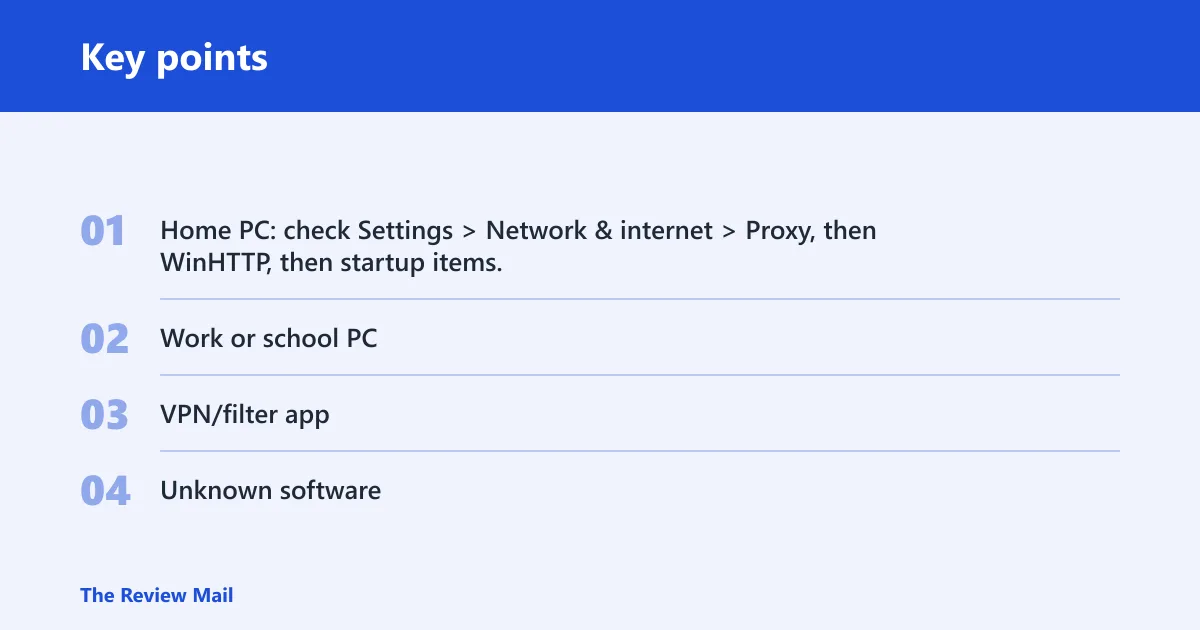
- Home PC: check Settings > Network & internet > Proxy, then WinHTTP, then startup items, and finally installed VPN or filter apps.
- Work or school PC: look for managed-by-organization text, confirm who owns the device-management profile, and stop before changing policy settings.
- VPN/filter app: check that app’s proxy, web protection, or PAC feature, then test its control in the app rather than in Windows first.
- Unknown software: inspect startup apps, scheduled tasks, and services for anything that writes proxy values back after sign-in or reboot.
Windows proxy settings not sticking?
Open Settings > Network & internet > Proxy and record three controls before changing anything: Automatically detect settings, Use setup script, and Use a proxy server. Check whether Automatically detect settings is on, whether Use setup script shows a PAC URL, and whether manual proxy fields are filled in. Then turn off only the layer that matches the source you confirmed.
- Go to Settings > Network & internet > Proxy.
- Check Automatically detect settings for WPAD behavior.
- Check Use setup script for a PAC URL or script path.
- Check Use a proxy server for a manual address and port.
- Turn off the matching control, then reboot.
- Return to Settings > Network & internet > Proxy and confirm the value stays off.
Do not turn off every control at once on a managed device. If Windows shows a managed-by-organization message, stop and review policy before changing anything. Ask IT to confirm the PAC URL, WPAD scope, or proxy policy that should remain in place.
Why is WinHTTP still set?
WinHTTP is separate from the user proxy in Settings. Windows services and background components can use it even when the Settings page looks clean. Check it with netsh winhttp show advproxy and compare the result with Settings > Network & internet > Proxy. If only background components fail, reset WinHTTP only after confirming no managed setup depends on it.
- Open an elevated Command Prompt.
- Run
netsh winhttp show advproxy. - Compare that output with Settings > Network & internet > Proxy.
- If the Settings page is off but WinHTTP still shows a proxy, check whether a VPN, filter app, or policy is maintaining it.
- Only after that, clear or reset WinHTTP if nothing managed relies on it.
The distinction matters because a clean user proxy does not automatically fix Windows services. That is why apps can still fail while browsers seem fine, or the reverse.
Is a policy turning it back on?
Group Policy and device management can enforce proxy settings. On work or school PCs, Windows may show a managed-by-organization message, and the device management profile can own the proxy rule. If that appears, do not remove policy settings unless IT tells you to.
- Open Settings > Network & internet > Proxy.
- Look for a managed-by-organization message or a setting that is greyed out.
- Check whether the PC is joined to work or school management.
- Confirm who owns the device-management profile before changing anything.
- Ask IT to confirm the PAC URL, WPAD scope, or proxy policy that should remain in place.
WPAD matters when Automatically detect settings is on, because Windows can discover proxy settings on the network. PAC files can also belong to an employer, school, VPN, or filter tool, so a PAC URL is not proof of malware.
How do I find the program that keeps turning proxy on?
Check startup apps, scheduled tasks, and services first. Those are the places most likely to reapply ProxyEnable or AutoConfigURL after sign-in or reboot. The registry path to inspect is HKCU\Internet Settings, where ProxyEnable controls the manual user proxy and AutoConfigURL points to a setup script.
- Open Task Manager > Startup apps and look for VPN, filter, security, or browser-related entries.
- Open Task Scheduler and look for tasks tied to network, proxy, filter, or security software.
- Open Services and review VPN clients, web filters, parental-control tools, and endpoint security services.
- Check HKCU\Internet Settings for ProxyEnable, ProxyServer, and AutoConfigURL.
- If a value returns after you change it, note which app or task ran most recently.
A local process that writes AutoConfigURL back is especially useful to spot, because it points to the PAC source rather than only the final proxy address. That helps separate an app-owned script from a user-entered setting.
Proxy decision checklist
Who is turning proxy back on?
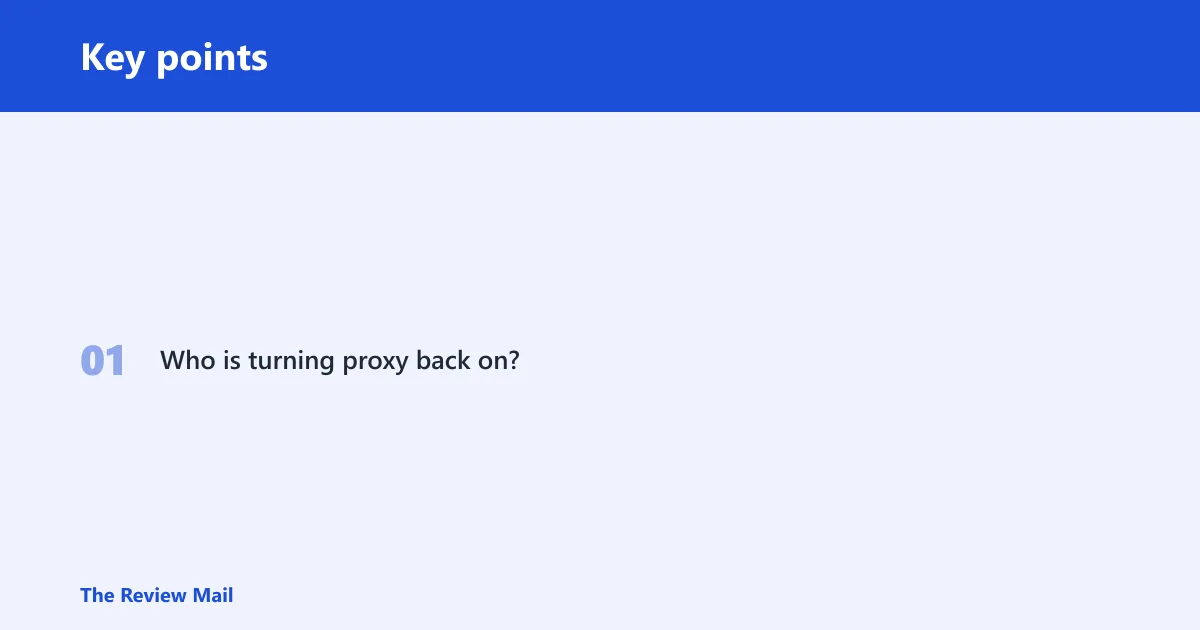
| Branch | Check next | Expected sign | Safe action |
|---|---|---|---|
| Home PC | Settings > Network & internet > Proxy, then netsh winhttp show advproxy, then Startup apps | A value returns after reboot, or WinHTTP still shows a proxy while Settings is off | Turn off only the matching setting, then reboot and confirm it stays off |
| Work or school PC | Settings > Network & internet > Proxy, device management profile, Group Policy | Managed-by-organization text or a greyed-out control | Stop and ask IT before changing policy settings |
| VPN/filter app | The app’s web protection, proxy, or PAC feature; browser extensions if the issue is browser-only (reported by bleepingcomputer.com) | Proxy points to localhost, loopback, or a PAC URL owned by the app | Disable only that app’s proxy or web-protection module for testing, then reboot |
| Unknown software | Startup apps, scheduled tasks, services, and HKCU\Internet Settings | ProxyEnable or AutoConfigURL changes back on its own | Trace the last writer before removing anything |
| Proxy location | Owner | Reset risk |
|---|---|---|
| Settings proxy | Current Windows user | High if an app, task, or policy restores it |
| WinHTTP proxy | Windows services and background components | High for service-level issues if left out of sync |
| PAC/WPAD | Network, VPN, school, work, or filter system | High on managed or auto-discovery networks |
| Policy | Group Policy or device management | Very high until the policy owner changes it |
| Startup persistence | App, service, or scheduled task | High after every reboot or sign-in |
Still not working?
If the setting still returns, recheck Settings > Network & internet > Proxy after reboot and compare it with netsh winhttp show advproxy. If one browser or one account is the only place where it fails, compare that profile with another Windows user account or browser profile. That split often shows whether the problem is local to the app, the account, or the device.
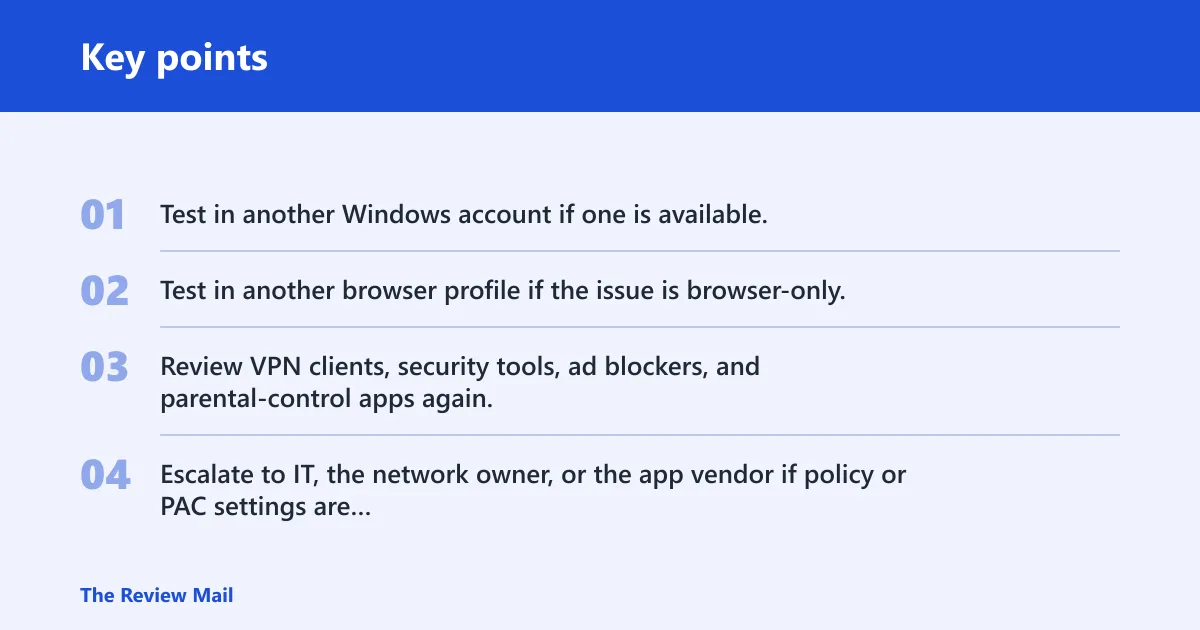
- Test in another Windows account if one is available.
- Test in another browser profile if the issue is browser-only.
- Review VPN clients, security tools, ad blockers, and parental-control apps again.
- Escalate to IT, the network owner, or the app vendor if policy or PAC settings are involved.
Prevention: after a fix, keep the PAC URL, WinHTTP output, and the proxy page state noted together. That makes it easier to spot which layer changes first the next time the setting returns.
Frequently asked questions
How do I disable proxy server in Windows 11?
Go to Settings > Network & internet > Proxy and turn off Automatically detect settings, Use setup script, and Use a proxy server only if they match the source you found. Then reboot and return to the same page to confirm the switches stay off.
How do I turn proxy off in Windows 11?
The direct path is Settings > Network & internet > Proxy. If Windows keeps restoring it, check whether the proxy is coming from a PAC URL, WinHTTP, or device policy before you keep toggling the page. A proxy that returns after reboot needs the restoring layer fixed.
Why does proxy server keep turning on?
A proxy usually keeps coming back because policy, a VPN or filter app, a startup task, or malware is writing the setting again. Check for a managed-by-organization message, a PAC URL, a localhost or loopback address, and whether the change appears after reboot rather than immediately.
What is a proxy server in Windows 11?
In Windows 11, a proxy is a middle server that Windows or an app can send web traffic through instead of connecting directly. The important part here is not the definition, but where the setting lives: user proxy, WinHTTP, PAC/WPAD, or policy.
How do I stop proxy settings from saving in Windows 11?
Find what is restoring them first. Check HKCU\Internet Settings for ProxyEnable and AutoConfigURL, then review startup apps, scheduled tasks, and services. If the machine is managed, stop and ask IT before changing policy-based settings.
Is my proxy setting being changed by VPN, malware, or policy?
Check the sign. A VPN or filter app often leaves a PAC URL or localhost value; policy usually shows managed-by-organization text; malware or adware may rewrite ProxyEnable or AutoConfigURL after reboot. Match the sign to the layer before you change anything else.