Wi-Fi Drivers Windows 11 Update: Which Source to Use?
If Wi‑Fi vanished after a Windows 11 update, start with the PC maker’s driver for the wireless adapter; use Microsoft Update Catalog only if that fails, and use the router only for connection checks, not driver fixes. Choosing the wrong source can leave the adapter disabled, send you back to the same broken build, or burn time while you stay offline. This guide shows which source to trust first for missing, broken, slow, or offline Wi‑Fi and the fastest recovery path for each case.
Wi‑Fi driver basics
The Wi‑Fi adapter driver tells Windows how to find and run the wireless card. If it is outdated, corrupted, missing, or too generic, you may see slow speeds, dropped connections, or no adapter at all. A bad source can make matters worse, especially after a Windows update replaces an OEM-tuned package with a more generic one.
What changes when the driver is wrong
When the wrong package is installed, the adapter may disappear from Network adapters, show a warning icon, or connect but fail to hold a stable link. Speed problems can also point to a driver issue, but they can also come from a router setting, weak signal, or a bad update rather than a fresh driver being required.
Say your laptop shows no Wi‑Fi icon after a restart, but Bluetooth still works. That pattern often points to the wireless adapter driver or the adapter itself, not the whole network stack. A missing entry in Device Manager is more serious than a slow connection name.
📊 Intel’s package covers Windows 10 and Windows 11. Source: Intel.
How do you know the driver is the problem?
Start in Device Manager and open Network adapters. If the wireless adapter is listed with a warning icon, named as an unknown device, or absent entirely, the driver may be missing or broken. If the issue began right after a Windows update, that timing matters because a new build can swap in a different driver.
Check Device Manager first
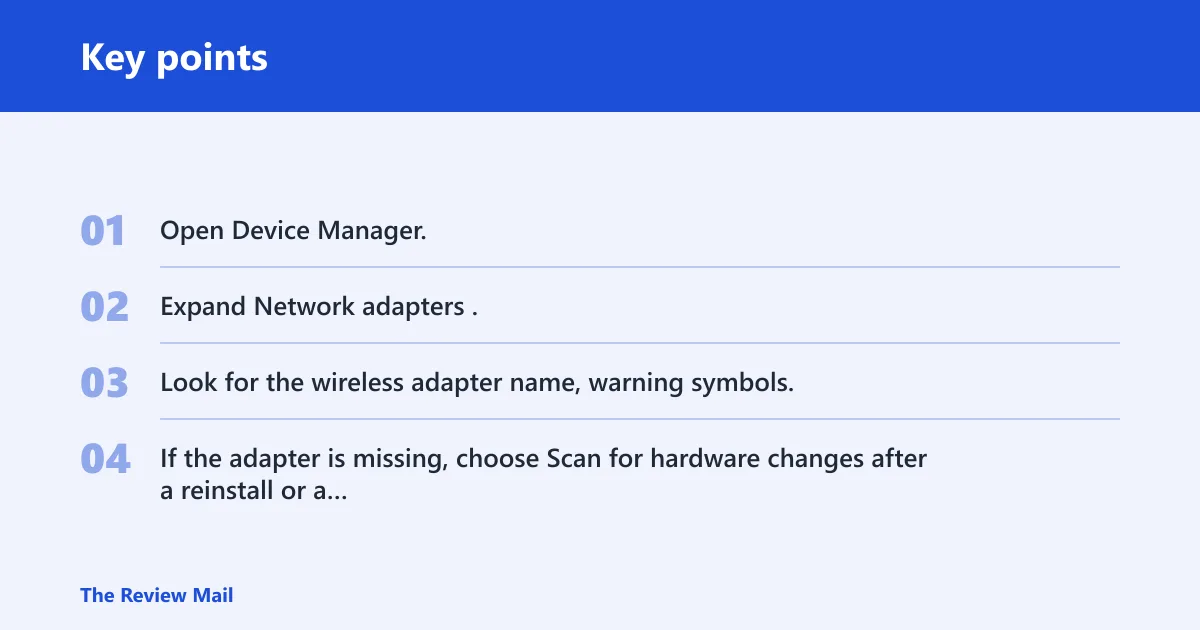
- Open Device Manager.
- Expand Network adapters.
- Look for the wireless adapter name, warning symbols, or generic entries such as “Network Controller.”
- If the adapter is missing, choose Scan for hardware changes after a reinstall or a restart.
If the adapter appears but connects poorly, the driver may still be the cause. If the adapter is absent after multiple reinstalls, suspect hardware trouble, a disabled BIOS setting, or a failed card rather than assuming another download will fix it.
Decide whether the problem started after an update
If Wi‑Fi worked before a Windows 11 update and failed right after, the newest driver is not always the answer. Rollback or reinstall can be better than chasing a newer package. If the problem existed before the update, the issue is more likely the current driver source, the wrong package, or failing hardware.
Which Wi‑Fi driver source should I use?
Choose the source by matching the adapter or system first, then check whether the PC is online. For Intel, Realtek, and MediaTek adapters, the chip maker can be the right source when you know the chip family. For laptops, the OEM support page is usually the safest first stop because it matches the exact model and tuned configuration.
| Source | When to use | How to identify the hardware | Internet required? | Safest next step if the first install fails |
|---|---|---|---|---|
| Intel | Use when Device Manager shows an Intel wireless adapter or the laptop maker points to Intel support for the wireless card. | Check the adapter name in Device Manager for Intel branding and the exact model string. | No, if you already have the installer. | Roll back, then try the OEM package for the same model. |
| Realtek | Use for common budget laptops and boards that list a Realtek wireless chip. | Check Device Manager or the OEM spec sheet for Realtek naming. | No, if the file is already downloaded. | Try the manufacturer’s support page or the Microsoft Update Catalog build for the same family. |
| MediaTek | Use when the adapter is clearly identified as MediaTek and the OEM page is not current. | Match the adapter label in Device Manager to the chip family. | No, if you have the package already. | Use the OEM support page for that model if the direct package fails. |
| OEM laptop maker | Use first for exact-model support, especially after a Windows update or when the adapter is missing. | Use the laptop or motherboard model, then confirm the wireless part number or chip family on the support page. | Yes, unless you use another device to download it. | Uninstall the adapter, then scan for hardware changes before trying another source. |
| Microsoft Update Catalog | Use as a fallback when the OEM page is old, unavailable, or the Windows Update path is the only current source. | Match the exact driver family and Windows release track shown in the listing. | Yes, for searching and download. | Return to the OEM or chip maker package if the catalog build is wrong for your adapter. |
| Phone USB tethering | Use when the PC has no internet and you need a temporary connection to download the correct driver. | Use the phone as a temporary network path, then identify the adapter in Device Manager. | No for the PC once tethering is active. | Disconnect, install the correct driver, then retest Wi‑Fi before doing anything else. |
Intel, Realtek, and MediaTek: when the chip maker is the better source
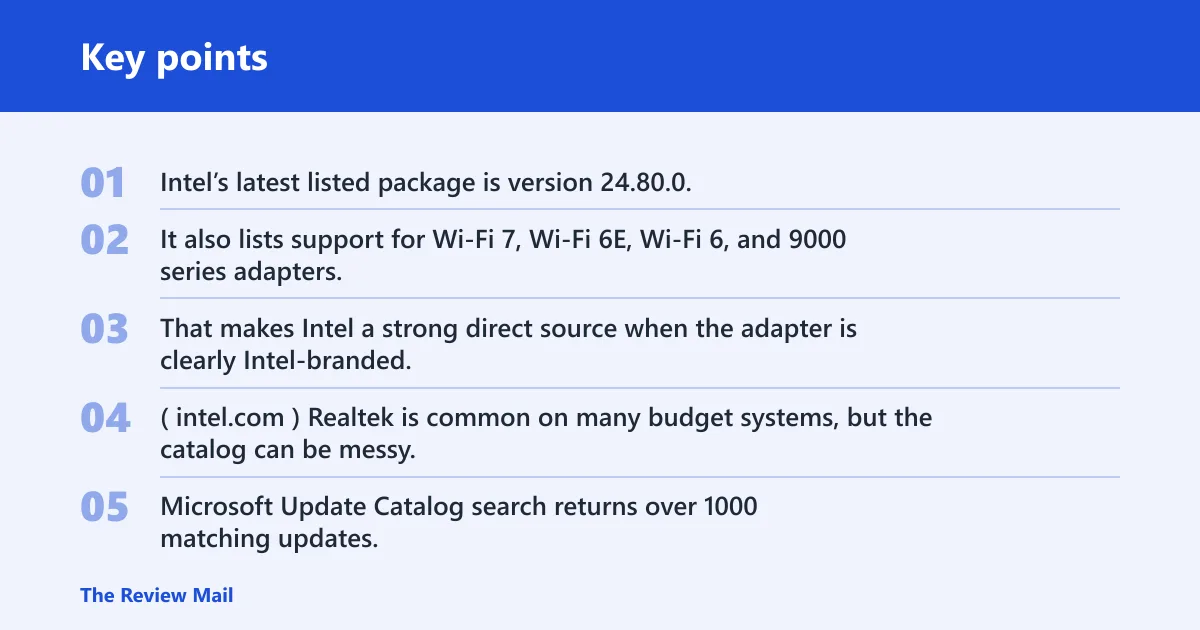
Intel’s latest listed package is version 24.80.0, and its page says the package covers Windows 10 and Windows 11. It also lists support for Wi‑Fi 7, Wi‑Fi 6E, Wi‑Fi 6, and 9000 series adapters, with a release date shown as 10/20/2026. That makes Intel a strong direct source when the adapter is clearly Intel-branded. (Intel)
Realtek is common on many budget systems, but the catalog can be messy. Microsoft Update Catalog search returns over 1000 matching updates, and some Realtek networking driver entries for Windows 11 24H2 and later include version 6001.15.165.3 and another listing at 1030.52.1216.2025. Some entries may appear as a Net Driver Update, so the exact adapter match matters. (Microsoft)
MediaTek drivers should be chosen only when the adapter family is clear. If the laptop maker’s page names MediaTek and gives a model-matched package, that is usually cleaner than a generic search result. If the model is unclear, stop and identify the chip before downloading anything.
When the laptop maker’s site is the safer first choice
Use the OEM support site when the machine is a laptop, when the adapter is not clearly identified, or when the failure started after a Windows update. Dell, HP, Lenovo, ASUS, and MSI all ship model-specific driver pages. Those pages are more likely to include the version tuned for the exact board, wireless card, and power profile.
Picture a 15-inch laptop that lost Wi‑Fi after a feature update, while the wired Ethernet jack still works. The quickest path is usually the laptop maker’s support page for that exact model, not a broad search for the newest wireless package. The model match matters more than the headline version number.
How to use phone USB tethering to get online first
If the PC has no internet, USB tethering from a phone can provide temporary access so you can download the right driver. Android USB tethering is a commonly used offline workaround, and iPhone tethering may work similarly. Use it only as a bridge to reach the correct support page or catalog entry, then disconnect after the install.
How do you update wifi drivers windows 11?
Start with Device Manager, because it is the quickest way to update the wireless adapter without guessing the source. If that fails, check Windows Update for optional driver updates, then move to the OEM or chip maker site. If Windows says the best driver is already installed, that message does not always end the search.
Update through Device Manager first
- Open Device Manager.
- Expand Network adapters.
- Right-click the wireless adapter.
- Select Update driver.
- Choose automatic search first.
If Windows finds a driver and installs it, reconnect and test Wi‑Fi. If it reports that the best drivers are already installed, that only means Windows did not find a newer local match. It does not prove the current driver is the right one.
Uninstall and scan for hardware changes
If the update path fails, right-click the adapter and choose Uninstall device, then restart or use Scan for hardware changes. This can force Windows to reload the adapter. If the adapter comes back with the same problem, move to a known-good OEM or chip maker package instead of repeating the same install.
Check Windows Update for driver updates
Windows Update can deliver driver updates, and Optional updates may include them. That path is useful when the driver is current enough for the machine and the update is clearly labeled for the wireless hardware. It is less useful when Windows replaces a tuned OEM driver with a more generic one.
When Windows Update is worth trying
Windows Update is a fair next step if Device Manager cannot find a driver, if the OEM page points back to Windows delivery, or if the machine is on a recent Windows 11 track and needs a current package. Recent driver listings can also appear under 24H2 and later release tracks, so check those sections carefully before assuming nothing is available.
When to avoid a generic replacement
A generic driver may connect, but it can also trade away OEM-specific tuning for power, roaming, or radio behavior. If the laptop maker offers a model-matched package, use that first. If Windows Update fixes the problem once but the same issue returns after another cumulative update, stop and move back to the OEM source.
Should I use the laptop maker’s driver or the chip maker’s driver?
Use the laptop maker’s driver first when you need exact-model support, especially after a Windows 11 update. Use the chip maker’s driver when the adapter family is known and the OEM page is missing, stale, or clearly behind. Match the adapter before downloading anything, because the laptop brand and the wireless chip brand are often different.
Match the adapter before you download
Open Device Manager and read the wireless adapter name exactly. If it says Intel, Realtek, or MediaTek, that is the best starting point for the chip maker. If it shows only a hardware ID or a generic name, go to the OEM page first and match the model there.
What if the update fails or Wi‑Fi gets worse?
If Wi‑Fi gets worse after a driver change, rollback is often the fastest recovery. If rollback is unavailable, uninstall the adapter and reinstall it cleanly. If neither step works and the adapter still disappears or fails repeatedly, use Network reset as the last software step, then suspect hardware if the problem keeps returning.
Rollback after a bad Windows Update
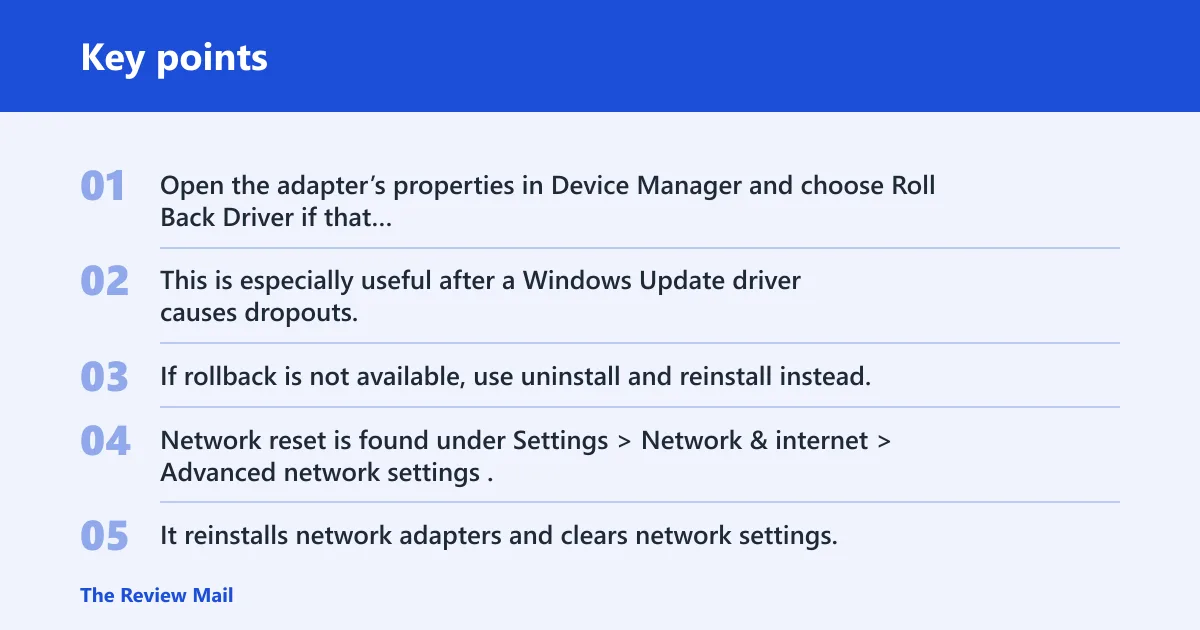
Open the adapter’s properties in Device Manager and choose Roll Back Driver if that option is available. This is especially useful after a Windows Update driver causes dropouts, failed authentication, or a missing connection list. If rollback is not available, use uninstall and reinstall instead.
Use Network reset last
Network reset is found under Settings > Network & internet > Advanced network settings. It reinstalls network adapters and clears network settings, which can help when the driver is only part of the problem. You will need to reconnect to Wi‑Fi afterward, so save the network name and password before you do it.
A common first-timer mistake is to run Network reset before checking the adapter source. That can erase useful clues and still leave you with the wrong driver. Use it after Device Manager, after the correct OEM or chip maker package, and after rollback has failed.
Know when to stop and suspect hardware failure
If the adapter is still missing after reinstall, if the same failure returns after every correct package, or if multiple sources all fail on the same machine, the card itself may be bad. At that point, another download is unlikely to help. Check the physical switch, BIOS wireless setting, or service options instead of repeating the same install cycle.
Frequently asked questions
How do I know if my wifi driver is missing or corrupted?
Look in Device Manager under Network adapters. If the wireless adapter is missing, has a warning icon, or appears as a generic controller, the driver may be missing or corrupted. If Wi‑Fi failed right after an update, that timing also points to a damaged or replaced driver.
Does windows update need wifi?
Windows Update usually needs an internet connection, which often means working Wi‑Fi, Ethernet, or USB tethering. If Wi‑Fi is broken, use phone tethering or Ethernet first so you can reach the update page and download the correct package.
How do I update my wifi driver without internet?
Use another device to download the driver from the OEM or chip maker, or use phone USB tethering to give the PC temporary internet access. Android USB tethering is a common offline workaround, and iPhone tethering can serve the same purpose. Install the correct package, then disconnect the tether.
What if windows says the best drivers are already installed?
That message only means Windows could not find a newer local match. It does not prove the current driver is the right one. If the adapter is unstable, check the OEM support page, then try Device Manager uninstall and Scan for hardware changes before assuming the problem is solved.
Should I use the laptop maker’s driver or the chip maker’s driver: use the laptop maker’s driver?
Use the laptop maker’s driver first when the machine is a notebook, the adapter model is unclear, or the problem began after a Windows update. Use the chip maker’s driver when the adapter family is known and the OEM page is old or missing. Match the hardware before installing anything.
How do I reinstall a wifi driver after a Windows 11 update?
Open Device Manager, expand Network adapters, and uninstall the wireless adapter. Restart, then scan for hardware changes if it does not return automatically. If the problem started right after the Windows 11 update, try rollback first when available, then install the OEM package if the issue continues.