Windows 11 Wi-Fi Driver Fix: What to Try First
Fix a Windows 11 Wi-Fi driver problem by checking Device Manager first: if the adapter is missing, install the correct OEM driver; if it shows an error, roll it back or reinstall it; if it is disabled, turn it back on. Using the wrong fix can leave you without internet and without a clean way to download the right driver. This guide walks you through the fastest safe path for missing, broken, or bad Wi-Fi drivers while keeping offline access.
What a broken Wi-Fi driver looks like
The quickest first check is whether the fault is in the adapter, not the router. If other devices still connect normally, the PC problem is more likely local: a missing adapter, a disabled wireless radio, or a driver error in Device Manager. If no device can join the network, start with the router and modem instead.
Likely causes
Most often, the wireless adapter is disabled, flagged with a warning, or using a bad update. Less often, Windows removed the adapter entry, or the router-side connection is the real failure and the driver is fine.
- Missing networks: often a disabled adapter, Airplane mode, or a driver failure.
- Yellow triangle in Device Manager: usually a driver problem.
- Adapter missing entirely: the device may be disabled, hidden, or not loading correctly.
- Wi-Fi broke right after an update: a bad driver update is a strong suspect.
- No device can reach the internet: check the router or modem before changing drivers.
Say your laptop still shows Ethernet in Windows but Wi-Fi vanished after a restart. That points to the wireless adapter, not the whole network stack. Suppose the laptop shows Wi-Fi, yet every network name disappears after a driver update. That points more directly to a driver or adapter issue than to the router.
📊 Microsoft says the guide applies to both Windows 10 and Windows 11. Source: Microsoft.
Wi-Fi driver decision table
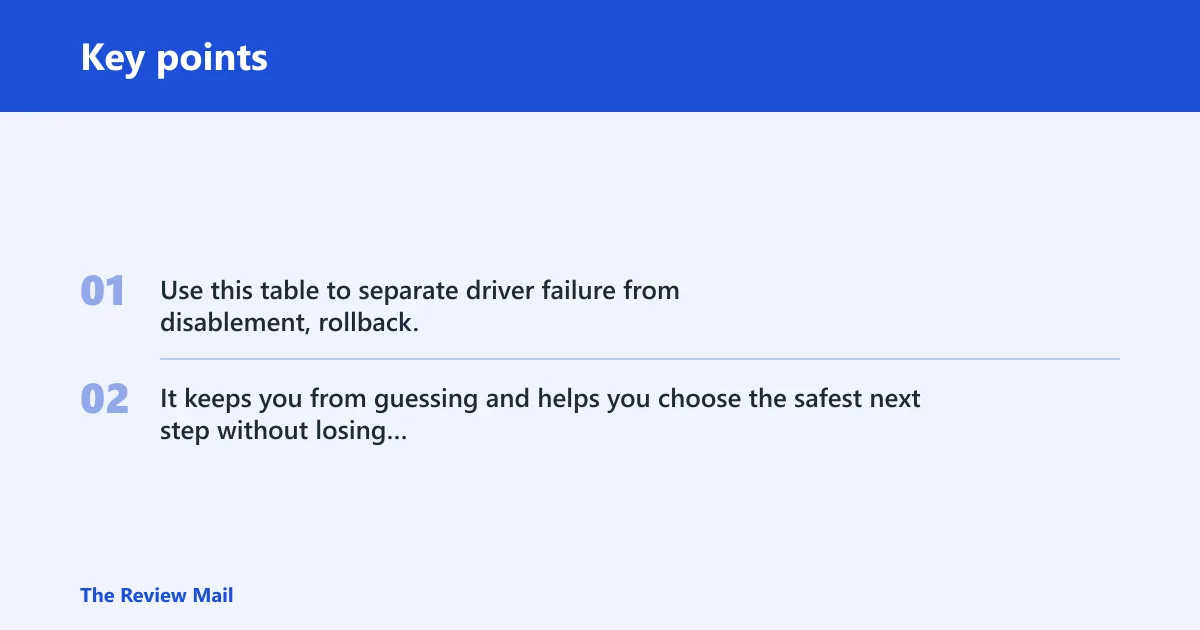
Use this table to separate driver failure from disablement, rollback, or router-side trouble before you reinstall anything. It keeps you from guessing and helps you choose the safest next step without losing access to the file you may need.
| Symptom | Most likely cause | Exact action |
|---|---|---|
| No networks shown | Adapter disabled, driver problem, or Airplane mode on | Check Airplane mode, then Device Manager > Network adapters > wireless adapter > Enable device or Update driver |
| Yellow warning triangle in Device Manager | Broken or incompatible driver | Device Manager > Network adapters > right-click adapter > Update driver, or Roll Back Driver if available |
| Adapter missing | Driver not loading, device disabled, or hardware issue | Device Manager > View > Show hidden devices, then Action > Scan for hardware changes; if still absent, reinstall the OEM package |
| Wi-Fi breaks after an update | Bad driver update | Device Manager > adapter > Properties > Driver > Roll Back Driver; if that is grayed out, uninstall and reinstall |
| Roll Back Driver is grayed out | No previous driver package is stored | Uninstall device, restart, then install the correct OEM or Intel package manually |
| Windows cannot reinstall automatically | No driver in Windows Update cache or the wrong generic package | Download the model-specific OEM package on another device, copy it by USB, and install offline |
| Adapter type is Intel | Intel package may fit, but OEM is still the first choice | Use the OEM support page first; if unavailable or outdated, use Intel’s Windows 10 and Windows 11 package |
Could this be an easy setting problem?
Yes. Start with the simple settings first, because they are faster than any reinstall and they do not risk breaking offline access. Windows 11 still hides a surprising number of wireless failures behind a disabled radio, an enabled Airplane mode, or a temporary router fault.
- Open Settings > Network & internet and confirm Airplane mode is off.
- In the same area, confirm Wi-Fi is on.
- Restart the modem and router. Unplug both, wait at least 30 seconds, then plug them back in.
- Open Settings > Network & internet, then use the Network troubleshooter. Microsoft also routes some Windows 11 users through the Get Help app for the Network and Internet troubleshooter.
- If the saved network still misbehaves, use Forget and reconnect to that Wi-Fi network.
Microsoft includes forgetting and reconnecting as a general fix, and it also recommends checking Airplane mode in Settings > Network & Internet. If a router reboot restores other devices but not this PC, the wireless adapter is more suspect than the access point.
How do you check the adapter in Device Manager?
Open Device Manager and inspect the wireless adapter before you remove anything. The wireless card may be from Intel, Realtek, or MediaTek. If it has a yellow warning icon, Windows is already telling you the driver or device state needs attention.
- Right-click Start and open Device Manager.
- Expand Network adapters.
- Look for the wireless adapter name and any yellow warning icon.
- Right-click the adapter and try Update driver.
- If that fails, choose Uninstall device, then restart the PC or use Action > Scan for hardware changes.
- If the issue began after an update, open the adapter Properties, then the Driver tab, and choose Roll Back Driver if the button is available.
Device Manager is the correct place to check the wireless adapter under Network adapters. A yellow warning triangle usually points to a driver problem, while a missing entry or disabled adapter can point to a different repair path.
How do you reinstall the wireless adapter driver in Windows 11?
If the adapter is present but broken, reinstalling the driver is usually the safest next step. Start with the laptop maker’s support page, because the package is model-specific and usually closer to the exact Windows 11 hardware configuration. Only move to Intel if the adapter is Intel and the OEM path is unavailable or stale.
- On another device if needed, find the laptop model on the OEM support page and download the Windows 11 wireless driver package.
- Copy the installer to the affected PC by USB if it is offline.
- Install the package, then restart the PC.
- Return to Device Manager > Network adapters and confirm the wireless adapter no longer shows an error.
- If the OEM package is unavailable and the adapter is Intel, use Intel’s Wi-Fi package for Windows 10 and Windows 11 instead.
- Check Windows Update > Advanced options > Optional updates for driver updates as a secondary step, then reboot and retest.
Intel’s Wi-Fi package covers Intel Wi-Fi 7, Wi-Fi 6E, Wi-Fi 6, and Intel 9000 series adapters, and Intel lists driver version 24.80.0 on its download page. That does not replace the OEM hierarchy; it just gives you a fallback when the laptop maker does not offer a current package. (Intel)
Why did Wi-Fi stop after a Windows update?
When Wi-Fi fails right after a Windows update, treat the update as the likely trigger and work backward. The cleanest repair is to roll back the driver first if Windows offers that button. If it is grayed out, remove the current driver and install a known-good package manually.
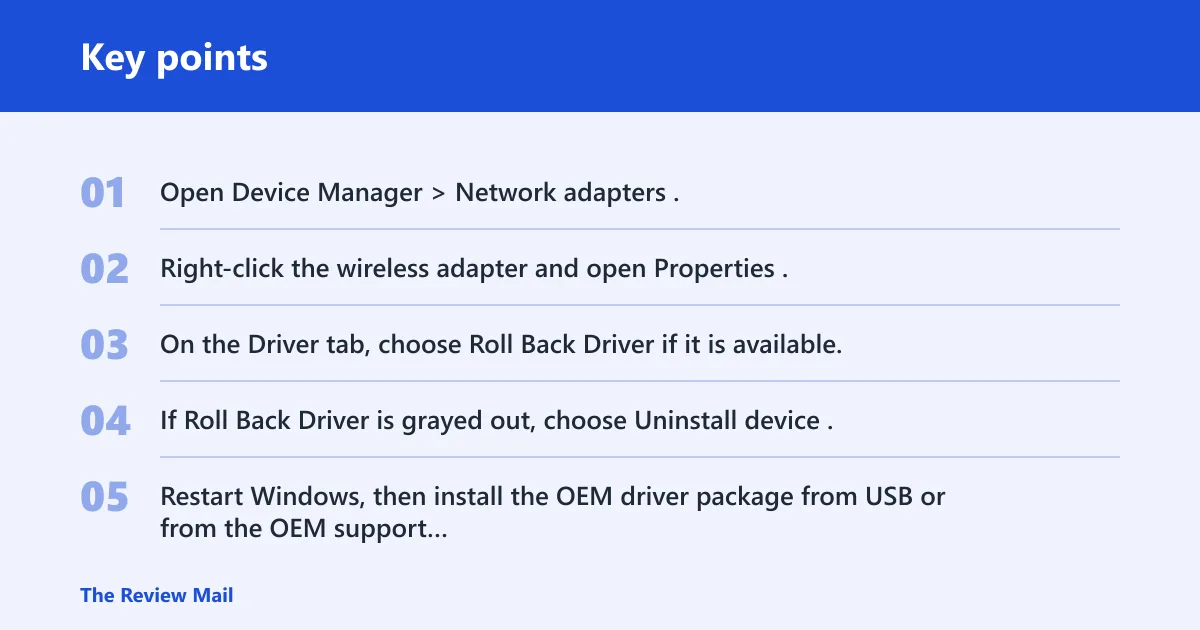
- Open Device Manager > Network adapters.
- Right-click the wireless adapter and open Properties.
- On the Driver tab, choose Roll Back Driver if it is available.
- If Roll Back Driver is grayed out, choose Uninstall device.
- Restart Windows, then install the OEM driver package from USB or from the OEM support page.
- If Windows keeps reapplying the wrong driver, stop automatic driver changes and use the vendor package instead.
A common mistake is restarting Windows 11 without downloading the latest Wi‑Fi driver from the laptop maker’s support page first. If the PC has no backup connection, that can leave you stuck. Keep the installer on a USB drive before you remove the current driver.
When should you reset the network stack?
Use a network reset only after the driver path fails. It removes and reinstalls network adapters, so expect to reconnect to Wi-Fi afterward. It is broader than a driver reinstall and can clear out a stubborn broken configuration, but it is not the first choice for a missing or clearly bad driver.
- Open Settings > Network & internet > Advanced network settings > Network reset.
- Confirm the reset and let Windows restart.
- Reconnect to Wi-Fi and re-enter the network password.
- Test the wireless adapter again in Device Manager.
Settings > Network & internet > Advanced network settings > Network reset
Microsoft also lists a general set of repair commands for broader networking problems, but those are separate from a driver fix. They do not substitute for reinstalling a missing or broken adapter driver.
Still not working?
If the adapter still disappears, keeps returning with an error, or only works after a temporary reinstall, the issue may be outside the normal driver path. At that point, the next step is deeper hardware or vendor support rather than another round of the same reinstall.
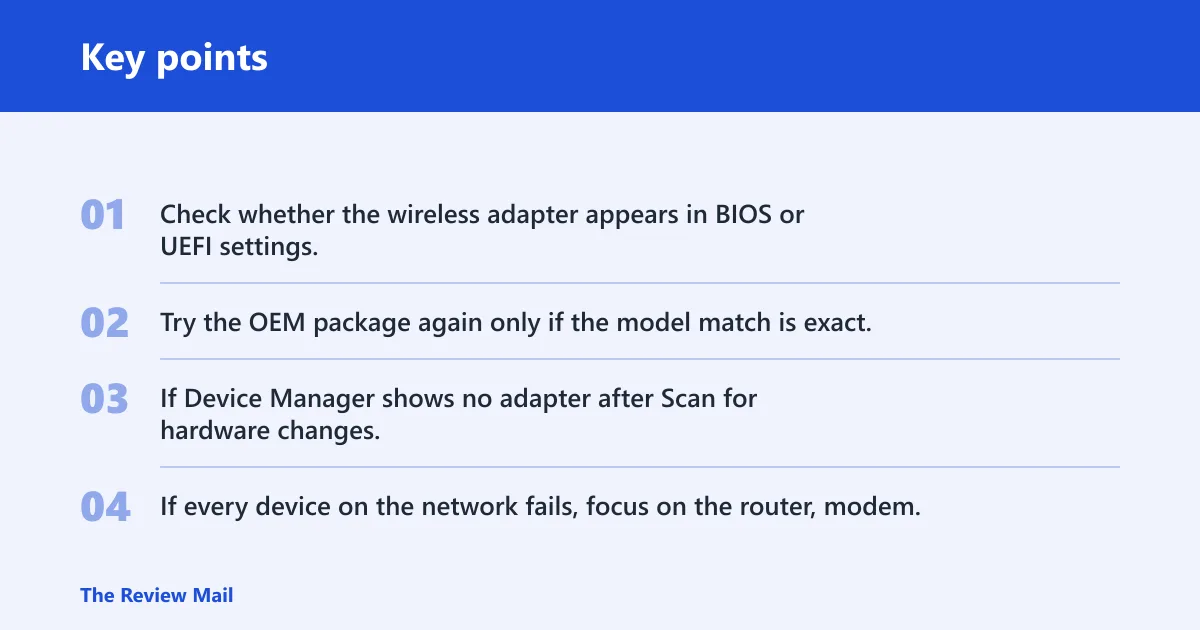
- Check whether the wireless adapter appears in BIOS or UEFI settings, if your model exposes that option.
- Try the OEM package again only if the model match is exact.
- If Device Manager shows no adapter after Scan for hardware changes, treat the problem as a hardware or board-level issue.
- If every device on the network fails, focus on the router, modem, or ISP before changing the laptop again.
Prevention is simple here: keep the correct OEM Wi-Fi driver saved locally before installing major Windows updates. That gives you an offline fallback if Windows replaces a working package with one that does not suit your adapter.
Frequently asked questions
How do I fix a WiFi driver in Windows 11?
Open Device Manager > Network adapters, then check the wireless adapter for an error, disablement, or missing entry. Try Update driver first, then Uninstall device and restart. If the adapter stopped after an update, use Roll Back Driver if Windows offers it.
How do I update my WiFi driver on Windows 11?
Use Device Manager for a quick check, but prefer the laptop maker’s support page for the exact model. If the adapter is Intel and the OEM package is missing or stale, use Intel’s Windows 10 and Windows 11 package. Also check Windows Update > Advanced options > Optional updates for driver updates.
Should I roll back the WiFi driver after a Windows update?
Yes, if the Wi-Fi problem started immediately after the update and the Roll Back Driver button is available. That is the fastest way to restore the previous driver state. If the button is grayed out, uninstall the adapter and install the correct OEM package manually.
What does a yellow warning triangle on WiFi mean in Device Manager?
It usually means the adapter or driver has a problem. Open Device Manager > Network adapters, right-click the wireless adapter, and try Update driver or Uninstall device. If Windows still flags it after restart, the OEM package is the better next step than repeated automatic updates.
How do I fix WiFi if the adapter disappeared in Windows 11?
Open Device Manager, choose View > Show hidden devices, then use Action > Scan for hardware changes. If the adapter does not return, install the model-specific OEM driver package from another device and copy it over by USB. If it still does not appear, hardware diagnosis is the next step.