Disk 100 Percent Usage Fix for Windows 10 and 11
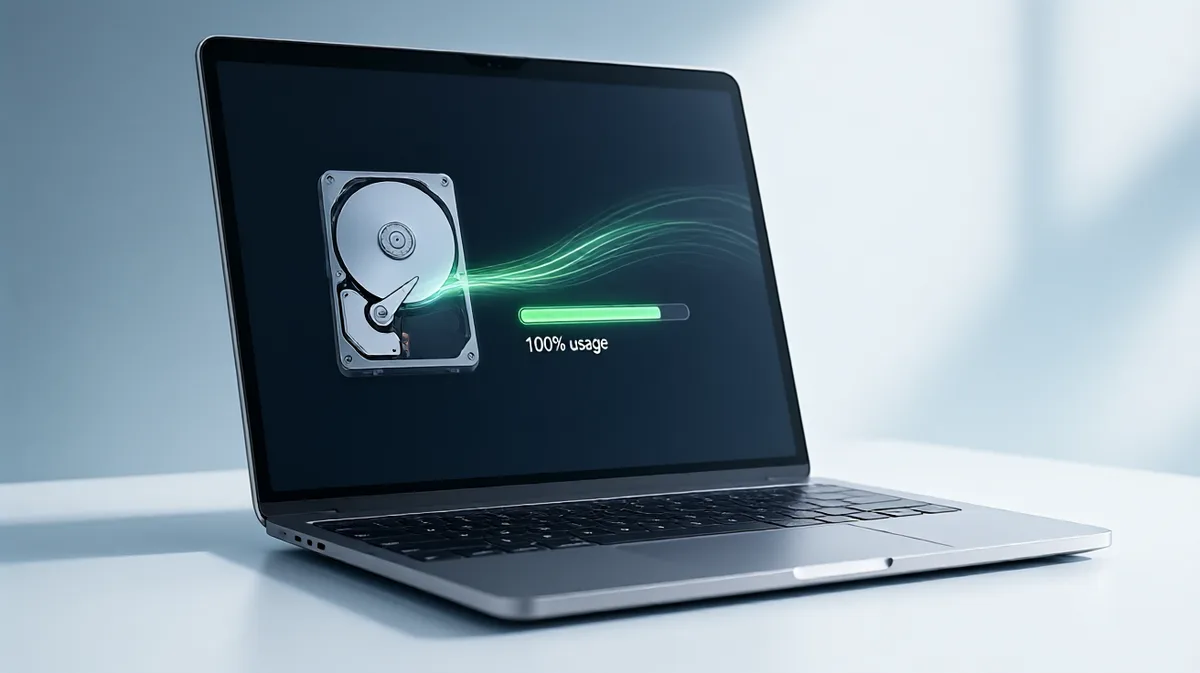
If Task Manager shows 100% disk usage, fix the process at the top first. If the culprit is unclear, start with the quickest safe Windows checks in order: stop the named service, confirm whether updates or sync are active, then move to repair tools only if the spike stays. Ignoring it can freeze apps and slow sign-ins. This guide maps the exact high-disk process to the fastest fix for Windows 10 and 11, then moves to deeper steps only when needed.
Check first
100% disk usage in Task Manager usually means the drive is fully busy, not that storage space is full. The Disk column shows how much time the drive spends handling reads and writes, so transfer speed can look modest while the system still feels stuck because requests are queued.
Open Task Manager, choose the Processes tab, and sort by the Disk column so the top offender is obvious. That column shows disk utilization percentage and is the fastest way to see whether a Windows service, a sync app, or an antivirus scan is doing the work. If the slowdown started after sign-in, use this alongside Windows 11 disk usage checks and fix slow startup steps to narrow the cause quickly.
Likely causes, from the ones you will see most often to the ones that show up less often: SysMain, Windows Search indexing, Windows Update or Delivery Optimization, antivirus scans, cloud sync clients, pagefile pressure, third-party startup software, and storage-driver stalls. A failing drive can look similar, but it usually brings warning signs beyond a single busy process.
Match the top process
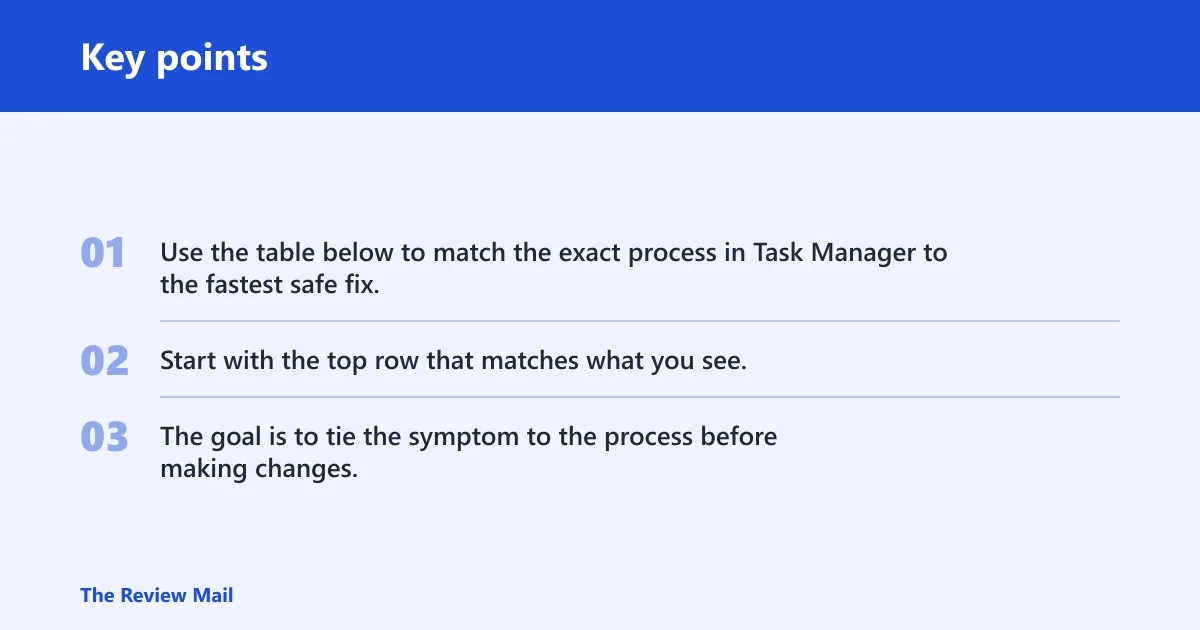
Use the table below to match the exact process in Task Manager to the fastest safe fix. Start with the top row that matches what you see, then move down only if the symptom stays the same after a restart or short test. The goal is to tie the symptom to the process before making changes.
| Symptom | Likely culprit process | Fastest safe fix | Risk level | When to escalate |
|---|---|---|---|---|
| Disk at 100%, top entry is System | Driver I/O stall, storage stack, or firmware issue | Restart, then check storage drivers and run SFC, DISM, and CHKDSK as needed | Medium | If the number stays pinned after a reboot |
| Top entry is Service Host: SysMain | SysMain service | Stop SysMain in Services, then test for 24 hours | Low | If the drive is an SSD and the issue returns |
| Top entry is SearchIndexer.exe | Windows Search indexing | Pause the service and narrow indexed folders | Low | If indexing restarts or search is broken after rebuild |
| Top entry is MsMpEng.exe | Microsoft Defender scan | Let the scan finish, or reschedule a full scan | Low | If it repeats at the same hour every day |
| Top entry is Windows Update or Delivery Optimization | Update download or peer transfer | Pause updates or disable Delivery Optimization temporarily | Low | If updates loop or fail on every reboot |
| Top entry is a cloud app such as OneDrive | Sync client backlog | Pause sync and let the queue clear | Low | If the queue never drains or reappears after sign-in |
| Disk is pinned, but no app dominates and RAM is near full | Pagefile pressure | Check virtual memory settings and reduce memory pressure | Medium | If heavy paging continues after closing apps and rebooting |
| Top entry is System and Device Manager shows Standard SATA AHCI Controller | storahci.sys / AHCI path may be implicated | Back up first, then verify the controller and test driver cleanup before any registry change | High | If clean boot, Safe Mode, updates, and disk checks do not change the symptom |
| Noise, resets, or file errors join the lag | Failing drive signs | Back up data first, then run CHKDSK and check SMART status | High | If the drive clicks, drops offline, or throws read errors |
System-level repairs
Is SysMain causing the slowdown?
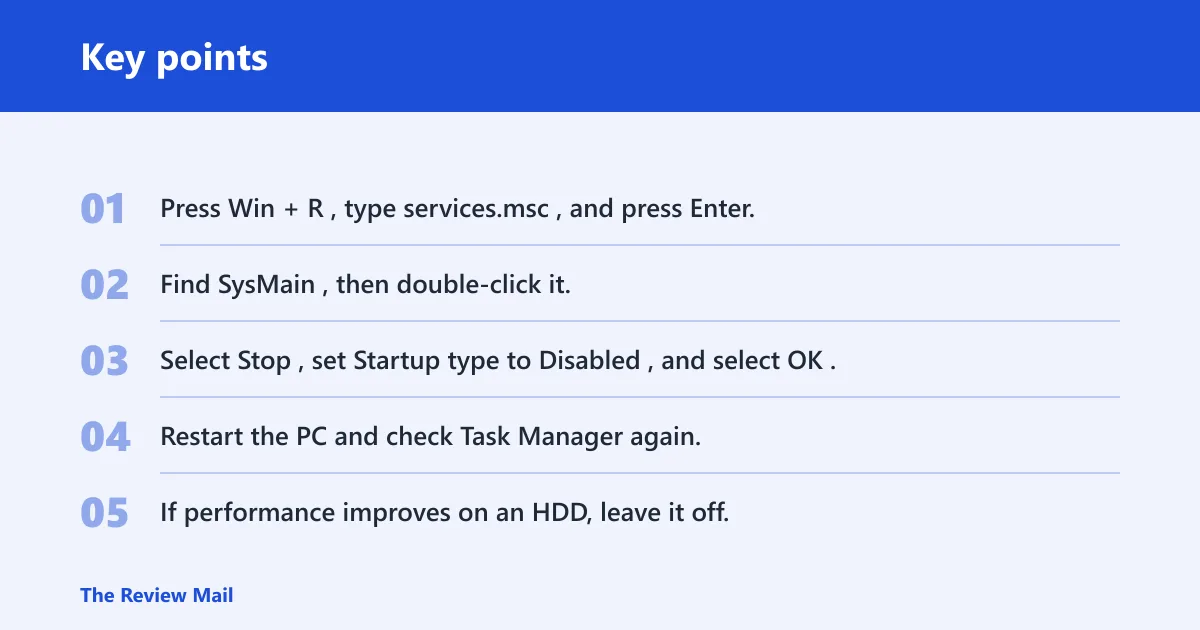
SysMain, formerly Superfetch, preloads frequently used apps. On some HDD systems it can keep the disk busy almost constantly. If Service Host: SysMain sits near the top of the Disk column, disable it briefly to see whether the lag clears; on a mechanical drive, that test is often worth doing first.
- Press Win + R, type
services.msc, and press Enter. - Find SysMain, then double-click it.
- Select Stop, set Startup type to Disabled, and select OK.
- Restart the PC and check Task Manager again.
- If performance improves on an HDD, leave it off; if the system uses an SSD and nothing changes, set it back to Automatic.
Say a 1 TB laptop HDD hits 100% right after login and SysMain is the top process. Turning it off for a day is a clean test. If the disk pressure drops and app launches feel normal, the service was a good match for the symptom.
Is Windows Search indexing the culprit?
Windows Search indexing can drive steady disk activity, especially after a large file move, a new profile, or a recent update. If SearchIndexer.exe is near the top, stop the service briefly, then reduce the indexed scope instead of disabling search forever.
- Press Win + R, type
services.msc, and press Enter. - Find Windows Search, then double-click it.
- Select Stop or run
net stop WSearchin an elevated Command Prompt. - Open Settings > Privacy & security > Searching Windows and reduce the folders under Excluded folders or switch to classic search scope where available.
- If the system calms down but search remains slow, rebuild the index from Control Panel > Indexing Options > Advanced > Rebuild.
A common first-timer mistake is disabling search entirely before checking the index size. If search still works after a smaller scope, that is the better long-term fix.
Could Windows Update or cloud sync be saturating the drive?
Windows Update, Delivery Optimization, OneDrive, and similar clients can all hammer the disk while they download, unpack, verify, or reconcile files. If the top process is a sync app or update component, pause it first, and do not reach for driver edits before the queue is done.
- Open Settings > Windows Update and pause updates for a short test.
- Open Settings > Windows Update > Advanced options > Delivery Optimization and turn it off temporarily if background transfers are heavy.
- For OneDrive or another sync client, right-click its tray icon and choose Pause syncing.
- Check whether MsMpEng.exe is at the top; if so, let Defender finish unless the scan is stuck for hours.
- After the spike ends, re-enable the update and sync features.
Windows 11 often surfaces Delivery Optimization more visibly in update settings than older builds do. That matters when the system looks idle but background transfer traffic keeps the drive active.
Is pagefile pressure causing the disk to stay busy?
When available RAM runs low, Windows leans harder on virtual memory and the disk can stay active even if no single app looks dramatic. Microsoft’s pagefile guidance notes that some systems need paging file space around 1.5 times RAM for an initial size and up to 3 times RAM for a maximum, but automatic management is usually the safest starting point. Use a manual size only when memory pressure is the clear pattern and the system is otherwise healthy.
- Open System Properties > Advanced > Performance > Settings > Advanced > Virtual memory.
- Prefer Automatically manage paging file size for all drives unless you have a documented reason to set a custom size.
- If a manual size is needed, use a consistent initial and maximum value to avoid constant resizing.
- Close heavy startup apps and browser tabs, then reboot and recheck the Disk column.
If the disk spikes whenever memory usage nears its ceiling, the fix is usually to reduce the workload or add RAM rather than keep tuning storage settings. That pattern is more common on smaller-memory laptops and systems with many background apps open at once.
Driver/AHCI fixes
How do I check whether Standard SATA AHCI Controller and storahci.sys are involved?
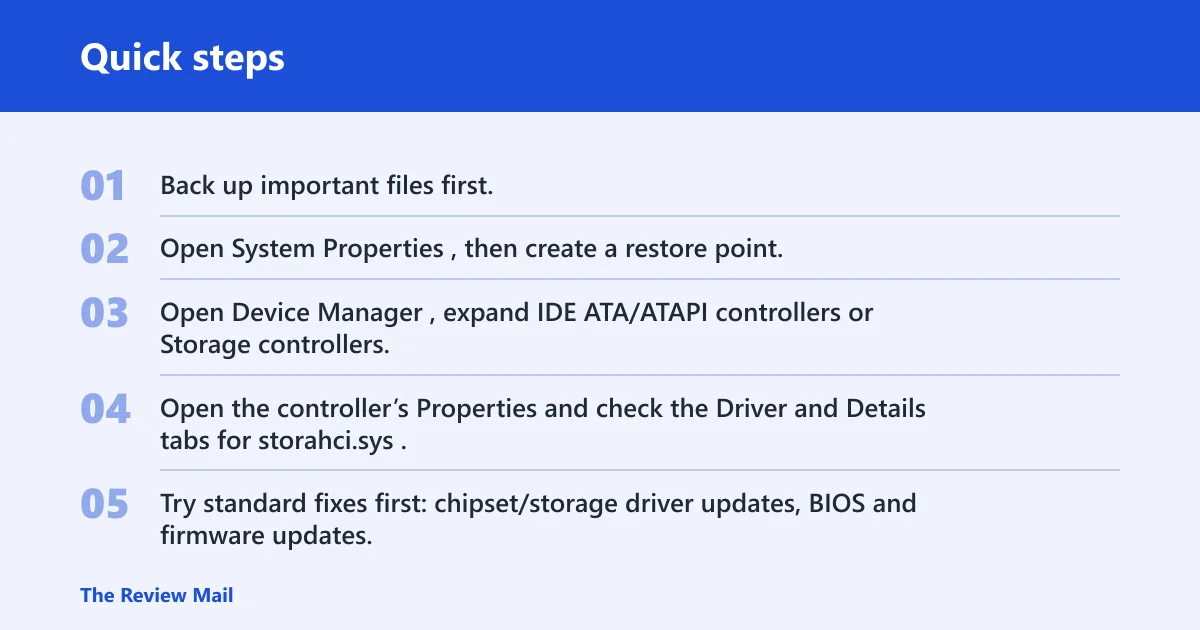
Start by backing up important data and creating a restore point before changing anything in the storage stack. In Device Manager, expand IDE ATA/ATAPI controllers or Storage controllers and look for Standard SATA AHCI Controller. If the disk problem is tied to that controller, the driver details often reference storahci.sys. That is the point where a driver-level investigation becomes reasonable, not before.
- Back up important files first.
- Open System Properties, then create a restore point.
- Open Device Manager, expand IDE ATA/ATAPI controllers or Storage controllers, and inspect the controller name.
- Open the controller’s Properties and check the Driver and Details tabs for storahci.sys.
- Try standard fixes first: chipset/storage driver updates, BIOS and firmware updates, clean boot, Safe Mode, Windows Update, and disk checks.
Only after those steps fail should a registry-based MSI change be considered. Microsoft documents storage and controller troubleshooting through Device Manager and driver updates, and vendors commonly recommend the same order of operations before any deeper change.
Should the AHCI registry change be the next step?
Not first. A registry change should be a last-resort step only when the machine is already backed up, a restore point exists, and clean boot, Safe Mode, Windows Update, and disk checks have not changed the symptom. If you reach that point, use a reputable vendor or Microsoft storage-troubleshooting reference and verify the controller is actually the one generating the lag before changing MSISupported. If the controller is not clearly implicated, do not edit the registry.
- Confirm the controller path is still the one tied to the spike.
- Recheck for update loops, background scans, and disk errors before making a storage-stack change.
- Use the smallest change possible, then reboot and validate the result.
- Revert the change immediately if the system becomes less stable or no improvement appears.
The safest rule is simple: back up first, verify the controller second, and treat registry editing as the final option rather than the default fix.
Failing drive signs
How do I tell if my drive is failing or just overloaded?
A busy drive usually quiets after the matching process ends or after a reboot. A failing drive keeps lagging, throws copy errors, clicks, disconnects, or shows bad sectors in CHKDSK. If the issue survives a clean boot and the same files keep failing to read, treat hardware as the likely cause.
What signs mean I should stop troubleshooting and back up now?
Repeated read/write errors, sudden freezes during file copies, missing files, a drive that disappears from File Explorer, or SMART warnings are escalation signals, not ordinary overload. If those signs show up together, stop trying cosmetic fixes and protect the data first.
On an older HDD, a move to SSD is often the most practical fix. On an SSD, persistent 100% disk usage is less likely to be solved by swapping in the same class of drive, so driver cleanup, firmware updates, or vendor support matter more. If the drive fails CHKDSK, disappears in BIOS, or reports bad sectors, replace it rather than keep tuning Windows.
Keep startup items trimmed and avoid stacking multiple sync tools on the same folders. That lowers the chance of a background process monopolizing the disk after sign-in.
Frequently asked questions
How should I fix hard disk 100 percent usage on Windows 10?
Start with Task Manager, sort by Disk, and match the top process to the fix. On Windows 10, the same sequence still applies: SysMain, Windows Search, Defender, Windows Update, then pagefile and driver checks if the culprit is unclear. If the drive still pins after those steps, run CHKDSK and review the controller path.
How to fix 100 percent disk usage on Windows 11
Use the same triage order, but check Settings > Windows Update > Advanced options > Delivery Optimization more closely because Windows 11 exposes that background transfer path clearly. If the top process is still unknown, test a clean boot and then move to SFC, DISM, and CHKDSK.
Should I disable Windows Search indexing for 100 disk usage?
Only as a test if SearchIndexer.exe or Windows Search is the top process. Stop it with services.msc or net stop WSearch, then narrow the indexed folders first. If search still matters, rebuild the index instead of leaving it off permanently.
How do I stop SysMain from causing high disk usage?
Open services.msc, stop SysMain, and set it to Disabled for a test. If the disk is an HDD and the spike disappears, leaving SysMain off is reasonable. If the system has an SSD and nothing changes, turn the service back on.
Can clean boot help fix 100% disk usage?
Yes. A clean boot removes non-Microsoft startup items and services from the picture, which makes it easier to tell whether the problem comes from Windows itself or from third-party software. If the disk calms down in Safe Mode or clean boot, re-enable items one at a time until the offender returns.
When should I suspect storahci.sys instead of a normal background process?
Suspect it when System stays at the top, the controller is Standard SATA AHCI Controller, and the slowdown persists after clean boot, Safe Mode, update checks, and disk repairs. That is the point where storage-driver troubleshooting becomes more relevant than process hunting.