Windows Error Bad Pool Caller
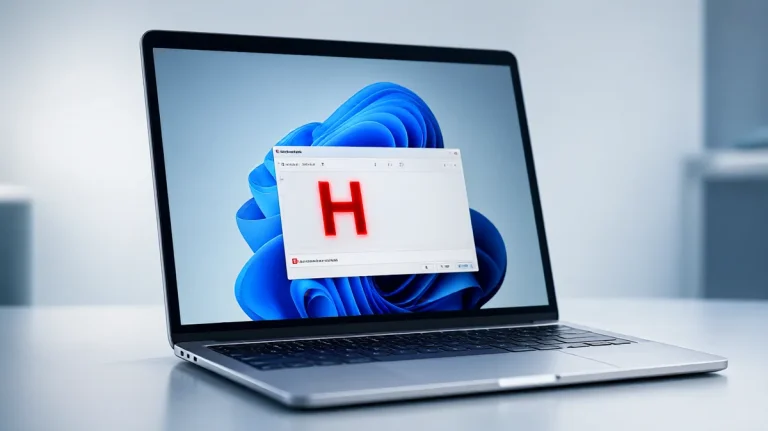
Start with the most recent change: a driver rollback, software removal, or RAM test usually gets you to the real cause faster than broad repair steps. BAD_POOL_CALLER is a Windows blue-screen stop code tied to invalid kernel memory-pool access; if you keep guessing, you can repeat the crash loop and keep fixing the wrong thing.
What BAD_POOL_CALLER means
BAD_POOL_CALLER is a BSOD stop code in Windows 10 and Windows 11. It usually appears as 0x000000C2, and it points to a program or driver that asked for kernel memory in the wrong way, or touched memory pool data it should not have touched.
That does not make hardware the first suspect. A bad graphics, Wi-Fi, storage, or USB driver is often the first place to check, especially after a new install, a Windows update, a new USB device, or a security suite change. If the machine can still boot, separate driver trouble from RAM trouble before you run broad repair commands.
What causes BAD_POOL_CALLER?
Most often, the trigger is the last thing that changed. A new driver, a USB dock, an antivirus or VPN install, a Windows update, or an overclock can each break memory-pool handling. Less commonly, corrupted system files, storage errors, or failing RAM create the same stop code.
Minidumps matter because they can point to a named driver, or at least show whether the crash stack keeps landing in the same third-party component. If the dump name changes every time, or the crash moves around after each reboot, suspect unstable memory or a filter driver before you blame one device.
Likely causes by last change
| Last change | Highest-probability cause | Fastest test | Next action |
|---|---|---|---|
| New driver | Bad or incompatible driver | Roll back in Device Manager | Uninstall the driver, then reinstall the earlier version from the device maker |
| New USB device or dock | Peripheral driver or USB filter conflict | Disconnect the device and reboot | Try another port, then remove the device software if the crash stops |
| Antivirus, VPN, backup, or VM software | Filter driver conflict | Remove it in Safe Mode | Use the vendor cleanup tool if uninstall leaves drivers or services behind |
| Windows update | Driver mismatch after update | Check Device Manager and update history | Roll back the device driver or uninstall the latest quality update |
| Overclock or XMP change | Unstable memory settings | Load BIOS defaults | Retest at stock speed before changing anything else |
| Random boot loop | Driver, filter, or RAM fault | Enter WinRE and try Safe Mode | Use the minidump and memory test to split the path |
Driver crash fixes
If the crash began after a driver update, test that version first. Device Manager gives you the fastest rollback path, and it also lets you uninstall the suspect device, then scan for hardware changes after the reboot. That sequence is safer than reinstalling every driver on the system.
- Open Device Manager from the Start menu.
- Expand the device category tied to the recent change, such as Display adapters, Network adapters, or USB controllers.
- Right-click the device, then choose Properties > Driver > Roll Back Driver if the button is available.
- If rollback is unavailable, choose Uninstall device, then restart.
- Back in Device Manager, choose Action > Scan for hardware changes.
- Install the earlier driver version from the device maker only after the system stays stable.
Say your laptop started blue-screening after a Wi‑Fi driver update and now fails during sign-in. Roll back that adapter first, not every network component in sight. If the same stop code returns, check the minidump for the driver name before you try a different package.
Software filter fixes
Security suites, VPN clients, backup tools, and virtualization software often install filter drivers that sit between Windows and hardware. If the crash began after one of those installs, remove the software in Safe Mode first. Reinstalling right away usually keeps the same filter in place.
- Boot into Safe Mode through Settings > System > Recovery > Advanced startup if Windows still opens.
- Open Settings > Apps > Installed apps.
- Uninstall the recent antivirus, VPN, backup, or VM package.
- Restart normally and test before reinstalling anything.
- If the software returns the crash, run the vendor cleanup tool to remove leftover drivers and services.
- If multiple startup apps are involved, try a clean boot by disabling non-Microsoft services in msconfig.
Suppose a new VPN client triggers the loop after a reboot. Removing the app is step one; leaving its network filter behind is a common reason the crash keeps coming back. If uninstall alone does not fix it, the cleanup tool is the next move, not a full reset.
Can BAD_POOL_CALLER be caused by RAM?
Yes. Faulty RAM can cause BAD_POOL_CALLER, especially when the crash appears at random, changes driver names from one boot to the next, or survives a rollback of the most recent software change. Use the minidump and a memory test together so you do not blame RAM for a driver problem, or the reverse.
- Press Win and type mdsched.exe.
- Choose Restart now and check for problems.
- Let Windows Memory Diagnostic run after the reboot.
- Open Event Viewer > Windows Logs > System and look for memory test results after Windows loads.
- In BIOS or UEFI, load default settings and disable overclocking or XMP if the test points to instability.
- If the machine uses mixed memory kits, reseat the sticks and retest one stick at a time.
If the dump keeps naming the same storage, network, or GPU driver, RAM is less likely than the driver itself. If the dump shifts around and the crash appears during idle or boot, memory settings deserve priority.
Windows repair steps
Use file repair after you have handled the most likely change-based cause. SFC fixes protected system files, while DISM repairs the component store that SFC depends on. CHKDSK is useful when disk errors or file corruption may be adding another layer of damage.
- Open Command Prompt as administrator.
- Run
sfc /scannow. - If SFC reports unrepaired files, run
DISM /Online /Cleanup-Image /RestoreHealth. - Run
sfc /scannowagain after DISM finishes. - If the system shows storage errors, run
chkdskC: /f and restart when prompted.
These steps apply to Windows 11 and Windows 10. They are repair steps, not the first diagnosis. If a driver or filter caused the stop code, file repair alone may do nothing.
BAD_POOL_CALLER fix table
This table maps the last change to the most likely cause, the quickest check, and the next action. Use it before you spend time on broad repair work.
| Last change | Likely cause | Fastest test | Next action |
|---|---|---|---|
| New driver | Driver bug or mismatch | Device Manager > Driver > Roll Back Driver | If rollback is unavailable, uninstall and install the prior vendor release |
| New USB device or dock | Peripheral driver or USB filter conflict | Unplug the device and reboot | Try a different port; remove the device software if the crash stops |
| Antivirus or VPN install | Filter driver conflict | Boot Safe Mode and uninstall the package | Run the vendor cleanup tool if services or drivers remain |
| Windows update | Driver mismatch after update | Check Device Manager and recent update history | Roll back the affected driver or uninstall the latest quality update |
| Overclock or XMP | Unstable RAM settings | Load BIOS defaults | Run Windows Memory Diagnostic, then retest at stock speed |
| Random boot loop | Driver, filter, or RAM fault | Enter WinRE and try Safe Mode | Use minidumps and the memory test to split the path |
What if it keeps looping on boot?
If Windows will not reach the desktop, use WinRE. From there you can reach Startup Settings, Safe Mode, System Restore, and other recovery tools without a normal boot. That is the right path when the crash appears before sign-in or restarts too fast to work on the desktop.
- Interrupt startup three times, or boot from Windows installation media, to enter Windows Recovery Environment (WinRE).
- Choose Troubleshoot > Advanced options > Startup Settings > Restart.
- Press 4 or F4 for Safe Mode, or 5 or F5 for Safe Mode with Networking. (Wikihow)
- Remove the recent driver or software, then reboot normally.
- If the loop continues, use System Restore from WinRE, or choose Reset this PC as a later step.
Windows 11 users often need this path first because the desktop never opens far enough for normal troubleshooting. Windows 10 uses the same stop code and the same recovery flow.
Minidumps in C:\Windows\Minidump often show the driver or module closest to the crash. That does not always prove guilt, but it is the best shortcut for separating a bad driver from memory trouble when the same stop code keeps returning.
- Open
C:\Windows\Minidumpin File Explorer. - Sort by date and copy the newest file names.
- Open the dump in a debugger or crash viewer that can read the faulting module.
- Look for a repeated third-party driver name, not just a Windows component.
- If the same named driver appears across several dumps, remove or roll back that device software first.
A common first-timer mistake is to chase whatever file name appears once, then ignore the pattern across multiple dumps. One random name is weak evidence; a repeated non-Microsoft driver is much stronger.
Can Windows updates trigger BAD_POOL_CALLER?
Yes. A Windows update can change the driver stack or expose an older third-party driver that no longer behaves correctly. If the crash starts right after Patch Tuesday or a feature update, check recent updates, device drivers, and the minidump before you assume Windows itself is broken.
- Open Settings > Windows Update > Update history.
- Check whether the crash began after a quality update, driver update, or feature update.
- Open Device Manager and roll back the affected driver if one changed.
- If the loop began after a Windows update and no driver stands out, use Uninstall updates from WinRE or System Restore.
Frequently asked questions
How do I fix bad pool caller after installing a driver?
Open Device Manager, find the device, and try Properties > Driver > Roll Back Driver first. If that option is missing, uninstall the device, reboot, and install the prior vendor package. If the minidump names the same driver again, keep that older version in place.
What causes bad pool caller error?
The most common triggers are a bad driver, a software filter conflict, or unstable RAM settings. New antivirus, VPN, backup, virtualization, USB, and GPU changes are frequent clues. If nothing changed recently, use the minidump and a memory test to separate software from hardware.
What does BAD_POOL_CALLER 0xC2 mean?
It means Windows stopped because a program or driver made an invalid request to kernel memory pool handling. The stop code is 0x000000C2. The next step is not a random repair list; it is checking the last change and the dump file for the faulting component.
Which driver causes bad pool caller?
No single driver is always responsible. The driver named in the minidump is the one to inspect first, especially if it matches a recent change such as graphics, network, USB, or storage software. If the dump points to a security filter or VPN component, remove that package before reinstalling it.
What should I do if bad pool caller keeps looping on boot?
Enter WinRE, choose Startup Settings, and boot into Safe Mode. Remove the last driver or software change there, then restart normally. If the loop continues after rollback and repair commands, use System Restore or Reset this PC from WinRE.
Should I uninstall recent software for bad pool caller?
Yes, if the software is a security suite, VPN, backup tool, or virtualization app. Remove it in Safe Mode, then restart and test. If uninstall leaves services or filters behind, run the vendor cleanup tool. Reinstall only after the machine stays stable.
Still not working?
If rollback, Safe Mode removal, minidump checks, SFC, DISM, and the memory test do not stop the loop, the next escalation is System Restore, Reset this PC, or vendor support for the named device. If the machine still crashes after that, a technician should inspect the RAM, storage, or motherboard path directly.
For a desktop that still boots, back up important files before you try a reset. For a boot loop that never settles, stay in WinRE and keep the changes narrow: one driver, one filter, one memory setting at a time.