Disable Guest User Windows 11: Safe Ways to Block Access
Most Windows 11 PCs do not have a usable built-in Guest account anymore, so the real job is usually to block guest-style sign-in paths or switch shared users to a standard local account. If a Guest account exists, disable it; if it does not, focus on the control that still matters: local account restrictions, administrator privileges, and edition-specific policy settings.
Guest access decision table
This table gives the shortest path to the right fix. The goal is not always to “delete” Guest, because on many Windows 11 systems the built-in Guest account is already disabled or hidden.
| Windows 11 edition or goal | Best action | What it changes |
|---|---|---|
| Pro or Enterprise | Use Local Group Policy Editor to block guest sign-in | Stops guest-style access at the policy level |
| Home | Use an alternate restriction method, then create a limited standard account if needed | Removes the practical need for Guest access |
| Guest missing or hidden | Verify whether the built-in Guest account is already disabled or absent | Confirms there may be nothing left to remove |
| Shared PC | Use a standard account or Family Safety instead of a true Guest profile | Limits access without relying on Guest |
What the guest account
The built-in Guest account is a legacy sign-in concept, not a normal local account you usually manage like other users on modern Windows 11. On many PCs, it is already disabled by default or hidden by policy, so there may be no usable Guest login to turn off in the first place. Microsoft’s account model is built around standard local accounts and Microsoft accounts; Guest is not the normal path for shared use.
Guest access vs local account vs Microsoft account sign-in
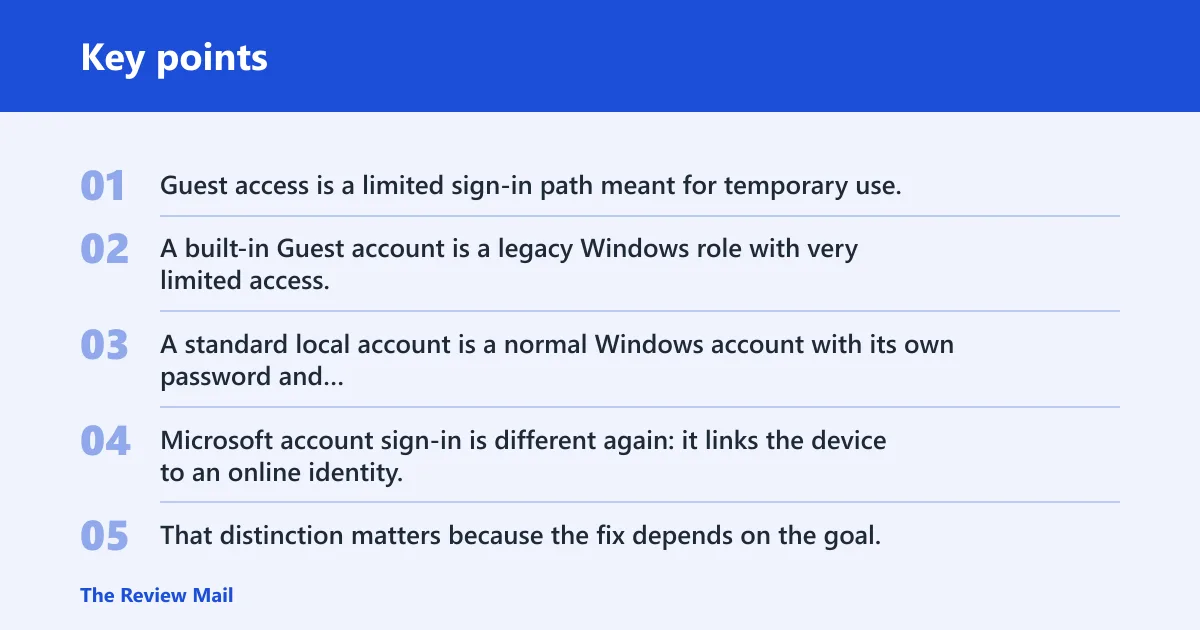
Guest access is a limited sign-in path meant for temporary use. A built-in Guest account is a legacy Windows role with very limited access. A standard local account is a normal Windows account with its own password and permissions. Microsoft account sign-in is different again: it links the device to an online identity, sync features, and account recovery, but it is not the same thing as a Guest login.
That distinction matters because the fix depends on the goal. If the problem is a true Guest sign-in, block that path. If the problem is someone using a local account you already created, remove access to that account instead. If the issue is Microsoft account sign-in, Guest settings will not solve it. Microsoft documents local, Microsoft, and child account behavior separately, and Family Safety is the supported control for supervised family use.
Picture a family laptop that has one standard local account for the adults and no visible Guest option. The right task is not to “delete Guest”; it is to confirm that the built-in Guest account is already disabled and then make sure no other open account can be used casually.
How do you disable guest access on Windows 11?
For most Windows 11 PCs, the right answer is to disable the built-in Guest account if it exists and then block other guest-like access paths. On Pro and Enterprise, Microsoft includes policy controls that can do that cleanly. On Home, those tools are usually missing, so the practical fix is to use a standard local account with limited permissions instead.
Use local Group policy editor on Pro and Enterprise
Use the exact path Computer Configuration > Windows Settings > Security Settings > Local Policies > Security Options, then open Accounts: Guest account status and set it to Disabled. If you also need to prevent the account from being used over the network, go to Computer Configuration > Windows Settings > Security Settings > Local Policies > User Rights Assignment and review the deny-rights policies that control logon access. There is no separate Windows 11 “Guest-only” policy outside these account and logon controls.
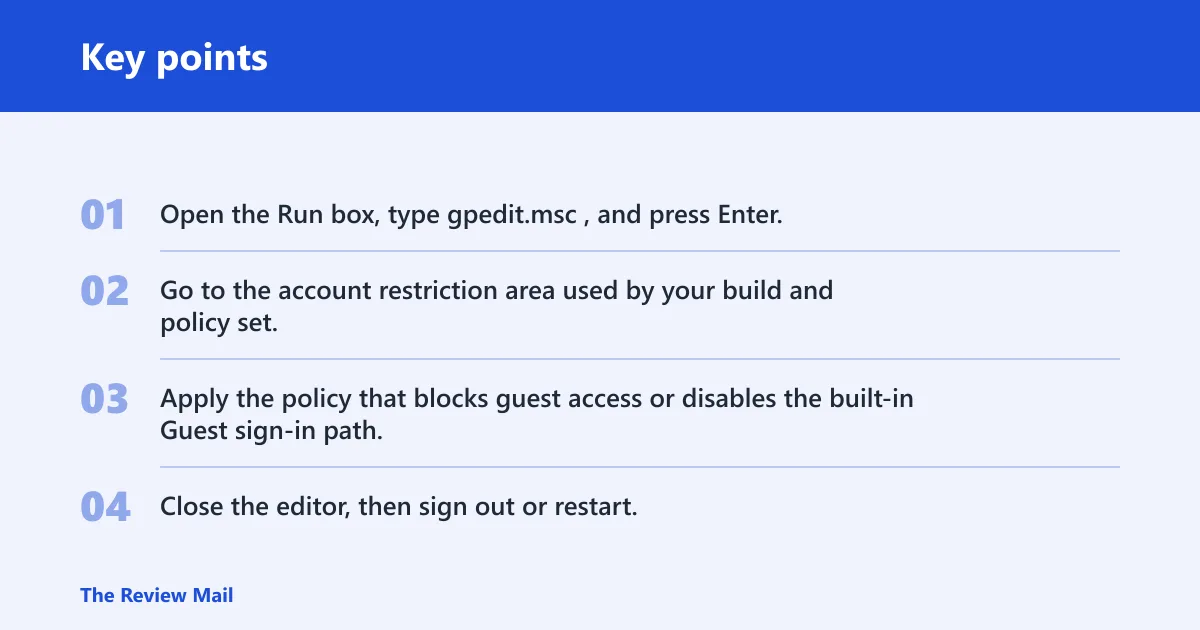
- Open the Run box, type
gpedit.msc, and press Enter. - Go to the account restriction area used by your build and policy set.
- Apply the policy that blocks guest access or disables the built-in Guest sign-in path.
- Close the editor, then sign out or restart.
The exact policy path can vary by build and edition, but the intent is the same: deny the Guest sign-in path instead of trying to treat it like an ordinary local user. If Local Group Policy Editor is available on the PC, that is usually the safest administrative route for Pro and Enterprise. Microsoft’s edition guidance is clear: Group Policy tools are not available on Windows 11 Home in the same way they are on Pro and Enterprise.
Use account tools where they are available
Local Users and Groups is another account-management tool on some editions. It can help you inspect whether Guest exists, whether it is disabled, and what other local accounts are present. Availability varies by edition, so do not assume it exists on every Windows 11 install. Microsoft’s account-management tools differ by edition, and the Local Users and Groups snap-in is typically available on Pro, Enterprise, and Education, not Home.
A common first-timer mistake is to search the sign-in screen for proof that the change worked. That screen is not a reliable check. A disabled or hidden account may not appear there even before you change anything, so confirm status through account tools or policy settings instead.
How do you disable guest login on Windows 11 Home?
Windows 11 Home usually does not include Local Group Policy Editor, so the Pro and Enterprise method is often unavailable. On Home, focus on controlling who can sign in and what they can do after sign-in. Create a standard local account for shared use, set a password, and avoid giving it administrator rights. If the device is for a child or family member, Family Safety or another access-control setup is a better fit than a Guest profile.
Use the closest supported restriction method
On Home, focus on controlling who can sign in and what they can do after sign-in. Create a standard local account for shared use, set a password, and avoid giving it administrator rights. If the device is for a child or family member, Family Safety or another access-control setup is a better fit than a Guest profile.
- Open Settings and go to Accounts.
- Review the local users on the PC.
- Create or keep only standard accounts for shared use.
- Remove administrator rights from accounts that should not manage the PC.
- Use Family Safety or similar access controls where appropriate.
Suppose a shared desktop in a small office has no Group Policy Editor because it runs Home. Instead of hunting for a missing Guest switch, the better fix is a standard account with a password and limited permissions. That gives casual users a place to sign in without opening the door to an unrestricted session. Microsoft’s Family Safety tools are designed for supervised family access, not for turning Home into a guest kiosk.
Can you remove the Guest user in Windows 11?
Usually, no in the ordinary sense. The built-in Guest account is not normally removed through standard local-account management on modern Windows 11. More often, it is already disabled, hidden, or not present as a usable account. So the real task is usually blocking guest-style access, not deleting a visible user.
What to check if Guest already does not appear
If Guest is missing, first verify whether the built-in account is already disabled or hidden. That is the most common state on Windows 11. If the account is disabled already, there may be nothing left to remove, and trying to force a deletion is the wrong fix.
When the account is disabled rather than removed
A disabled Guest account may still exist in the background without being available for sign-in. That matters because the system can behave as if Guest is already off, even when the account object still exists. In that case, the safest next step is to confirm that no policy or other account path still permits guest-style access. Microsoft’s account status controls are about disabling access, not necessarily deleting the underlying account object.
Do not confuse this with deleting a regular local user. A normal local account you created can often be removed through Settings or account tools. The built-in Guest account is different, and Windows 11 often treats it as a legacy sign-in path rather than a routine user profile.
Command Prompt and account tools
Command Prompt is the right fallback when an admin needs a direct account command and the goal is specific. For the built-in Guest account, the common command is net user guest /active:no. That command is used to disable the account, not delete it. Use it from an elevated Command Prompt.
When Command Prompt is the right fallback
- Open Command Prompt as administrator.
- Run net user guest /active:no.
- Press Enter and review the response from Windows.
- Sign out or restart after the change.
If the account is not present on the device, the command may report that Windows cannot find it or that the name is not valid for that system. That outcome usually means Guest is already absent or has been handled by policy. Do not treat that as a failure if the account was never usable to begin with. Microsoft’s net user behavior is to modify local user accounts; if the named account does not exist, Windows returns an error instead of creating one.
Where local users and Groups fits
Local Users and Groups, opened with lusrmgr.msc, fits best on editions that support it. There you can inspect local accounts, see whether Guest exists, and check whether it is disabled. If your edition does not support the snap-in, use the policy method or Command Prompt instead. Microsoft’s edition guidance on local management tools is why Home users should expect different options than Pro users.
Administrator privileges are commonly required for these account changes. Without admin rights, Windows will block the policy change, the account command, and most local-user edits. That is by design.
Why block guest access on a shared PC?
Blocking guest access reduces the number of open sign-in options on a shared device. That matters because guest-style sign-in can be too easy for casual use. Once it is gone, you force access through accounts that you can name, protect, and review.
What changes for casual users after you disable it
After guest access is disabled, casual users lose the fast “just get in for a minute” path. That is the tradeoff. They will need a standard account, a password, or an approved family-access setup. For a home PC, that is usually the safer default.
For example, suppose a laptop sits in a den and a visitor wants to check email. Without Guest, they cannot slide into a temporary session with broad access. They would need a proper account, which is the point if the device holds personal files, browser sessions, or saved passwords.
How to confirm it worked
Use a quick verification pass after you disable or block Guest. The goal is to confirm the actual control, not just the sign-in screen.
- Open Local Users and Groups or the policy path you changed and confirm Guest is disabled.
- Run net user guest and verify that Windows reports the account as disabled or unavailable.
- Sign out and confirm no Guest sign-in option appears on the lock screen.
- Check that the shared account is standard, not administrator.
- If Family Safety is in use, confirm the child or family account has the intended limits.
Frequently asked questions
How to turn off guest account windows 11
On Pro or Enterprise, open gpedit.msc and set Accounts: Guest account status to Disabled. On Home, that editor is usually unavailable, so the practical answer is to use a restricted standard account or Family Safety instead. If the built-in Guest account is already disabled, there may be nothing to turn off.
How do I disable the guest account in Windows 11?
If you have Pro or Enterprise, use Computer Configuration > Windows Settings > Security Settings > Local Policies > Security Options and set Accounts: Guest account status to Disabled. If you have Home, use the closest supported restriction method instead of looking for policy tools that are usually missing. Sign out or restart after the change so it takes effect.
Can I delete the Guest user in Windows 11?
Usually not in the way people expect. The built-in Guest account is often disabled rather than deleted, and it is not meant to behave like a normal local account. If it is already absent, the correct next step is to verify status, not force a deletion that may not apply.
Can I disable the guest account with Command Prompt?
Yes. Open Command Prompt as administrator and run net user guest /active:no to disable the built-in Guest account if it exists on the system. That command disables the account; it does not delete it. If Windows says the account is missing, it may already be gone or disabled.