Enable Guest Account Windows 11 Home
You can’t truly enable the classic Guest account in Windows 11 Home; for another person, create a standard local account, and for SMB guest access use the share’s guest setting only when the server explicitly allows it. Doing this wrong can lock you out of files, or expose your PC to unauthenticated network traffic. This guide shows the closest safe workaround, how to connect to guest-only SMB shares, and when to stop and make a proper account.
Create a standard local account instead
No, not in the classic sense most people mean. Windows 11 Home generally does not provide a simple toggle for turning on the older built-in Guest account, so the safer fix for a person using the PC is a standard local account. Guest-style SMB access is a separate setting for network shares, and while some people try unsupported command-line methods for the built-in Guest account, they are not the normal or recommended path.
What Windows 11 Home does and does not allow
Windows 11 Home can connect to SMB shares that use guest access, but that is different from creating a local Guest user on the PC. The local account question is about someone signing in to Windows. The SMB question is about opening a network folder that does not require a named username and password.
If the goal is “someone needs to sit at this PC for about an hour,” create a standard local account instead. That gives the person a normal sign-in, a profile, and predictable file access. If the goal is “open a shared folder on a NAS or old file server,” use the SMB settings below only when the share is built for guest access.
When a standard local account is the better fix
Choose a proper local account when the person will return, save files, or use the device more than once. That avoids repeated prompts and makes permissions easier to understand. It is also the better choice when the device is shared at home and you want a traceable account instead of anonymous network access.
Guest access decision table
This table separates the common cases people confuse. The fix for a local Guest account request is not the same as the fix for an SMB share that wants no username and password.
| Symptom | Likely cause | Exact command or setting | When not to use guest access |
|---|---|---|---|
| “I want a Guest account on this PC” | Classic Guest account workflow is not the right path on Windows 11 Home | Create a standard local account in Settings | Do not use SMB guest settings for a person who needs to sign in to Windows |
| A network share opens only when no username and password are required | The SMB server allows guest access | Set-SmbClientConfiguration -EnableInsecureGuestLogons $true | Skip guest access on public or untrusted networks |
| Windows keeps asking for credentials after the share should open | Saved credentials or an old connection is being reused | Remove the saved entry in Credential Manager, then retry | Do not keep retrying on a work or public network without checking the share policy |
| Access denied or repeated password prompts after a setting change | Client settings and server-side share rules do not match | Verify the server allows guest access; client changes alone do not fix server permissions | Do not assume the Windows PC is the only side that matters |
| Security-sensitive network or shared office device | Guest access is too open for the environment | Use a named account with a password | Avoid guest access on networks where identity and access control matter |
What you need before you change anything
You need administrator access on the Windows 11 computer. The guest SMB setting changes from an elevated shell, so a standard account will not be enough. You also need a share that actually allows guest access, because client settings cannot force a server to hand out files anonymously. On some Windows 11 Home builds, the SMB cmdlets may not be present or may behave differently, so if the command is unavailable, use the local-account route instead.
Three checks before you start
- Use a Windows 11 PC with administrator access.
- Confirm the SMB share is configured for guest access on the server side.
- Limit the change to a trusted private network.
Say your home NAS exposes a folder for scan files and the vendor documentation says it accepts guest connections. In that case, the Windows client setting may be enough. Suppose the folder belongs to a Windows file server at work and it still asks for a domain login. Then the problem is usually server-side policy, not the Windows 11 Home PC.
How do you allow guest SMB connections on Windows 11?
Open Windows PowerShell or Terminal as Administrator, then run the client setting command that permits insecure guest logons. This changes the Windows 11 PC, not the SMB server. It helps the client accept a share that the server already exposes without a username and password.
Open Terminal or PowerShell as administrator
- Right-click the Start button.
- Choose Terminal (Admin) or Windows PowerShell (Admin).
- If Windows asks for confirmation, approve the prompt.
Run the client setting command
- Type this command and press Enter:
Set-SmbClientConfiguration -EnableInsecureGuestLogons $true
Windows PowerShell may ask you to confirm the change by typing Y. That prompt is normal. If the command is rejected, check that you opened the shell as Administrator.
Why this changes the client, not the server
This setting tells the Windows 11 client to accept insecure guest logons. It does not turn a server into a guest share and it does not override the server’s own permissions. If the share is not configured for guest access, the command will not create that access on its own.
How do you check whether guest logons are enabled?
Run the verification command in an elevated shell and read the result that matters. The command should show guest logons allowed on the client after the change. If it does not, the setting did not take effect.
Run the verification command
Get-SmbClientConfiguration
Read the result
You want to see EnableInsecureGuestLogons True. If the output does not match that value, re-check the command, confirm you used an elevated shell, and try again only after you know you are changing the right PC.
That output tells you the client configuration is set for guest-style SMB access. It does not prove the server will let you in. You still need the folder to be shared for guest use on the network side.
Test the share in File Explorer
After the setting change, test the share in File Explorer by entering the UNC path in the address bar. Use the server name and share name in the standard format. If the share is configured correctly, File Explorer should open the folder instead of looping on a credential prompt.
Use a UNC path
Type this format in File Explorer:
\\SERVER-NAME\SHARE-NAME
Then press Enter. If the folder opens, the client is accepting the guest connection and the server is allowing it. If it still asks for credentials, the issue is usually old saved credentials, a server-side policy mismatch, or a share that never allowed guest access in the first place.
What should I change if Windows still asks for a username and password?
Start with saved credentials. Windows may keep using an old login for the server name, which can block guest access or send the wrong username automatically. Remove the saved entry in Credential Manager, then try the share again. If that does not work, restart the PC and test once more.
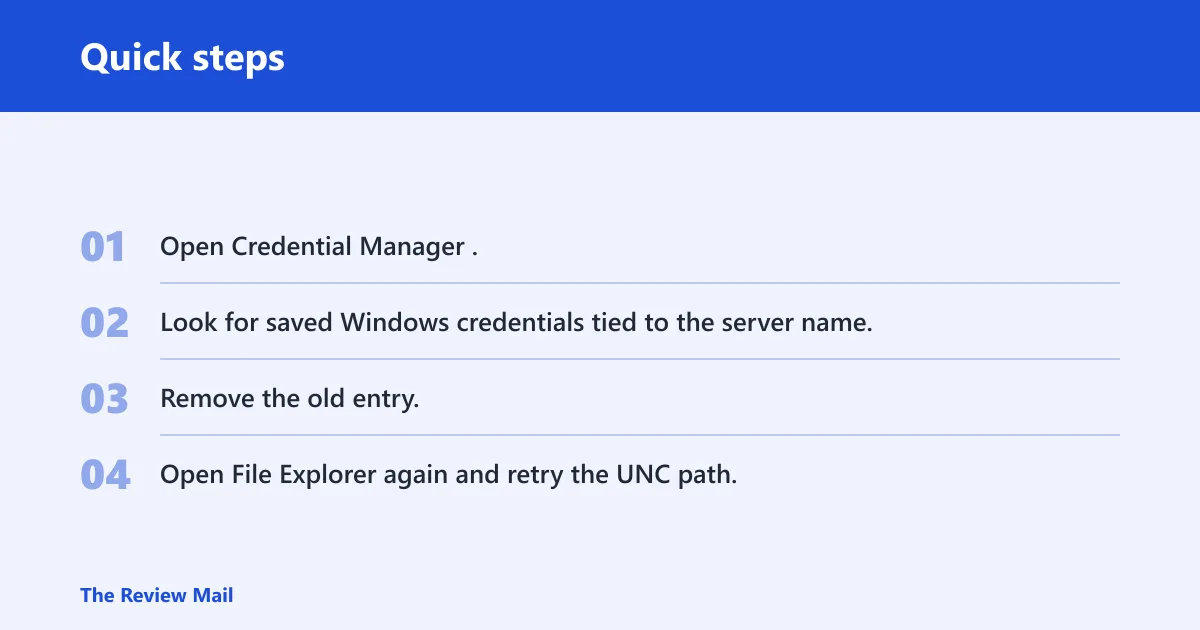
Remove stale saved credentials
- Open Credential Manager.
- Look for saved Windows credentials tied to the server name.
- Remove the old entry.
- Open File Explorer again and retry the UNC path.
If Windows still asks for a username, try a valid account name that the server will accept for that share, or leave the field blank if the prompt allows it. That is a troubleshooting step for guest-style access, not a sign that the share is secure. If the prompt never clears, the server may require a named account after all.
A common first-timer mistake is to change the client setting, retry the share, and assume the PC is broken when the old credential entry is still present. That single saved login can keep Windows from falling back to guest access.
When should you stop using guest access?
Guest access should be avoided on public or security-sensitive networks, and it should also be avoided on devices that need regular, repeated access. Guest SMB access is less secure than using named accounts and passwords, so it belongs on a trusted private network only. If the share matters, a named account is the cleaner fix.
When a proper named account is the better answer
- The device is used often by the same person.
- The shared folder contains important or private files.
- You need auditability or stable permissions.
- The network is not clearly trusted.
Picture a small office laptop that reaches a file server used by several people. Guest access may get one folder open, but it also leaves access too broad for a shared environment. A named account gives you a clear identity and fewer surprises when permissions change.
Frequently asked questions
Can you enable a guest account in Windows 11 Home?
Not as a classic built-in Guest account you simply switch on. Windows 11 Home is better handled by creating a standard local account for another person and reserving guest SMB access for network shares that explicitly allow it. Those are different problems, and they need different fixes.
What PowerShell command enables insecure guest logons?
The command is Set-SmbClientConfiguration -EnableInsecureGuestLogons $true. It must be run from an elevated shell. After that, use Get-SmbClientConfiguration to confirm the client reports EnableInsecureGuestLogons True. The setting is for SMB guest access, not for creating a local Windows user.
Why does Windows 11 block guest access to network shares?
Windows blocks it because guest access lets a connection happen without a named username and password. That is weaker than authenticated access and can expose the PC to unauthenticated network traffic. Microsoft also separates client-side approval from server-side sharing rules, so the share still has to be configured to allow guests.
Do I need administrator access to change guest SMB settings?
Yes. The SMB client change must be made from Windows PowerShell or Terminal running as Administrator. Without elevated access, the command will not apply. That requirement is separate from the share itself; you still need a server that actually permits guest access.