
Default Gateway Not Available Windows 7
On Windows 7, “default gateway not available” usually means the PC cannot reach the router’s gateway or has a bad IP lease, so start by checking ipconfig /all, ping, and adapter status before changing anything. Ignore it, and you can end up with intermittent Wi‑Fi, dead Ethernet, and repeated resets that mask the real fault. This guide gives a Windows 7-first fix path that branches by DHCP, driver, router, or network stack failure.
What the Windows 7 gateway error means
The default gateway is the router’s exit point from your local network to the internet. When Windows 7 cannot reach that gateway, the system may show a connected network icon but still lose internet access. The error affects both home Wi‑Fi and wired Ethernet.
A blank gateway in ipconfig or an unreachable gateway in ping means the PC cannot route traffic off the local network. That can come from a bad lease, adapter corruption, power-saving settings, router reachability, or manual IPv4 settings that no longer fit the network.
Run these checks before changing settings
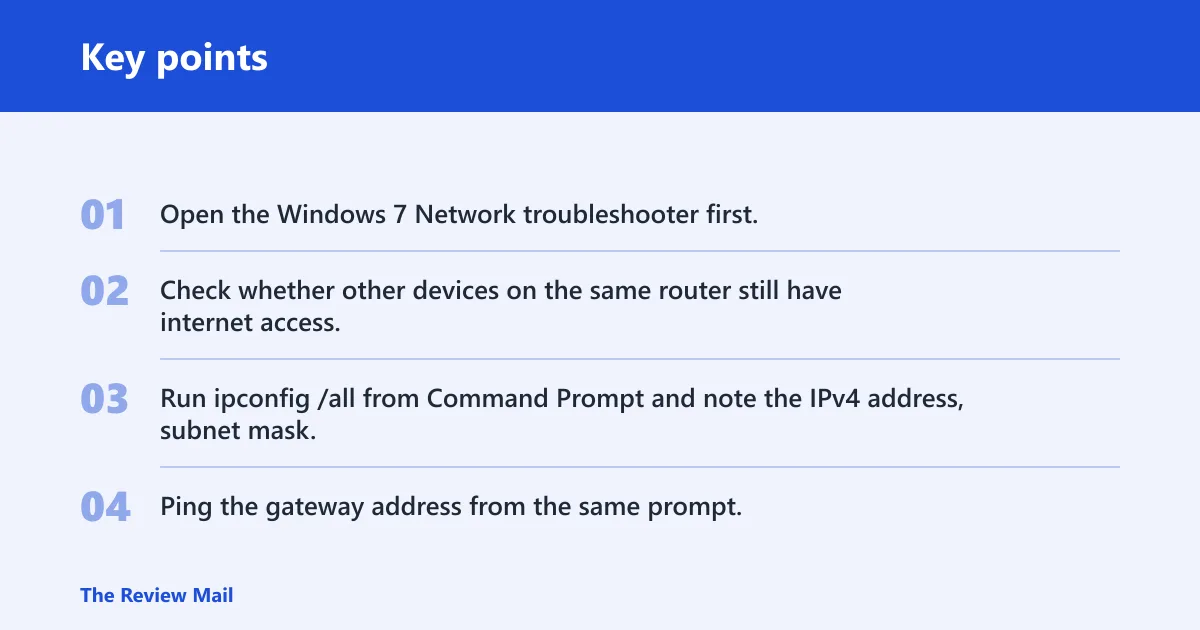
- Open the Windows 7 Network troubleshooter first. It can flag the adapter or gateway path before you touch manual settings.
- Check whether other devices on the same router still have internet access. If they do, the router is less likely to be the only fault.
- Run
ipconfig /allfrom Command Prompt and note the IPv4 address, subnet mask, and default gateway fields. - Ping the gateway address from the same prompt. If the gateway answers, the break is often beyond the local link. If it does not, focus on the adapter, lease, or router connection.
Say your laptop shows a wireless connection but ipconfig /all leaves the default gateway blank after sleep. That points to an adapter, lease, or power-management issue more than a general internet outage.
Gateway triage table
| Symptom | Likely cause | Verification command/result | Exact fix |
|---|---|---|---|
Blank gateway in ipconfig | DHCP failure, misconfigured network files, or manual IPv4 settings | ipconfig /all shows no default gateway under the active adapter | Renew the address, reset TCP/IP, then verify the IPv4 and gateway fields before making manual changes |
| Gateway reachable by ping | The router link is working; the issue is likely DNS, security software, or a later network stage | ping to the gateway returns replies | Check antivirus/firewall, DNS settings, and whether only internet access is affected |
| Adapter powers down after sleep | Power management is turning off the network device | The error appears after waking from sleep or hibernate | Open Device Manager and clear the setting that lets Windows turn off the adapter to save power |
| DHCP lease or renewal failure | DHCP server problem or a broken renewal path | ipconfig /release and ipconfig /renew fail or return no valid gateway | Restart the router, renew again, and reset TCP/IP if the lease still will not bind |
| Driver corruption or missing adapter | Network adapter driver failure | The adapter shows warning marks in Device Manager, or networking stops after driver updates | Update or reinstall the driver through Device Manager, then restart and retest |
Is DHCP, driver, or power management the cause?
If the gateway disappears after a lease renewal, DHCP is a strong suspect. If the adapter drops after sleep or only returns after a reboot, power management is a better fit. If the adapter itself looks broken in Device Manager, driver corruption moves to the top of the list.
A blank gateway is not only a DHCP problem. It can also come from misconfigured network files, a router that is not answering properly, or network manager and firewall settings that interrupt normal routing. DNS problems can appear alongside the gateway error, but they do not explain every case.
Check the network adapter in Device Manager
- Click Start, open Control Panel, then open Device Manager.
- Expand Network adapters.
- Look for warning icons, missing devices, or the wrong adapter name after a reinstall.
- Right-click the adapter and choose Update Driver Software or Uninstall if corruption looks likely.
Which adapter power setting can break reconnects?
Open the adapter’s Properties, then check the Power Management tab. Clear Allow the computer to turn off this device to save power if the error appears after sleep or when the machine wakes up on battery power. That setting can interrupt reconnects on both Wi‑Fi and Ethernet adapters that support power saving.
Suppose a desktop on wired Ethernet loses the gateway three times in one morning, but other PCs stay online. That pattern points more toward the local adapter, its driver, or its power settings than the router itself.
How do I reset the TCP/IP stack in Windows 7?
Reset the TCP/IP stack when the adapter is present but the system still cannot build a clean route to the gateway. Windows 7 can sometimes keep a broken network state even after a basic reconnect. If the lease is corrupted or the network files are misconfigured, a stack reset can clear the path for a fresh address.
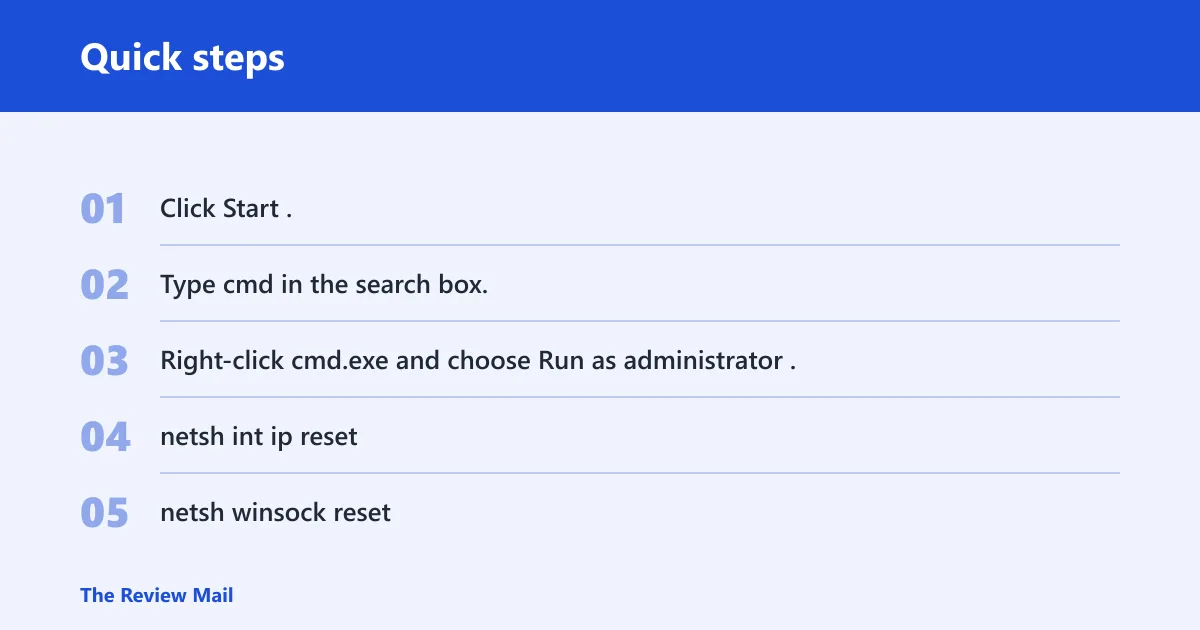
Open Command Prompt as administrator
- Click Start.
- Type cmd in the search box.
- Right-click cmd.exe and choose Run as administrator.
Reset the TCP/IP stack
Run these commands in order:
netsh int ip resetnetsh winsock reset- Restart the PC.
Renew the IP address and retest the gateway
After the restart, open Command Prompt again and run:
ipconfig /releaseipconfig /renewipconfig /all- ping the default gateway shown in the output
Some repair sequences also include ipconfig /flushdns when DNS issues appear alongside the gateway error. That helps if the local route is fixed but name lookups still fail.
How do you set IPv4 manually in Windows 7?
Manual IPv4 settings are useful when DHCP keeps failing or when you need to confirm whether the router assignment path is the real problem. Use this step carefully. A wrong IP address, subnet mask, or gateway can create a conflict on a small home network and make the connection worse.
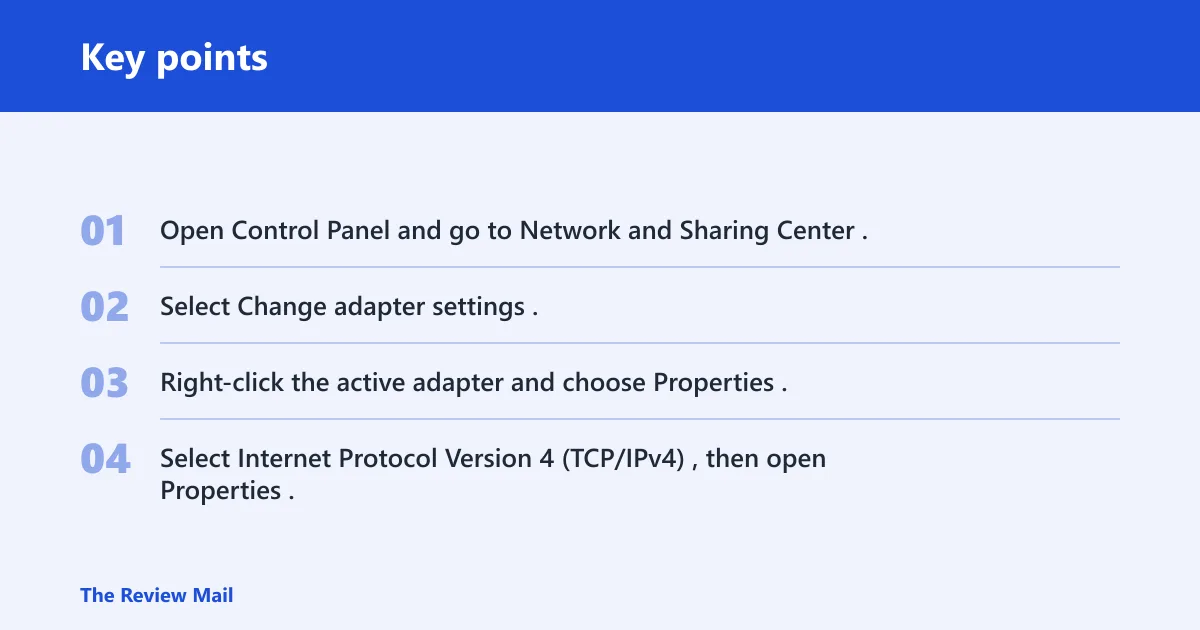
Open the adapter’s IPv4 properties
- Open Control Panel and go to Network and Sharing Center.
- Select Change adapter settings.
- Right-click the active adapter and choose Properties.
- Select Internet Protocol Version 4 (TCP/IPv4), then open Properties.
Enter IP address, subnet mask, and default gateway
Select Use the following IP address. Enter an IP address that fits your local network, the subnet mask, and the default gateway field. Microsoft Q&A examples show 255.255.255.0 for the subnet mask and say the default gateway is usually 192.168.0.1 or 192.168.1.1, but you should confirm the router’s actual address before typing anything. (Microsoft Learn)
Also check the IPv4 address before manual changes. If the router already handed out an address to another device, using the same one can cause conflicts and make the gateway error look random.
Avoid address conflicts on small home networks
On a small network, one wrong static address can block another device or replace a valid DHCP lease. Keep the manual address in the same subnet as the router, and do not reuse an address that another computer or printer already uses. If you are unsure, return the adapter to automatic addressing after the test.
Can antivirus or firewall cause default gateway errors?
Yes. Security software can block network connectivity, and firewall or network-manager settings can interrupt gateway access. If the gateway is reachable from other devices but this PC still drops off the network, a temporary security test is worth doing before you replace hardware or reimage the machine.
Temporarily disable security software for a connectivity test
- Pause antivirus protection only long enough to test the connection.
- If the product includes a firewall, disable it briefly as well.
- Retest ping to the gateway and confirm whether the error returns.
- Turn protection back on right after the test.
If the connection returns while the software is off, check the program’s network rules or uninstall it to confirm the conflict. Do not leave protection disabled.
Restart the router and PC
Restart the router and the PC after you verify the adapter and gateway path. This is a basic step, but it makes sense after you have checked ipconfig, ping, and Device Manager. Otherwise, a reboot can hide the real cause instead of fixing it.
Test other devices on the same network
If a phone, tablet, or second PC can still browse normally, the router is probably not down. If every device loses access at once, the router, modem, or upstream link deserves attention before you keep changing Windows settings.
Why does Windows 7 keep saying the default gateway is not available?
Recurring errors usually mean the fault returns after reconnects, sleep, or lease renewals. That pattern points to a repeatable cause: DHCP instability, an adapter driver that fails under load, power management that shuts the card off, or router-side issues that reappear when the lease is refreshed. A one-time drop is different from a repeated daily failure.
A Windows 7 complaint about this problem several times a day, tied to an NVIDIA networking controller, fits the recurring pattern. One support answer describes the issue as a known nVidia issue on Windows 7, which is why driver status matters so much when the error keeps returning.
Decision path for recurring versus one-time drops
- If the error happens once after sleep, start with adapter power management and a gateway ping test.
- If
ipconfig /allshows no default gateway, focus on DHCP renewal, TCP/IP reset, and router reachability. - If the gateway pings but the PC still loses internet, check DNS, antivirus, and firewall settings.
- If the problem appears several times a day, update or reinstall the network adapter driver and watch Device Manager for repeat failures.
- If every device on the network drops together, restart and inspect the router before changing more Windows settings.
Frequently asked questions
Why is the default gateway not available?
The message means Windows 7 cannot reach the router that sends traffic out of the local network. That can happen because the DHCP lease failed, the adapter lost power, the driver broke, or the router stopped answering. Start with ipconfig /all and ping before changing settings.
How do I fix default gateway is not available on Windows 7?
Use the Windows 7 Network troubleshooter first, then verify the gateway with ipconfig /all and ping. If the gateway is blank or unreachable, renew the address, reset TCP/IP, check adapter power management, and update or reinstall the network driver through Device Manager.
Should I update or reinstall my network adapter driver?
Yes, if the adapter shows warning marks, disappears, or the gateway error keeps returning. In Device Manager, update the driver first. If that fails, uninstall the adapter and restart so Windows 7 can reload it. Driver corruption is a common cause when the problem repeats several times a day.
How do I manually assign a default gateway in Windows 7?
Open the adapter’s IPv4 properties in Network and Sharing Center, then enter the IP address, subnet mask, and default gateway by hand. Use a valid address for your local network and confirm the router address first. Manual settings can create conflicts on small home networks if you reuse an existing IP.
What if the default gateway error keeps coming back several times a day?
That pattern usually means the fault is recurring, not random. Check the adapter driver, the power-management setting, and DHCP renewal behavior first. If the gateway keeps vanishing after sleep or lease refreshes, Device Manager and TCP/IP repair matter more than repeated router restarts.