Stop Code Attempted Switch From Dpc
Match the crash pattern first: startup BSODs usually point to storage, idle crashes to drivers or power settings, and long gaming-session crashes to GPU, heat, or RAM. Ignore that pattern, and you waste time on the wrong fix, then turn a recoverable stop code into repeated boot failures. This guide shows how to read the pattern, check the likely subsystem, and apply the right fix for ATTEMPTED_SWITCH_FROM_DPC.
What attempted switch from DPC means
ATTEMPTED_SWITCH_FROM_DPC is a Blue Screen stop code also known as STOP 0x100000B8. It points to a Deferred Procedure Call, or DPC, that tried an illegal operation inside the kernel’s scheduling flow. That usually means a driver, memory issue, or hardware conflict pushed Windows into a state it could not recover from.
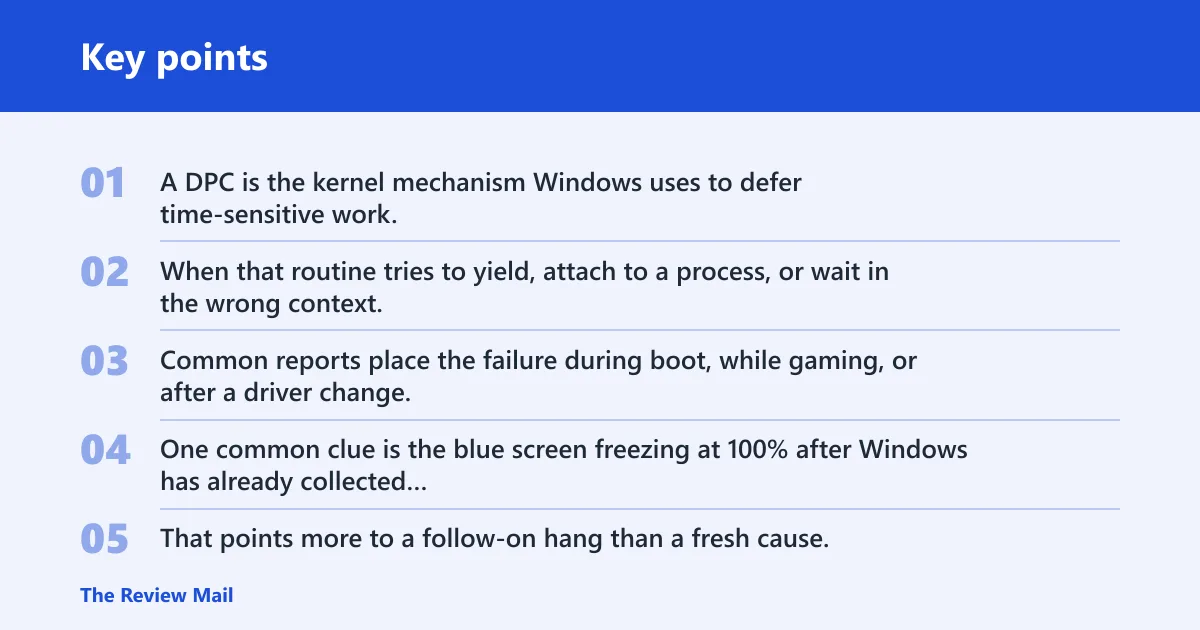
A DPC is the kernel mechanism Windows uses to defer time-sensitive work. When that routine tries to yield, attach to a process, or wait in the wrong context, the system can stop immediately. Common reports place the failure during boot, while gaming, or after a driver change.
One common clue is the blue screen freezing at 100% after Windows has already collected error info. That points more to a follow-on hang than a fresh cause. If that happens, note the exact stop code and any file names shown on screen, then move to the pattern-based checks below.
Which cause is most likely?
Start with when the crash happens, not with a random repair list. Boot-time crashes often point to storage, startup drivers, or BIOS-level instability. Long gaming-session crashes often point to graphics drivers, GPU temperature, or RAM under load. Idle or random crashes often point to a bad driver, power-state issue, or memory corruption.
If the failure started right after a driver update, that is one of the strongest clues. In that case, the new driver, a leftover filter driver, or a conflicting utility is more likely than a failing motherboard. Dump file names such as ntoskrnl.exe, win32kbase.sys, or DWM.exe often sit downstream of the real fault.
If your PC only bluescreens after about 45 to 90 minutes in one game, that often points to heat, VRAM, or the display stack. That pattern points away from a clean Windows install and toward heat, VRAM, or the display stack. Suppose the system crashes before the sign-in screen appears. That shifts attention to storage, chipset, or a boot driver rather than the game itself.
Stop code attempted switch triage matrix
| Crash pattern | Likely subsystem | Fastest validation step | Escalation step |
|---|---|---|---|
| Boot-time crash | Storage, chipset, BIOS/CPU thermals | Boot Safe Mode; if that fails, use Startup Repair | Check disk health, then update chipset and storage drivers |
| Game-only crash after long sessions | GPU/display driver, RAM, thermals | Roll back or reinstall the graphics driver; watch for heat-related shutdowns | Test RAM, then review cooling and power delivery |
| Idle or random crash | RAM, power-state driver, malware | Run Windows Memory Diagnostic and a full Windows Security scan | Run SFC and DISM, then check for conflicting utilities |
| Crash after updating drivers | Driver conflict, especially graphics or storage | Roll back the newest driver in Device Manager | Remove the device, reinstall from the motherboard or GPU vendor, then check dump files |
How do you fix driver-related crashes?
Drivers are one of the most common causes, especially graphics, storage, network, and chipset drivers. If the crash began after an update, roll back first. If the system was already unstable, update the core drivers from the correct source before chasing deeper causes. Device Manager and Windows Update are the right starting points.
- Open Device Manager, expand Display adapters, Storage controllers, Network adapters, and System devices.
- For the device most likely tied to the crash, open Properties > Driver.
- Choose Roll Back Driver if the failure started after an update. If rollback is unavailable, choose Uninstall device, restart, then reinstall the vendor package.
- Open Settings > Windows Update > Advanced options > Optional updates and install driver updates only after the rollback test.
- Remove tuning tools, overlay software, or filter drivers that started with the crash.
Device Manager > (device) > Properties > Driver tab > Roll Back Driver / Uninstall device
How do you check RAM for this BSOD?
Memory faults are a common match when the crash is random, happens at idle, or appears during long gaming sessions. Run Windows Memory Diagnostic first because it is built in and fast to start. If it reports errors, the next step is hardware isolation, not another round of driver changes.
- Press Win + R, type mdsched.exe, and press Enter.
- Select Restart now and check for problems.
- After Windows restarts, open Event Viewer > Windows Logs > System to review the memory test result.
- If errors appear, reseat the DIMMs, then test one stick at a time in the recommended slots.
- If a single module keeps failing, replace that module before touching other parts.
Windows Memory Diagnostic (mdsched.exe)
Event Viewer > Windows Logs > System
Can overheating or storage faults cause it?
Yes. A sustained load pattern matters here. If the crash appears only after long gaming sessions, CPU cooling or GPU stability moves up the list. If it happens during startup, after a freeze, or after Windows has already collected error info, storage corruption or image damage becomes more likely.
- Open Terminal or Command Prompt as administrator.
- Run
sfc /scannow. - Run
DISM /Online /Cleanup-Image /RestoreHealth. - Open Windows Security > Virus & threat protection > Scan options, then run a Full scan or Microsoft Defender Offline scan.
- Check the system drive with
chkdskfrom an elevated prompt if startup crashes still point to storage trouble.
sfc /scannow
DISM /Online /Cleanup-Image /RestoreHealth
If the machine crashes only when the GPU is under sustained load, check fan curves, dust buildup, and case airflow before changing the operating system. A storage fault usually leaves broader symptoms too, such as slow boot, file errors, or repeated repair loops.
What to try when Windows still will not boot
Use Safe Mode when normal startup fails. It strips away most third-party drivers and gives you a path to remove the last bad update, fix files, or roll back a device. If the system cannot reach the desktop, Startup Repair comes before deeper hardware work.
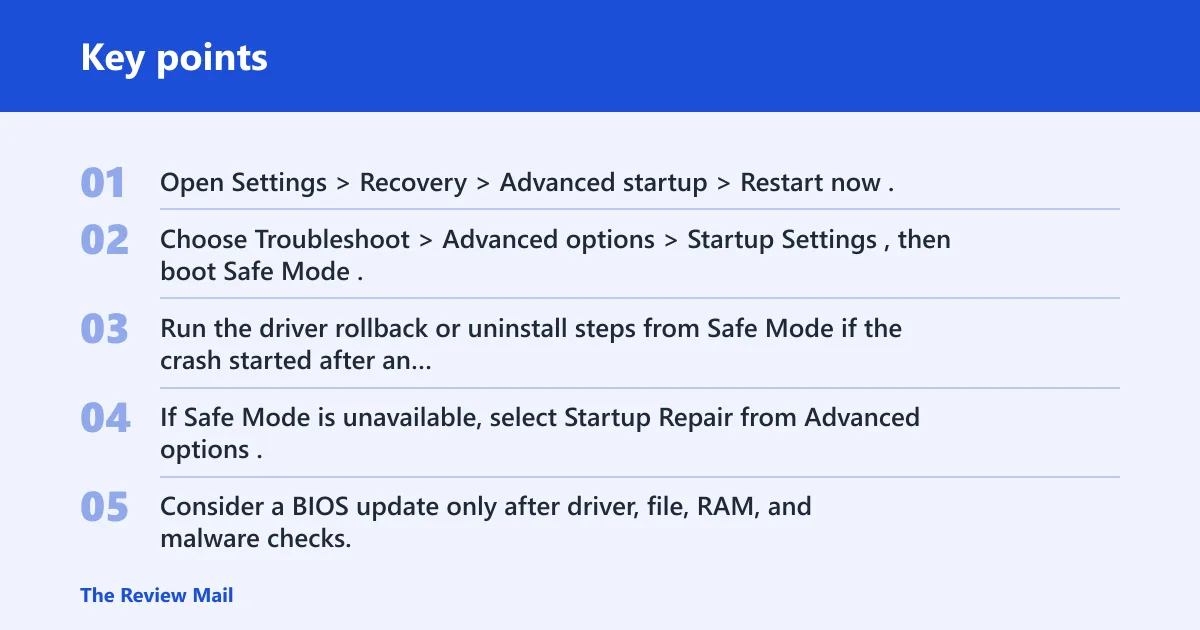
- Open Settings > Recovery > Advanced startup > Restart now.
- Choose Troubleshoot > Advanced options > Startup Settings, then boot Safe Mode.
- Run the driver rollback or uninstall steps from Safe Mode if the crash started after an update.
- If Safe Mode is unavailable, select Startup Repair from Advanced options.
- Consider a BIOS update only after driver, file, RAM, and malware checks, and match it exactly to the motherboard model.
Safe Mode entry: Settings > Recovery > Advanced startup > Restart now > Troubleshoot > Advanced options > Startup Settings
A BIOS update can help some recurring cases, but only when the board vendor lists the fix for your exact motherboard model. It is a later step, not a first response.
Frequently asked questions
What causes attempted switch from DPC BSOD?
Most often it is a driver problem, but RAM, storage, malware, and hardware conflicts can also trigger it. The timing matters. Boot-time crashes usually point to startup or storage trouble, while crashes during gaming more often point to graphics drivers, temperature, or unstable memory under load.
How do I fix stop code attempted switch from DPC?
Start with the crash pattern, then apply the matching fix: roll back or reinstall the recent driver, run mdsched.exe, run sfc /scannow and DISM /Online /Cleanup-Image /RestoreHealth, and scan with Windows Security. If Windows will not boot, use Safe Mode or Startup Repair first.
Can overheating cause attempted switch from DPC?
Yes, especially if the crash appears after sustained gaming or heavy CPU work. Heat does not prove the root cause on its own, but it shifts the next test toward GPU stability, cooling, and power delivery. If a fan curve or thermal limit is wrong, the system may fail only under load.
Is attempted switch from DPC a driver problem or hardware problem?
Either is possible. A new graphics, storage, network, or chipset driver is a strong software clue. Repeated memory errors, disk faults, or crashes that continue after a clean driver rollback point more toward hardware. Dump files help, but file names like ntoskrnl.exe are often downstream, not the root cause.
What should I try if attempted switch from DPC keeps happening after updates?
Roll back the newest driver first, especially graphics or storage. Then check for leftover utilities, run Windows Security, and repair the system image with SFC and DISM. If the same crash returns after a clean rollback, check RAM and storage before moving to BIOS updates or hardware replacement.
Can a game trigger attempted switch from DPC only after long play sessions?
Yes. That pattern often points to GPU temperature, VRAM instability, or a driver that fails under sustained load rather than at launch. Check the graphics driver, then cooling and power delivery. If the problem appears only after long sessions, memory testing is still worth doing next.
Still not working?
If the crash survives driver rollback, Windows Memory Diagnostic, SFC and DISM, and a malware scan, move to dump-file analysis or hardware isolation. Test one RAM stick at a time, check the system drive, and compare the timing of the failure with each change. If the machine still freezes at 100% after the blue screen, or if boot loops continue, vendor support or a repair shop should inspect the board, storage, and memory in that order.
Prevention: after recovery, keep only one graphics driver branch installed, avoid stacking multiple tuning utilities, and update chipset or storage drivers only when the motherboard or system vendor posts a matching package.