
0x000000d7: What It Means and How to Fix It on Windows
0x000000d7 on Windows 10/11 is a blue-screen stop code that can point to driver, firmware, or unstable hardware issues. Start by checking for a recent driver, BIOS, RAM, or storage change. Miss that order, and you can waste hours fixing the wrong layer while the PC keeps rebooting. This guide shows the quickest way to separate driver faults from firmware settings and hardware instability before you change anything.
This guide is part of our Windows BSOD stop codes: full list and fixes series.
According to Microsoft, the DRIVER_UNMAPPING_INVALID_VIEW bug check is associated with 0x000000D7, and it indicates a driver tried to unmap an address that was not mapped. That is why the crash often lands in kernel-mode code, not in a visible app.
What 0x000000d7 means in Windows
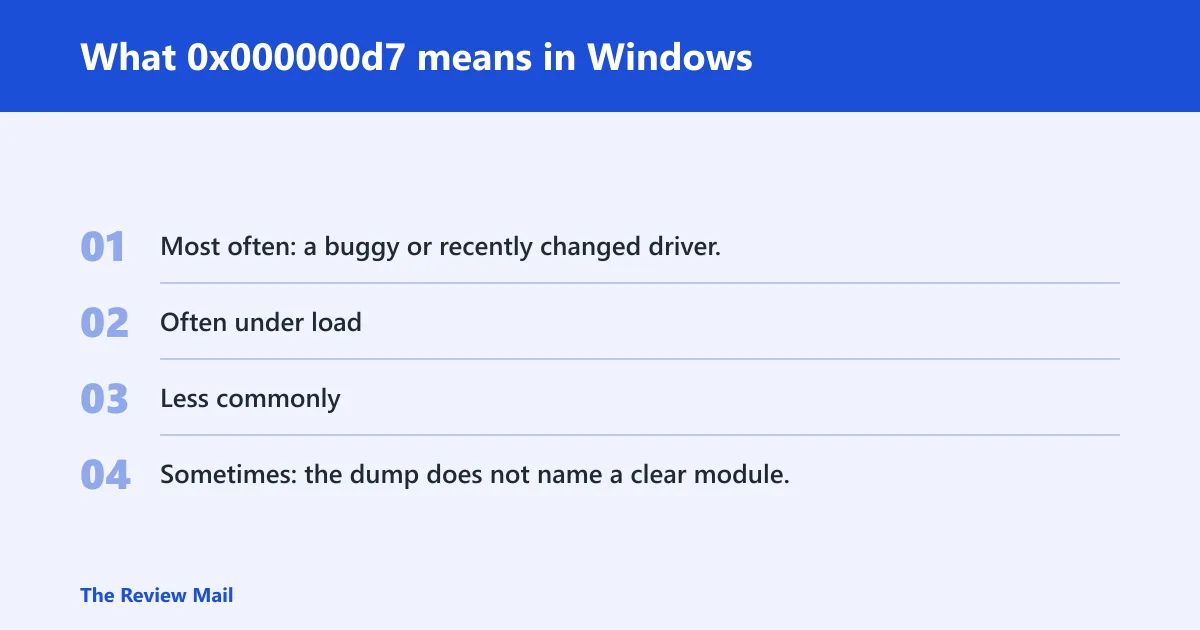
You may see the stop code on the blue screen, in a minidump, or in Event Viewer. The useful part is the surrounding evidence: the crash time, the dump path, and any named .sys file.
Likely causes, ranked for triage
- Most often: a buggy or recently changed driver.
- Often under load: GPU, PSU, or overclock instability.
- Less commonly: firmware settings, BIOS/UEFI issues, or bad RAM/storage.
- Sometimes: the dump does not name a clear module, which means the next step is better evidence, not random fixes.
Check the dump and event log first
Start with the newest minidump in C:\Windows\Minidump, then match its file time to Event Viewer so you know which crash you are actually chasing. If BlueScreenView or WinDbg can name a .sys file, that is your next lead.
- Open File Explorer and go to
C:\Windows\Minidump. - Sort by Date modified and note the newest .dmp file.
- Open Event Viewer from the Start menu.
- Go to Windows Logs > System.
- Filter for BugCheck and WER-SystemErrorReporting.
- Match the event timestamp to the newest dump file and the actual crash time.
- If you do not have WinDbg, open the dump in BlueScreenView and look for the highlighted .sys filename.
Use !analyze to inspect the bug check details and kb to display the stack backtrace if you are in a debugger (per Microsoft support). If the dump names a vendor driver, that is usually faster than changing Windows itself.
Say your latest dump is the only file in C:\Windows\Minidump and its timestamp matches a BugCheck 1001 event at 9:41 PM. That pairing tells you the dump and log are talking about the same crash, not an older one.
What causes 0x000000d7 most often?
The usual pattern is a recent driver change, especially when the blue screen starts after new GPU, network, or audio software. If the crash only appears during games or benchmarks, load instability moves up the list. Firmware and hardware come later, after driver evidence is thin.
Recent driver changes and buggy.sys files
When BlueScreenView or the dump points to a .sys file, treat that module as the first suspect. GPU, network, and audio drivers are common places to look because they sit in kernel mode and can bring down the system fast.
What should you do if the dump names a.sys file?
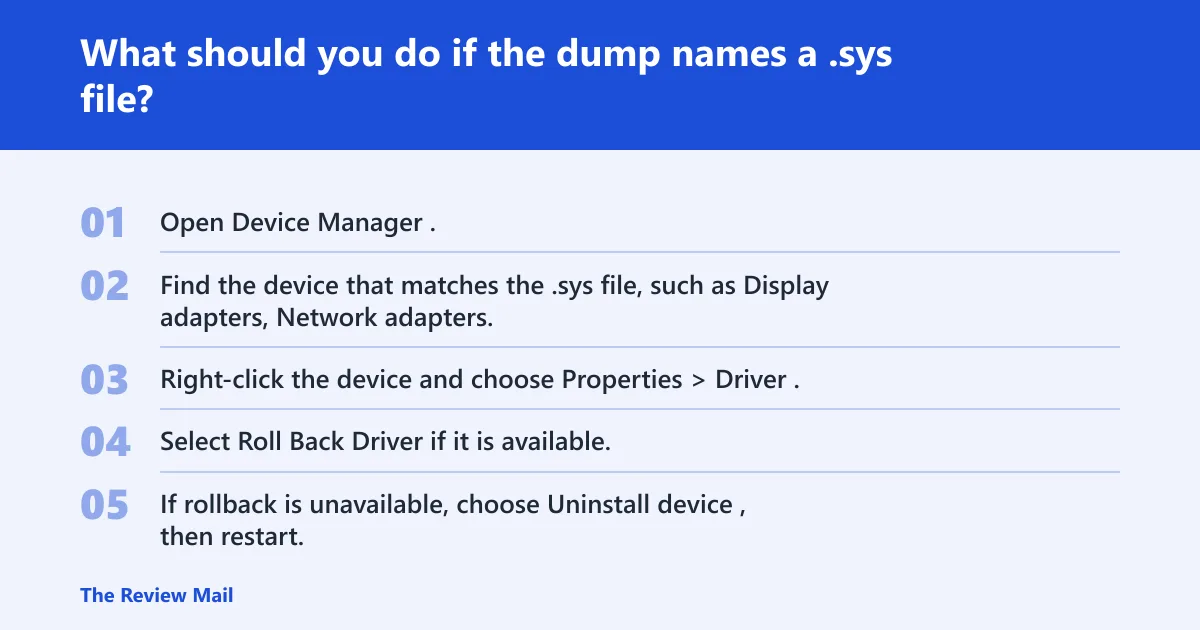
If the dump names a .sys file, fix that device path first: update the driver, roll it back if the problem started after a recent change, or uninstall the device and restart if rollback is unavailable. Then repeat the same check for GPU, network, and audio drivers before touching Windows itself.
- Open Device Manager.
- Find the device that matches the .sys file, such as Display adapters, Network adapters, or Sound, video and game controllers.
- Right-click the device and choose Properties > Driver.
- Select Roll Back Driver if it is available.
- If rollback is unavailable, choose Uninstall device, then restart.
- If no recent change stands out, choose Update driver, then retest.
- Repeat for other likely device drivers: GPU, network, then audio.
Keep the test narrow. A driver change only matters if it changes the crash pattern. If the machine still blue-screens on the same device path after a restart, the module may be wrong, incomplete, or only one part of the problem.
Load-related instability from GPU, PSU, or overclock settings
If crashes happen mainly under heavier load, that can point toward power or overclock instability. The system may be stable at idle and fail only when the GPU, memory controller, or power delivery is stressed.
What should you do if the crash happens only under load or gaming?
First return any overclocking to default settings, including CPU, GPU, and RAM tuning. Then review PSU capacity and cabling against the graphics card’s recommended requirement, and retest under the same load that caused the crash. If the symptoms still point to power delivery, try a known-good PSU.
- Open BIOS/UEFI or your tuning utility and restore default clock and voltage settings.
- Check the GPU vendor’s recommended PSU requirement and compare it with the installed unit.
- Inspect PCIe power connectors and ensure each plug is fully seated.
- Run the same game, benchmark, or workload that triggered the blue screen.
- If the crash repeats, test with another known-good PSU.
Suppose a system stays fine at the desktop but reboots during a 1440p game menu. That pattern points away from idle Windows work and toward load, power, or thermal stress.
What if Safe Mode is stable?
If Safe Mode stays stable, the crash may be tied to a normal-boot driver, service, or device package rather than core Windows files. Safe Mode strips away much of the usual startup load, which makes it easier to separate software from hardware causes.
- Open Settings > System > Recovery > Advanced startup and restart into recovery.
- Choose Troubleshoot > Advanced options > Startup Settings > Restart.
- Select Safe Mode.
- If it is stable, remove or disable recent antivirus, filter, or device software in Settings > Apps > Installed apps or Control Panel > Programs and Features.
- Restart normally and check whether the crash returns.
A common first-timer mistake is to treat Safe Mode stability as proof that Windows itself is broken. It usually points the other way: a normal-boot driver or service is the better suspect.
How do I tell whether the issue is Windows, BIOS, power, or hardware?
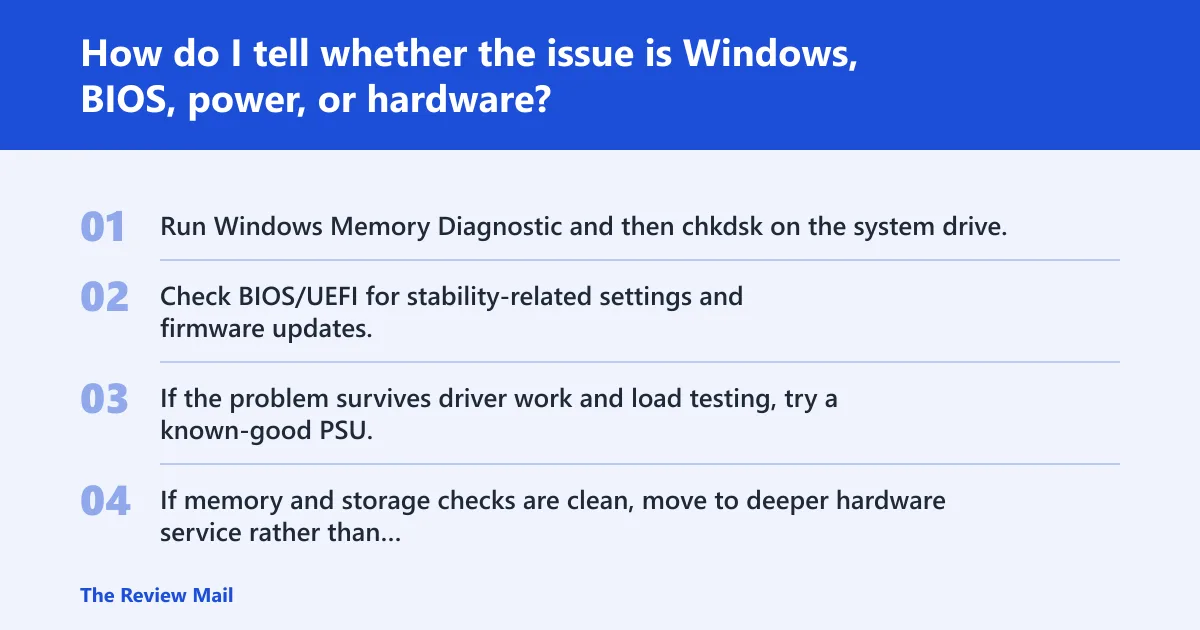
Use a sequence, not a guess. Driver evidence comes first, then BIOS/UEFI and power, then memory and storage. That order avoids replacing parts before you know which layer failed.
Decision checklist
| Crash context | What it suggests | Next best action |
|---|---|---|
| Dump names a .sys file | Likely driver path | Update, roll back, or uninstall that device driver; restart; repeat for GPU, network, and audio |
| Event Viewer shows BugCheck 1001 and a matching dump path | Confirmed crash record | Use the timestamp plus dump file to open the newest .dmp and inspect the named module |
| Crashes happen only under load | Power or overclock instability is more likely | Return to default clocks, review PSU capacity and cabling, then retest under the same load |
| Safe Mode is stable | Normal-boot software is more likely than core hardware | Remove recent driver or security software, then restart normally |
If that did not work, try this next
- Run Windows Memory Diagnostic and then
chkdskon the system drive. - Check BIOS/UEFI for stability-related settings and firmware updates.
- If the problem survives driver work and load testing, try a known-good PSU.
- If memory and storage checks are clean, move to deeper hardware service rather than reinstalling Windows first.
Windows should not be your first reset button here. Test RAM and PSU before replacing the operating system, especially when the same crash repeats after driver changes.
Can a bad GPU driver or network driver cause repeated BSODs?
Yes. A bad GPU driver can crash during graphics work, and a bad network driver can do the same during transfers, streaming, or background updates. That is why you should repeat the same check for GPU, network, and audio drivers before changing Windows itself.
- Open Device Manager.
- Check Display adapters, Network adapters, and Sound, video and game controllers one by one.
- For each recent or suspicious driver, choose Properties > Driver.
- Use Roll Back Driver, or Uninstall device if rollback is unavailable, then restart.
- Retest the exact activity that caused the crash.
Should I update or roll back drivers after a stop code crash?
Choose based on timing. If the crash started after a driver update, rollback is the cleaner first move. If the system has old or missing vendor software, update that device driver after you have identified it from the dump or BlueScreenView.
- Open Device Manager and locate the named device.
- Use Roll Back Driver if a recent change lines up with the first crash.
- If the crash predated the current driver, choose Update driver.
- If neither option helps, choose Uninstall device, then restart.
- Recheck
C:\Windows\Minidumpafter the next crash to see whether the module changed.
What logs or event IDs should I check after a blue screen?
Check BugCheck 1001 and WER-SystemErrorReporting in Event Viewer, then match those timestamps to the newest dump file in C:\Windows\Minidump. That pairing tells you whether the crash path and the dump path line up, which makes the rest of the triage much faster.
- Open Event Viewer.
- Go to Windows Logs > System.
- Filter or search for BugCheck and WER-SystemErrorReporting.
- Open the event and note the exact time and dump path.
- Match that time to the newest .dmp file in
C:\Windows\Minidump.
What does the driver unmapping invalid view message mean?
The driver unmapping invalid view message means a driver tried to unmap memory it should not have touched. In practice, that often shows up as a kernel-level fault, so the best next step is to identify the module in the dump rather than jump straight to random hardware replacements.
What should I do if the crash repeats in a loop?
A crash loop means the same bad condition is being hit during startup or normal use, so the recovery path matters more than the restart button. Use Safe Mode, remove the likely driver, then restart normally and check whether the loop stops.
- Enter Safe Mode through Settings > System > Recovery > Advanced startup.
- Remove the most recent driver or related device software.
- Restart normally.
- If the loop returns, open the newest dump and Event Viewer again before making another change.
Can this happen on Dell systems?
Yes. A Dell PC can still hit the same stop code if a vendor driver, BIOS setting, GPU package, or power issue is involved. Brand name does not change the triage order: dump, event time, driver, then hardware load checks.
Still not working? If the dump does not name a .sys file, or if the crash survives driver rollback, Safe Mode cleanup, BIOS/UEFI review, and load testing, move to memory testing, storage checks, and PSU substitution before you reinstall Windows. If that still fails, the machine needs vendor or repair support.
Frequently asked questions
What does stop code 0x000000d7 mean in Windows?
It is a blue-screen bug check tied to a driver trying to unmap an address that was not mapped, so the key task is to identify the affected module from the newest dump file and the matching Event Viewer entry. That evidence usually leads to a specific device driver, not a generic Windows fix.
Is 0x000000d7 caused by a driver or hardware problem?
Most often it starts as a driver issue, especially when a named .sys file appears in the dump. If the crash only happens under gaming or other load, power delivery, overclock settings, or GPU instability move higher on the list, and memory or storage checks come after driver work.
How do I find the faulty driver from a BSOD dump?
Open the newest file in C:\Windows\Minidump, then use BlueScreenView or WinDbg to identify the highlighted .sys file. Match the dump time to BugCheck 1001 in Event Viewer so you know the module belongs to the most recent crash, not an older one.