How to Restart Microsoft PC
To restart a Microsoft PC quickly and safely, use Start > Power > Restart first. If you cannot reach the desktop, move to keyboard, sign-in, Safe Mode, command-line, or remote options in that order. If you actually need a repair, reset, or password fix, use the linked guides instead of forcing a restart flow.
What you’ll need
- A PC running Windows 11 or Windows 10.
- A working mouse or keyboard, if available.
- Admin access for Command Prompt or remote restart methods.
- Network access for remote restart.
- The target PC name for remote actions.
How do you restart from the desktop?
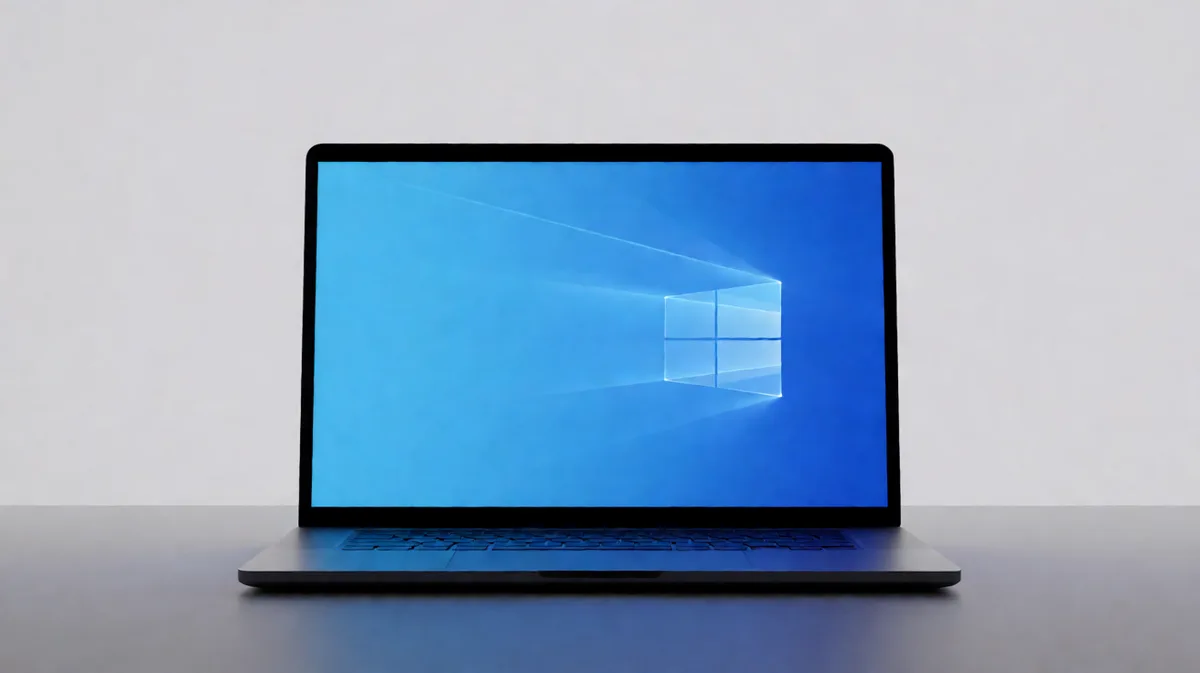
If Windows is responsive, restart from the desktop first: open Start, select Power, then choose Restart. This is the normal shutdown path and the least disruptive option. It gives open apps a chance to save state before Windows reboots. (Microsoft Support)
- Open Start.
- Select Power.
- Choose Restart.
- Wait for the shutdown and boot cycle to finish before pressing keys again.
If your browser freezes but the taskbar still works, a normal restart is still the best first move. Only switch to harder recovery paths when the desktop no longer responds.
How do you restart without a mouse?
Use keyboard navigation when the mouse pointer is broken, laggy, or missing. The most reliable paths are the Windows key for Start, arrow keys for Power, and Restart, or Alt+F4 from the desktop if focus is on the desktop itself. This keeps the reboot controlled and avoids forced shutdowns. (Microsoft Support)
- Press the Windows key.
- Use the arrow keys to reach Power.
- Press Enter, then arrow to Restart.
- Press Enter again.
If the desktop has focus, Alt+F4 can open the shutdown menu. If that menu does not appear, move to Ctrl+Alt+Delete and use the power icon on that screen. Win+X may help on some builds, but it is not as universally reliable for shutdown navigation.
How do you restart from the sign-in screen?
When you are locked out of the desktop, use the sign-in screen’s Power icon for a normal restart. If you need recovery tools, hold Shift while selecting Restart; Windows then opens recovery instead of performing only a plain reboot. That is the correct branch for startup repair and Safe Mode. (Microsoft Support)
- At the sign-in screen, choose the Power icon.
- To restart normally, select Restart.
- To open recovery options, hold Shift while selecting Restart.
- After the PC restarts, select Troubleshoot > Advanced options > Startup Settings > Restart if you need Safe Mode.
Picture a laptop at the sign-in screen after a driver crash. Hold Shift while choosing Restart, then continue to Troubleshoot > Advanced options > Startup Settings > Restart to reach recovery choices. If you instead need account help, see the password guide rather than continuing with restart steps.
Restart methods by scenario
| Scenario | Trigger | Safest restart method | Risk note |
|---|---|---|---|
| Normal desktop | Windows is responsive | Start > Power > Restart | Lowest risk. Saves the most state before reboot. |
| Frozen mouse | Pointer will not move or click | Windows key, arrow keys, Power, Restart | Safe if the keyboard still responds. |
| Frozen keyboard focus | Desktop works, but menus ignore key focus | Ctrl+Alt+Delete, then use the Power icon | May close unsaved work in open apps. |
| Sign-in screen | You cannot reach the desktop | Power icon on the sign-in screen | Use Shift+Restart only if you need recovery tools. |
| Safe Mode | Normal startup keeps failing | Recovery path to Safe Mode, then restart from there | Safe Mode strips out some drivers and startup items. |
| Command Prompt access | You can type commands but not use the desktop easily | shutdown /r /t 0 | Add /f only if you must close apps. |
| Remote admin access | You have admin rights and network access | shutdown /m \\PC-NAME /r /t 0 | Replace PC-NAME with the real target name. |
| Pending-update prompt | Windows asks to restart for updates | Restart from the prompt, or postpone once if work is unsaved | Do not keep cycling the prompt without checking the update state. |
How do you restart from Command Prompt?
Use the command line when you have terminal access but not an easy desktop path. The standard restart command is shutdown /r /t 0. It tells Windows to reboot immediately without waiting. Add /f only when you need to close stubborn apps. This is Microsoft’s documented restart syntax. (Microsoft Learn)
- Open Command Prompt or Windows Terminal with admin rights if possible.
- Type shutdown /r /t 0.
- Press Enter.
- If apps block the reboot, use shutdown /r /f /t 0 only when you accept forced closure.
Use this path when the UI is unreliable but text entry still works. Do not use /f unless closing applications is acceptable, because it can interrupt unsaved work.
How do you restart in Safe Mode?
Use Safe Mode when normal startup keeps failing or restart problems make basic troubleshooting harder. It loads fewer startup items and drivers, which helps you check drivers, uninstall recent changes, or clear a startup conflict before trying a normal boot again. Microsoft documents the path through recovery and Startup Settings. (Microsoft Support)
- Hold Shift and choose Restart from the sign-in screen or Start menu.
- When the recovery menu opens, select Troubleshoot > Advanced options > Startup Settings > Restart.
- After the restart, choose the Safe Mode option shown on screen.
- Check Device Manager for devices marked with an exclamation point.
Safe Mode is not the same as a reset. It is a troubleshooting environment, and it is the right next step when a normal restart does not lead to a usable desktop. For deeper repair paths, use the recovery and System Restore pages linked below.
How do you restart without updating?
You can postpone a pending update restart long enough to save work, but do not treat every update prompt as optional. If Windows shows a restart request for updates, save your files first. Then restart at a time that will not interrupt anything important. For update issues, use Windows Update guidance instead of repeatedly cycling the prompt. (Microsoft Support)
- Save open files before you touch the update prompt.
- If the prompt allows it, choose a later restart time instead of rebooting immediately.
- After the PC is back up, go to Start > Settings > Windows Update > Check for updates.
- If updates keep looping, inspect the update state instead of repeatedly forcing restarts.
A common first-time mistake is clicking restart again and again when the same update screen returns. If that happens, move on to the recovery steps below rather than repeating the same reboot. If you need a broader repair, use Windows Update troubleshooting or System Restore.
How do you restart remotely?
Use a built-in command when you have admin rights on the network and need to restart another PC. The simplest built-in option is shutdown with the remote machine name. Microsoft’s command syntax requires a reachable target, the right permissions, and remote shutdown rights on the destination system. (Microsoft Learn)
- Open an elevated Command Prompt on your admin PC.
- Run shutdown /m \\PC-NAME /r /t 0, replacing PC-NAME with the real computer name.
- Press Enter and wait for the target PC to reboot.
- If needed, confirm the name in Settings > System > About on the target PC before trying again.
Do not guess the device name. A wrong name points the command at nothing useful, and a typo can waste time during a remote fix. If the remote PC is off the network or you do not have admin rights, the command will not succeed.
Common mistakes
- Mixing restart and reset: restart reboots Windows; reset reinstalls or refreshes it through recovery options.
- Ignoring Device Manager warnings: check for exclamation points on hardware entries if restarts keep failing. Microsoft recommends checking warning icons before chasing broader causes. (Microsoft Support)
- Forcing repeated restarts during update loops: save work first, then check Windows Update status.
- Skipping free-space checks: aim for 10 to 15 percent free disk space before deeper troubleshooting. (Microsoft Support)
- Using remote restart with the wrong PC name: confirm the target name before running the command.
Suppose a desktop PC has only about 3 percent free space and keeps restarting after updates. Free space that low can make recovery harder, so clear space before trying another cycle of reboot and update. If a hardware warning appears, check Device Manager warning icons before trying again.
If restart problems keep coming back
Work through the next steps in order. They move from simpler checks to broader recovery actions. Stop as soon as the PC restarts normally again. If the system still will not boot, use Microsoft’s recovery guidance rather than repeating the same failed restart path. (Microsoft Support)
- Open Device Manager and look for devices marked with an exclamation point; update, disable, or uninstall the one most likely tied to the restart issue.
- Go to Start > Settings > Windows Update > Check for updates and install the latest updates.
- Free up disk space until you have 10 to 15 percent free space on the drive that holds Windows.
- If the problem still returns, open recovery options and try System Restore or another recovery path.
If Windows will not boot normally, force the recovery environment to appear by interrupting startup, then choose the recovery menu. Use that path when ordinary restart methods no longer reach the desktop. For a clean next step, see reset this PC only after restart and recovery troubleshooting fail.
Frequently asked questions
How to restart windows pc
Use Start > Power > Restart first. That is the standard Windows path on both Windows 11 and Windows 10. If the mouse does not work, use the Windows key and arrow keys, or open recovery options with Shift+Restart when you need repair tools. (Microsoft Support)
How to restart windows pc from command prompt
Run shutdown /r /t 0 in Command Prompt or Windows Terminal. That command restarts the PC immediately. If apps block the reboot and you accept forced closure, use shutdown /r /f /t 0 instead. Microsoft documents this syntax for local restarts. (Microsoft Learn)
How to restart windows pc in safe mode
Hold Shift and choose Restart, then select Troubleshoot > Advanced options > Startup Settings > Restart. After the reboot, choose the Safe Mode option. Use this when a normal restart does not lead to a stable desktop. Safe Mode is a troubleshooting branch, not a reset. (Microsoft Support)
What if I forgot my windows password?
This article does not cover full password recovery. If you need to regain account access, use the dedicated password reset guidance. If you can still sign in, restart first only to clear a temporary glitch; if you cannot sign in, use the sign-in screen’s power menu or recovery options instead.