Windows 10 Reset Network
Use Windows 10 network reset only after lighter fixes fail: it reinstalls network adapters, clears saved Wi‑Fi and VPN data, and often fixes no internet, broken Wi‑Fi, or unidentified network errors. If you run it too soon, you can lose settings you still need and spend extra time rebuilding them. This guide shows which reset level fits each symptom and what to save before you start.
Match the least destructive reset to your symptom
Pick the least destructive repair that matches the symptom. Start with the built-in troubleshooter, then move to a command-line reset or the full Settings reset only when the problem points to corrupted network settings rather than a bad router, bad driver, or ISP outage.
| Symptom | Safest repair step | Exact command or menu path | What it resets | What to back up first | Stop and escalate when |
|---|---|---|---|---|---|
| No internet, but Wi‑Fi connects | Network Troubleshooter | Settings > Network & Internet > Status > Network troubleshooter | Runs a diagnostic check and may repair common adapter or DNS issues | Nothing yet, unless you plan to move to a full reset | The router, modem lights, or ISP status point to an outage |
| Unidentified network | Reset Winsock or TCP/IP first | Admin Command Prompt: netsh winsock reset or netsh int ip reset | Winsock catalog or IPv4 stack settings; IPv6 settings can also be affected by related commands | Static IP, DNS, proxy, and custom route details | The same error returns after reboot, or the adapter shows a driver fault |
| Wi‑Fi connects, but saved networks act broken | Full network reset | Settings > Network & Internet > Status > Network reset | Removes and reinstalls network adapters to default values | Wi‑Fi profile names and passwords | The issue follows one access point or router, not the PC |
| VPN stopped working after an update | Check VPN client first, then consider reset | Repair or reinstall the VPN app before any reset | Often nothing in Windows needs a reset if the VPN client itself is broken | VPN server name, tunnel type, username, MFA setup | The VPN app still fails after reinstall, or a virtual adapter is missing |
| Ethernet adapter vanished from Device Manager | Driver or hardware check first | Device Manager, then driver update or reinstall; use full reset only if several adapters are affected | A full reset reinstalls adapters after restart | Static IP and DNS settings | The adapter does not return after restart, which points to hardware or driver trouble |
| DNS names fail, but IP addresses work | Flush DNS cache | Admin Command Prompt: ipconfig /flushdns | Clears cached name lookups | Custom DNS server addresses | Browsers still fail after flush, which points to upstream DNS, proxy, or router issues |
| Proxy traffic breaks after a policy change | Check proxy settings before reset | Settings > Network & Internet > Proxy | Nothing yet; a reset may leave enterprise proxy details behind or require re-entry | Proxy address, port, PAC file, and sign-in method | Corporate policy manages the proxy and the correct settings are not available |
| Several adapters and virtual switches are unstable | Use the aggressive command only when needed | Admin Command Prompt: netcfg -d | Removes all network adapters | VPN details, virtual switch settings, Wi‑Fi profiles, static IP data | You depend on virtual adapters or a managed VPN stack that can break after removal |
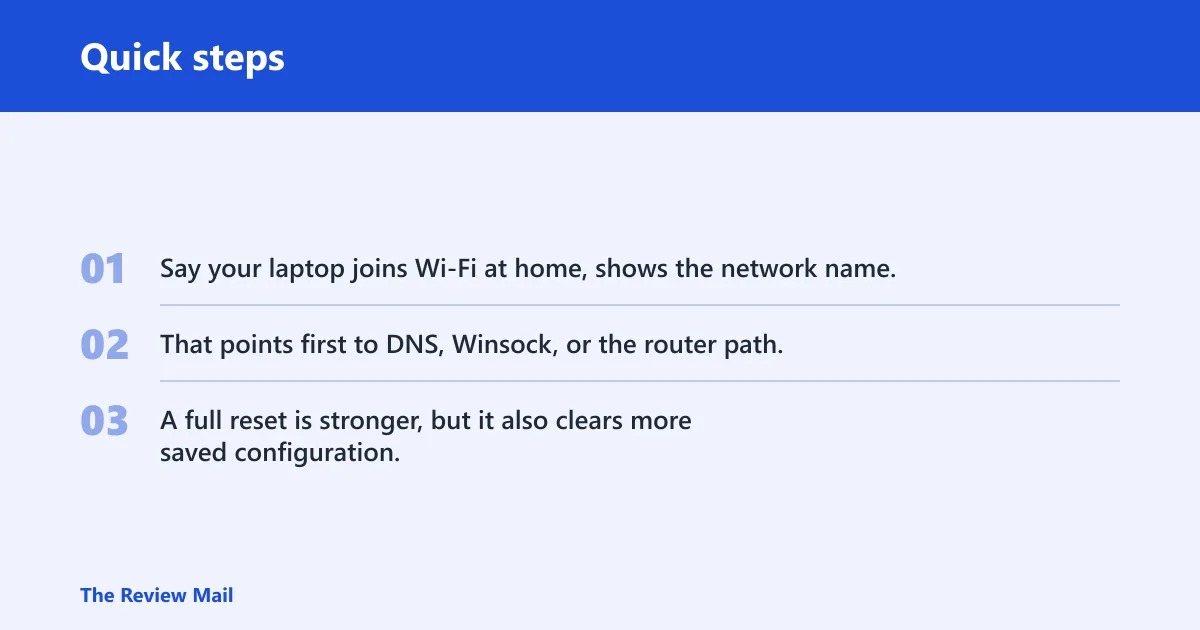
Say your laptop joins Wi‑Fi at home, shows the network name, and still reports no internet after a reboot. That points first to DNS, Winsock, or the router path, not straight to the full Settings reset. A full reset is stronger, but it also clears more saved configuration.
What does network reset do in Windows 10?
Windows 10 Network reset lives in Settings > Network & Internet > Status, and it is available on Windows 10 version 1607 and later. It restores network adapters to default values, removes and reinstalls them after restart, and finishes only after Windows reboots.
What gets restored to default
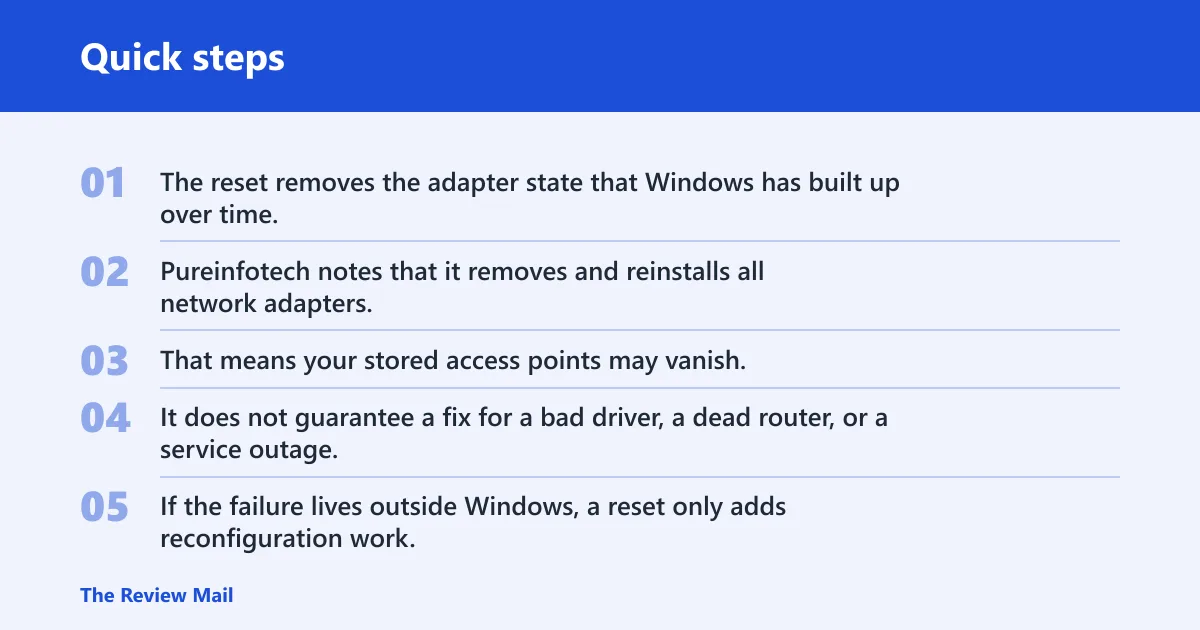
The reset removes the adapter state that Windows has built up over time. Pureinfotech notes that it removes and reinstalls all network adapters, and it also clears saved Wi‑Fi networks and passwords. That means your stored access points may vanish, along with some VPN or virtual switch software that depends on adapter state.
It does not guarantee a fix for a bad driver, a dead router, or a service outage. If the failure lives outside Windows, a reset only adds reconfiguration work.
Why restart is part of the reset
Windows cannot finish the job in place. After the reset, it restarts automatically in 5 minutes so the adapter rebuild can complete. That reboot is what loads the default network components again.
When should you use Network Troubleshooter first?
Use the built-in troubleshooter before any reset because it is less destructive and often enough for simple adapter or DNS faults. Woshub recommends checking common diagnostics first, and it includes a command to launch the Network Diagnostics adapter troubleshooter from the command line.
When it is enough on its own
If the problem is a temporary name-resolution glitch, a disabled adapter, or a basic profile issue, the troubleshooter may repair it without touching saved Wi‑Fi or VPN data. That makes it the right first step when the connection is flaky but your settings still matter.
When to move
Move on when the troubleshooter fails, the same error returns after a restart, or multiple adapters are broken at once. If the issue points to corrupted stack settings, a reset becomes more reasonable than repeating the same diagnosis.
How do you reset network settings in Windows 10?
Open Settings > Network & Internet > Status, then choose Network reset. Confirm the prompt, save your work, and let Windows restart. The reset removes and reinstalls adapters, then reloads them during reboot so the default network stack can start cleanly.
Confirm the reset prompt
- Open Settings.
- Select Network & Internet.
- Go to Status.
- Select Network reset.
- Read the warning about removed adapters and saved Wi‑Fi data.
- Confirm only after you have saved the settings you need.
What happens during reboot
Windows uninstalls and rebuilds the network configuration as it starts again. Expect the machine to come back without remembered wireless credentials, and plan for VPN or virtual adapter software to need attention after the restart.
A common first-timer mistake is running the reset to “fix Wi‑Fi” and then discovering the office SSID, VPN profile, and custom DNS servers are gone. The repair still works as designed. The missing piece was the backup step.
Which command-line reset should you use?
Use command-line repair when you want to target one layer instead of clearing everything. These commands require admin rights, and each one hits a different part of the stack. That makes them better than a full reset when the symptom is narrow.
Flush DNS cache
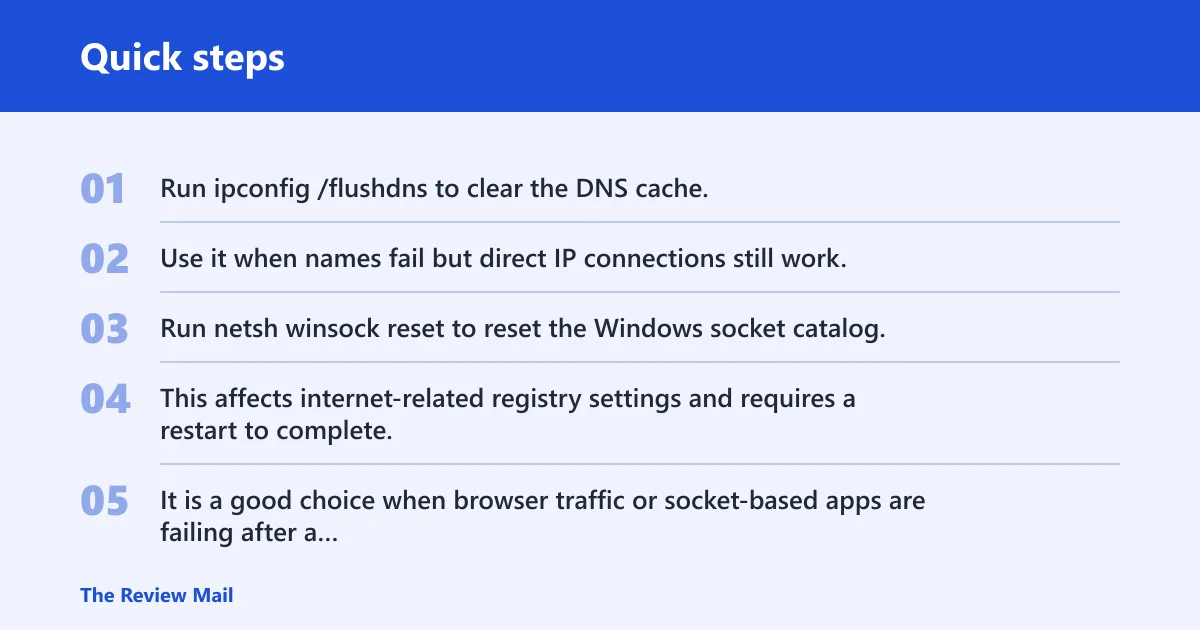
Run ipconfig /flushdns to clear the DNS cache. Use it when names fail but direct IP connections still work, or when a stale lookup is likely causing the problem. It does not reset adapters.
Reset Winsock
Run netsh winsock reset to reset the Windows socket catalog. This affects internet-related registry settings and requires a restart to complete. It is a good choice when browser traffic or socket-based apps are failing after a software change.
Reset the TCP/IP stack
Run netsh int ip reset to reset IPv4 stack settings. Use netsh int ipv6 reset if the IPv6 path needs attention too. These commands are useful when the machine has a bad IP configuration, broken routing, or an “unidentified network” state that survives a DNS flush.
Use netcfg -d only when needed
Use netcfg -d only when you need the most aggressive cleanup. It removes all network adapters, which is more severe than the basic Settings reset and can remove virtual adapters. That is often too much for a routine Wi‑Fi problem.
What should you save before reset?
Save the settings most likely to disappear first: Wi‑Fi profiles, passwords, VPN details, static IP values, DNS servers, proxy settings, and any custom routes. Network reset clears saved Wi‑Fi networks and passwords, and VPN or virtual adapter software may need reconfiguration afterward.
Save these items first
- Wi‑Fi SSID names and passwords.
- Static IP address, subnet, gateway, and DNS server values.
- Proxy address, port, PAC file, and sign-in method.
- VPN server address, tunnel type, and login details.
- Any custom route or binding you added for work software.
- Names of virtual adapters or virtual switch tools in use.
Suppose a desktop uses a static 192.168.1.x address and a company VPN with a virtual adapter. A full reset can clear the adapter state, wipe the remembered Wi‑Fi profile, and leave the VPN client needing manual repair. Saving those details first turns a long recovery into a controlled one.
Why did network reset not fix it?
Network reset does not repair every cause of connectivity failure. If the problem is a bad driver, router failure, or ISP outage, the reset can finish perfectly and still leave the computer offline. That is the point where you stop resetting and change the diagnosis.
Driver problems need a driver fix
If Device Manager shows a warning icon, the adapter disappears, or the issue started right after a driver update, work on the driver first. A reset rebuilds Windows network settings, but it does not guarantee a healthy driver package.
Router and ISP issues stay outside Windows
If every device on the same network fails, the router or modem is the better suspect. If only one site is unreachable, the ISP or upstream path may be at fault. A Windows reset cannot repair either one.
VPN and proxy problems may survive in a new form
Some VPN tunnels break after adapter removal, and enterprise proxy settings may need to be re-entered. If the base connection returns but business apps still fail, check the VPN client, proxy policy, and any virtual adapter dependencies.
Frequently asked questions
What does network reset do Windows 10?
Windows 10 Network reset restores network adapters to default values, removes and reinstalls them after restart, and clears saved Wi‑Fi networks and passwords. It is available in Settings > Network & Internet > Status on Windows 10 version 1607 and later. A reboot is required to finish the process.
Will resetting network settings delete my WiFi passwords?
Yes. Network reset clears saved Wi‑Fi networks and passwords. If you rely on several access points, record the SSIDs and passwords before you continue. That matters even more on laptops that move between home, office, and hotspot networks.
Why does Windows 10 say unidentified network?
That message often points to a broken TCP/IP or Winsock layer, a bad static IP, or a router problem. Start with the Network Troubleshooter, then try netsh winsock reset or netsh int ip reset if the error persists. A full reset is a later step.
Can I reset Windows 10 network settings without internet?
Yes. You do not need working internet to run Network reset or the command-line repair commands. You do need local admin rights for the command-line steps. A full reset can still be useful offline if the adapter settings themselves are damaged.
Do I need admin rights to reset network settings Windows 10?
You need admin rights for the command-line repair methods such as netsh winsock reset, netsh int ip reset, ipconfig /flushdns, and netcfg -d. The Settings-based Network reset can be started from the interface, but the repair still requires a reboot to complete.
Will network reset fix no internet on Windows 10?
It often helps when the problem is local to Windows, such as damaged adapter settings, Winsock corruption, or a broken TCP/IP stack. It will not fix a dead router, modem fault, ISP outage, or bad driver. If the same failure returns after reboot, move to the next layer of diagnosis.