CRITICAL_SERVICE_FAILED BSOD Fix Windows 11 Recovery
For CRITICAL_SERVICE_FAILED on Windows 11, start in WinRE: if keyboard or touchscreen works, try Startup Repair, Safe Mode, or uninstalling the most recent update; if WinRE input does not work, move to offline repair or data-first recovery. Leave it alone and a fixable boot loop can turn into lost files or a reinstall. This guide gives a step-by-step decision path for WinRE access, failed repair tools, and getting data out first when the desktop never loads.
What CRITICAL_SERVICE_FAILED means on Windows 11
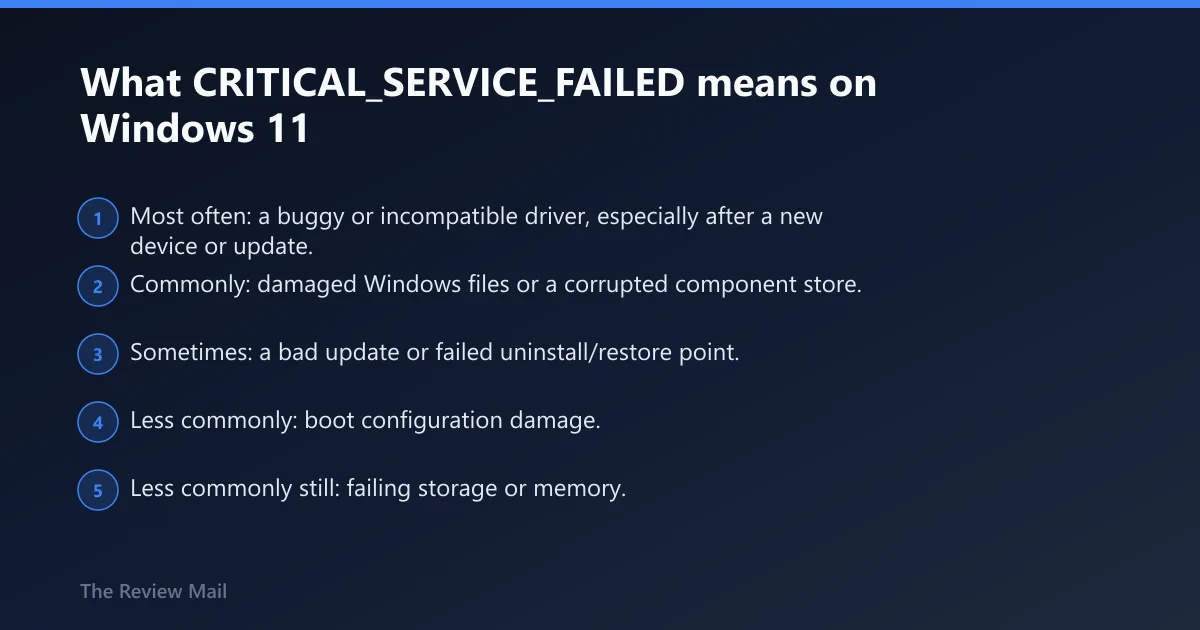
CRITICAL_SERVICE_FAILED is stop code 0x0000005A. It can trap the PC in a repeat boot loop. The usual triggers are a bad driver, damaged system files, a failed update, or boot corruption, and less commonly a storage or memory fault that keeps the same service from loading.
The fastest first move is to get into Windows Recovery Environment, then decide whether repairs can run from there. WinRE is the main repair entry point when the desktop will not load, and it can be reached from interrupted boots or a Windows USB installer media.
Likely causes, ranked by frequency
- Most often: a buggy or incompatible driver, especially after a new device or update.
- Commonly: damaged Windows files or a corrupted component store.
- Sometimes: a bad update or failed uninstall/restore point.
- Less commonly: boot configuration damage.
- Less commonly still: failing storage or memory.
According to How to Fix CRITICAL SERVICE FAILED BSOD in Windows 10/11 — CRITICAL_SERVICE_FAILED uses stop code 0x0000005A.
How should I triage the boot loop first?
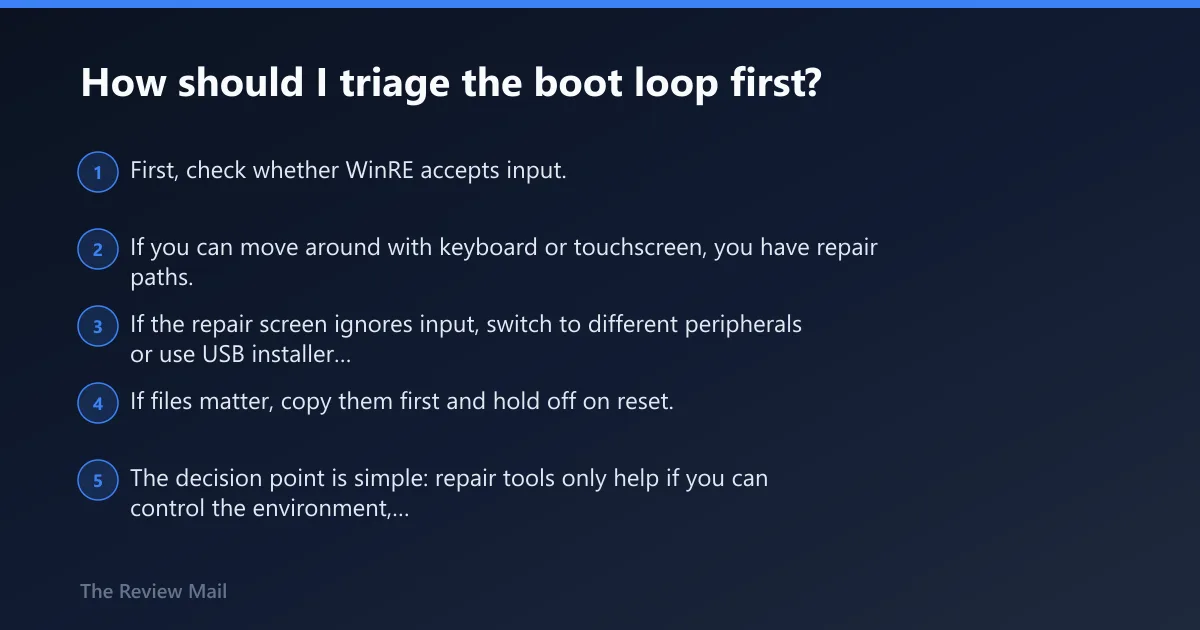
First, check whether WinRE accepts input. If you can move around with keyboard or touchscreen, you have repair paths. If the repair screen ignores input, switch to different peripherals or use USB installer media before trying deeper repairs. If files matter, copy them first and hold off on reset.
The decision point is simple: repair tools only help if you can control the environment, and a wipe only makes sense after data is safe. That order matters more than any single command.
Recovery decision table: choose the right path
| Real-world state | Exact next action | Expected result | Stop point |
|---|---|---|---|
| WinRE input works | Run Startup Repair, then Safe Mode or command prompt repair | Windows boots, or you get a narrower fault to fix | Stop after the first action that restores a stable boot |
| WinRE input fails | Use USB installer media, or switch to another keyboard and mouse | Repair menus become usable again | Stop once you can reach Troubleshoot |
| Data must be preserved | Copy files first, then repair or reset | Personal files are saved before destructive steps | Stop when the backup is complete |
Safe Mode entry:
Settings > Recovery > Advanced startup > Restart now > Troubleshoot > Advanced options > Startup Settings
Then press the number for Safe Mode or Safe Mode with Networking.

Offline repair commands from WinRE:
DISM /Image:C:\ /Cleanup-Image /RestoreHealth
sfc /scannow /offbootdir=C:\ /offwindir=C:\Windows

Boot repair:
bootrec /fixmbr
bootrec /fixboot
bootrec /scanos
bootrec /rebuildbcd
How do I fix it when WinRE works?
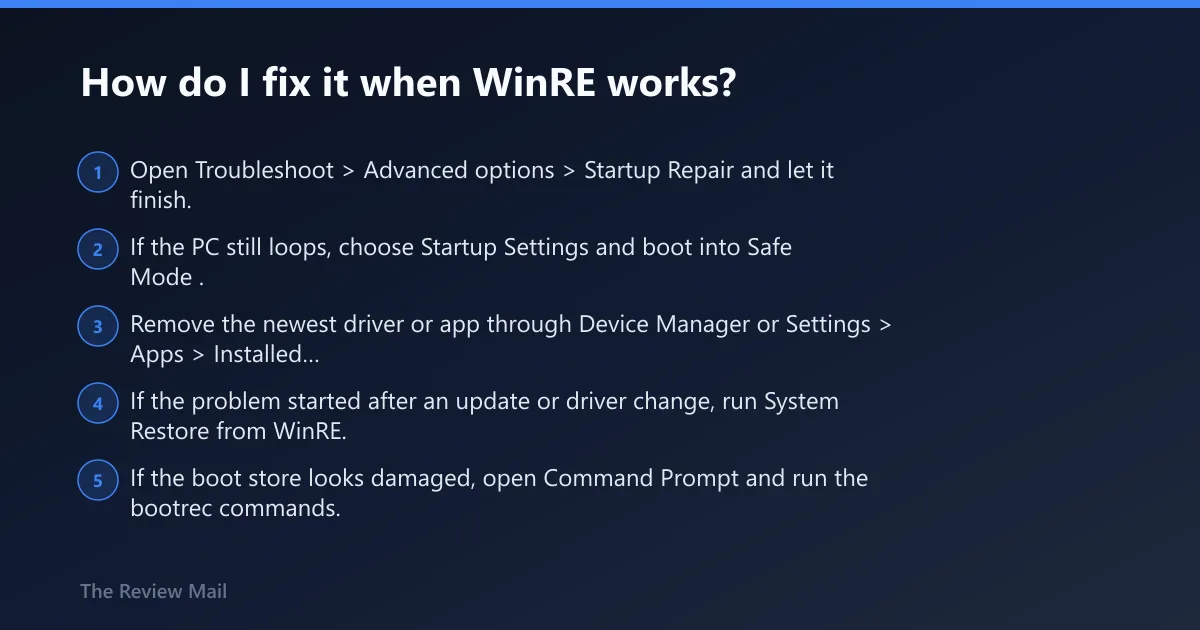
When WinRE responds, start with Startup Repair, the built-in automatic boot repair that often clears simple boot damage before anything else. If that fails, move to Safe Mode and remove the last driver, app, or update that changed the system.
If Windows can reach the desktop or at least partial startup, Safe Mode can usually be enabled from Startup Settings in WinRE, and the networking variant can be useful when you need downloads or logs. On a partially working system, msconfig can be used to boot into Safe Mode too (per Microsoft support).
- Open Troubleshoot > Advanced options > Startup Repair and let it finish.
- If the PC still loops, choose Startup Settings and boot into Safe Mode.
- Remove the newest driver or app through Device Manager or Settings > Apps > Installed apps.
- If the problem started after an update or driver change, run System Restore from WinRE.
- If the boot store looks damaged, open Command Prompt and run the bootrec commands.
Use bootrec /fixmbr, bootrec /fixboot, bootrec /scanos, and bootrec /rebuildbcd from the recovery command prompt when boot configuration damage looks likely. That is the right place for those commands, not a normal desktop shell.
Can DISM and SFC fix CRITICAL_SERVICE_FAILED?
Yes, sometimes. DISM and SFC are the standard file-repair pair, and they are used in that order because DISM can fix the Windows image that SFC depends on. If corruption is severe, SFC may fail even when DISM finishes cleanly (per Microsoft support).
Run them against the offline Windows installation from WinRE, not against the recovery environment. The Windows drive letter may differ in recovery, so use the letter assigned to the installed Windows partition.
- Open Command Prompt from WinRE.
- Run
DISM /Image:C:\ /Cleanup-Image /RestoreHealth, replacing C: with the Windows partition if needed. - After DISM completes, run
sfc /scannow/offbootdir=C:\ /offwindir=C:\Windows. - If SFC reports unrepaired files, repeat the command once after a reboot into Safe Mode.
- If both fail, move to bootrec or file recovery instead of looping the same pair.
If DISM succeeds but SFC still fails, the corruption is often deeper than file replacement can fix from the current install. At that point, boot configuration repair, Restore, or a backup-first reset becomes the better path.