CRITICAL_OBJECT_TERMINATION BSOD Fix in Windows 11
For stop code 0x000000F4, I check storage first: if SMART shows problems, the disk makes unusual noises, or another PC cannot read it, I treat the drive as a likely replacement candidate. If storage tests pass, I repair Windows files, then scan for malware. Ignoring that order burns time on the wrong fix and can cost files if the drive is failing. This guide shows the fast triage path, the exact tests to run, and the fixes for dying drives, corrupted system files, and malware.
CRITICAL_OBJECT_TERMINATION is associated with stop code 0x000000F4, and it usually means a critical process or thread ended unexpectedly. Commonly affected processes include csrss.exe and wininit.exe, which is why the crash can feel sudden and severe rather than like a single app problem. A quick restart is fine. A repeated loop is not.
What CRITICAL_OBJECT_TERMINATION means on Windows 11
Protect files first. Copy anything important to an external drive, cloud storage, or another PC before deeper repairs, because a failing system disk can get worse while you troubleshoot.
What to do first to protect your files
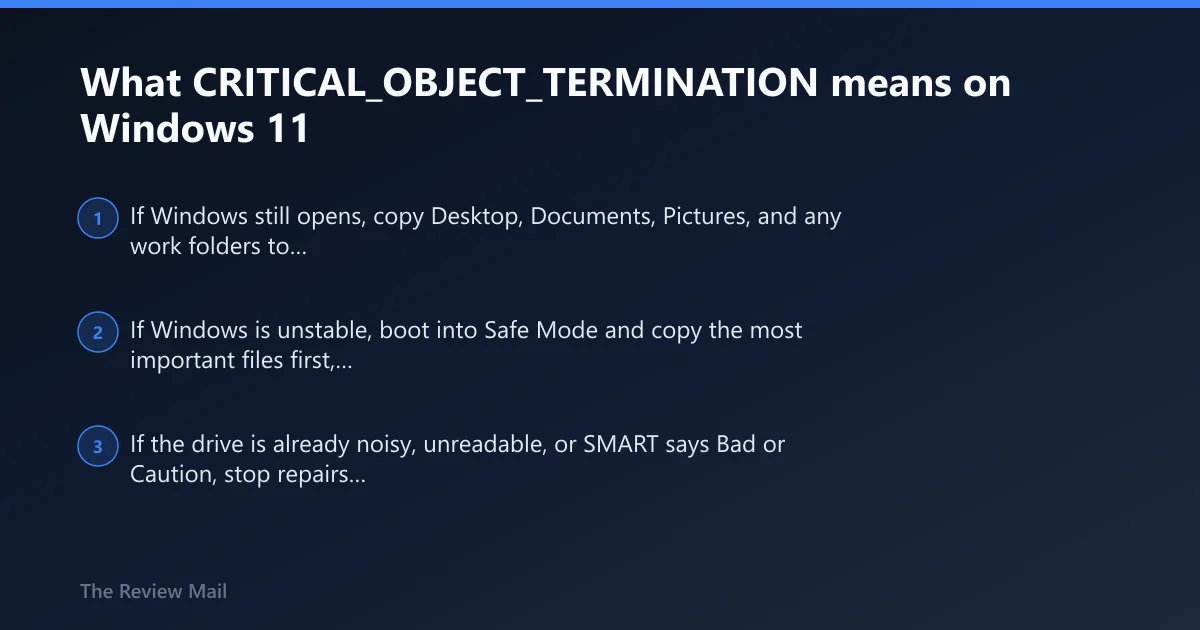
- If Windows still opens, copy Desktop, Documents, Pictures, and any work folders to external storage.
- If Windows is unstable, boot into Safe Mode and copy the most important files first, starting with anything you cannot replace.
- If the drive is already noisy, unreadable, or SMART says Bad or Caution, stop repairs and image or replace it before running heavy scans.
What is most likely causing 0xF4?
Most often, 0xF4 points to storage trouble first, then Windows file corruption, and less often malware. Rank urgency by data risk: a failing drive is usually the highest-risk branch, corrupted Windows files are next, and malware is lower priority unless the machine was already exposed or behaves oddly outside the crash.
Storage failure signs
- Boots become slower, then unstable.
- The disk clicks, disappears, or returns read errors.
- SMART shows reallocated sectors, current pending sectors, or SSD wear climbing.
- Another PC cannot read the drive reliably.
Windows corruption signs
- The crash starts after an update, power loss, or forced shutdown.
- Windows loads sometimes, then fails at the same point.
- Safe Mode is stable enough to open Command Prompt.
Malware signs
- Browser redirects, unknown startup items, or disabled security settings appear before the BSOD.
- The system acts normal in Safe Mode but not in regular mode.
- Defender scans fail or the machine reboots before a normal scan completes.
Use this 0xF4 triage checklist first
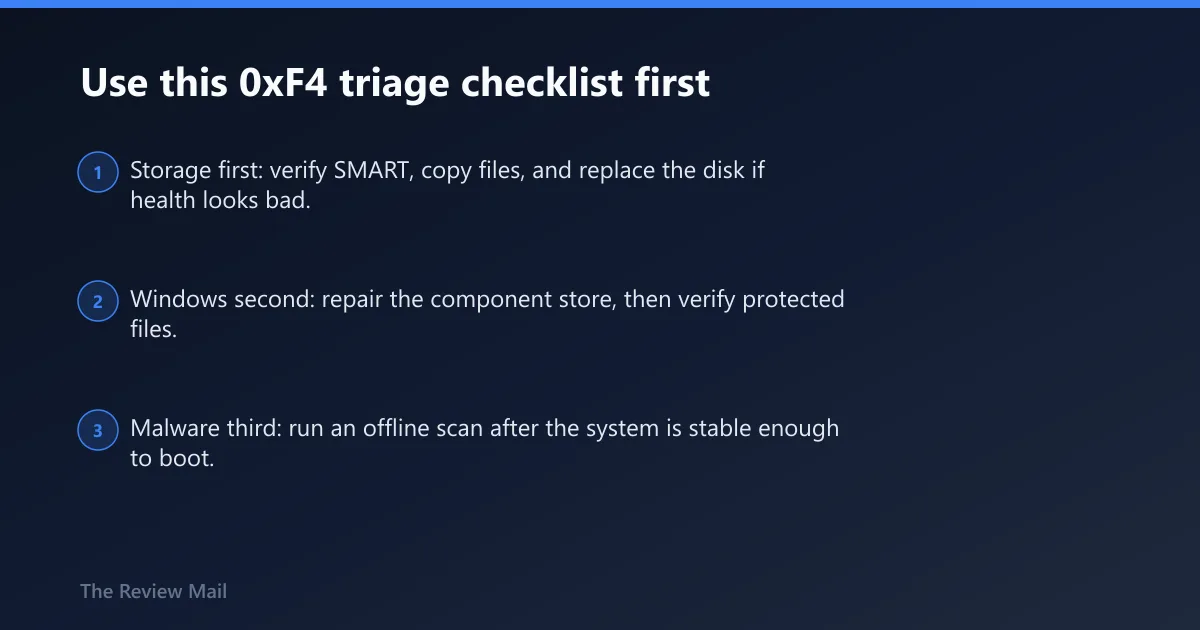
This one-page checklist separates storage failure, Windows corruption, and malware before generic repairs. Use the first matching branch, then stop if the evidence points to the drive. That order keeps the most data intact and avoids running repair tools on a dying disk.
| Branch | Exact trigger signs | First action or command | Data-safety priority |
|---|---|---|---|
| Storage failure | SMART says Bad or Caution, reallocated or pending sectors rise, SSD percentage-used is high, disk clicks, another PC cannot read it | Copy files off the drive, then check SMART with CrystalDiskInfo | Highest; stop heavy repairs if the drive looks sick |
| Windows corruption | Crash began after update or power loss, Safe Mode works, storage tests pass | Run DISM /Online /Cleanup-Image /RestoreHealth, then sfc /scannow | High; back up first if the system is still reachable |
| Malware | Odd startup behavior, redirects, security tools disabled, crash pattern changes in Safe Mode | Boot Safe Mode, then run Microsoft Defender Antivirus offline scan | High; protect files before disconnecting or cleaning the system |
- Storage first: verify SMART, copy files, and replace the disk if health looks bad.
- Windows second: repair the component store, then verify protected files.
- Malware third: run an offline scan after the system is stable enough to boot.
How do I check whether my SSD or HDD is failing?
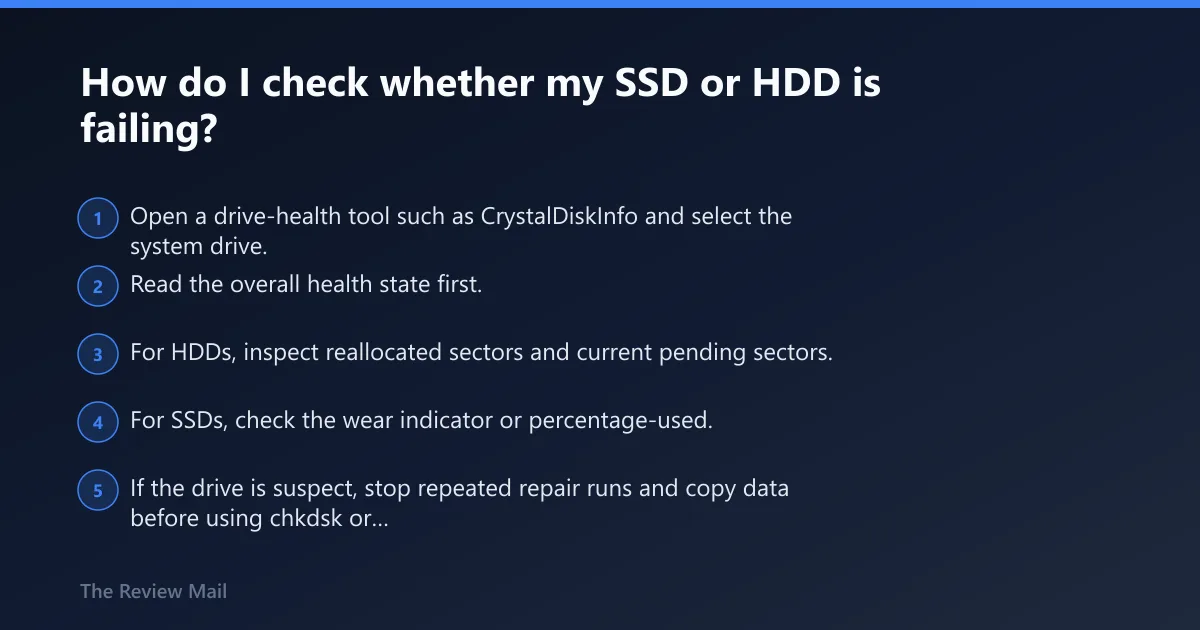
Check SMART health first. Bad or Caution means replace the drive, not keep troubleshooting. On HDDs, rising reallocated sectors and current pending sectors matter most. On SSDs, watch percentage-used and any warning state; once the drive reports trouble, treat it as a replacement job.
- Open a drive-health tool such as CrystalDiskInfo and select the system drive.
- Read the overall health state first. If it shows a bad or caution status, plan for replacement soon.
- For HDDs, inspect reallocated sectors and current pending sectors. Any steady increase is a warning sign.
- For SSDs, check the wear indicator or percentage-used. Rising wear plus crashes is enough reason to move data off now.
- If the drive is suspect, stop repeated repair runs and copy data before using
chkdskor other heavy tools.
When to stop repairs and replace the drive
Replace the drive as soon as SMART is Bad or Caution, the system cannot keep a stable connection to the disk, or files become unreadable on another machine. That is the safest call for 0xF4, because a failed storage device can corrupt the very files needed for recovery.
How do I repair Windows files that trigger 0xF4?
If storage checks out, repair Windows in this order: DISM first, then SFC. DISM /Online /Cleanup-Image /RestoreHealth repairs the component store that SFC depends on, while sfc /scannow verifies protected system files and replaces damaged copies. chkdsk belongs earlier if file-system errors or bad sectors are suspected.
- Open Command Prompt as administrator.
- Run
DISM /Online /Cleanup-Image /RestoreHealthand let it finish fully. - Run
sfc /scannowafter DISM completes. - If you suspect file-system damage, run
chkdskC: /f /r from an elevated Command Prompt. Expect a long run. - Restart and test normal boot again.
What each command can and cannot fix
- DISM repairs the Windows component store.
- SFC fixes protected system files that depend on that store.
chkdskchecks the file system and looks for bad sectors; it does not repair Windows itself.
How do I scan for malware if Windows keeps crashing?
Use Safe Mode first, then run Microsoft Defender Antivirus offline scan. Safe Mode loads a minimal driver set, which makes it easier to stay up long enough to clean the machine. The offline scan runs before Windows fully loads, which helps against rootkits and other malware that hides during normal startup.
- Hold Shift while clicking Restart.
- Go to Troubleshoot > Advanced options > Startup Settings.
- Choose option 4 for Safe Mode or 5 for Safe Mode with Networking.
- Open Windows Security > Virus & threat protection > Scan options.
- Select Microsoft Defender Antivirus offline scan and let the PC restart.
What to do after the scan
If Defender finds nothing, return to the storage and Windows-file branches. If it finds threats, remove them, reboot, and rerun SFC after the cleanup. If the crash returns immediately, move to the drive-health branch again before trying more repairs.
What if Windows will not stay up long enough to troubleshoot?
If normal boot fails, use Startup Settings to reach Safe Mode, then work from there. If the machine still crashes before you can act, pull minidumps from C:\Windows\Minidump and open them in WinDbg with !analyze -v. If storage warnings are present, replace the drive before deeper software work.
- Use Settings > Recovery > Advanced startup > Restart now if Windows opens, or hold Shift while clicking Restart.
- Go to Troubleshoot > Advanced options > Startup Settings.
- Select 4 for Safe Mode or 5 for Safe Mode with Networking.
- Open
C:\Windows\Minidumpand inspect the latest dump in WinDbg with !analyze -v. - If the dump points to storage or the drive health is poor, stop troubleshooting and replace the drive.
How to use the minidump result
WinDbg can identify the terminating object that triggered the crash. That matters because a dump that points to storage is a different job from one that points to Windows corruption. Use the dump to confirm the branch, not to replace the storage check.