SPECIAL_POOL_DETECTED_MEMORY_CORRUPTION on Windows 11
For a SPECIAL_POOL_DETECTED_MEMORY_CORRUPTION BSOD on Windows 11, a common order is to roll back the newest driver, disable XMP or other overclocking, then remove VPN, antivirus, or storage filter software; if crashes continue, test RAM with MemTest86 and swap modules one at a time. If you ignore it, expect boot loops, corrupted files, and long detours into the wrong suspect. I use this order because it cuts through false blame fast and shows the real fault without guesswork.
This guide is part of our Windows BSOD stop codes: full list and fixes series.
What SPECIAL_POOL_DETECTED_MEMORY_CORRUPTION means in Windows 11
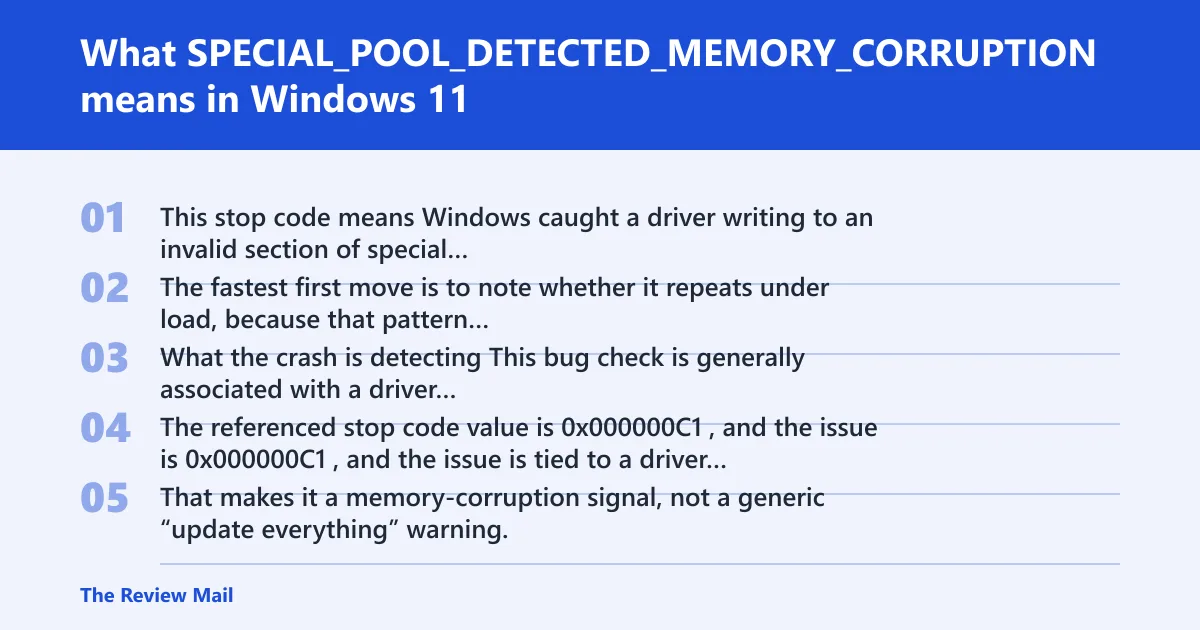
This stop code means Windows caught a driver writing to an invalid section of special pool, a memory-protection check Microsoft uses to catch kernel corruption early. The fastest first move is to note whether it repeats under load, because that pattern usually points to the active driver or unstable RAM rather than Windows itself.
What the crash is detecting
This bug check is generally associated with a driver accessing memory it should not. The referenced stop code value is 0x000000C1, and the issue is tied to a driver corrupting kernel memory pool allocations. That makes it a memory-corruption signal, not a generic “update everything” warning.
Why the wrong component can get blamed
Bad RAM, XMP instability, or an overclock can corrupt memory first, then the blue screen names whatever driver happened to be active when the corruption was detected. That is why a network driver, GPU driver, storage filter, or antivirus driver can look guilty even when the root cause is unstable memory.
Crash pattern to notice first
| Pattern | Most likely source | First move |
|---|---|---|
| Crashes only during gaming, copying files, or heavy multitasking | Driver or unstable RAM | Check the newest driver, then disable XMP |
| Crashes after install, update, or new peripheral | That device driver or filter software | Roll back or remove the newest change |
| Crashes after sleep or resume | Power, storage, or security filter driver | Review recent security, VPN, or storage tools |
| Crashes at random with no pattern | RAM instability or deeper driver corruption | Run memory tests, then analyze dumps |
According to errorcodereference.com — The /flags 1 option enables special pool verification.
What usually causes this stop code?
Most often, the cause is a bad or mismatched kernel driver, unstable RAM or XMP settings, or third-party filter software that hooks into storage, networking, or security. Less commonly, damaged system files or a broken Windows image are part of the chain, usually after the corruption has already happened.
Bad or mismatched kernel driver
A new GPU, Wi‑Fi, Bluetooth, storage, or chipset driver is a common starting point, especially if the crashes began right after an update. On laptops, OEM power and touchpad drivers also matter more than people expect.
Unstable RAM, XMP, or overclock settings
Windows 11 systems that are stable at JEDEC defaults can fail once XMP or EXPO is enabled. If the crash appears under load and moves around between drivers, memory instability rises on the list fast.
Third-party security, VPN, storage, or filter software
Security suites, VPN clients, disk encryption tools, backup tools, and storage filters can interfere with kernel memory paths. These are prime suspects when the system was fine until a new agent or filter was installed.
Corrupted system files or a damaged Windows image
When driver and RAM checks do not point anywhere, repair the image with DISM and SFC. That step comes later, because it fixes secondary damage more often than it fixes the original corruption source.
Use this decision tree to narrow the cause first
Start with whether the crash repeats under load. If it does, focus on the active driver and the memory profile before touching Windows updates. If the crash follows a new install, target that driver or app first. If it appears after sleep, gaming, or file copying, look hard at RAM or storage filter software.
Decision tree
- Repeatable under load → disable XMP/EXPO, then check the driver in dumps.
- After install or update → roll back the newest device driver or app.
- After sleep, gaming, or copying files → test RAM and remove storage, VPN, or security filters.
- After a change that made things worse → undo that change before trying anything else.
- If Driver Verifier was enabled → run
verifier /resetso the machine can boot normally again.
Rollback notes:
- If XMP/EXPO was enabled: BIOS/UEFI > Memory > XMP/EXPO > Disabled
- If Driver Verifier was enabled: run verifier /reset from an elevated terminal
- If a new driver caused the loop: Device Manager > (device) > Properties > Driver tab > Roll Back Driver / Uninstall device
How do I find the bad driver causing the blue screen?
Use Event Viewer for crash timing, then open the minidump in WinDbg and run !analyze -v to identify the faulting module. That usually exposes the MODULE_NAME field and the .sys file tied to the crash, which is more useful than reinstalling drivers at random.
Check Event Viewer for repeated BugCheck entries
Open Event Viewer > Windows Logs > System and look for BugCheck entries around the crash time. Match those timestamps to recent driver installs, Windows updates, new security tools, or new hardware. (Microsoft Learn)
Open the minidump in WinDbg
Use the latest minidump from C:\Windows\Minidump, then run !analyze -v. Look for MODULE_NAME and the faulting .sys file. If the same file appears across crashes, target that driver first with rollback, uninstall, or a clean replacement.
Use Driver Verifier on one driver only
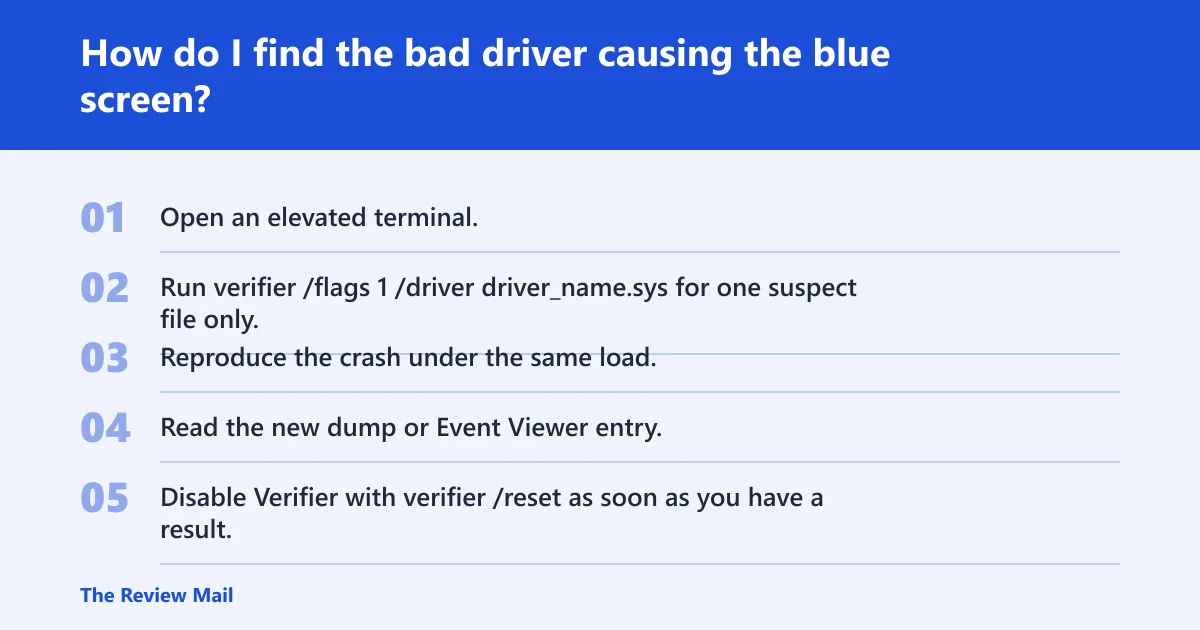
Driver Verifier can help catch pool corruption by enabling special pool checking for a selected driver. The example command is verifier /flags 1 /driver driver_name.sys, and /flags 1 enables special pool verification. Special pool places guard pages around allocations, so if the driver writes past its bounds, the system crashes immediately with identification. Turn it off after testing with verifier /reset, because it can slow the machine down and make booting harder while active.
- Open an elevated terminal.
- Run
verifier /flags 1 /driver driver_name.sysfor one suspect file only. - Reproduce the crash under the same load.
- Read the new dump or Event Viewer entry.
- Disable Verifier with
verifier /resetas soon as you have a result.
Can bad RAM trigger SPECIAL_POOL_DETECTED_MEMORY_CORRUPTION?
Yes. Bad RAM can create false driver blame by corrupting memory before the crash is recorded, so the named driver is not always the real culprit. Start with Windows Memory Diagnostic, then move to MemTest86 if the first pass is clean or inconclusive (per Microsoft support).
Run Windows Memory Diagnostic first
Launch it with mdsched.exe, choose the restart option, and let Windows check memory on reboot. It is the standard first pass when RAM corruption is suspected.
Use MemTest86 for a deeper check
MemTest86 is better for isolating a bad DIMM or marginal slot because it runs outside Windows and can test memory more thoroughly. Run at least 4 passes. If one stick fails and the other passes, swap slots to separate a bad module from a bad channel or slot.
Disable XMP or EXPO before retesting
Enter BIOS or UEFI and turn off XMP or EXPO, then retest at default memory settings. If the machine becomes stable at JEDEC defaults, the memory kit may be fine, but the profile is not stable on that board or with that CPU.
How do I isolate third-party software and filter drivers?
Use a clean boot to remove non-Microsoft services and startup items from the equation, then add software back in small groups. That is the fastest way to separate a bad Windows driver path from a security, VPN, or storage filter that only misbehaves when other software is present.
Do a clean boot with msconfig
- Press Win + R, type
msconfig, and press Enter. - Open Services, check Hide all Microsoft services, then disable the remaining services.
- Open Startup, disable all startup items, then restart.
- Bring back security, VPN, and storage tools in small groups until the crash returns.
Watch for the return of the crash
If the blue screen disappears during clean boot, the culprit is usually in the disabled group. Re-enable one tool family at a time, then test again after each change. This is slower than reinstalling everything, but it keeps the rollback path clear.
What Windows repair steps should come after that?
Run DISM and SFC after driver, RAM, and clean-boot checks, not before them. These repairs help when system files or the Windows image were damaged during the corruption process, but they rarely identify the original bad component on their own (per Microsoft support).
Repair the system image and files
- Open Windows Terminal or Command Prompt as administrator.
- Run
DISM /Online /Cleanup-Image /RestoreHealthto rebuild the component store. - Run
sfc /scannowto verify and replace damaged system files. - Restart and test under the same load that caused the crash.
Install pending Windows updates if the crash still repeats
Windows updates can fix secondary symptoms or known bugs, but they usually do not cure a repeat stop code by themselves. Treat updates as support work after the likely source has been narrowed.
Still not working?
If the crash keeps returning after driver rollback, RAM testing, clean boot, and file repair, suspect hardware beyond memory or a driver path that only fails under a specific device load. At that point, remove recent add-in cards, disconnect external devices, and consider an in-place repair install before replacing hardware.
When to stop and use a repair install
An in-place repair install keeps files, apps, and settings while rebuilding Windows components. Use the Windows Media Creation Tool only after the earlier steps fail and the minidumps do not point cleanly to one removable driver.
When hardware service is more likely
If MemTest86 finds errors, the system crashes with XMP off, or the same device fails across multiple clean installs, the pattern points away from software. Remove the suspect card, test another slot, or send the hardware for service.
Prevention: after the machine is stable, leave XMP off until the system survives repeated heavy-load tests, then re-enable it only if the crashes do not return.
Frequently asked questions
How do I fix SPECIAL_POOL_DETECTED_MEMORY_CORRUPTION in Windows 11?
Start with the newest driver, then disable XMP or EXPO, then remove VPN, antivirus, or storage filter software. If it still returns, run mdsched.exe, then MemTest86 for at least 4 passes, and finish with DISM /Online /Cleanup-Image /RestoreHealth plus sfc /scannow.
What causes SPECIAL_POOL_DETECTED_MEMORY_CORRUPTION BSOD?
The usual trigger is a driver writing to invalid special pool memory. In practice, the culprit is often a bad kernel driver, unstable RAM, an aggressive memory profile, or filter software such as security, VPN, or storage tools that hook into kernel paths.
Is SPECIAL_POOL_DETECTED_MEMORY_CORRUPTION a driver or RAM problem?
It can be either, and RAM instability can make a good driver look bad. If the crash follows a specific device, treat it as a driver issue first. If it varies, happens under load, or survives driver rollback, test memory with MemTest86 at stock settings.
How do I find the bad driver causing this blue screen?
Check Event Viewer > Windows Logs > System for BugCheck entries, then open the minidump in WinDbg and run !analyze -v. Focus on MODULE_NAME and the .sys file. If one driver repeats, test it alone with Driver Verifier.
Should I use Driver Verifier for SPECIAL_POOL_DETECTED_MEMORY_CORRUPTION?
Yes, if you already have one suspect driver and need a clearer answer. Use verifier /flags 1 /driver driver_name.sys, test the crash, then disable it with verifier /reset. Leave it on too long and you can make the system harder to boot.
How do I stop the BSOD from coming back after a clean boot?
Add disabled items back in small groups, testing after each group. If the crash returns, remove the last group again. Security suites, VPN clients, and storage filters are the first things to watch, because they often reintroduce the same kernel path that caused the stop code.