
0x000000e3 Fix Guide for Windows BSOD Errors
0x000000e3 usually means Windows hit a stuck thread or deadlock during crash recovery, so I sort it by context: storage resets and disk errors point to storage, driver updates point to drivers, and boot-repair loops point to the recovery path. Ignore that split and you can waste hours on the wrong fix while the same BSOD keeps coming back. This guide maps the stop code to storage, driver, or recovery-path clues, then shows the next test for each branch.
This guide is part of our Windows BSOD stop codes: full list and fixes series.
What 0x000000e3 means on Windows
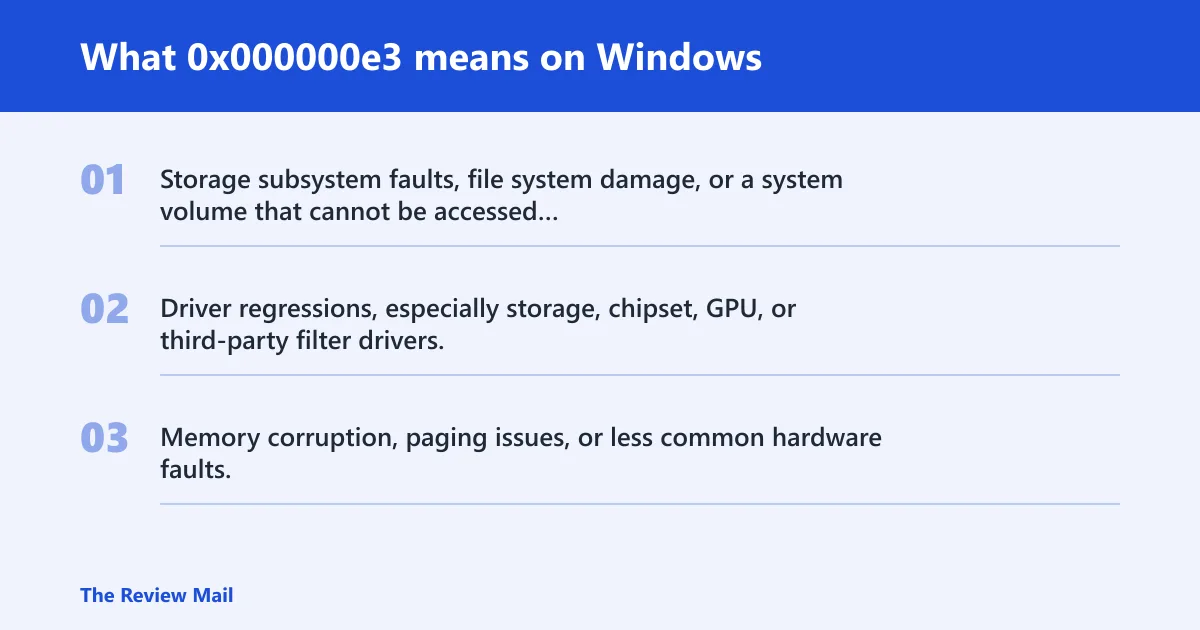
0x000000e3 is the RESOURCE_NOT_OWNED stop code. In plain English, Windows may have tried to release a resource that the current thread did not own, and the kernel stopped to avoid possible corruption. (Microsoft Learn)
That often points to a failure chain rather than one bad file. If the crash happens once after a power loss, suspect a one-off storage or recovery issue. If it repeats, look for a driver, controller, or disk-path problem first.
Likely causes, ranked
- Storage subsystem faults, file system damage, or a system volume that cannot be accessed cleanly.
- Driver regressions, especially storage, chipset, GPU, or third-party filter drivers.
- Memory corruption, paging issues, or less common hardware faults.
How do I sort the crash by timing first?
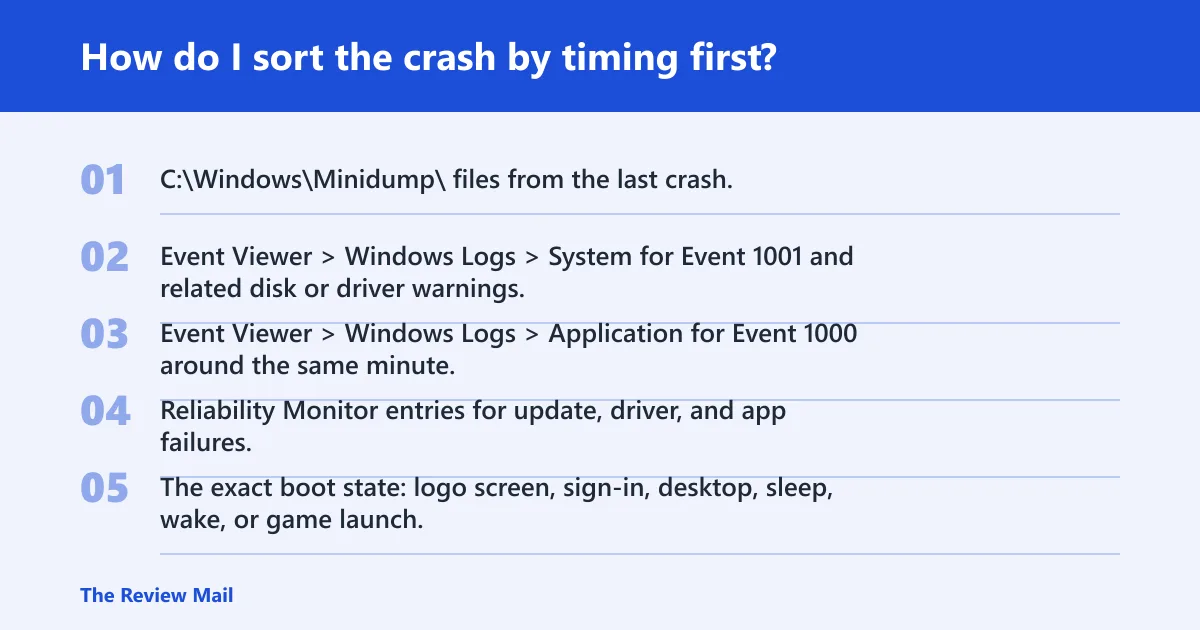
Use crash timing to separate boot trouble from desktop trouble. A loop at the logo screen can point to storage or recovery-path issues. A crash after sign-in can point to a driver or filter driver. A crash during sleep, wake, or disk-heavy work leans toward storage, paging, or a bad driver path.
Use this 0x000000e3 triage table
| Crash timing | Likely subsystem | First test | Evidence to collect | When to escalate |
|---|---|---|---|---|
| During boot or at the logo screen | Storage or recovery path | WinRE > Startup Repair | Boot timing, Event Viewer, minidump, disk model | After Startup Repair fails twice |
| Right after sign-in or on the desktop | Driver or filter driver | Safe Mode, then rollback recent drivers | Recent updates, Device Manager entries, Event 1000 | If the same app or driver triggers the crash again |
| During sleep, wake, gaming, or heavy disk activity | GPU, storage, paging, or RAM | Check recent GPU/storage changes, then memory test | Reliability history, minidump, pagefile setting | If the crash repeats under the same load |
Sample minidump and log checklist
C:\Windows\Minidump\files from the last crash.- Event Viewer > Windows Logs > System for Event 1001 and related disk or driver warnings.
- Event Viewer > Windows Logs > Application for Event 1000 around the same minute.
- Reliability Monitor entries for update, driver, and app failures.
- The exact boot state: logo screen, sign-in, desktop, sleep, wake, or game launch.
- The bugcheck parameters shown in the crash record, if available.
How do I fix driver-related 0x000000e3 crashes?
Yes, drivers can cause stop code 0x000000e3. The usual pattern is a recent update, a signed-third-party filter driver, or a storage/GPU/chipset package that changed right before the blue screen. Start with the most recent change, not a random repair pass.
- Open Settings > Windows Update > Update history and note any driver or quality update installed just before the crash.
- Open Device Manager, right-click the suspect device, then choose Properties > Driver > Roll Back Driver if it is available.
- If rollback is unavailable, choose Uninstall device, check Delete the driver software for this device when offered, then restart.
- Check Device Manager > View > Show hidden devices for old storage, GPU, or filter entries that should no longer load.
- Verify the crash stops in Safe Mode. If it does, the normal boot driver set is the suspect branch.
For laptops, the storage and chipset packages matter as much as the GPU. For desktops with add-in cards, remove the card driver first. On VMs, check the virtual storage and chipset layer before chasing guest drivers.
How do I check storage and system files?
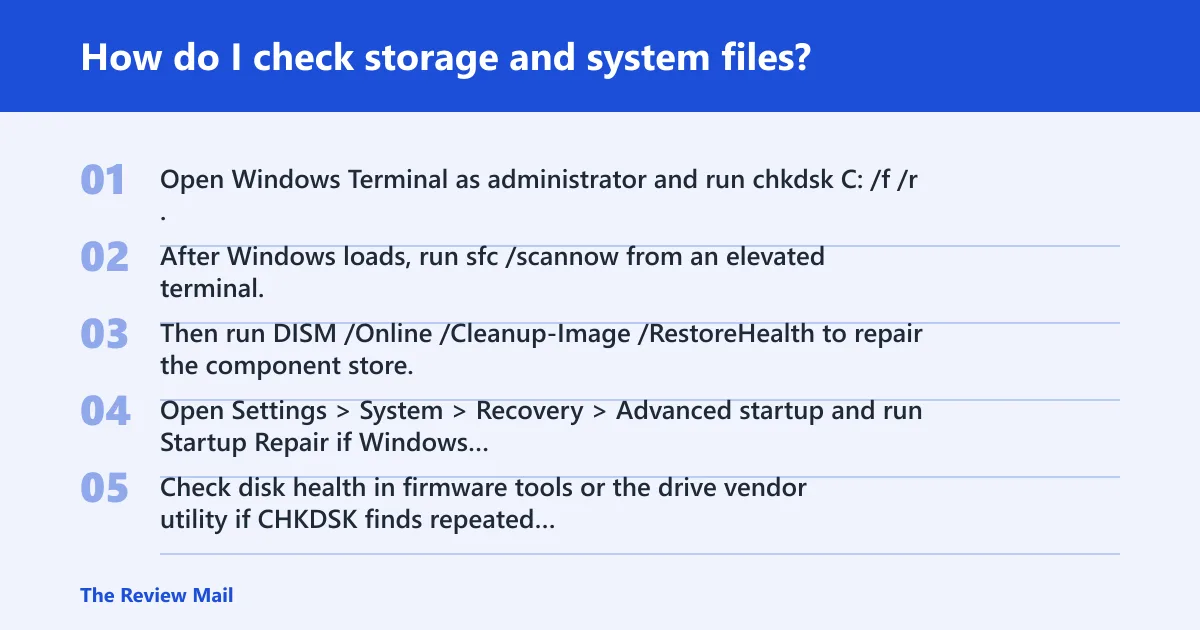
Storage faults are a common branch for this stop code, especially when the system volume is slow to mount, repair loops appear, or CHKDSK reports file system damage. If the disk or controller cannot hold a stable system volume, Windows can fault before the desktop appears.
- Open Windows Terminal as administrator and run
chkdskC: /f /r. Restart if Windows asks to schedule the scan. - After Windows loads, run
sfc /scannowfrom an elevated terminal. - Then run
DISM /Online /Cleanup-Image /RestoreHealthto repair the component store. - Open Settings > System > Recovery > Advanced startup and run Startup Repair if Windows cannot reach the desktop.
- Check disk health in firmware tools or the drive vendor utility if
CHKDSKfinds repeated bad sectors or the same errors return after reboot.
What to look for in storage evidence
Repeated disk warnings, delayed boot, disappearing system volume access, and fresh file system errors point toward a storage chain problem. A one-time file repair is different from a recurring controller or firmware fault. If the same volume errors return after CHKDSK and restart, escalate to hardware checks.
What if RAM, paging, or recovery settings are involved?
Memory corruption and paging trouble can turn a borderline driver or storage problem into a blue screen. Safe Mode can help because it loads fewer drivers and often avoids the same crash path. The automatic restart setting also matters, because it can hide the exact crash timing.
- Open Settings > System > About > Advanced system settings, then choose Startup and Recovery > Settings and clear Automatically restart.
- Run Windows Memory Diagnostic from the Start menu, or schedule memtest86 if the crash repeats and the machine has persistent corruption signs.
- Check System Properties > Advanced > Performance > Settings > Advanced > Virtual memory and leave the pagefile system-managed unless a known policy changed it.
- Boot into Safe Mode and see whether the blue screen stops. If it does, remove recent drivers and startup software next.
- Open Event Viewer and Reliability Monitor to line up the crash time with driver installs, disk warnings, or app failures.
Still not working? Next steps before you reinstall
If the basic path did not fix it, collect stronger evidence before a reinstall. A clean Windows install can miss a bad SSD, a broken controller driver, or a faulty RAM stick, so it should not be the first serious move. Use the dumps and logs to decide whether the fault sits in software or hardware.
- Copy files from
C:\Windows\Minidump\and, if present, the full memory dump fromC:\Windows\MEMORY.DMP. - Note whether the crash happens in boot, sign-in, sleep/wake, or a specific app such as a game.
- For BitLocker-protected systems, confirm recovery key access before making recovery changes.
- On desktops, reseat the storage cable and test a different SATA port or NVMe slot if the board allows it.
- On VMs, check the host storage path and the virtual controller before changing the guest OS.
Prevention: keep only one driver branch changing at a time. If a storage, chipset, or GPU package update precedes the crash, record that exact update before changing anything else.
Frequently asked questions
What does 0x000000e3 mean on Windows?
It is the RESOURCE_NOT_OWNED bug check, which means a thread tried to release a resource it did not own. The practical next step is to sort the crash by timing and look at the latest driver, disk, or recovery change before you try broad repair steps.
How do I fix a blue screen error 0x000000e3?
Start with the crash context, then use the matching branch: rollback a recent driver, run chkdsk and sfc /scannow, or launch Startup Repair from Settings > System > Recovery. If it still returns, collect minidumps and Event Viewer entries before changing more parts.
Can drivers cause stop code 0x000000e3?
Yes. Recent storage, GPU, chipset, or filter driver changes can trigger the crash, especially after an update or device replacement. Use Device Manager to roll back or uninstall the last suspect driver, then reboot and retest in normal mode and Safe Mode.
Will Safe Mode help with 0x000000e3?
Yes, because Safe Mode loads fewer drivers and can avoid the exact code path that triggers the blue screen. If the system stays stable there, the next move is to remove recent drivers, startup tools, or storage filters rather than running broad repairs first.
Is 0x000000e3 a hardware or software problem?
It can be either. Driver regressions and recovery-path failures are common software-side causes, while recurring disk errors, memory corruption, and controller trouble point toward hardware. Use dumps, Event Viewer, and timing to decide which side fits before replacing parts.
How do I stop 0x000000e3 from happening again?
Keep the working driver set stable, avoid stacking storage and chipset updates at once, and watch for recurring disk or memory errors after a fix. If a specific app or sleep/wake cycle triggers the crash, change that one variable and retest before the next update.
What logs should I check after a BSOD?
Check C:\Windows\Minidump\, Event Viewer System and Application logs, and Reliability Monitor. Look for Event 1000, disk warnings, recent update installs, and the exact minute the crash occurred so you can match the timing to the active subsystem.
Does reinstalling Windows fix 0x000000e3?
Sometimes, but only when the fault is inside Windows files or a bad driver set. If the crash comes from SSD trouble, bad RAM, firmware, or a controller issue, reinstalling can leave the real cause untouched. Collect dumps first, then choose reinstall only after the evidence points there.